Mistral Le Chat
Use Producer Pal in your web browser with Mistral's Le Chat web app.
Requirements
Ableton Live 12.3+ with Max for Live. Live 12.4 or later is recommended — some features don't work on older versions of Live. Use the version of Max bundled with Live, or make sure your standalone Max is up to date.
Mistral account (admin privileges required to create connectors)
Web tunnel (e.g. Cloudflare or Pinggy)
Installation Steps
1. Install the Max for Live Device
Download Producer_Pal.amxd, the Producer Pal Max for Live device.
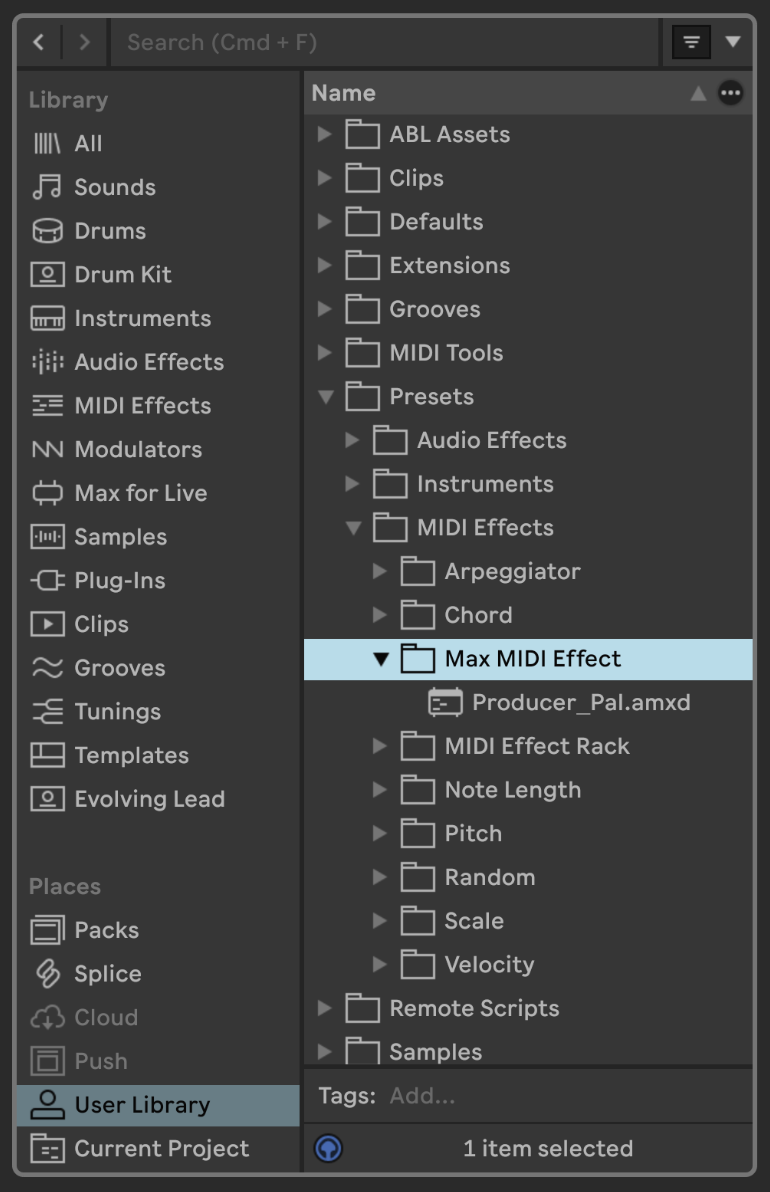
To install it, open User Library (under Places) in Live's browser, go to Presets → MIDI Effects → Max MIDI Effect, and drag Producer_Pal.amxd into that folder:
Drag it from the Max MIDI Effect folder onto a MIDI track:
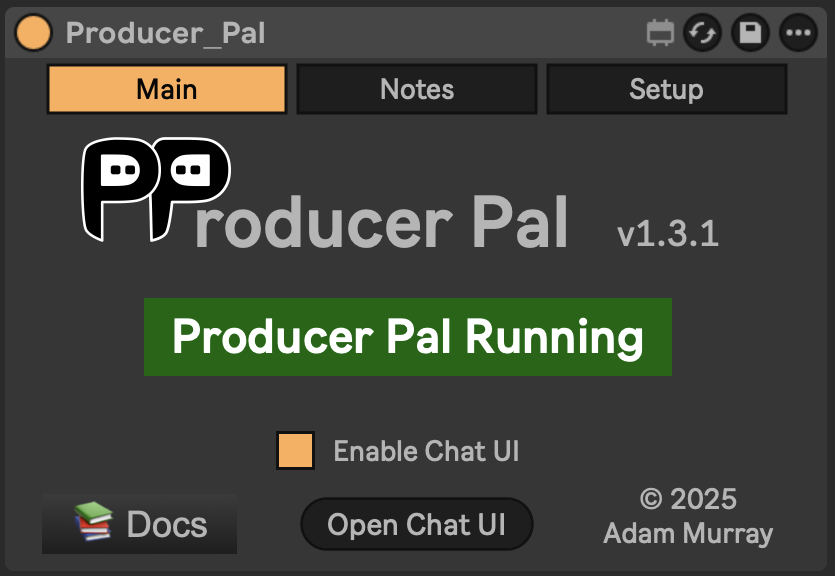
It should display "Producer Pal Running" or something isn't working.
2. Set Up a Web Tunnel
Set up a web tunnel to expose your local Producer Pal server.
For example:
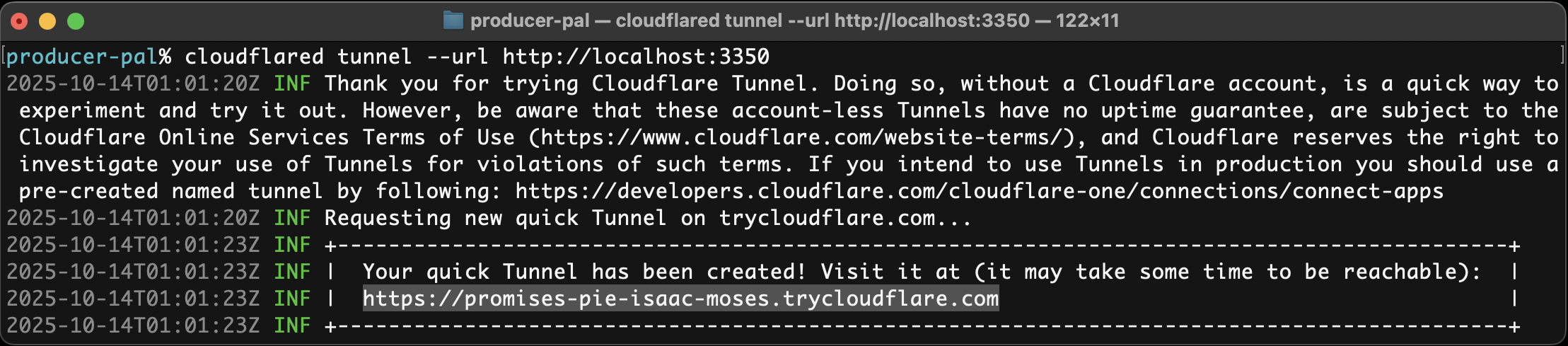
cloudflared tunnel --url http://localhost:3350will give you a public URL such as https://abc-xyz.trycloudflare.com:
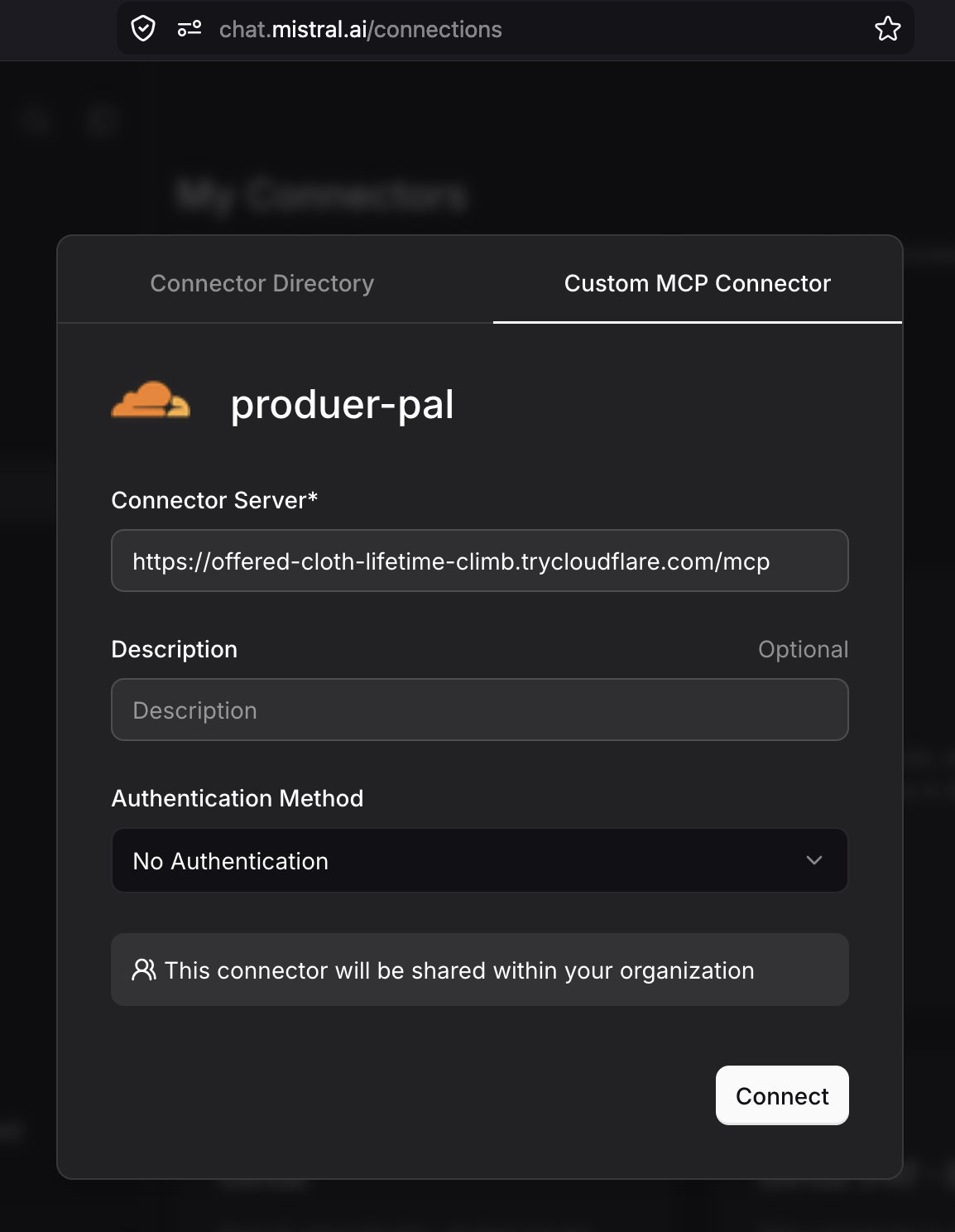
3. Add Custom MCP Connector
- In Le Chat, open the side panel and go to Intelligence → Connectors
- Click + Add Connector and switch to the Custom MCP Connector tab
- Fill in the details:
- Connector name:
producer-pal(no spaces or special characters) - Connection server: Your tunnel URL +
/mcp(e.g.https://abc-xyz.trycloudflare.com/mcp) - Authentication method: No Authentication
- Connector name:
- Click Connect
4. Enable the Connector
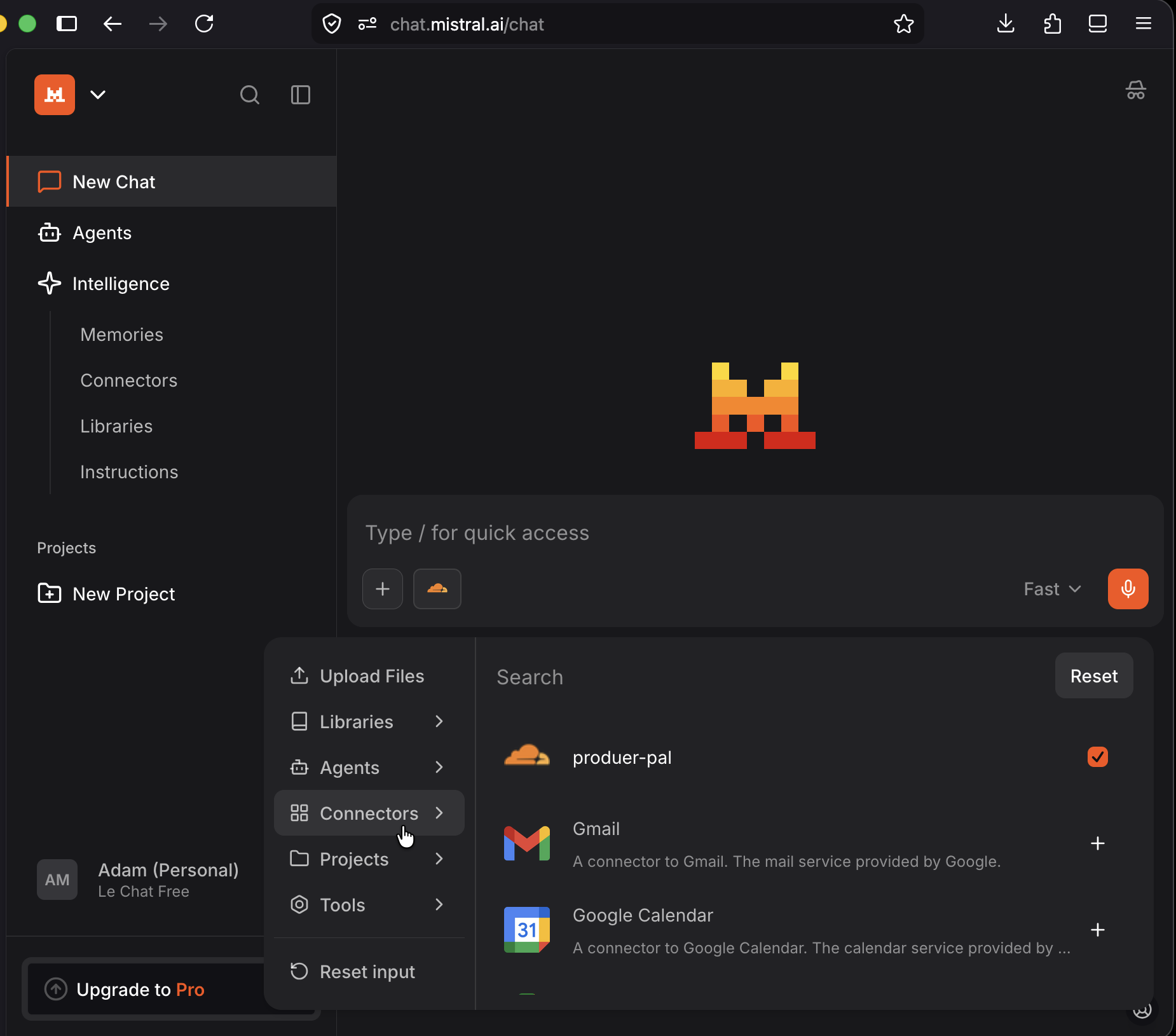
When starting a new conversation, click the + button and go to Connectors. Make sure producer-pal is checked:
5. Start Using Producer Pal
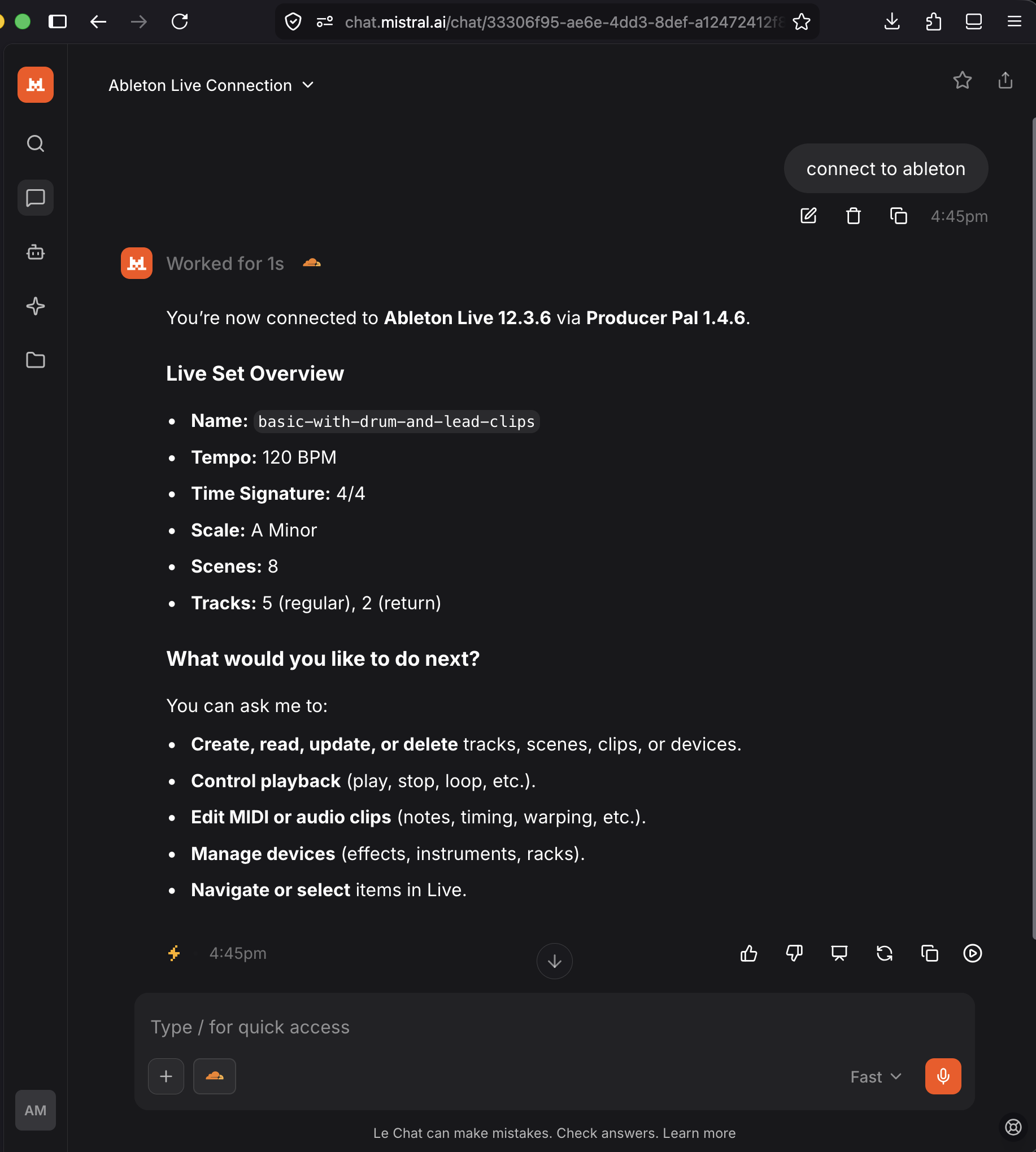
Start a conversation with "connect to ableton":
Troubleshooting
If it doesn't work, see the Troubleshooting Guide.