Remote Script
The remote script is an optional companion to the Producer Pal device. It is a small Ableton control surface script that runs inside Live and listens on http://127.0.0.1:3349.
Install it if you want AI to:
- Load VST/AU plug-ins and Max for Live devices by name, like "add Pro-Q 4 to the bass track". The AI finds them with the Library tool. Without the script, Create Device can only add Live's native devices, not Max for Live ones such as LFO or DS Kick.
- Load presets: create a device or rack straight from a preset (
.advor.adg), including drum kits from your Packs, or swap a preset onto a device that's already in the Set with Update Device. A preset for a different device, or a rack, replaces the device, and its automation is lost. - Add Producer Pal to a Live Set from a coding agent: to the open Set with the
producer-palAgent Skill, or while opening or creating one withableton-open-live-set. This needs the device installed in your User Library's Max MIDI Effect folder (see installing or upgrading).
Prototype
The remote script is an early prototype. It works on macOS and Windows, but how it is installed and what it does may change.
Install from the Chat UI
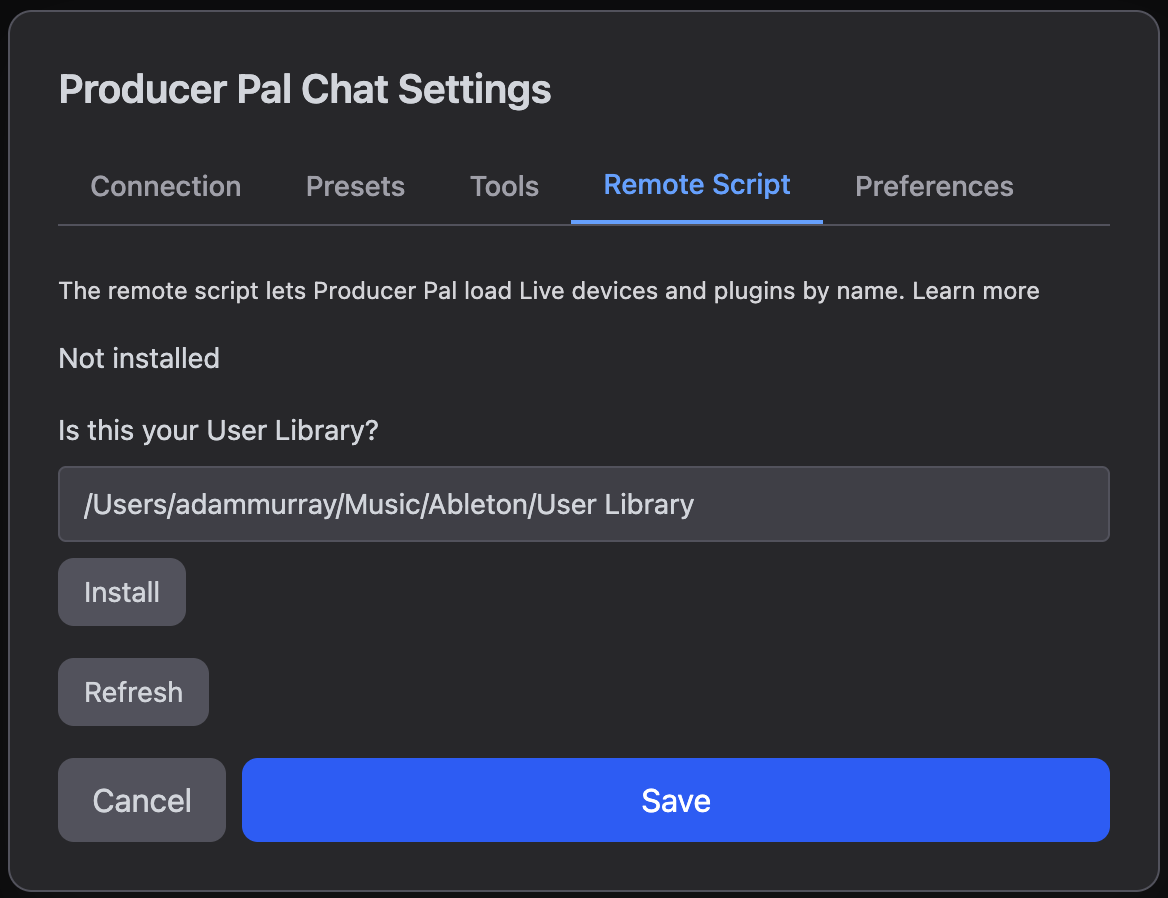
- Open the Chat UI and go to Settings → Remote Script.
- Confirm your User Library folder. Producer Pal reads it from Live's browser database. If it is wrong or missing, paste the path yourself: Live shows it under Settings → Library → Location of User Library.
- macOS:
~/Music/Ableton/User Library - Windows:
C:\Users\you\Documents\Ableton\User Library
- macOS:
- Click Install. The script is written to
<User Library>/Remote Scripts/Producer_Pal, replacing any older copy.
Enable it in Live
Once installed, the tab says the script is not running yet and lists the steps to enable it:
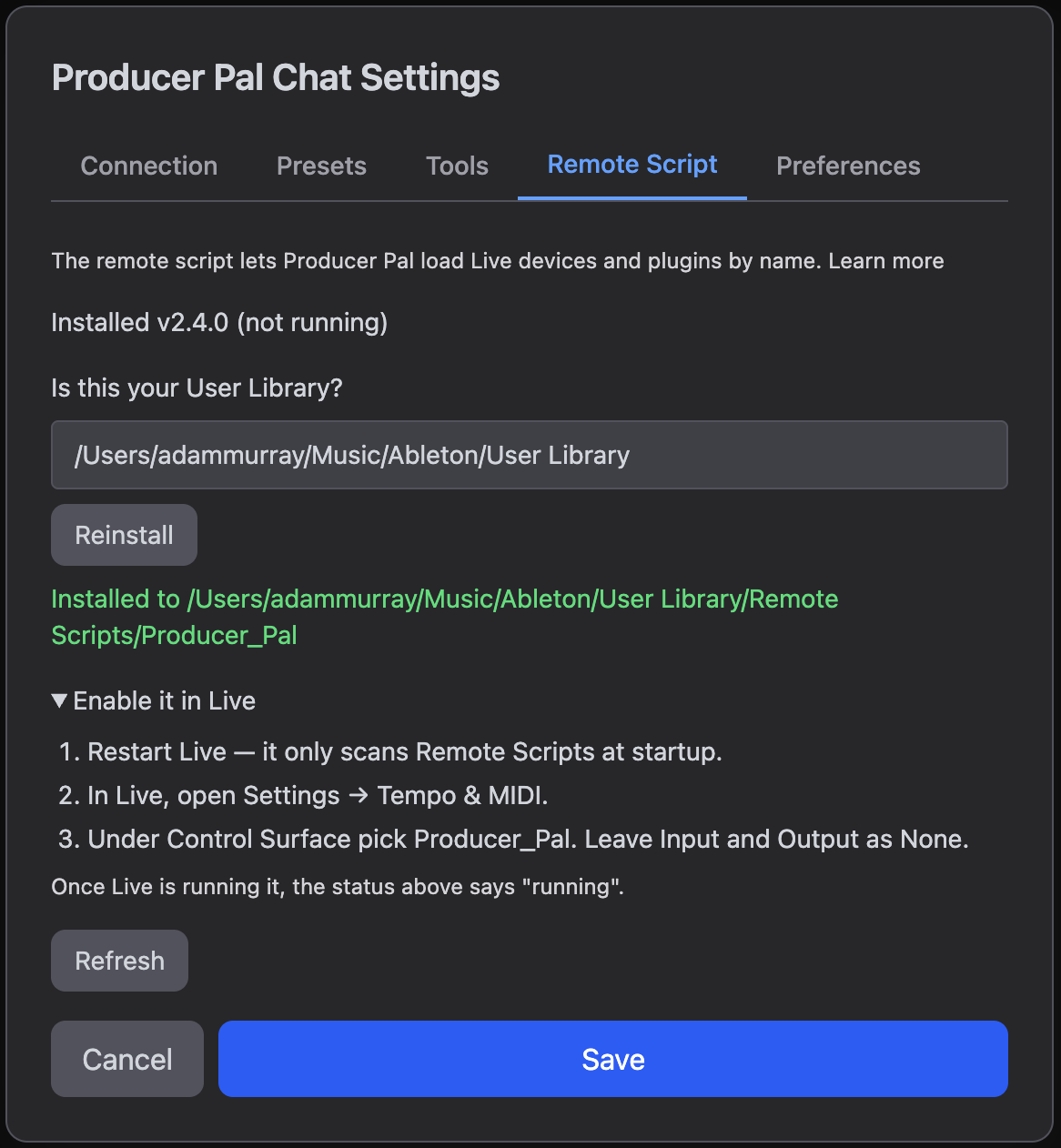
- Restart Live. It only scans Remote Scripts at startup, so a freshly installed script is invisible until then.
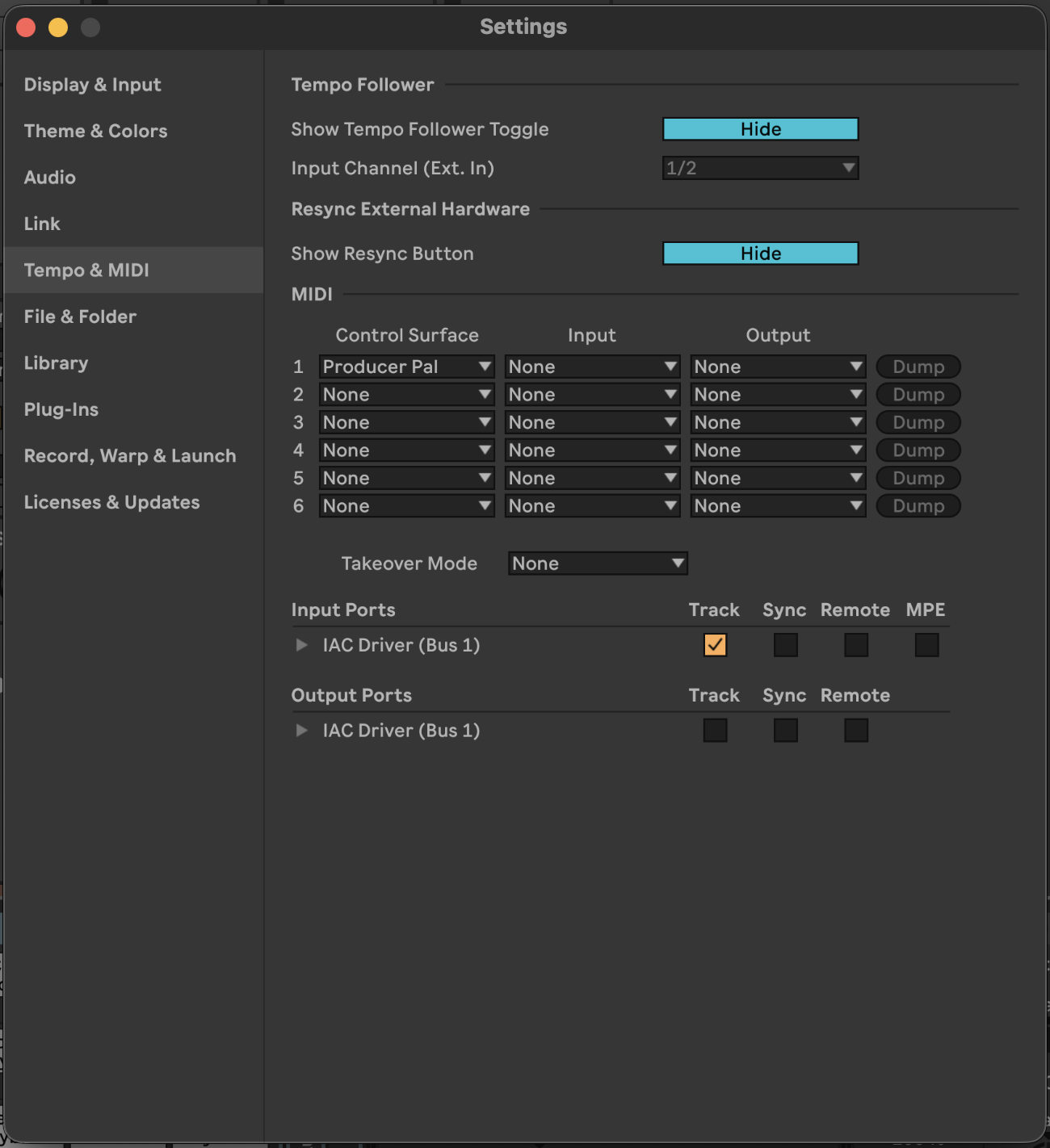
- Go to Settings → Tempo & MIDI, and set an unused Control Surface slot to Producer Pal. Leave Input and Output as None. The script doesn't use MIDI.
Check it's working
After restarting Live, click Refresh in the Remote Script tab. It shows the installed version and whether Live is running it. "Running" means Live loaded it and it is answering on port 3349:
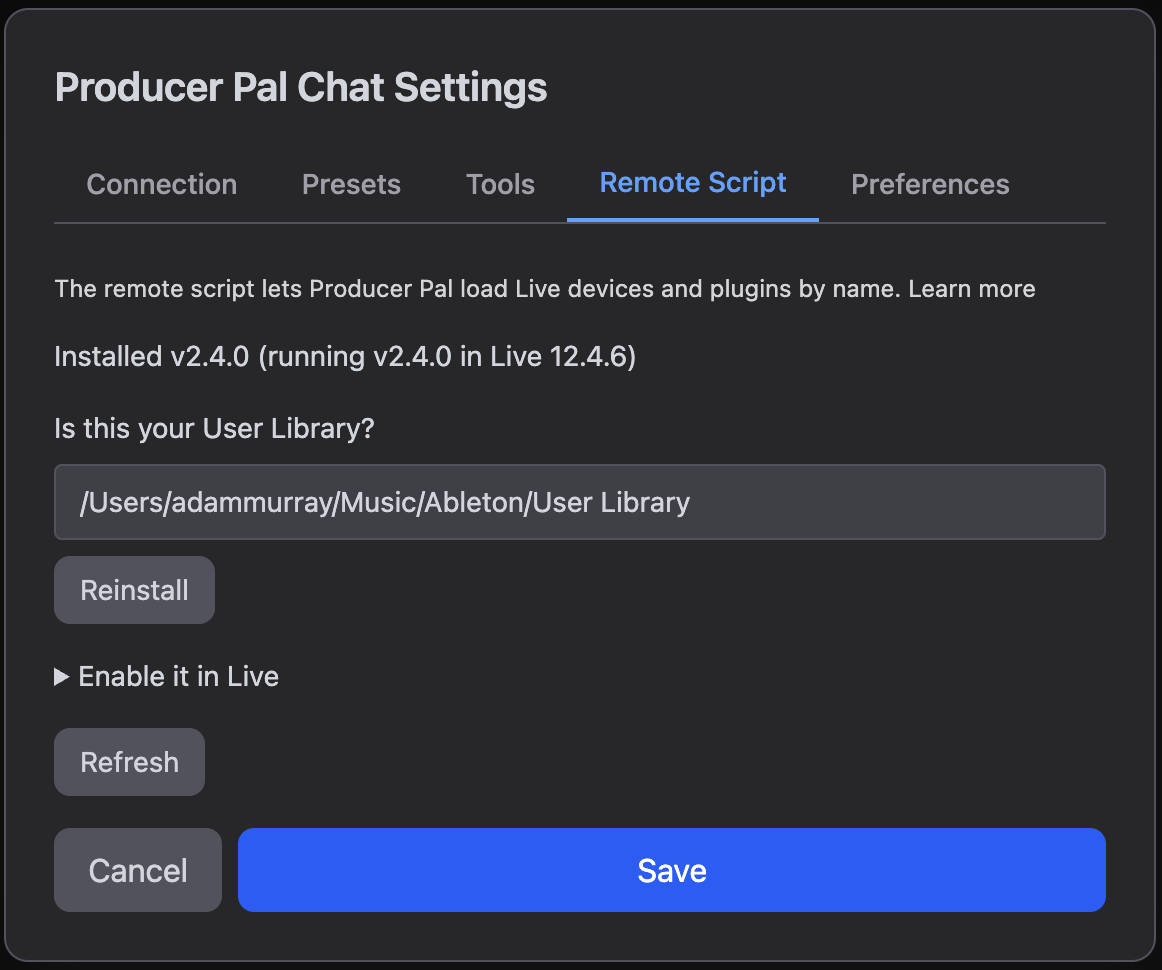
If it says installed but not running, you either skipped the restart or the Control Surface slot isn't set.
Updating
When the installed script is older than the one in your Producer Pal build, the tab offers an Update. Click it, then restart Live. Your Control Surface setting is kept.
If the installed script is newer than your Producer Pal device, the tab offers Downgrade to match instead.
Uninstalling
There is no uninstall button yet, so remove it by hand:
- In Live, set that Control Surface slot back to None.
- Delete the
Remote Scripts/Producer_Palfolder from your User Library. - Restart Live.
Notes
- Local only. The script listens on
127.0.0.1, so nothing outside your computer can reach it. It also refuses requests from web pages in your browser. - The first plug-in listing is slow. Live scans your plug-in folders the first time it is asked.
- Developers can install from a checkout with
npm run remote-script:install. Seeremote-script/README.mdfor the HTTP API.