Ollama
Run Producer Pal completely offline with local models.
What You Need
- Ollama installed
- Ableton Live 12.3+ with Max for Live. Live 12.4 or later is recommended — some features don't work on older versions of Live. Use the version of Max bundled with Live, or make sure your standalone Max is up to date.
1. Install Ollama
Download and install Ollama for your operating system.
2. Download a Model
Download a model that supports tools. Some good options include:
qwen3.8gemma4muse-glimmermistral-small3.2
And the others listed in Producer Pal's built-in chat UI settings. If your computer can handle it, use the larger variants of a model.
Browse models with tool support on the Ollama website.
3. Install the Max for Live Device
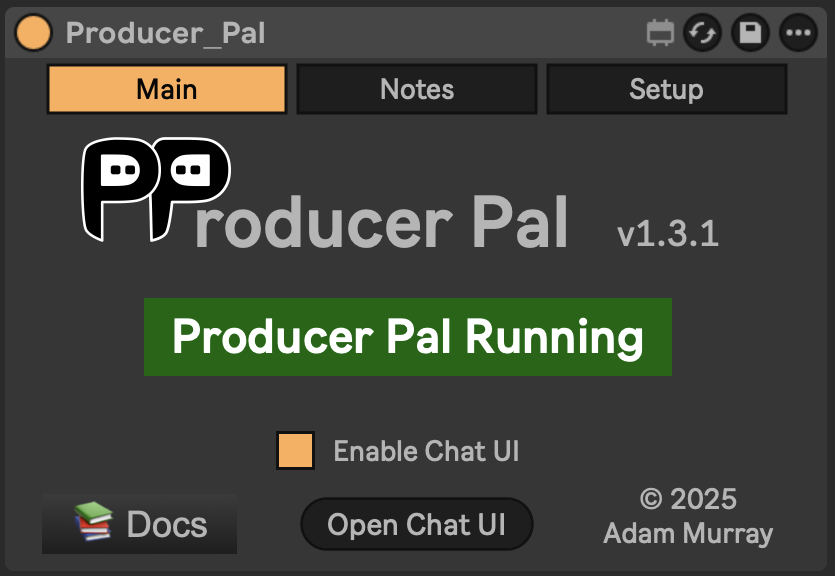
Download Producer_Pal.amxd and drag it to a MIDI track in Ableton Live.
It should display "Producer Pal Running":
4. Enable Small Model Mode (Optional but Recommended)
In the Producer Pal "Setup" tab, enable Small Model Mode.
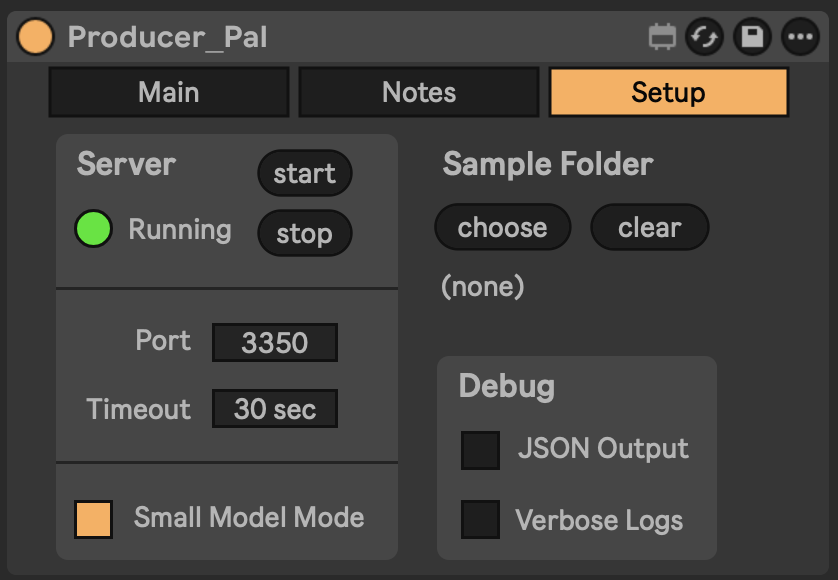
A smaller, simpler interface built for local models.
5. Open the Chat UI
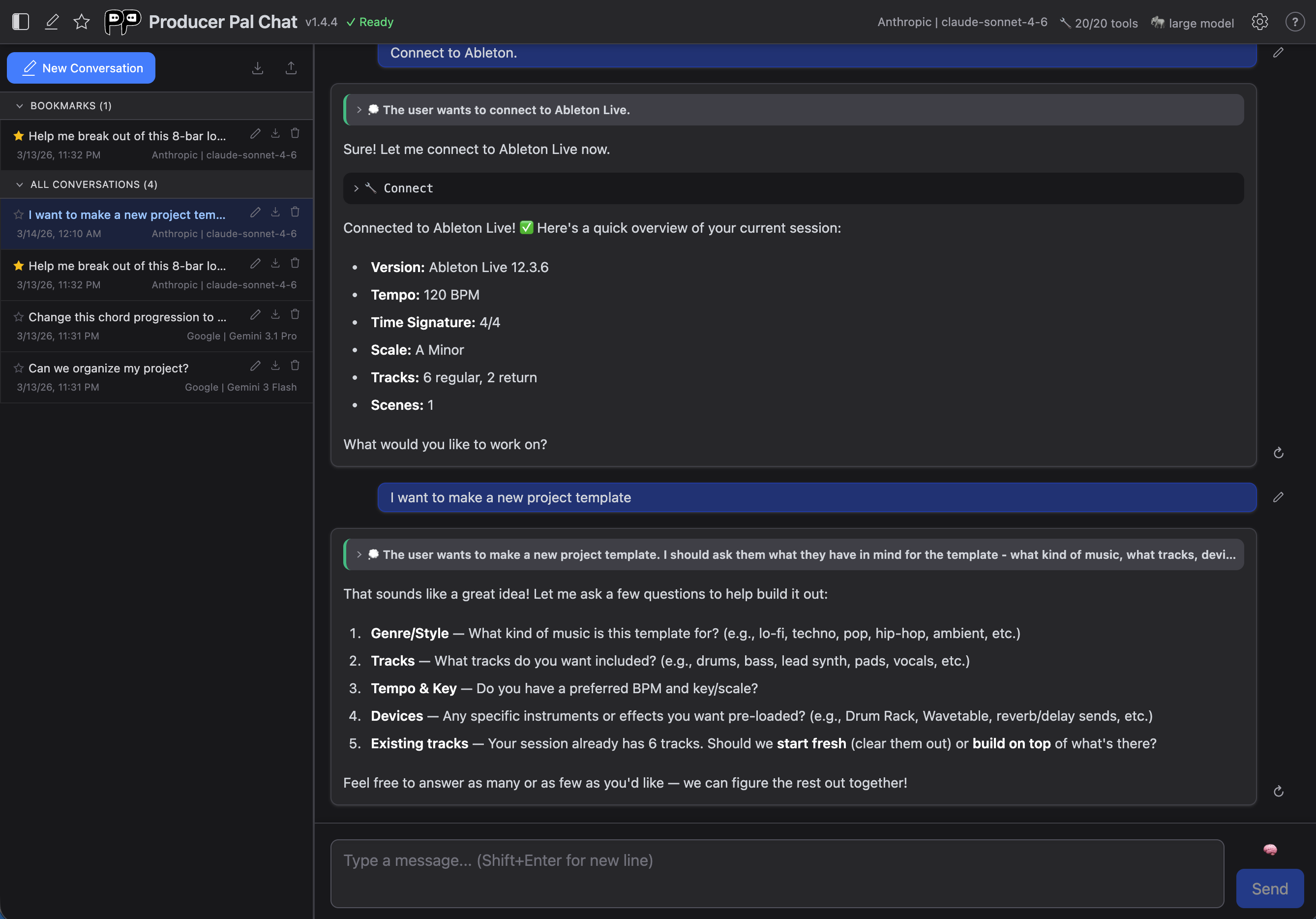
In the Producer Pal device's Main tab, click "Open Chat UI". The built-in chat UI opens in a browser:
6. Configure Ollama
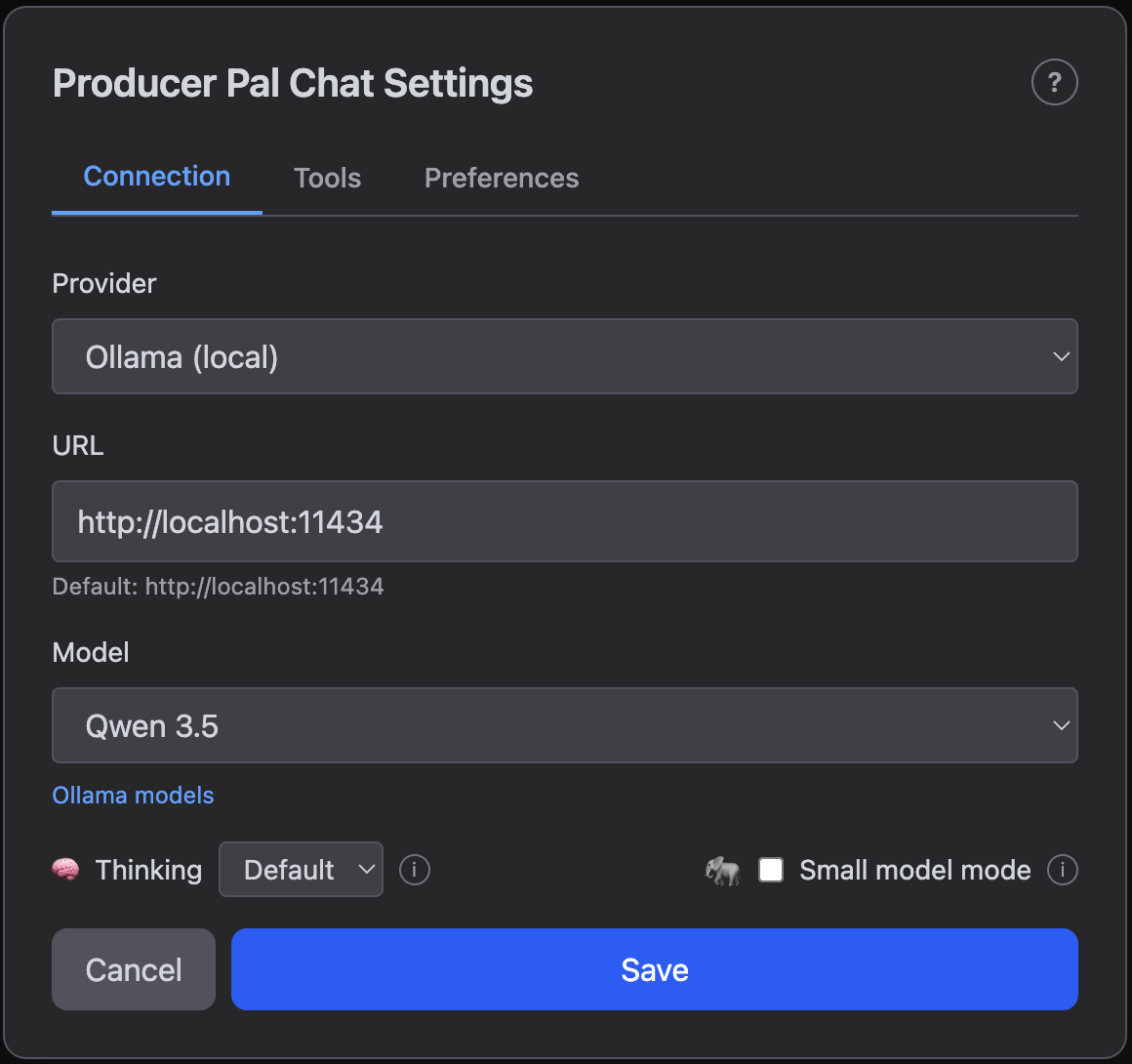
In the chat UI settings:
- Provider: Ollama (local)
- URL:
http://localhost:11434- Use this default URL when everything runs on the same computer. Change
localhostto run Ollama on a different computer. Consult the user guide for more info.
- Use this default URL when everything runs on the same computer. Change
- Model: Your model name (e.g.,
qwen3.8orgemma4)
Click "Save".
Ollama Model Aliases
If Producer Pal says a model like muse-glimmer is not installed but you downloaded muse-glimmer:30b-mlx, enter the full name with the tag. A bare muse-glimmer is short for muse-glimmer:latest, which is a different build — the shorthand doesn't find the tagged one you have. Run ollama list to see the exact names.
7. Connect
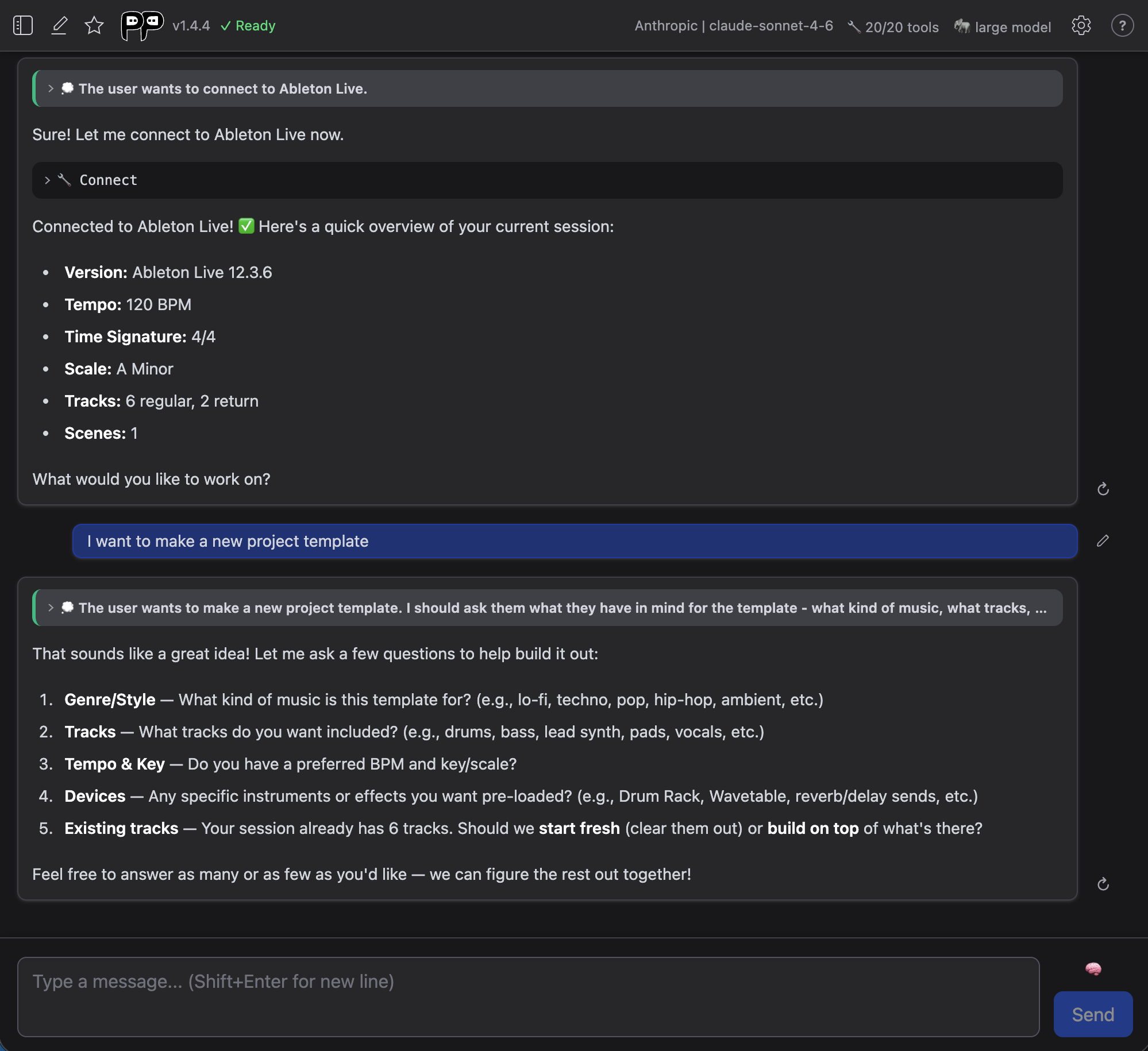
Click "Quick Connect" and say "connect to ableton":
Local Model Limitations
Local models work best for simple tasks. Complex edits may require more capable cloud models.
Model Compatibility
If the model responds with garbled text like <|tool_call_start|>... or says it can't connect to Ableton, the model doesn't support tools. Try a different model from the tools category.
Local Model Tips
- Set the context length high enough. When you connect, Producer Pal sends a sizable set of instructions (roughly 9,000 tokens). Ollama's default context window (
num_ctx, 4096) is too small and silently truncates them, which breaks tool use. Use 16k (16000) or higher — set it per model in a Modelfile, or globally with theOLLAMA_CONTEXT_LENGTH=16384environment variable. Larger windows use more memory and can run slower, so experiment to find the balance. - Follow-up turns are often much faster. The local engine automatically reuses its cached prompt prefix (your instructions and earlier messages) between turns, so it usually only has to process your newest message. The first turn after connecting is the slow one; later turns in the same conversation can be dramatically quicker. There's nothing to configure. The size of the speedup depends on the model — some keep the prefix stable across turns and benefit fully, while others reprocess each turn and see little gain.
Troubleshooting
If it doesn't work, see the Troubleshooting Guide.