
Other Providers
The built-in chat UI supports the Anthropic API, OpenAI API, Mistral, OpenRouter, and custom OpenAI-compatible providers.
Pay-as-you-go Pricing
Most of these options (besides Bionic) use pay-as-you-go pricing which can incur cost quickly with advanced models and long conversations. Monitor your API key usage.
Setup Steps
- Download Producer_Pal.amxd and drag it to a MIDI track in Ableton Live
- In the Producer Pal device, click "Open Chat UI"
- Configure your provider as described below
- Click "Quick Connect" and say "connect to ableton"
Available Providers
Anthropic
Anthropic offers Claude models directly via API key. See Using Claude with Producer Pal for the other ways to run Claude.
- Get an Anthropic API key
- In the chat UI settings:
- Provider: Anthropic
- API Key: Your key
- Model: e.g.,
claude-sonnet-5
OpenRouter
OpenRouter is an "AI gateway" with hundreds of LLMs in one place. Includes free and pay-as-you-go options.
- Get an OpenRouter API key
- In the chat UI settings:
- Provider: OpenRouter
- API Key: Your key
- Model: e.g.,
anthropic/claude-sonnet-5,google/gemini-3.6-flash
Mistral
Mistral offers AI models developed in France. Free tier available with fairly aggressive quotas.
- Get a Mistral API key
- In the chat UI settings:
- Provider: Mistral
- API Key: Your key
- Model: e.g.,
mistral-large-latest
OpenAI API
OpenAI offers GPT models with pay-as-you-go pricing. For detailed setup, see the dedicated OpenAI guide.
- Get an OpenAI API key
- In the chat UI settings:
- Provider: OpenAI
- API Key: Your key
- Model: e.g.,
gpt-5.6-terra
Subscription Alternative
Prefer flat-rate pricing? The ChatGPT App or Codex CLI work with OpenAI's subscription plans.
Custom Providers
For other OpenAI-compatible providers:
- In the chat UI settings:
- Provider: Custom (OpenAI-compatible)
- API Key: Your provider's key
- URL: Your provider's API endpoint
- Model: The model name
Example: Groq
- Provider: Custom (OpenAI-compatible)
- URL:
https://api.groq.com/openai/v1 - Model:
llama-3.3-70b-versatile
Privacy Note
Your API key is stored in browser local storage. Use a private browser session if that concerns you, or delete the key from settings after use.
LM Studio Bionic API
For free locally running models, you can use LM Studio Bionic as a server for the built-in chat UI, instead of Bionic's own interface.
Install Bionic and download a model that supports tools
Go to Settings → Local Model API and turn on:
- Local API server - It should then read "Running"
- CORS - Required for browser access
Copy the Base URL while you're here (
http://localhost:1234/v1by default — use "Edit port" to change it):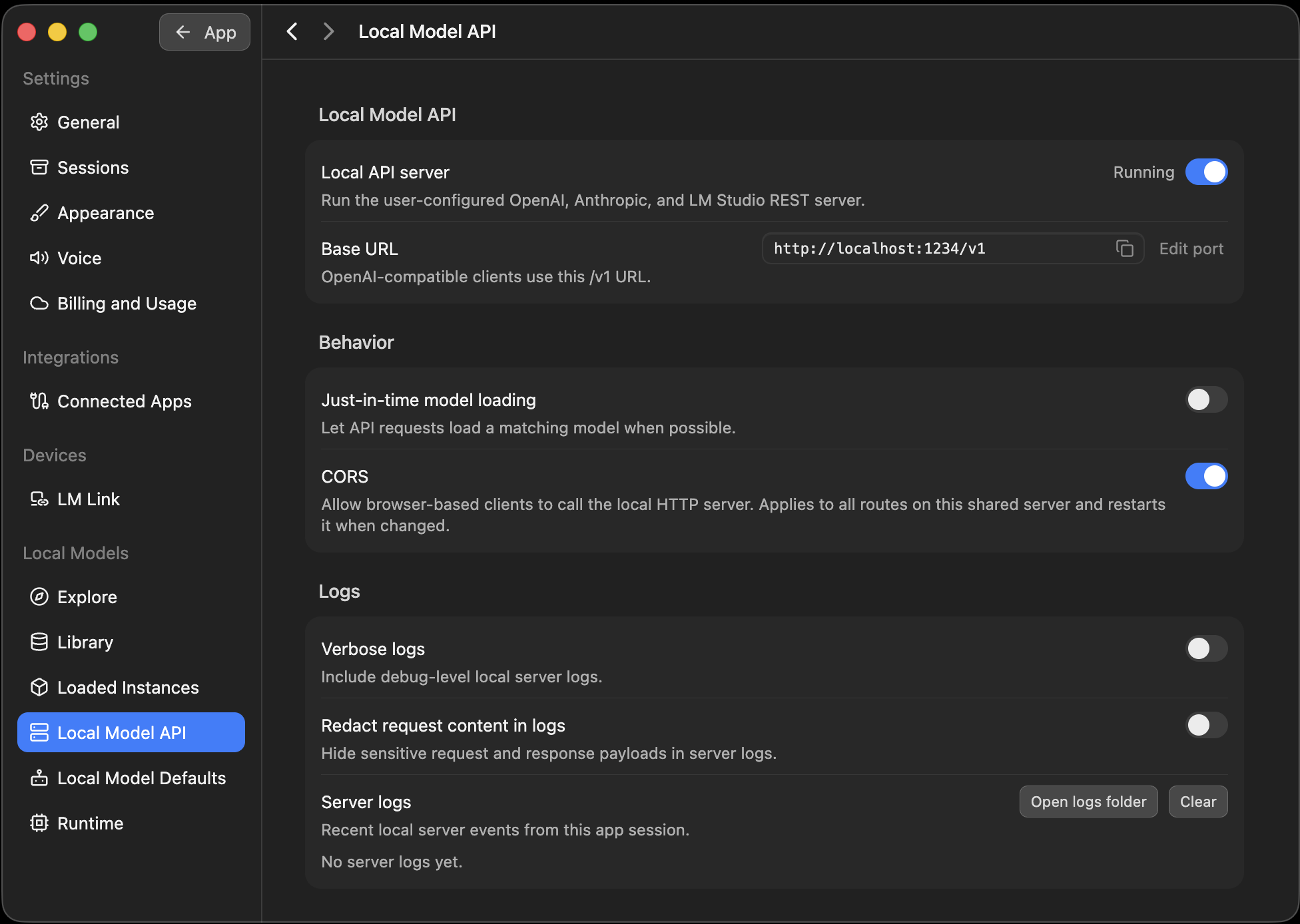
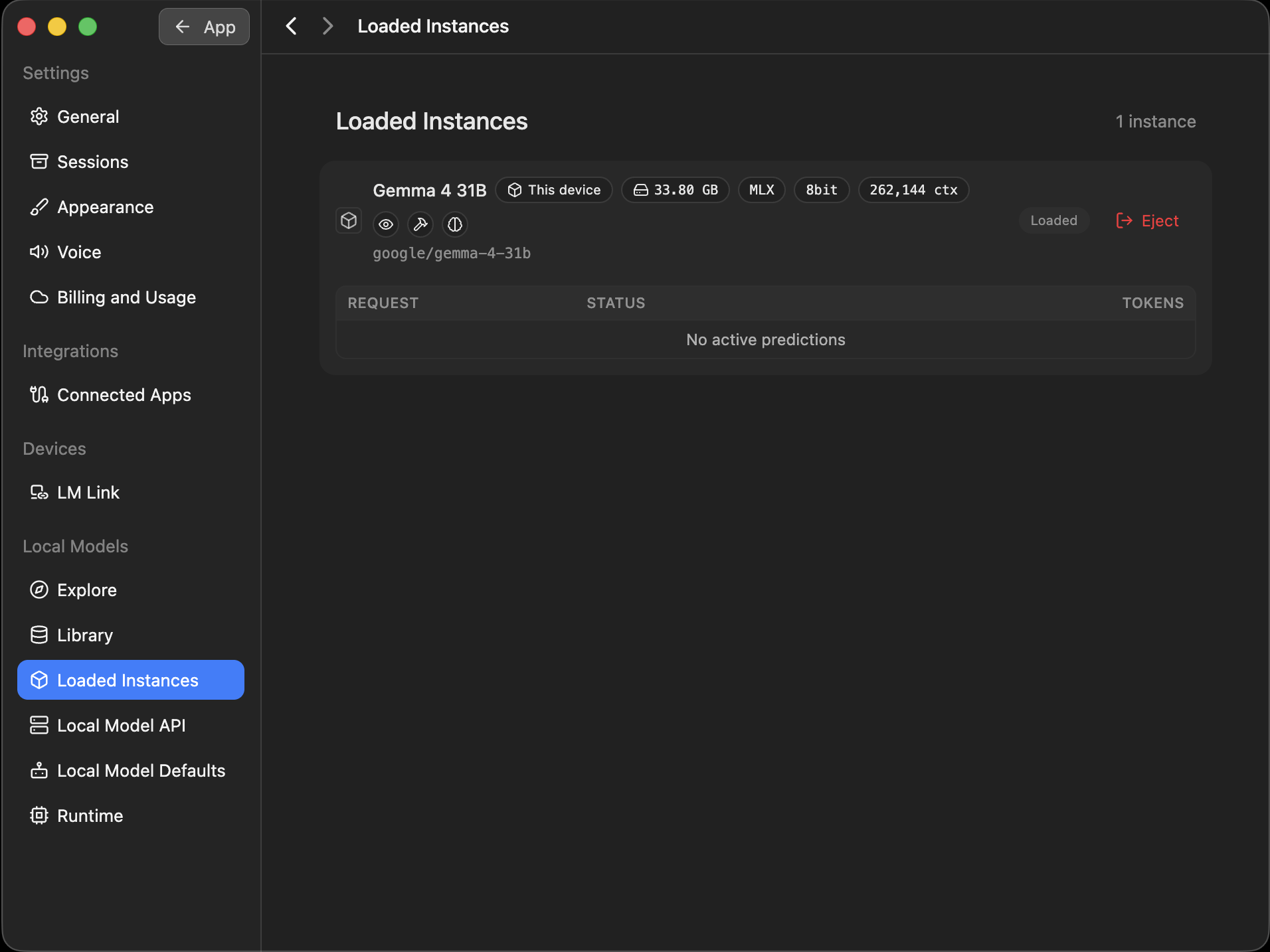
Make sure a model is available to the API. Either turn on Just-in-time model loading so requests load one on demand, or preload a model by having a quick chat with it in Bionic first — which is also a good way to confirm it works before pointing Producer Pal at it. Loaded models are listed under Settings → Loaded Instances:
In the Producer Pal Chat UI settings:
- Provider: Bionic / LM Studio (local)
- URL: The Base URL you copied
- Model: A model that supports tools, such as
qwen/qwen3.8-27b,google/gemma-4-e4b,mistralai/devstral-small-2-2512, orzai-org/glm-4.7-flash
Save and click "Quick Connect"
Server not behaving?
Turn on Verbose logs under Settings → Local Model API for debug-level detail, then read Server logs on the same page.
Model Tool Support
If the model responds with garbled text like <|tool_call_start|>... or says it can't connect to Ableton, the model doesn't support tools. Under Settings → Library, a hammer icon marks the models that do:

Small Model Mode
Enable "Small Model Mode" in the Producer Pal Setup tab for better compatibility with local models. See Bionic tips for more optimization advice.
Troubleshooting
If the built-in chat doesn't work, see the Troubleshooting Guide.