Upgrading Producer Pal
The latest version is v2.5.0 (what's new?).
Check the version shown on your device, then pick a section.
Update by hand
Use this if you're on 2.4 or earlier, use the Chat UI, a web app, the REST API or the Agent Skill, or the next section doesn't fit your setup. Your AI can't update a 2.4 device, so do this by hand. It takes a few minutes.
- Download the new Producer_Pal.amxd.
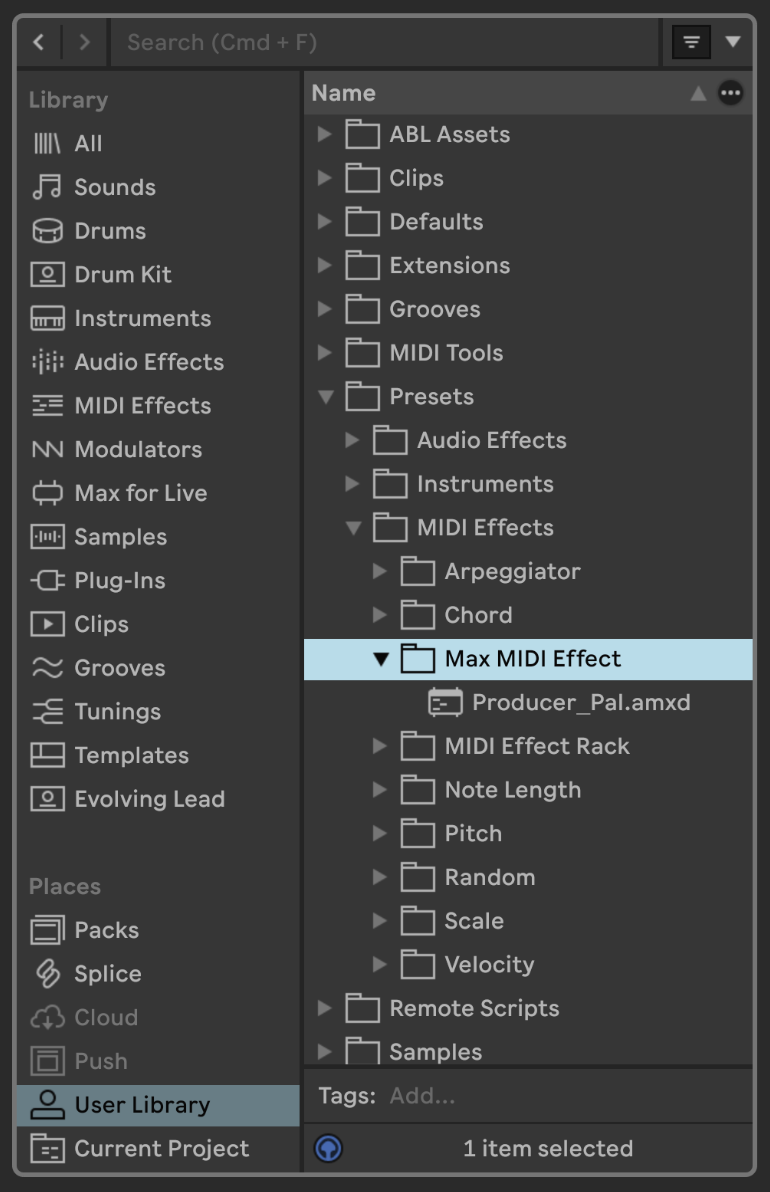
- Save it over the old copy. Open User Library (under Places) in Live's browser, go to Presets → MIDI Effects → Max MIDI Effect, and drag
Producer_Pal.amxdinto that folder:
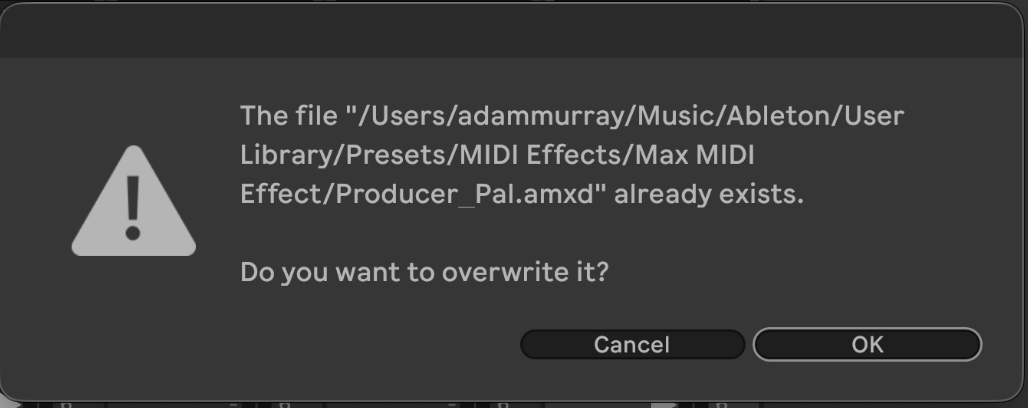
- Live asks whether to overwrite the old one. Click OK:
Reopen your Live Set and check the device shows v2.5.0.
On the device, click Finish installation… (or Open Chat UI, then Settings → Installation). Click Install (or Update) next to Remote script.
Restart Live, then choose Producer Pal as a Control Surface in Settings → Tempo & MIDI, with Input and Output left as None.
If you'd already set up the remote script, Live remembers your Control Surface choice, so only the restart is needed.
Claude Desktop only: go to Settings → Extensions, click the
...menu on Producer Pal and choose Uninstall. Then open the new Producer_Pal.mcpb (see Claude Desktop installation).Restart your AI app and start a fresh conversation.
Apps set up with npx -y producer-pal@latest (Claude Code, Codex, Gemini CLI and others) update themselves, and so does the built-in chat.
Let your AI update it
For 2.5 or later, using npx producer-pal or the Claude Desktop extension (not in small model mode), with the remote script running.
- Update the connection. Claude Desktop: uninstall the old extension (Settings → Extensions,
...menu, Uninstall) and open the new Producer_Pal.mcpb.npx -y producer-pal@latest: nothing to do. Then restart your AI app and start a fresh conversation. - Ask the AI to update Producer Pal and its remote script.
- Restart Live. Your Control Surface setting is kept. The AI may ask you to restart partway through; do that, then let it carry on.
Less common situations
Most people can skip this section. Each part only matters if it describes your setup.
Device saved outside the User Library
Install it to the Max MIDI Effect folder as shown above from now on. Some features look for it there, like a coding agent adding Producer Pal to a Live Set, and more will. Your existing Sets still use the old copy: in each one, delete the Producer Pal device and add it again from the Max MIDI Effect folder.
Projects saved with "Collect All and Save"
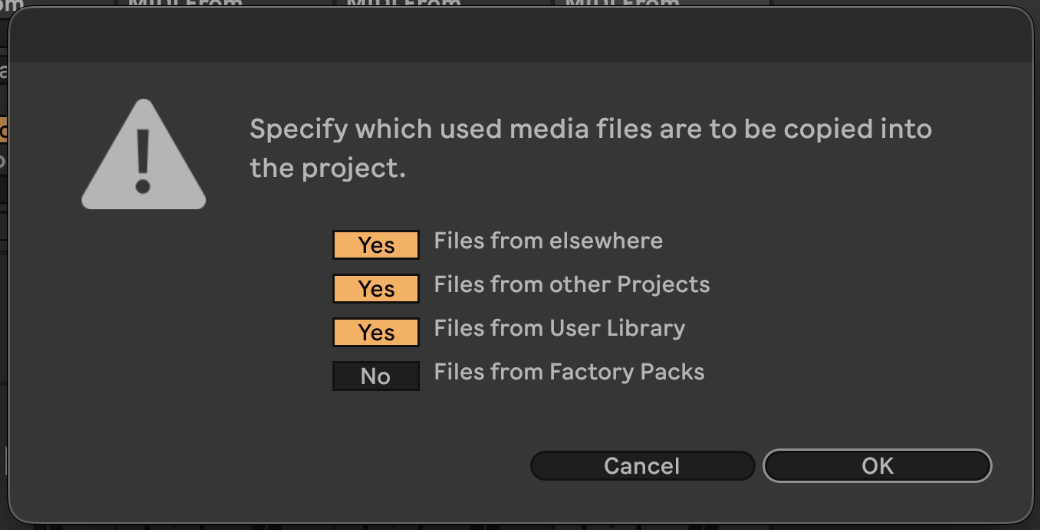
If Files from User Library was set to Yes, the project keeps its own copy of the device, so upgrading doesn't reach it. In each such project, delete the Producer Pal device and add it again from the Max MIDI Effect folder.
Upgrading from a version before 2.1.0
Copy your project context (the text in the device's Context tab) somewhere safe before replacing the device, then paste it into the new one. Since 2.1.0, project context is backed up in your Live Project folder and carries over on its own (one exception).
Using npx producer-pal without @latest
Change it to npx -y producer-pal@latest so it always fetches the current version. See npx is running an old version.
Calling Producer Pal from your own scripts
Over MCP, the REST API, or an agent skill, some input and output formats changed in 2.3.0. See the Migration Guide.
If something's not working
- Make sure you replaced the
.amxdfile, not added a second copy - Try deleting the Producer Pal device from your Set and adding it again from the Max MIDI Effect folder
- Claude Desktop: make sure you uninstalled the old extension first
- Remote script says it's out of date: Settings → Installation → Update, then restart Live
- Restart your AI app completely and start a fresh conversation
See the Troubleshooting Guide for more help.
Version history
See the full release history on GitHub.