
ChatGPT App
OpenAI's ChatGPT desktop app is an easy way to use Producer Pal with an OpenAI account.
Use Codex mode, not ChatGPT
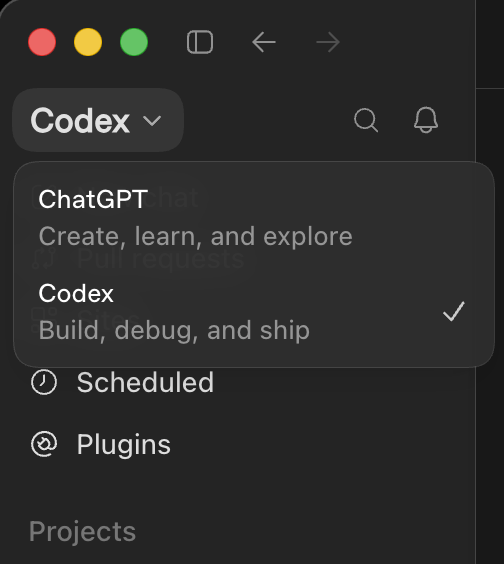
Producer Pal only works in the app's Codex mode. MCP servers are configured on the Codex side, and the tools aren't reachable from ChatGPT (Chat or Work). Switch with the mode dropdown at the top of the sidebar:
Formerly the Codex app
In July 2026, OpenAI merged the Codex app into the ChatGPT desktop app, which now has ChatGPT (Chat and Work) and Codex together in one app. If you had the Codex app installed, it updated into this app and kept your projects and settings.
The older ChatGPT desktop app is now called "ChatGPT Classic". Setup there is similar, but it's no longer officially supported — the new app is recommended.
Requirements
Ableton Live 12.3+ with Max for Live. Live 12.4 or later is recommended — some features don't work on older versions of Live. Use the version of Max bundled with Live, or make sure your standalone Max is up to date.
Node.js 22+ (required by Codex; Producer Pal itself only needs 20+)
ChatGPT desktop app (requires an OpenAI account) — use the main download button. The same page also offers ChatGPT Classic, which is the older app, not this one.
A paid ChatGPT plan (MCP servers aren't available on the free plan)
Installation Steps
1. Install the Max for Live Device
Download Producer_Pal.amxd, the Producer Pal Max for Live device, and add it to a MIDI track in Ableton Live:
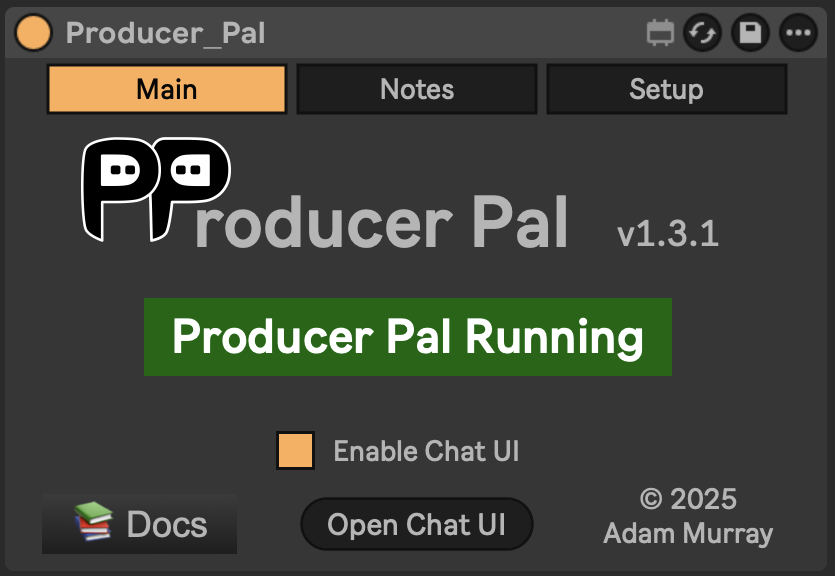
It should display "Producer Pal Running" or something isn't working.
2. Add Producer Pal to ChatGPT
In the ChatGPT app, go to Settings → Plugins → MCPs and click "+ Add server":
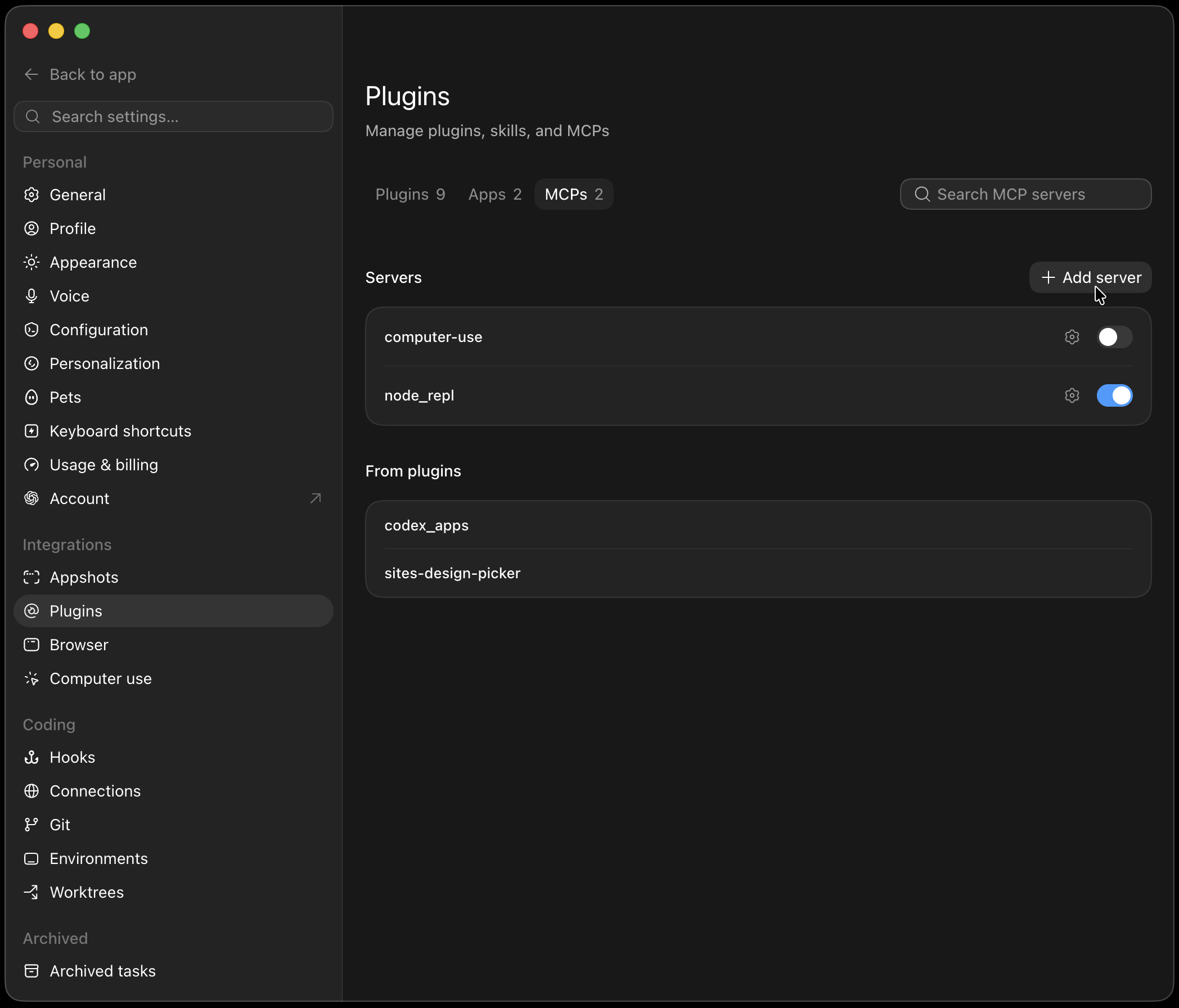
Option A: With npx (recommended) — Allows flexible startup order and auto-reconnection:
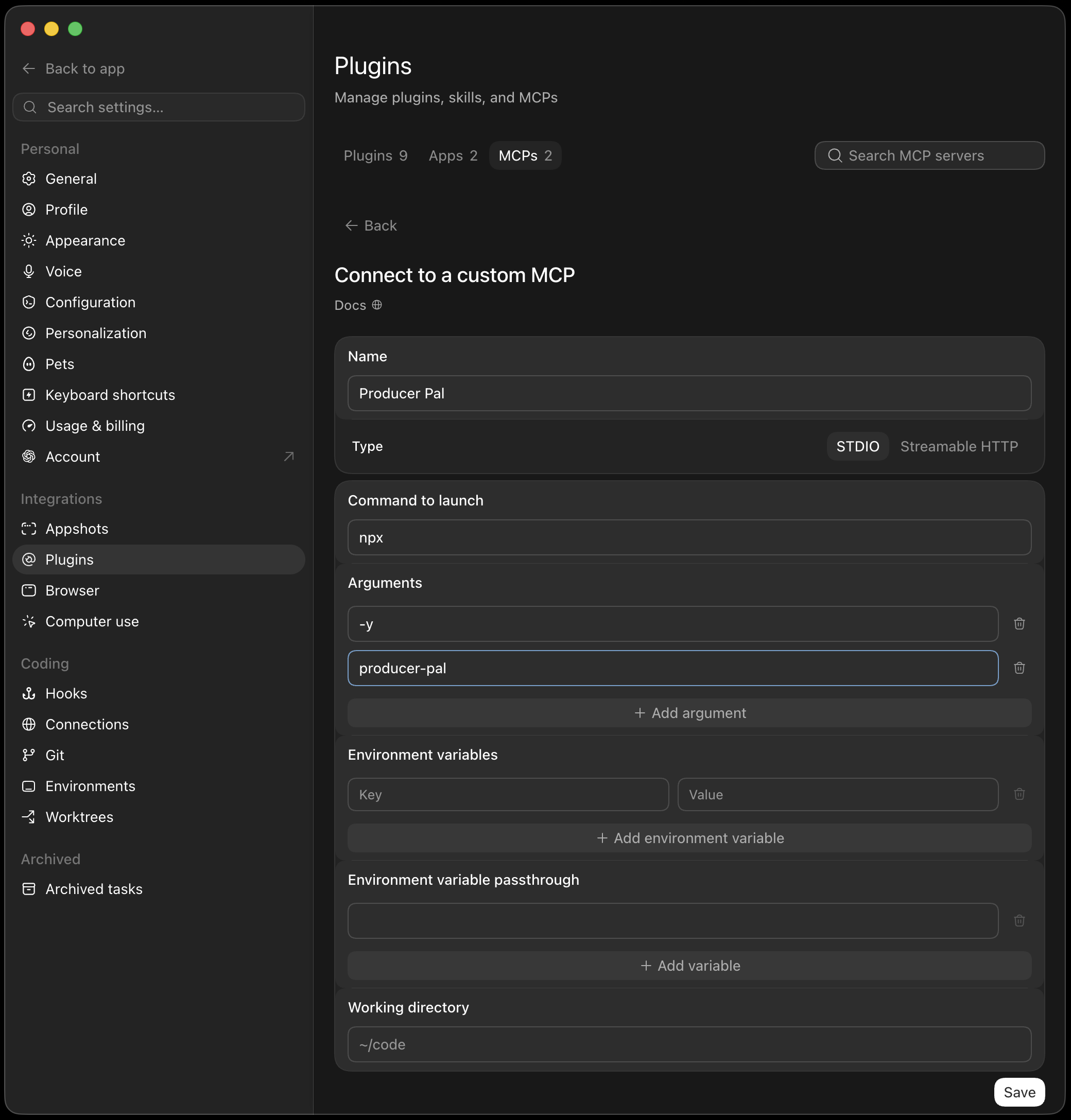
Set Type to STDIO and fill in:
- Name:
Producer Pal - Command to launch:
npx - Arguments:
-yandproducer-pal@latestas separate entries (click "+ Add argument" for each one)
Option B: Direct HTTP — Requires Ableton running first, no auto-reconnection:
Set Type to Streamable HTTP and fill in:
- Name:
Producer Pal - URL:
http://localhost:3350/mcp
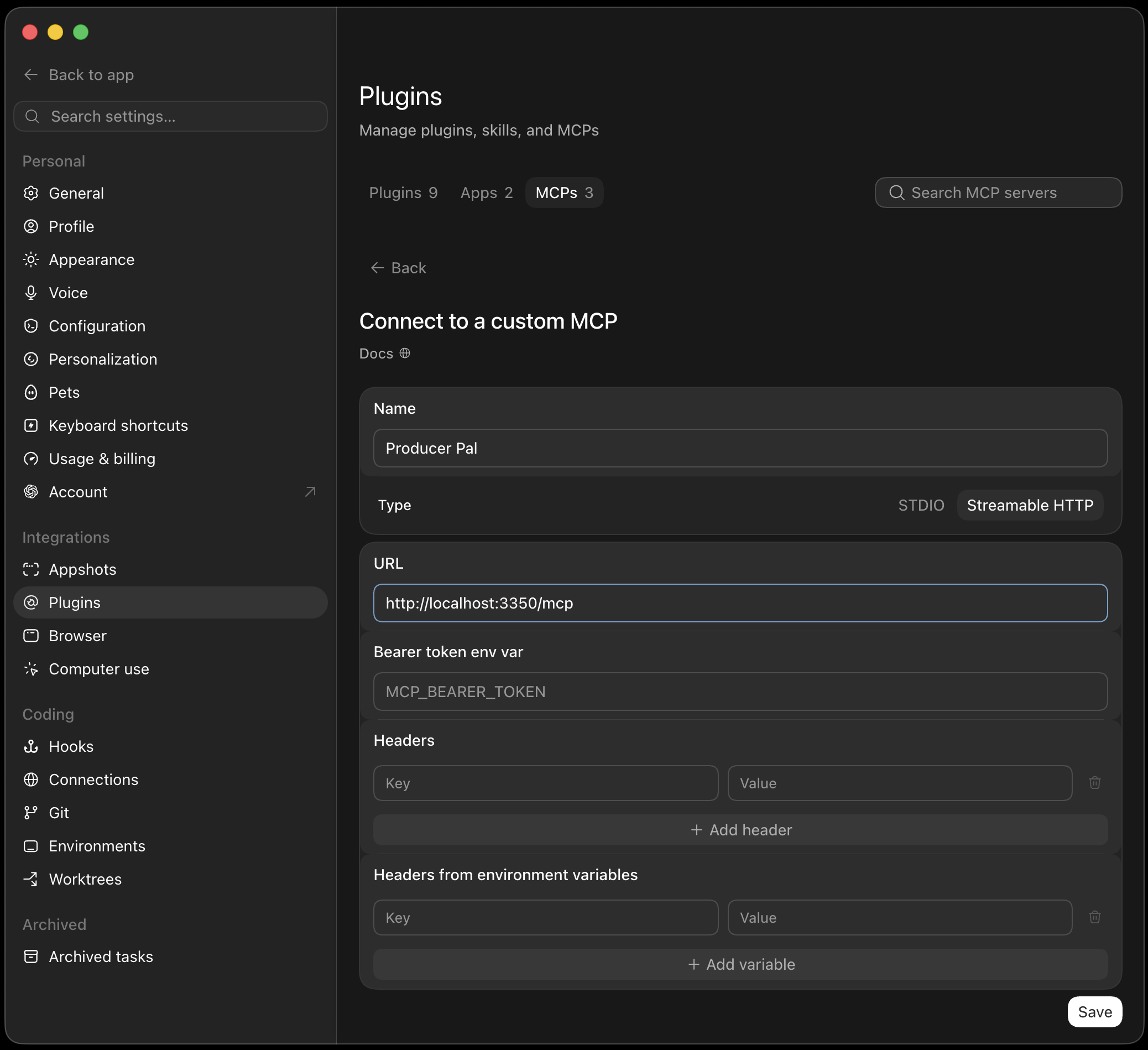
Save the server, then select Restart so ChatGPT picks it up.
Shared with Codex CLI
The desktop app, Codex CLI, and the Codex IDE extension share the same MCP configuration (~/.codex/config.toml), so adding Producer Pal in one place makes it available in the others.
3. Start a Conversation
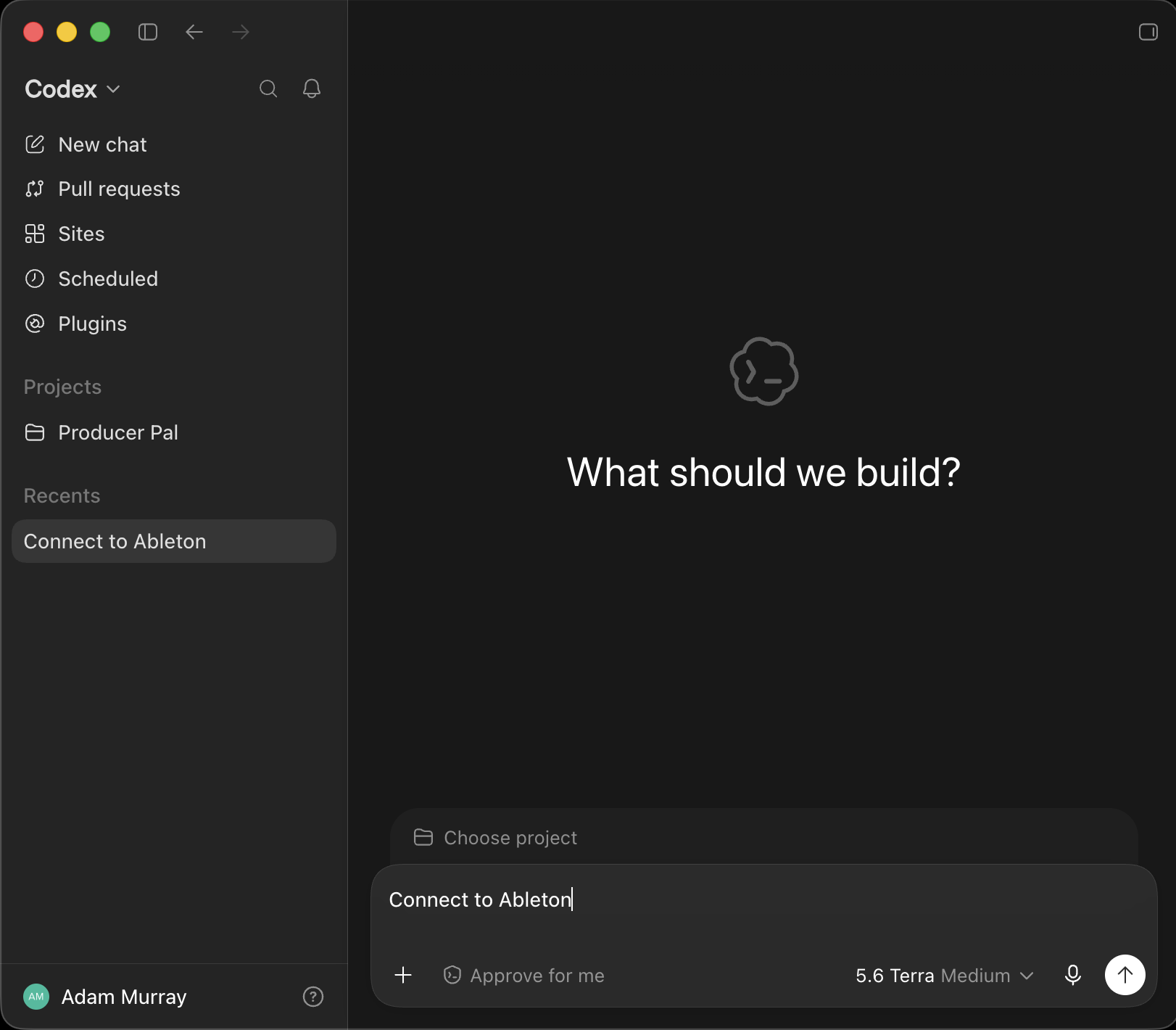
Check that the mode dropdown at the top of the sidebar says Codex.
Codex works in a project, chosen with Choose project above the composer. An empty folder is recommended for Producer Pal sessions (shown as Producer Pal in the screenshot). Feel free to put reference documents in it, such as common workflow instructions or details of your preferred musical style and production techniques.
Start a conversation with "connect to ableton":
4. Verify Connection
You should see a successful connection to Ableton Live:
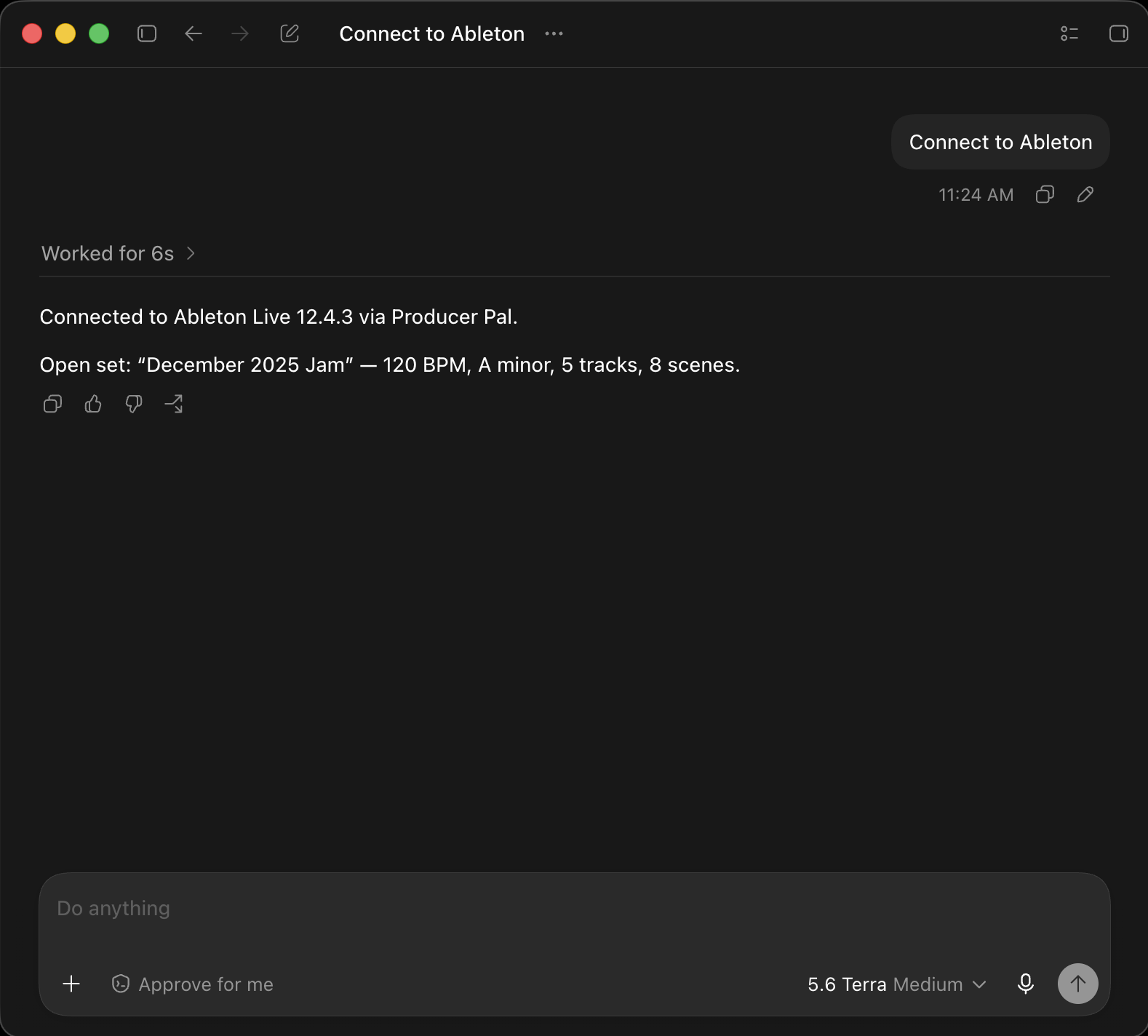
You can also type /mcp in the composer to see the connected MCP servers.
Troubleshooting
If it doesn't work, see the Troubleshooting Guide.