Gemini CLI
Use Producer Pal with Google's command line coding assistant.
Free Tier Limitations
Gemini CLI works best with a Google AI Pro subscription. Without a subscription, the free tier has strict rate limits and you'll hit quotas quickly. Consider Claude Code for an alternative CLI experience.
If you feel comfortable with the command line, this is an option for using Producer Pal. Also consider Antigravity, Google's desktop agent app, or using Gemini with Producer Pal's built-in chat UI (but probably via OpenRouter as noted on that page).
Two ways in
The steps below register Producer Pal's tools natively over MCP. The portable Agent Skill is the other way: it drives the REST API instead, so the agent picks its own notation and toolset per request without moving your Chat UI or other MCP clients off theirs. Both reach the same tools — pick either one, or install both.
Requirements
Ableton Live 12.3+ with Max for Live. Live 12.4 or later is recommended — some features don't work on older versions of Live. Use the version of Max bundled with Live, or make sure your standalone Max is up to date.
Gemini CLI (requires Google account)
Installation Steps
1. Install the Max for Live Device
Download Producer_Pal.amxd, the Producer Pal Max for Live device, and add it to a MIDI track in Ableton Live:
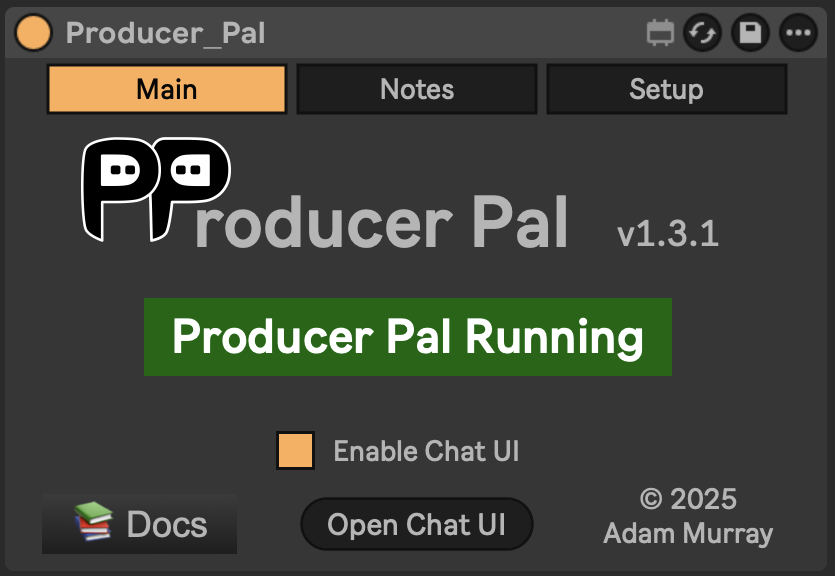
It should display "Producer Pal Running" or something isn't working.
2. Configure Gemini CLI
Add Producer Pal to Gemini's settings in ~/.gemini/settings.json:
Not the same file as Antigravity
Antigravity reads ~/.gemini/config/mcp_config.json instead. Same folder, separate configs — adding Producer Pal to one does not add it to the other.
Option A: With npx (recommended for MCP) - Allows flexible startup order and auto-reconnection:
{
  "mcpServers": {
    "producer-pal": {
      "command": "npx",
      "args": ["-y", "producer-pal@latest"]
    }
  }
}
Scripting or building against Producer Pal?
If you're using MCP and will have the agent write code that generates or parses Producer Pal data — building MIDI programmatically, or piping tool output through JSON tooling — add --format json and --notation midi-json to the args:
{
  "mcpServers": {
    "producer-pal": {
      "command": "npx",
      "args": [
        "-y",
        "producer-pal@latest",
        "--format",
        "json",
        "--notation",
        "midi-json"
      ]
    }
  }
}
--format json returns standard JSON instead of the token-optimized compact form, and midi-json represents notes as a JSON array the agent can generate and read directly.
For a normal music-making conversation, keep the defaults (compact output, bar|beat notation) — they use fewer tokens and the agent reads them fine.
Both are global device settings, so they also change what the chat UI and any other connected clients see.
Only need some of the tools?
Narrow the toolset and every conversation gets smaller:
{
  "mcpServers": {
    "producer-pal": {
      "command": "npx",
      "args": ["-y", "producer-pal@latest", "--tools", "core,clip,track"]
    }
  }
}
--tools keeps only what you list; --disable-tools drops what you list. Both take tool names (read-clip or ppal-read-clip) and group names: core, session, actions, live-set, track, scene, clip, device, advanced, and read-only. Run npx producer-pal@latest --list-tools to print the groups plus the tools the running device currently offers.
Withholding a tool also drops the part of the Producer Pal Skills that teaches it, so you stop paying for the tool's schema and its guidance in every conversation. --tools read-only cuts the skills text by more than half.
Unlike the other flags, this one is per client: the Chat UI and your other MCP clients keep the full toolset. ppal-connect is always kept, since it is how the AI connects and receives the skills.
One wrinkle with --tools: it keeps what you list by withholding everything else, and "everything else" is the tool list this copy of npx producer-pal knows, so a tool added in a newer Producer Pal stays enabled until you update. --disable-tools names tools directly, so it can withhold a newer tool even from an older copy; only its group names are limited to the ones above.
Option B: Direct HTTP - Requires Ableton running first, no auto-reconnection:
{
  "mcpServers": {
    "producer-pal": {
      "httpUrl": "http://localhost:3350/mcp"
    }
  }
}
3. Start Gemini CLI
Run gemini in an empty folder (so it can focus on Producer Pal instead of coding)
4. Verify Tools
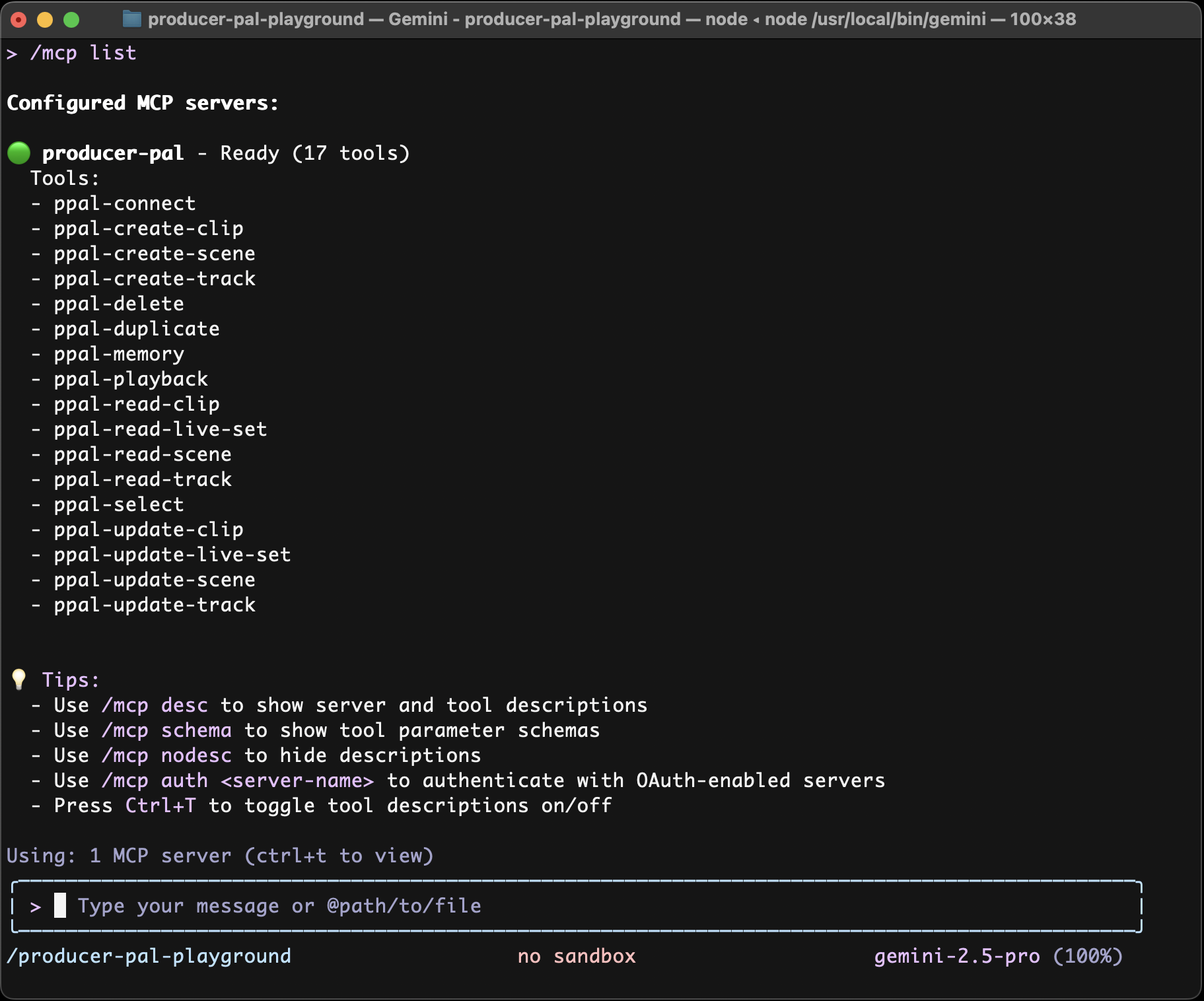
Run /mcp list in the Gemini CLI to confirm the Producer Pal tools are available:
5. Start Using Producer Pal
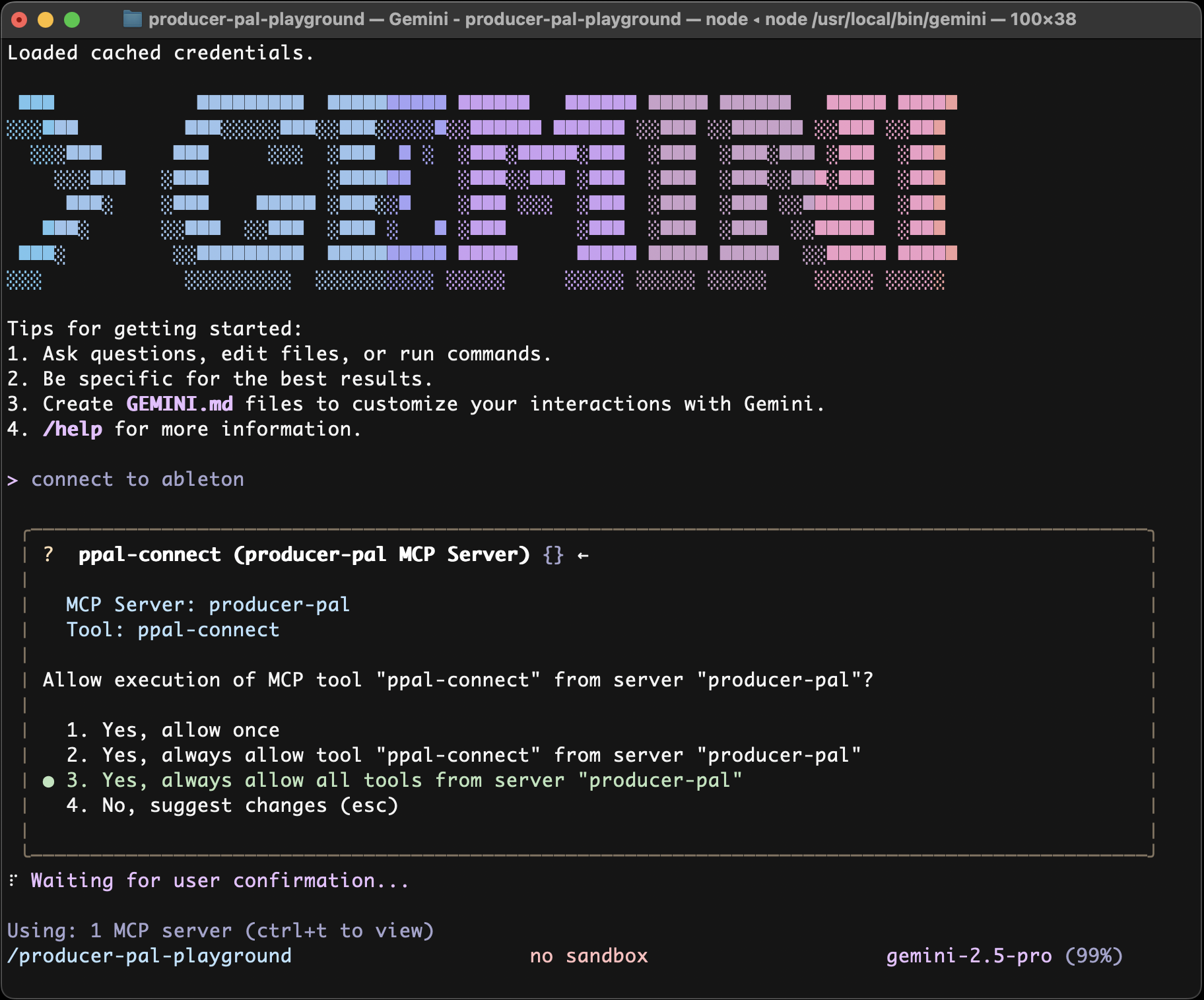
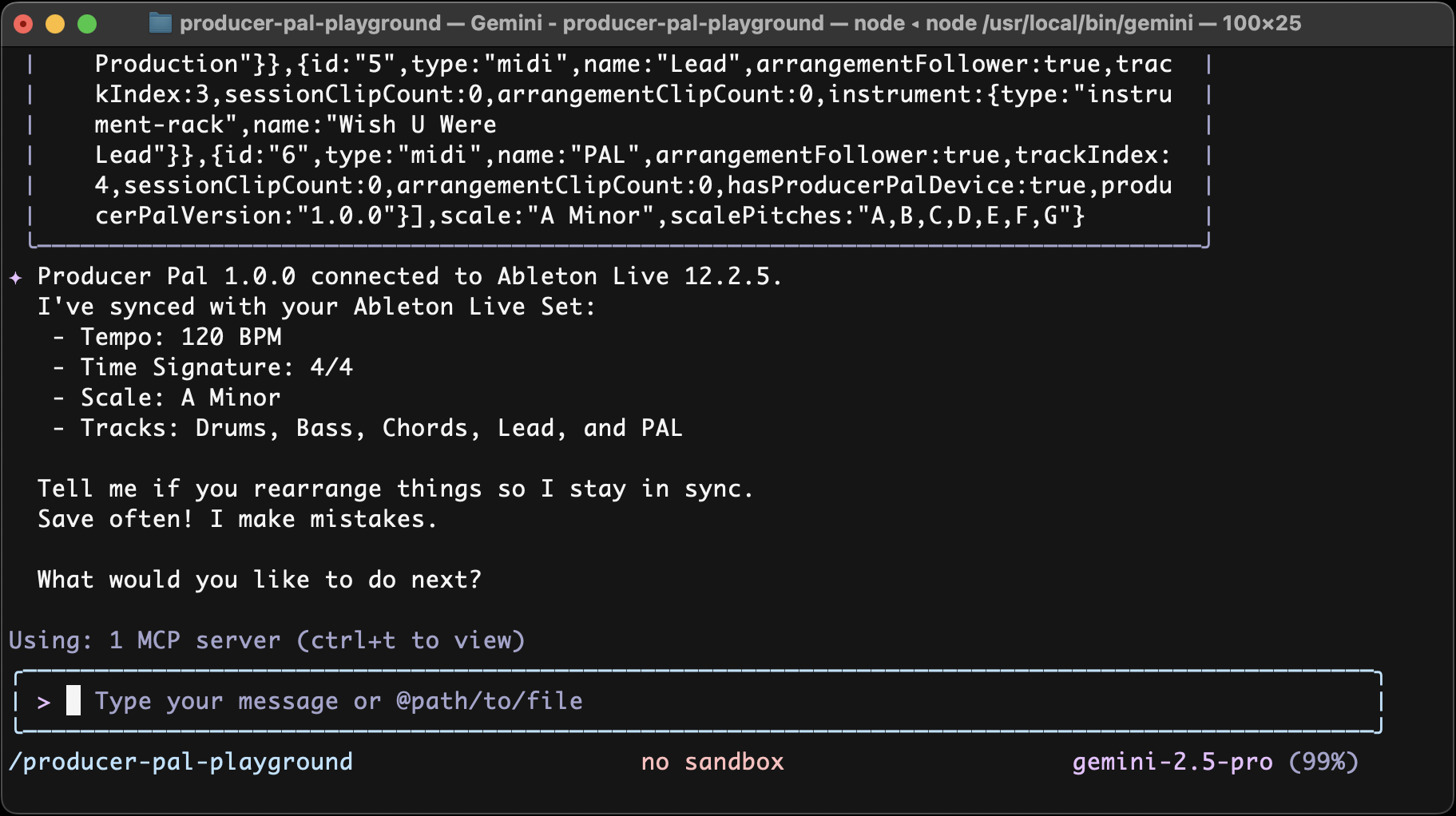
- Start a conversation with "connect to ableton"
- Allow Producer Pal tools to be used when Gemini tries to use them:
Troubleshooting
If it doesn't work, see the Troubleshooting Guide.