
Other MCP Clients
Producer Pal works with any LLM that supports the Model Context Protocol (MCP).
Use npx producer-pal to connect to Producer Pal's MCP server. Its flags and environment variables are listed in the npx producer-pal reference.
Requirements
Ableton Live 12.3+ with Max for Live. Live 12.4 or later is recommended. On Live 12.3 these don't work:
- writing clip automation (reading and clearing it still work)
- loading a sample into Simpler
- the Library tool (searching your library and listing plug-ins)
- finding a preset by name outside a device's own presets (packs' drum kits, Sounds racks, custom folders)
- opening a plug-in's editor window
Use the version of Max bundled with Live, or make sure your standalone Max is up to date.
AI that supports MCP
Node.js 20+ — only needed if connecting via
npx producer-pal(Option A below); not required for Option B or C
Installation Steps
No need to install the Producer Pal device yourself: in the last step, the AI sets up Live for you.
Or install the device yourself
Download Producer_Pal.amxd, the Producer Pal Max for Live device.
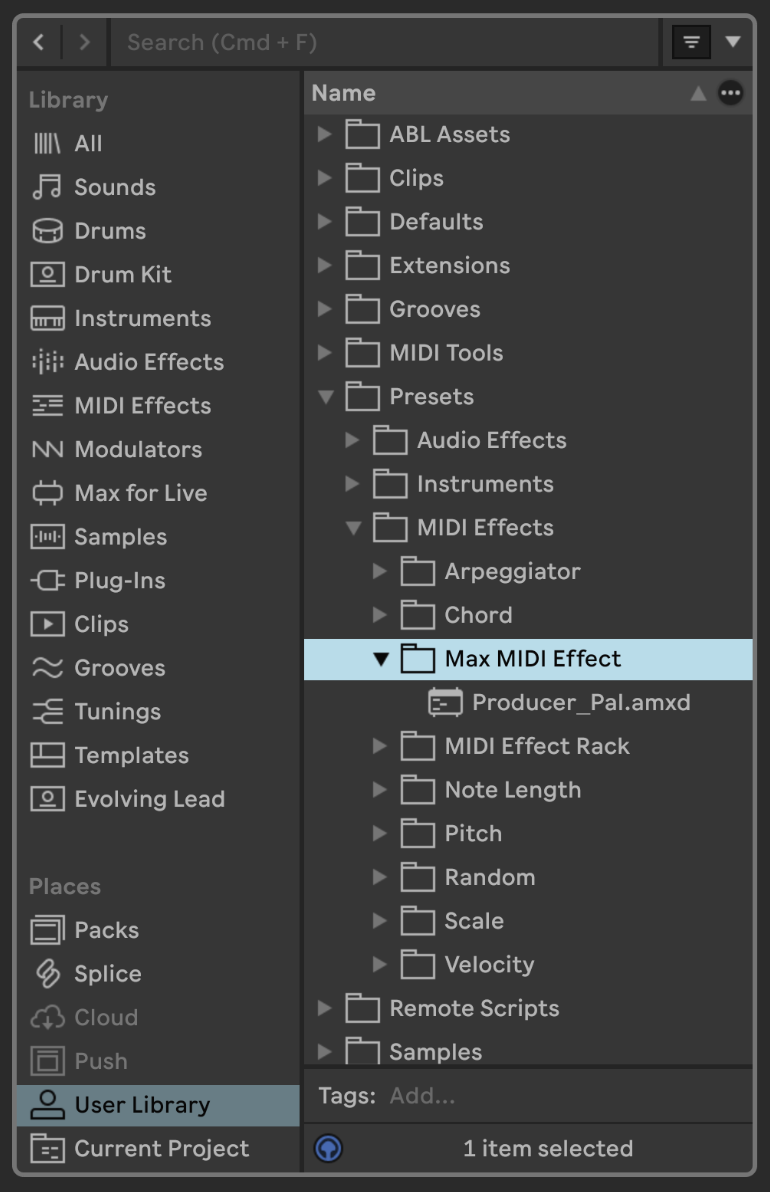
Open User Library (under Places) in Live's browser, go to Presets → MIDI Effects → Max MIDI Effect, and drag Producer_Pal.amxd into that folder:
Drag it from the Max MIDI Effect folder onto a MIDI track:
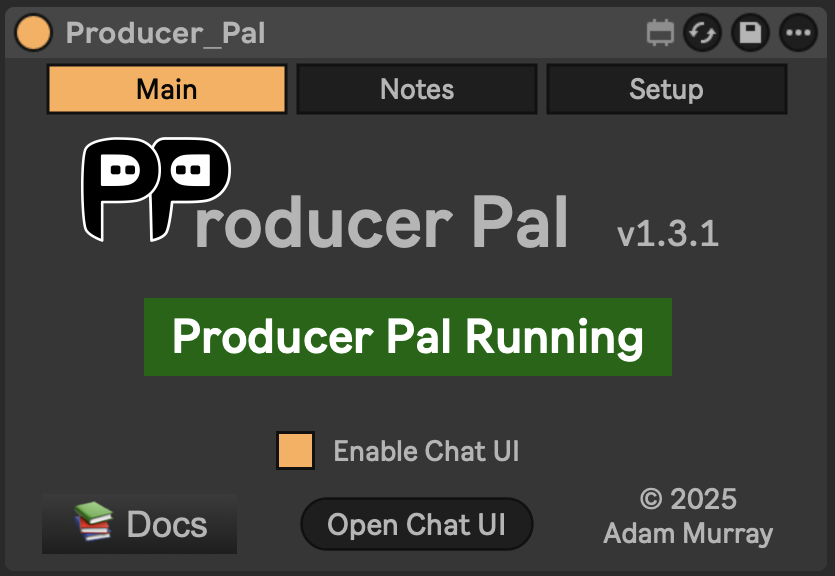
It should display "Producer Pal Running" or something isn't working.
Then finish the installation: click Finish installation… on the device (or Open Chat UI, then Settings → Installation), and click Install there to add the remote script (clip automation, undo, plug-ins).
Restart Live, then choose Producer Pal as a Control Surface in Settings → Tempo & MIDI, with Input and Output left as None.
More in Finish the Installation.
1. Configure Your AI
Configure your AI to connect to Producer Pal using one of the connection methods below.
2. Start Using Producer Pal
With Live open, start a conversation with "connect to ableton".
The first time, the AI sets up Live for you:
It installs the Producer Pal remote script.
Restart Live, then choose Producer Pal as a Control Surface in Settings → Tempo & MIDI, with Input and Output left as None.
Tell the AI when you're done. It installs the Producer Pal device and adds it to your Live Set (it asks first).
Check It Works
Once connected, the AI confirms it can see your Live Set. Try a first request that doesn't change anything:
What tracks are in my Live Set?
It should list your tracks. If it can't connect or gets something wrong, see Troubleshooting below.
Connection Methods
Option A: Local MCP via stdio with npx (Recommended)
Allows flexible startup order and auto-reconnection. Configure your LLM MCP to use:
npx -y producer-pal@latestThis option requires Node.js 20+.
Using a small/local model?
Add the --small-model-mode flag to enable Small Model Mode, which simplifies the tool interface for smaller LLMs. It applies to this client only and doesn't change the device:
{
  "command": "npx",
  "args": ["-y", "producer-pal@latest", "--small-model-mode"]
}
Only need some of the tools?
Add --tools to keep just the tools you want, or --disable-tools to drop the ones you don't:
{
  "command": "npx",
  "args": ["-y", "producer-pal@latest", "--tools", "core,clip,track"]
}
--tools keeps only what you list; --disable-tools drops what you list. Both take tool names (read-clip or ppal-read-clip) and group names: core, session, actions, live-set, track, scene, clip, device, advanced, and read-only. Run npx producer-pal@latest --list-tools to print the groups plus the tools the running device currently offers.
Withholding a tool also drops the part of the Producer Pal Skills that teaches it, so you stop paying for the tool's schema and its guidance in every conversation. --tools read-only cuts the skills text by more than half.
Unlike the other flags, this one is per client: the Chat UI and your other MCP clients keep the full toolset. ppal-connect is always kept, since it is how the AI connects and receives the skills.
One wrinkle with --tools: it keeps what you list by withholding everything else, and "everything else" is the tool list this copy of npx producer-pal knows, so a tool added in a newer Producer Pal stays enabled until you update. --disable-tools names tools directly, so it can withhold a newer tool even from an older copy; only its group names are limited to the ones above.
Advanced: enabling the Direct Live API
Add the --live-api flag to turn on the opt-in Direct Live API tool (ppal-live-api) for this client only. It doesn't change the device's Setup tab or other clients:
{
  "command": "npx",
  "args": ["-y", "producer-pal@latest", "--live-api"]
}
Not recommended as a default — the specialized tools are tuned for reliable results, while the raw Live API is low-level and easy to misuse. Use it for custom control, integrations, or debugging directly against the Live Object Model when the standard tools aren't enough. The flag only ever enables the tool; it never turns off a setting you toggled on the device.
Option B: Local MCP via HTTP
Requires the device running in Live first (install it yourself, see above), no auto-reconnection. Use the URL:
http://localhost:3350/mcpSometimes an additional setting is needed for HTTP connections. For example, Cline requires "type": "streamableHttp" to be configured along with the url (see example below).
You may need to restart your AI app or refresh MCP servers if you forgot to run Ableton Live with Producer Pal Max first.
Option C: Remote MCP via HTTP tunnel
Requires the device running in Live first (install it yourself, see above), no auto-reconnection. For cloud-hosted LLMs or remote access:
- Set up a web tunnel (e.g. Cloudflare or Pinggy)
- Configure your LLM with the public URL +
/mcp
Example: Configuring Cline
Cline is an IDE plugin for AI that can be configured to use Producer Pal in its cline_mcp_settings.json config file:
{
  "mcpServers": {
    "producer-pal": {
      "command": "npx",
      "args": ["-y", "producer-pal@latest"]
    },
    // OR use HTTP:
    "producer-pal-http": {
      "type": "streamableHttp",
      "url": "http://localhost:3350/mcp"
    }
  }
}
Once Producer Pal is configured, start a new chat with Producer Pal tools enabled, say "connect to ableton" or "connect to ableton with your producer pal tools", and allow the tools to be used:

Troubleshooting
If it doesn't work, see the Troubleshooting Guide.