
Chat UI
The built-in Chat UI is a browser-based chat that ships with Producer Pal, with no other app to install.
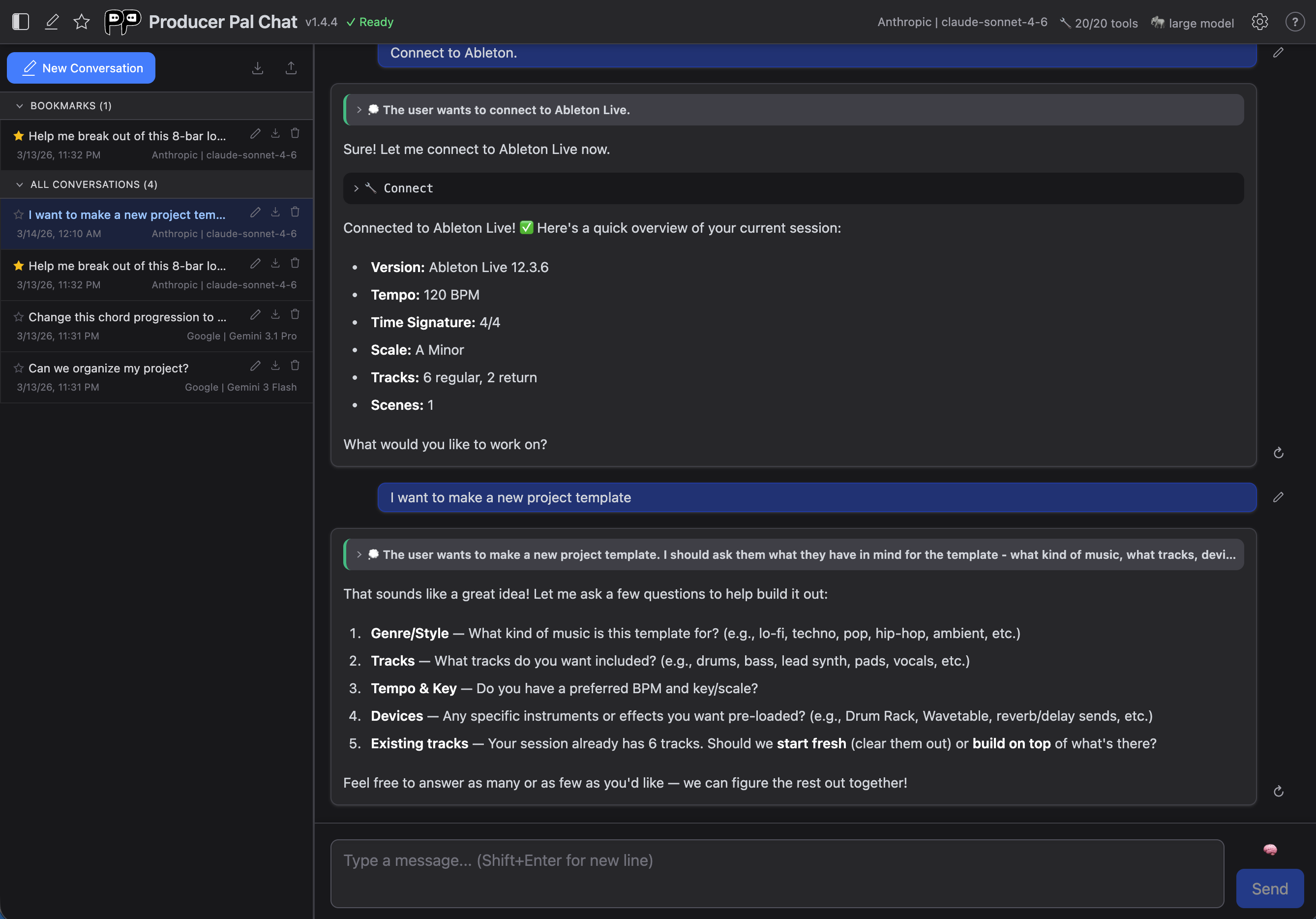
Getting Started
- Click "Open Chat UI" in the Device Interface Main tab
- Configure your AI provider in Settings (opens automatically on first use)
- Click "Quick Connect" to connect to Ableton Live
Header Bar
Left

- History panel - Toggle the conversation history sidebar
- New conversation - Start a fresh conversation
- Bookmark star - Pin the active conversation
- Logo, title & version - Shows an "update" link when a newer version is available
- Connection status - Shows "Ready" when connected to Ableton
Right

- Provider & Model - Click to open connection settings
- Tools count - Click to open tools settings
- Model size - Shows "large model" or "small model" mode
- Help (?) - Link to documentation. Hide it (here and in settings) with Show help links in Preferences
- Context - Open the context editor in a larger view, where you teach AI about your project (Project), your preferences (Global), customize its system prompt (Instructions) and skills (Skills), and review what it remembers about you (Memory). Press the close (✕) button to return to the chat
- Settings gear - Open settings dialog
Conversation History
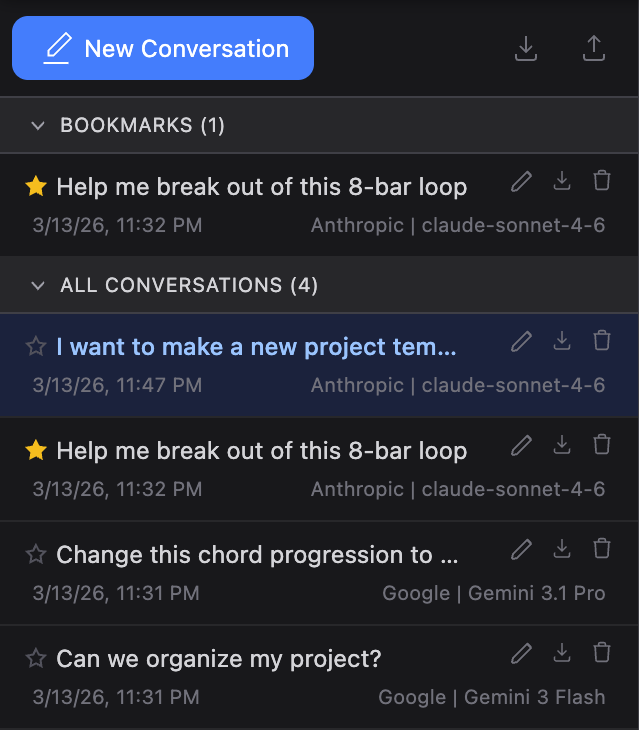
Toggle the history panel using the panel icon in the header. On mobile it takes the full width; on larger screens it appears as a sidebar.
Search
The search box filters the list by title, message text, and voice transcripts. Clear it with the ✕ to bring the full list back.
Bookmarks
Star a conversation to pin it to the Bookmarks section at the top of the list. Bookmarked conversations are never auto-deleted when the storage limit is reached. You can toggle the bookmark from the header star icon or from the conversation row.
Managing Conversations
Each conversation in the list has action buttons that appear on hover:
- Rename - Click the pencil icon to edit the title inline (Enter to save, Escape to cancel)
- Export - Download a single conversation as a JSON file
- Delete - Remove the conversation from history. An "Undo" banner appears and stays until dismissed, so a delete you didn't mean can be put back (the last ten are kept, newest first).
Switching conversations or starting a new one while a response is still streaming stops that response, so Producer Pal asks first. The partial answer is kept on the conversation it belongs to either way.
Conversations are stored in your browser's built-in database (IndexedDB), and settings are stored in local storage, with API keys encrypted. This means all your data lives in that specific browser and user profile, so it won't be available if you switch browsers or profiles. Use Export & Import to move conversations between browsers.
Up to 200 conversations are kept; when the limit is reached, the oldest non-bookmarked conversations are automatically removed.
Export & Import
The toolbar at the top of the history panel has buttons to:
- Export all - Download all conversations as a single JSON file
- Import - Load conversations from a previously exported JSON file. New conversations are added and existing ones are updated if the imported version is newer
A notification banner confirms the result of each operation.
Conversations
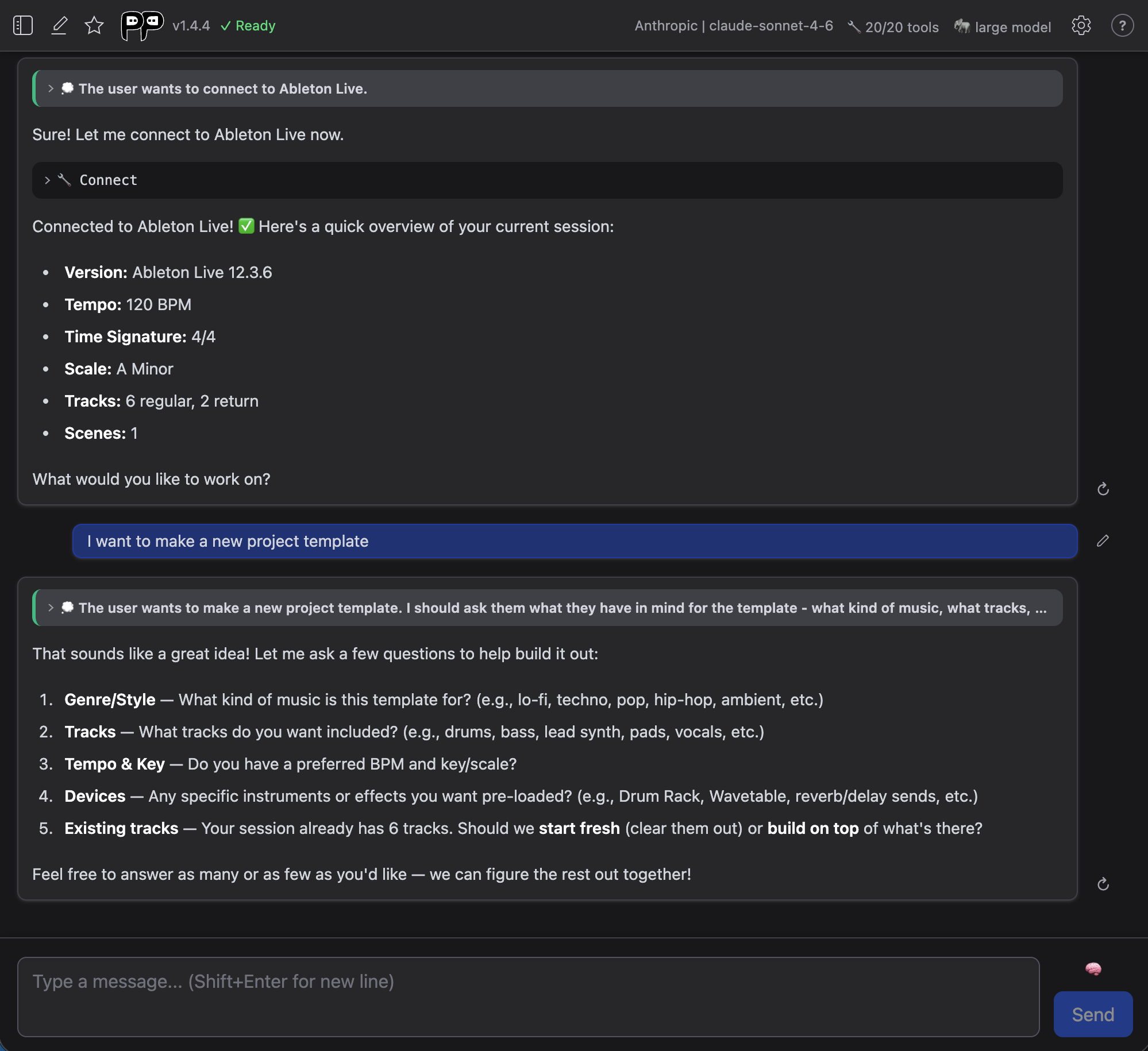
During conversations, you'll see:
- Your messages - What you typed
- AI responses - Results and suggestions from the AI
- Tool usage - Collapsed indicators when AI uses Producer Pal tools
- AI thinking - Expandable sections showing AI's reasoning process (only appears for some AI models)
Expandable Thoughts
Some AI models output "thoughts". When they do, you can click "Thought about:" sections to see the AI's reasoning process:

Editing, Retrying & Branches
You can revise a conversation without losing where it was:
- Edit a message you sent: hover over it and click the pencil icon, change the text, and send. Click ✕ on an attached image to send without it, for example, when a model that can't read images keeps failing.
- Retry an AI response: click the ↻ icon to generate a different response.
Either action branches the conversation: Producer Pal keeps the original and starts a new version from that point forward, so the path you came from is never lost. When a turn has more than one version, ‹ n/m › arrows appear beneath it (for example, "2 / 2"): under the edited message for an edit, or under the response for a retry. Click them to move between versions, and the conversation switches to that branch and scrolls to the point where it diverged.
All branches of one conversation share a single entry in the history panel (showing the most recently used version), so branching often won't clutter your history.
Message Input
Thinking Toggle
The thinking toggle next to the text area controls how much reasoning effort the AI uses for the next message. Click it to cycle through three levels:
 **Off** - No thinking
  **Default** - Let the AI decide
  **Max** - Maximum thinking effort
The default thinking level for new conversations is set in Connection settings. The toggle in the message input area overrides it for individual messages.
Text Area & Send
- Text area - Type your message (Shift+Enter for new line)
- Send / Stop - Send your message, or stop a response in progress
- 📎 Attach images - Attach PNG, JPEG, GIF or WebP images (up to 10 per message, 5 MB each). Large images are scaled down to 1568 px on the longest side before sending. You can also paste an image or drop one on the text area. Thumbnails appear above the input, each with an ✕ to remove it, and an image can be sent with no text at all.
The text area is a markdown editor, so Tab and Shift+Tab indent and outdent rather than moving focus. To leave it with the keyboard, press Escape and then Tab. Escape hands Tab back to the page for a couple of seconds. Ctrl+M makes that permanent: press it once and Tab always moves focus, press it again to get indenting back. The same keys work in the context, memory, and skill editors.
Message Queue
You don't have to wait for the AI to finish. Keep typing and pressing Send while it's working and your messages line up in a queue, shown as faded bubbles at the end of the conversation. Each one has an ✕ to remove it before it's sent.
When the current response finishes, the queued messages are sent together as your next turn, in the order you added them. Queuing a message can also interrupt a long, tool-heavy response so the AI gets to what you said next sooner.
Pressing Stop clears the queue along with the response in progress. If a response fails, your queued messages are kept (not lost) and go out with your next send.
Subagents
The AI can hand a self-contained subtask to a nested assistant working in the same Live Set. Turn it on with the experimental Subagent checkbox under Advanced on the Tools tab, and pick what the workers run under with Subagent preset on the Presets tab.
Each subagent is numbered and appears as its own card in the transcript. Expand it for the result it reported back, and expand the card inside that for its full work log. When the AI delegates several independent subtasks at once, the subagents run in parallel.
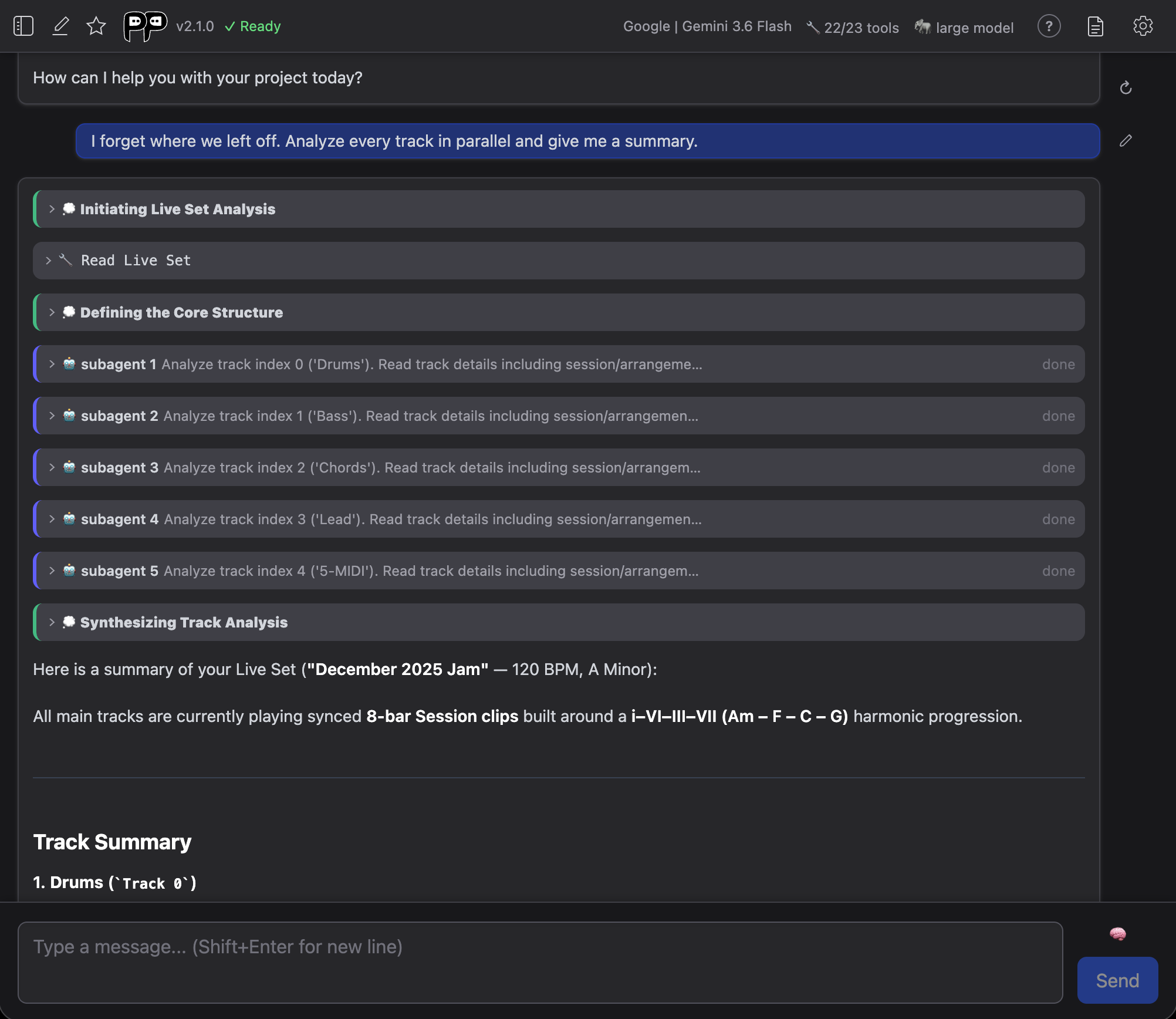
A subagent can be given more work later instead of being replaced by a fresh one. The AI does this on its own when it makes sense. That run's card is marked resumed and carries the same subagent number, because it is the same subagent picking up with everything it already did and knows. Asking for a change to a subagent's work ("subagent 2's bassline is too busy, thin it out") is usually enough for the AI to continue that subagent rather than start over.
Resuming is the cheap option
A fresh subagent has to be briefed from scratch and re-reads the Live Set before it can start. Resuming skips all of that, so follow-up work on the same material costs much less.
Pressing Stop while a subagent is working no longer throws its work away. The card reads stopped and keeps the work log it got through, and the AI can resume that subagent to finish the job. You may have to say which one, since a run stopped before it reported back doesn't hand the AI its number.
If a provider rate-limits a subagent, its card shows a rate limited countdown and the subagent retries on its own instead of failing. Subagents running in parallel share that backoff: when one hits a limit the others show waiting and pause with it, rather than piling more requests onto the provider.
Voice Mode
Producer Pal includes an experimental hands-free voice mode for talking with the AI out loud. It's available on two providers, each requiring that provider's API key:
- OpenAI: the GPT Realtime 2.1 (Voice) model
- Google: the Gemini 3.1 Flash Live (Voice) model
To enter voice mode, open Settings, set the Provider, and select that provider's voice model. The chat composer is replaced by the voice controls described below. See Voice settings for the voice, volume, turn-detection, and (OpenAI only) speed options.
Voice works in Chrome and other Chromium browsers like Edge (Edge is untested but likely fine). Firefox can't drive OpenAI's voice transport, but the Google (Gemini) voice model works in Firefox.
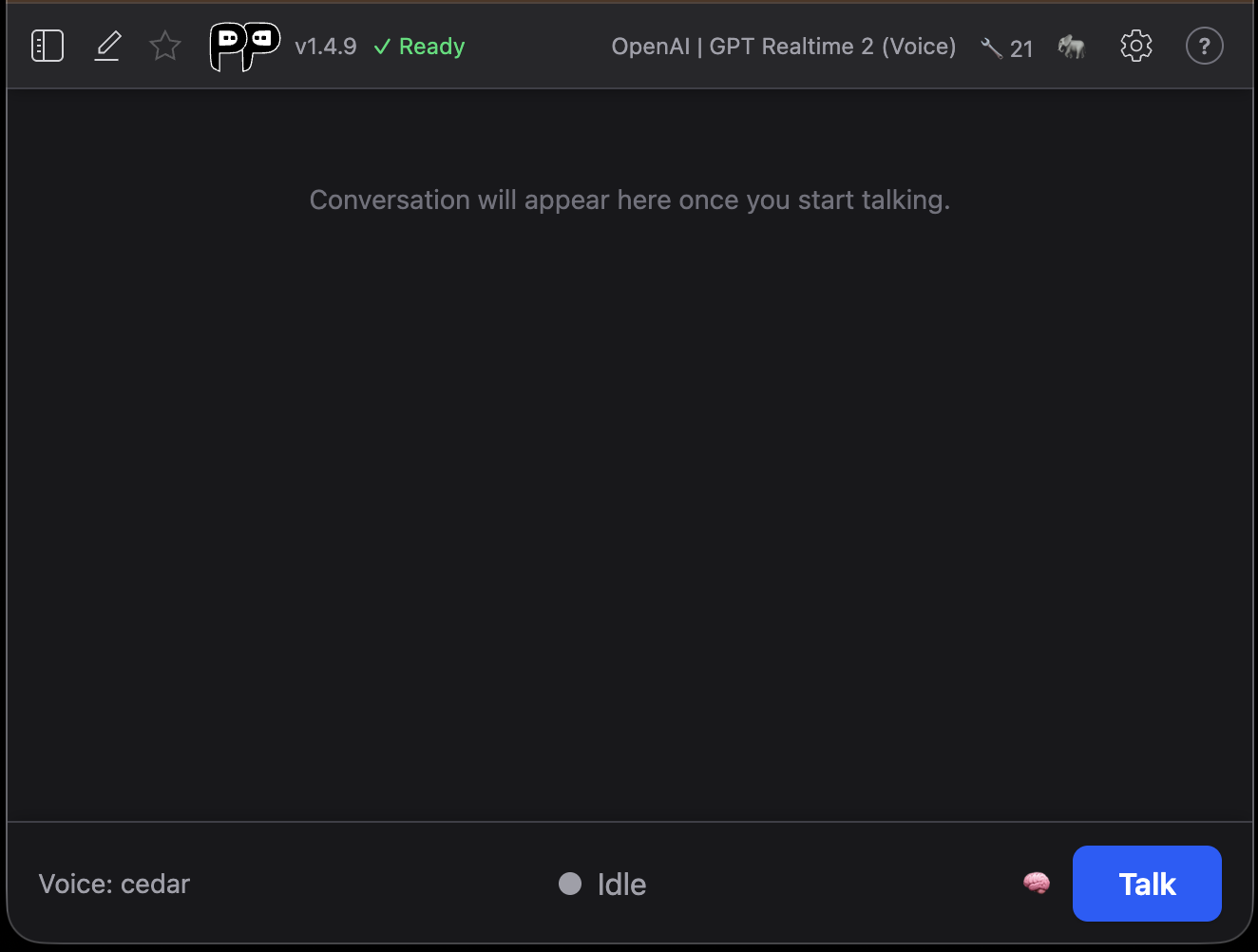
Talking with the AI
The control bar at the bottom of the voice screen works like the chat composer, but for speech:
- Talk / Stop - The first click connects to Ableton and opens your microphone; Stop ends the session. Edits to voice settings apply on the next Stop → Talk.
- Status indicator - A colored dot and label show the current state:
- Listening, go ahead (green) - The session is live and your mic is open; start speaking.
- Thinking, wait (yellow) - The model is preparing a response.
- Assistant speaking, wait (amber) - The assistant is talking.
- Plus Connecting…, Muted, Idle, and Error for the other states.
- Mute / Unmute - Appears while connected and listening. Mutes your microphone without ending the session.
- Interrupt - Appears while the assistant is thinking or speaking. Cuts off the current response so you can take over (the transcript so far is kept). To interrupt by simply speaking instead, enable barge-in.
- Voice label - Shows the active voice. It turns amber when you change the voice in settings mid-session, as a reminder that the change applies on the next Stop → Talk.
- Thinking toggle - The same per-session reasoning-effort control as in chat.
Transcript
A running transcript appears above the controls, styled like a chat conversation. It is read-only: past spoken turns can't be edited or retried, since the audio isn't kept. Voice conversations are saved to history alongside chat conversations, so you can revisit them later.
Rate limits
If OpenAI rate-limits your account mid-session, an error banner shows a countdown and a Retry button that activates once the limit clears.
Hitting rate limits?
Voice sessions re-send the full conversation context, including Producer Pal's skills and tool definitions, to the model on every turn, so a context-heavy session can reach rate limits sooner. If you run into limits, try enabling Small model mode: it loads a compact skill set and trims tool descriptions, substantially shrinking what's sent each turn. The tradeoff is that it's a global setting (it also applies to text chat) and reduces some tool detail, so leave it off unless you need it.
Settings
Settings open as a modal overlay. Press Escape or click outside to close (if there are unsaved changes, the dialog will shake as a reminder to save or cancel).
Settings are stored in your browser so you don't have to redo the setup every time. API keys are encrypted at rest, so they never sit in local storage as plain text, but that's not a substitute for OS-level protection, since anything running code in your browser can still decrypt them. If that concerns you, use a private browser or clear your settings after use.
When an active conversation was started with a different model or provider than the current defaults, a notice appears indicating that changes apply to new conversations only.
For more information about how to configure specific AI providers, see the installation guide for AI with the chat UI.
Connection
The Connection tab is where you choose and configure your AI provider and model:
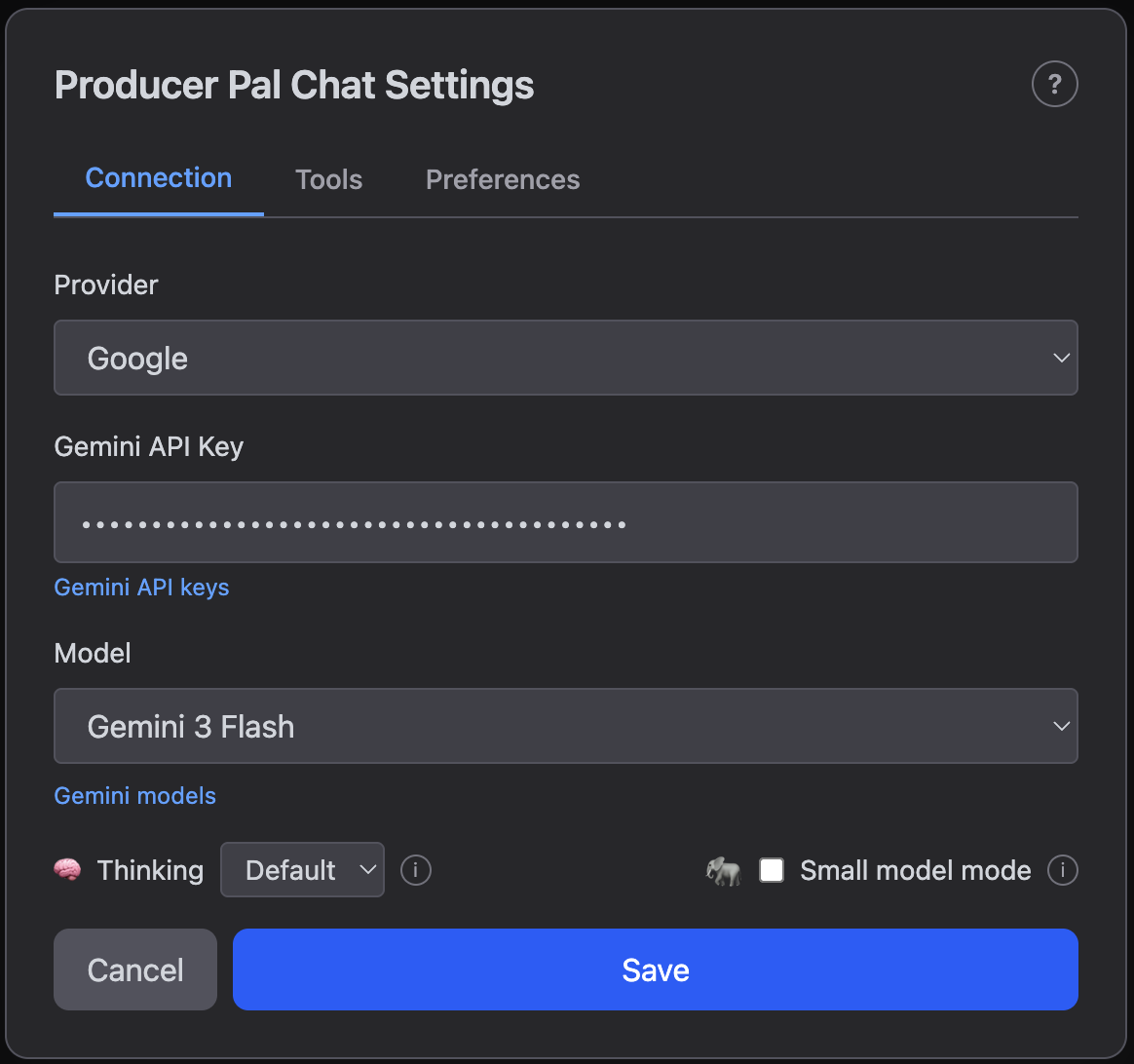
- Provider - Choose from Google, Mistral, OpenAI, Anthropic, Ollama (local), Bionic / LM Studio (local), OpenRouter, or Custom (OpenAI-compatible)
- API Key - Your API key (for cloud providers)
- Test Connection - Verify your provider settings work before saving
- Model - Select a model or enter a custom model name
- Thinking - Default thinking level for new conversations (Off, Default, or Max). Can also be overridden per-message using the thinking toggle in the message input area
- Small model mode - Reduces tool descriptions to save context for local models. Recommended when using Ollama or Bionic
Local AI settings (Ollama, Bionic)
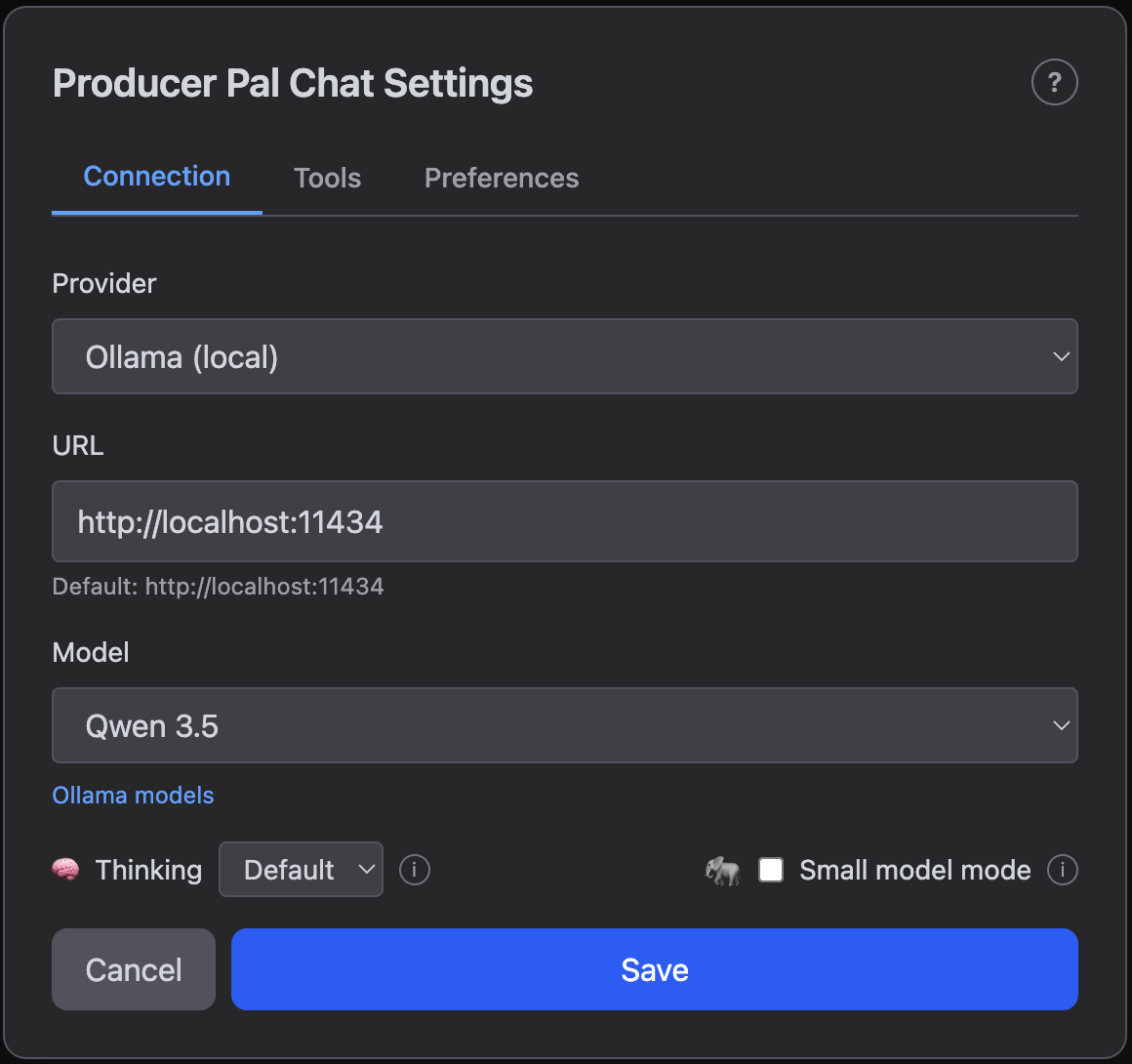
Use Test Connection to confirm your local model server is running and reachable at the configured URL.
Local models, such as those you can run with Ollama, do not require any API keys. Instead, they have a configurable URL.
- URL - Server address (default:
http://localhost:11434for Ollama,http://localhost:1234for Bionic) - Model - Select from installed models
The default is almost always right. Change it if:
- You've modified the port in your Ollama or Bionic installation
- You're running Ollama or Bionic on a different computer on your local network (or anywhere on the Internet). This allows another computer to handle the resource-intensive language model processing while your main computer focuses on running Ableton Live. Replace
localhostwith the other computer's network address (e.g.,http://192.168.1.100:11434)
Voice
There's no separate Voice tab. Select a voice model on this Connection tab (GPT Realtime 2.1 (Voice) for OpenAI, Gemini 3.1 Flash Live (Voice) for Google) and a Voice dropdown and a collapsible Voice Settings section appear below it. See Voice Mode for what it does.
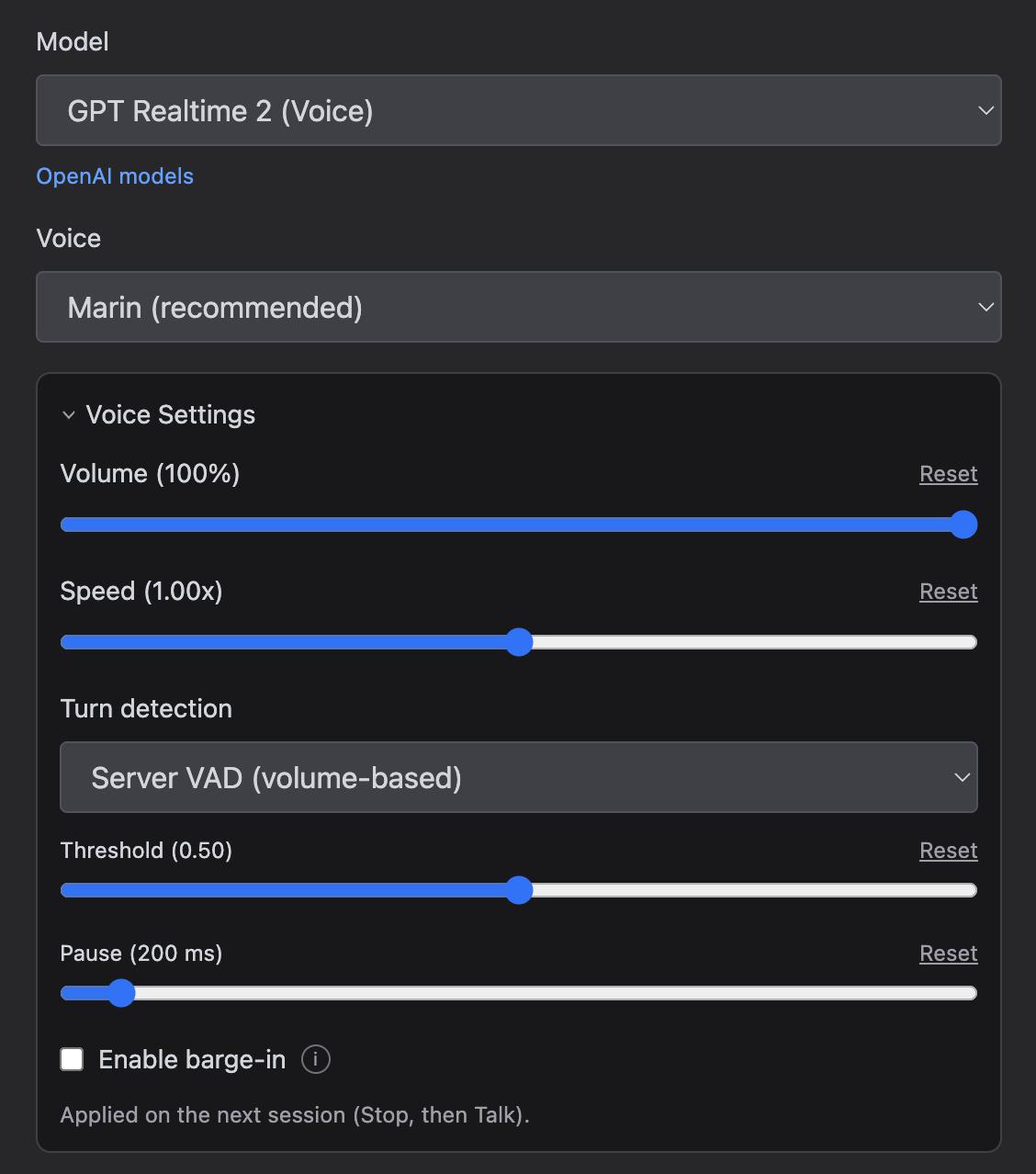
- Voice - The spoken voice the assistant uses; the choices depend on the provider. OpenAI offers Marin, Cedar, Alloy, and more (Marin and Cedar are recommended for the best audio quality); Google offers Puck, Charon, Kore, and more. The voice locks once a session starts talking, so changing it applies on the next session (Stop, then Talk).
Voice Settings
The Voice Settings disclosure groups playback and turn-detection options. Each slider has a Reset link to restore its default. Changes apply on the next session (Stop, then Talk), except Volume, which takes effect immediately.
Both providers offer volume, turn detection, and barge-in. The turn-detection controls differ because each provider exposes its own voice-activity-detection (VAD) knobs. Speed is OpenAI only (the Gemini Live API has no playback-speed setting).
- Volume - Output loudness of the assistant's voice (0-125%, default 100%). It boosts above 100% so you can lift the assistant over loud playback. Adjustable live during a session, so you can balance the assistant against the music coming from Ableton without touching Live's mixer.
- Speed (OpenAI only) - Playback speed of the assistant's voice (0.5×-1.5×, default 1.0×).
- Turn detection - How the model decides you've finished speaking, via voice activity detection, or "VAD". The controls differ by provider:
- OpenAI picks a VAD mode:
- Server VAD (volume-based) - Detects the end of your turn from audio volume. Adds Threshold (activation volume, 0-1; higher ignores quieter input) and Pause (how long to wait after you stop speaking).
- Semantic VAD (model-based) - The model decides when you've finished a thought. Adds Eagerness (Auto, Low, Medium, or High).
- Google (Gemini) exposes sensitivity and timing directly:
- Start-of-speech / End-of-speech sensitivity - High (detects more readily) or Low.
- Silence - How long (ms) to wait after you stop speaking before ending your turn.
- Prefix padding - How much audio (ms) to keep before detected speech onset.
- OpenAI picks a VAD mode:
- Enable barge-in - When on, speaking interrupts the assistant while it's still talking. Off by default for OpenAI, on by default for Gemini. Use headphones; without them, the assistant's own voice can trigger interruptions. With it off, your mic is muted until the assistant has actually finished speaking, not just finished generating. The two are seconds apart, and that tail is exactly when people talk over it.
Presets
A preset is a named, one-click bundle of a full chat setup: provider, model, thinking level, small model mode, the enabled toolset, and the notation. Because a preset spans both the Connection and Tools tabs, it gets its own home here.
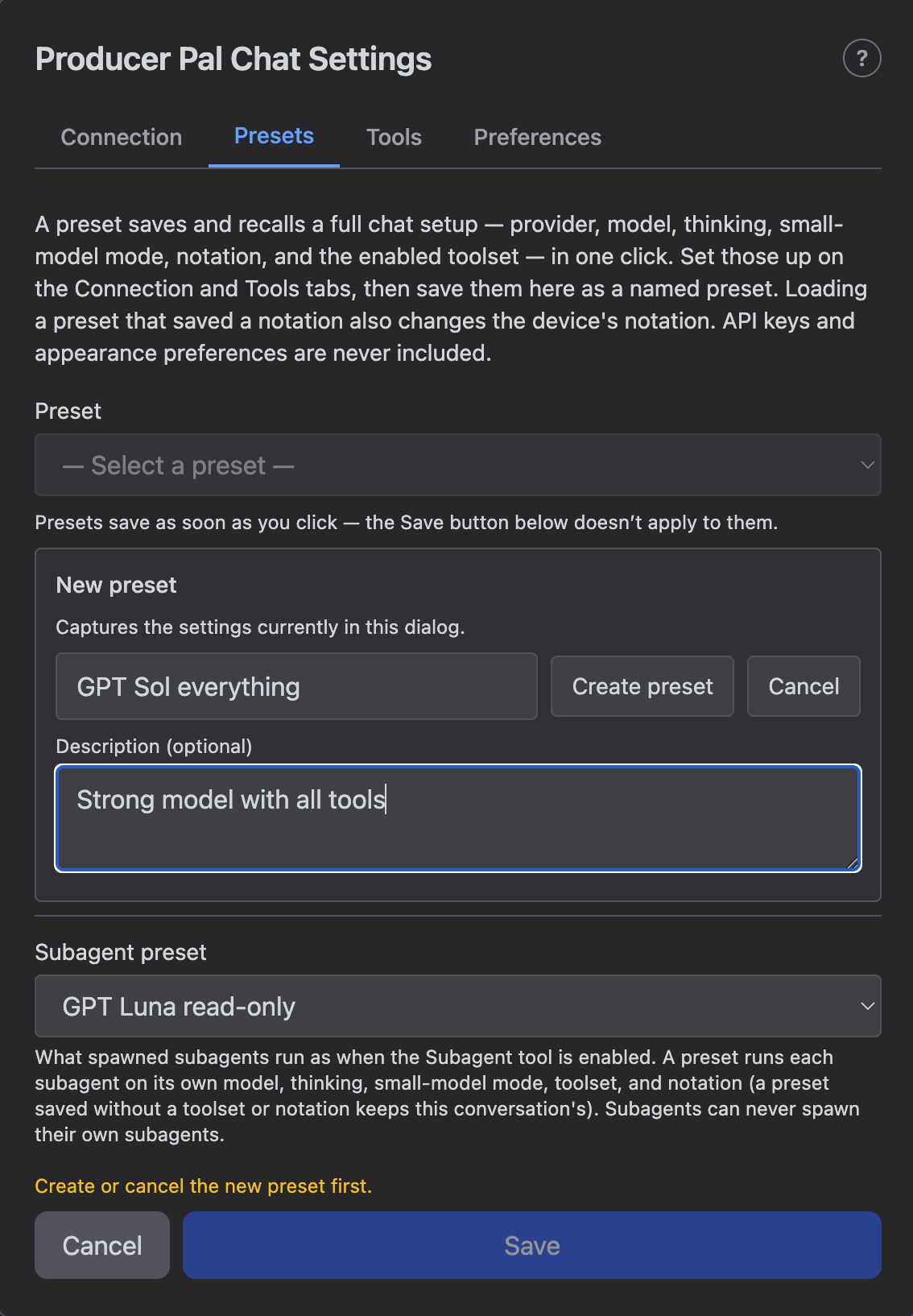
The preset buttons save the moment you click them. Unlike everything else in this dialog, they don't wait for the footer Save.
- Preset dropdown - Select a saved preset to load its whole bundle into the form. It doesn't take effect until you Save the settings, so you can review or tweak it first.
- New… - Capture the current settings as a new named preset. Fill in the name and click Create preset. You can add an optional Description to note what it's for (e.g. "cheap bulk-edit worker"). While this form is open the dialog won't close out from under it: the footer Save is disabled, and clicking outside or pressing Esc shakes the dialog instead of dismissing it. Click Cancel to drop the draft.
- Update / Delete - Overwrite or remove the selected preset. A note appears when the form has drifted from the selected preset. Editing a selected preset's Description saves as you type, with no Update needed, so a wording fix won't re-capture your settings.
- Subagent preset - Choose what a spawned subagent runs under when the experimental Subagent tool is enabled (on the Tools tab). Leave it on Inherit current settings and each subagent clones your current chat config. Pick a preset instead and every subagent runs on that preset's model, thinking, small model mode, toolset, and notation, so you can pair a strong planner with uniform, cheaper workers, or send a Stark-speaking subagent to do drum work while your own chat stays on bar|beat. (A preset that never saved a toolset or notation keeps the current conversation's.) Subagents can never spawn their own subagents, whatever a preset's toolset enables.
Configure the model and inference on the Connection tab and the toolset and notation on the Tools tab, then come here to save them together. API keys (kept per-provider) and appearance preferences are never part of a preset. A preset only names which provider to use and resolves its key from your stored settings.
Loading a preset can change the device notation
Unlike the rest of a preset, notation also lives on the device. Loading a preset that carries one and Saving changes the default notation for MCP clients and the device Setup pane too, the same as setting it directly on the Tools tab. Conversations already open are unaffected, each keeping the notation it started with, and a preset used as the Subagent preset applies its notation only to its own worker, never to the device.
Tools
The Tools tab controls which tools the chat UI's AI can call. With a cloud model you can leave everything on. With a local model (Ollama or Bionic), enable only the tools you need, because the context savings matter.
Disabling a tool also drops the part of the Producer Pal Skills that teaches it. Turn off library search and the AI stops being told how to search a library it can't reach. The saving is therefore bigger than the tool's own schema, and you don't have to trim skills by hand to match your toolset.
The header's count is out of all 23 tools, so it reads 21/23 out of the box: the two experimental ones (Live API and Subagent, both under Advanced) are off until you switch them on. The denominator stays put as they move, so the fraction always means how much of the full set you're running.
Like the notation below, each conversation is pinned to the toolset it ran with, so a change here takes effect in a new conversation. Switching a tool off doesn't withdraw it from a chat that has already been calling it, and reopening an old conversation brings back the tools it ran with rather than today's selection. A transcript full of successful calls to a tool is itself an instruction to keep calling it.
When your current selection has moved on from the open conversation's, the header's tools count turns amber (hover it for the conversation's locked count and what the default is now), and the settings dialog says which conversation-specific settings are in play. Conversations saved before 2.1.0 have no pinned toolset and reconnect on the current selection.
Consult the Features page for more info on what each tool does.
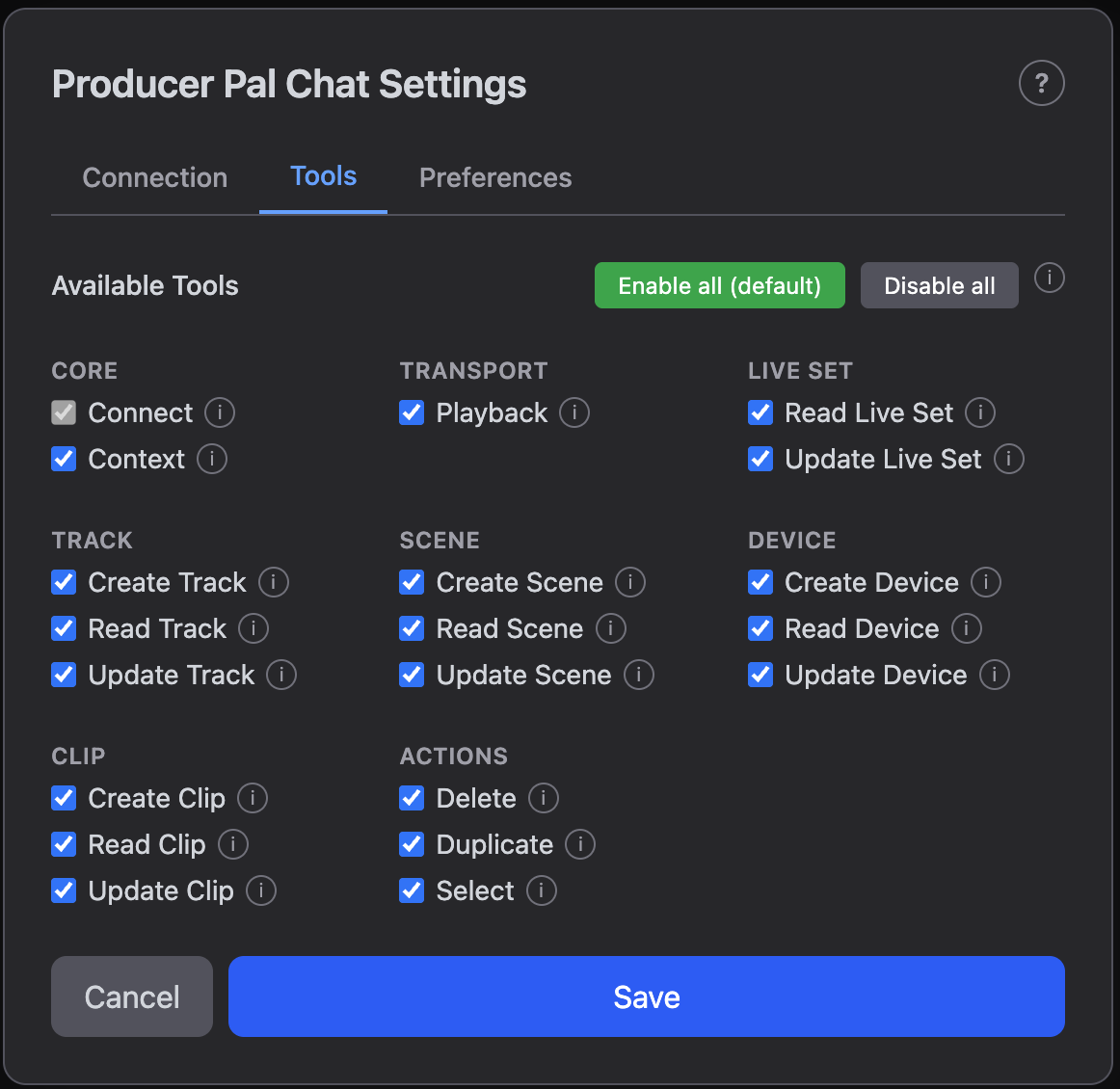
The Context checkbox under Core controls the Context tool, which AI uses to edit your context and memory and to load a memory entry it wants to read in full. Turn it off to keep AI from changing them. Your project context, global context, and the memory index are attached when AI connects either way, so to stop it reading a layer, empty that layer. Edit Context below the checkbox opens the context editor.
The experimental Subagent checkbox under Advanced lets the AI delegate work to nested assistants. See Subagents.
The Live API checkbox under Advanced behaves differently from the other toggles. The rest only filter which tools the Chat UI's AI can see, but this one mirrors the device's Setup-tab Direct Live API toggle, so enabling it here also turns the tool on at the device level (MCP clients and the REST API will see it too). It is off by default; see Direct Live API for why. It is still pinned to the conversation like the rest of the toolset, so flipping the device flag doesn't add or remove the tool mid-chat.
The Notation dropdown under Advanced chooses how the AI reads and writes clip notes: bar|beat (the default), MIDI JSON, or Stark (a literal, round-trippable notation with chord symbols, friendly to small/local models). See MIDI Notation for the tradeoffs. Like the Live API toggle, this mirrors the device's Setup pane, so changing it here also changes the default for MCP clients and the REST API.
Each chat conversation locks the notation it started with, so the switch takes effect in a new conversation. An open chat keeps reading and writing the notation it has been using all along, and reopening an old conversation resumes in whatever notation its notes were written in. The AI is never taught one notation and then handed notes in another.
Remote Script
The Remote Script tab installs the optional Producer Pal remote script, which lets the AI load plug-ins, Max for Live devices, and presets. It shows whether the script is installed and whether Live is running it, and offers an update when your Producer Pal build has a newer one.
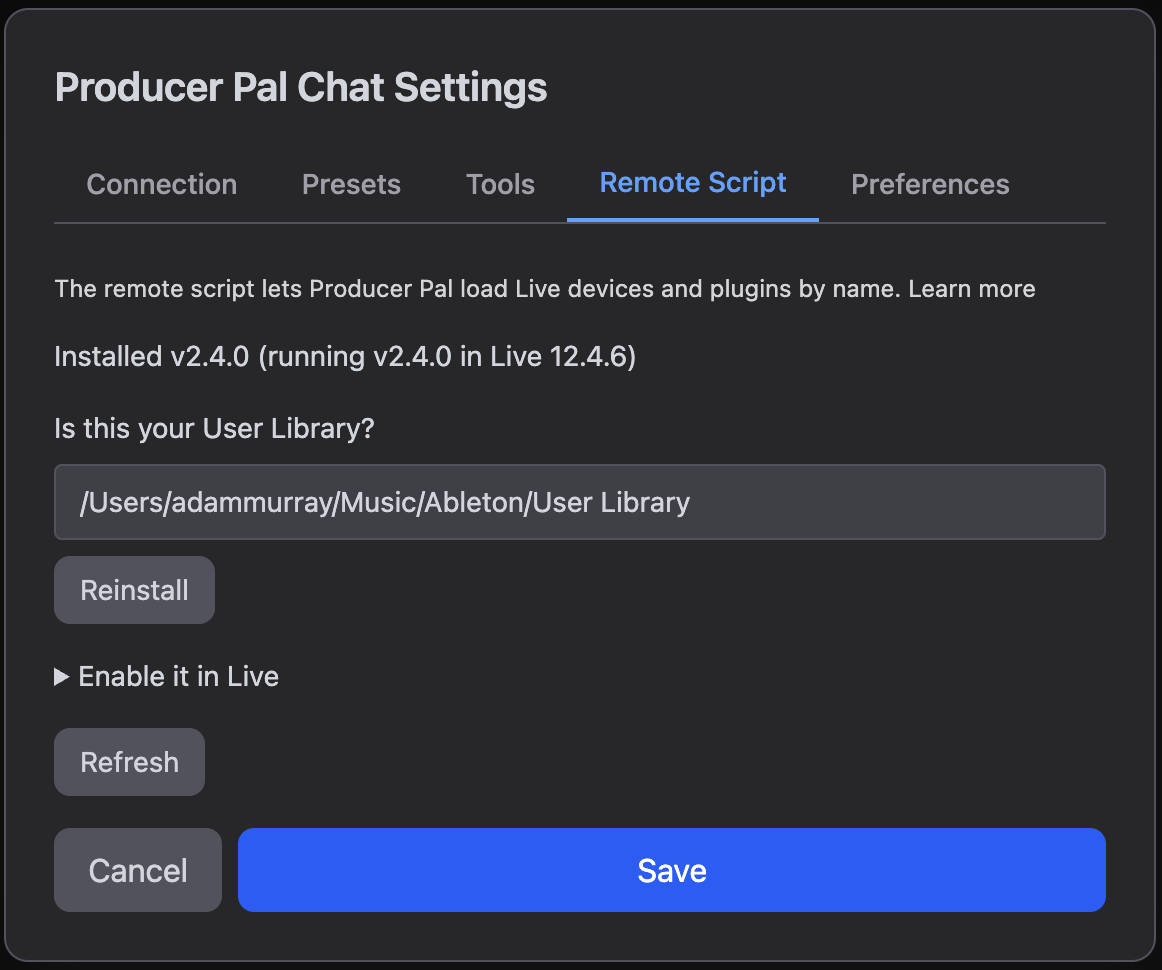
See the remote script guide to install and enable it.
Preferences
The Preferences tab controls visual preferences and conversation management:
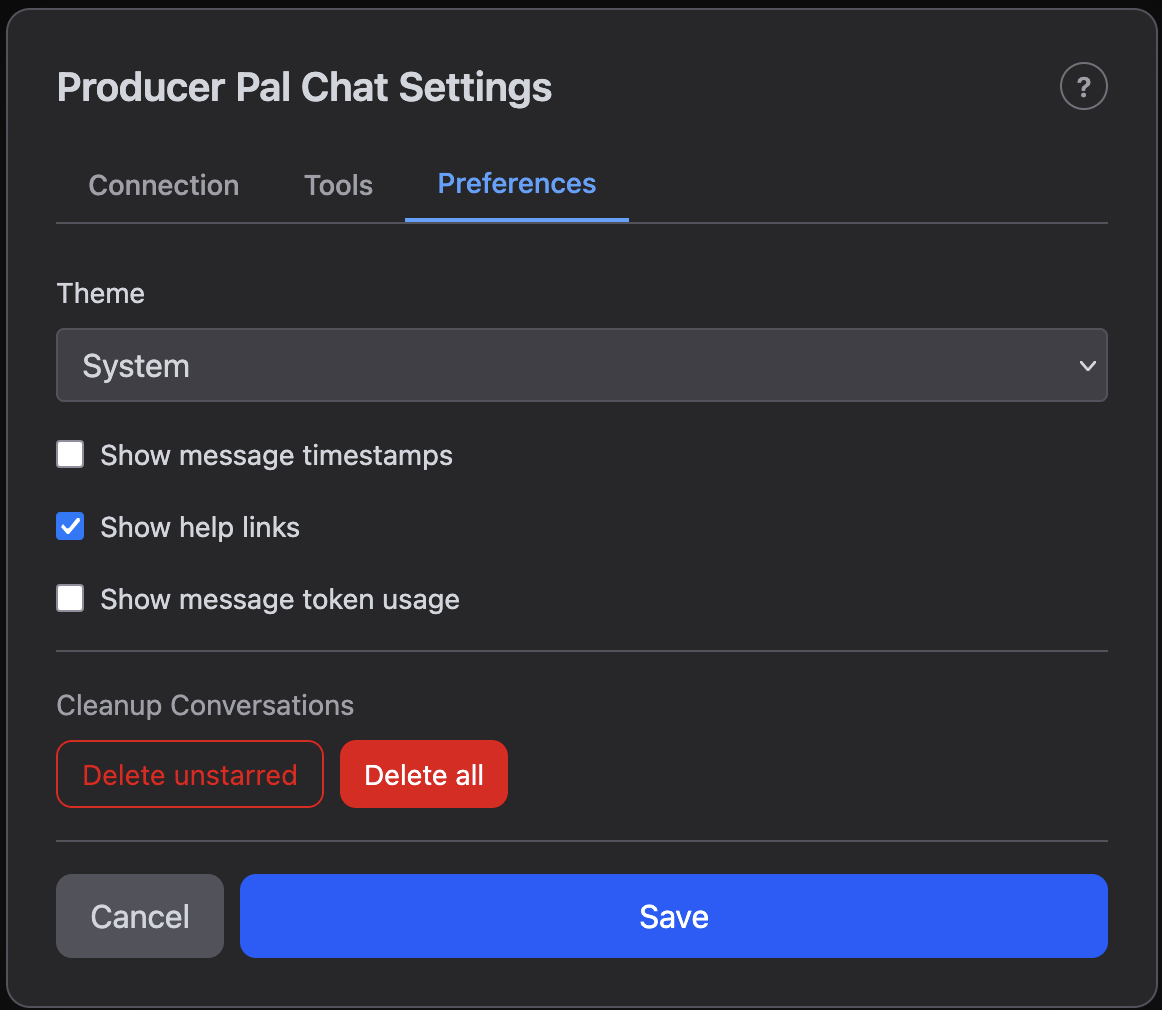
- Theme - Light, Dark, or System (follow your OS preference)
- Show message timestamps - Display the date and time next to each message
- Show help links - Show or hide the documentation help buttons (?) in the header and settings
- Show message token usage - Display token counts after each AI response (see Token Usage below)
- Automatically check for new versions - On by default. Producer Pal asks GitHub once per device load whether a newer release exists, and shows an
(update)link next to the version number when there is one. Turn this off and it never contacts GitHub. - Tool steps per turn - How much tool work one turn may do before it stops and hands control back (5-100, default 25). Raise it if long arrangement tasks keep stopping partway; lower it to keep a looping model on a shorter leash. Subagents get the same budget for their own work. A change applies to new conversations; the open one keeps the budget it started with.
- Cleanup Conversations - Bulk-delete conversations:
- Delete unstarred - Remove all non-bookmarked conversations
- Delete all - Remove every conversation
Both delete actions ask for confirmation and cannot be undone.
Unlike the other settings on this tab, the update-check setting applies immediately (no Save) and is machine-wide: it is stored in ~/.producer-pal/settings.json and also governs the Max for Live device's own update notification. The × beside the (update) link dismisses that version's notification in both places; a later release brings it back.
Token Usage
Tokens are the units AI models use to process text, roughly ¾ of a word on average. They determine API costs and context limits.
When "Show message token usage" is enabled in Preferences, each AI response shows a token summary:
tokens: INPUT (NEW new) → OUTPUT (REASONING reasoning)- Input - Total input tokens for this step. Input tokens accumulate across messages because each request includes the full conversation history
- New - How many input tokens are new content compared to the previous step (omitted on the first message)
- Output - Tokens generated by the AI
- Reasoning - Tokens spent on thinking/reasoning, which are a subset of the output token count (only shown when non-zero)
On wider screens, the conversation history sidebar also shows per-conversation token totals in the format tokens: INPUT → OUTPUT, representing cumulative usage across the entire conversation.