
Max for Live Device
The Producer Pal device is a Max for Live MIDI effect that connects Ableton Live to AI by giving it an interface to the Live API.
Main Tab
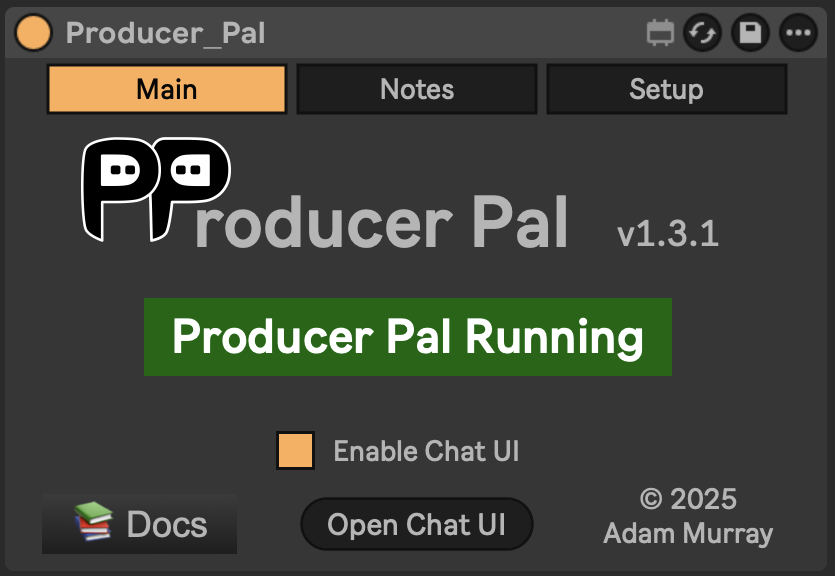
- Version - Current version number
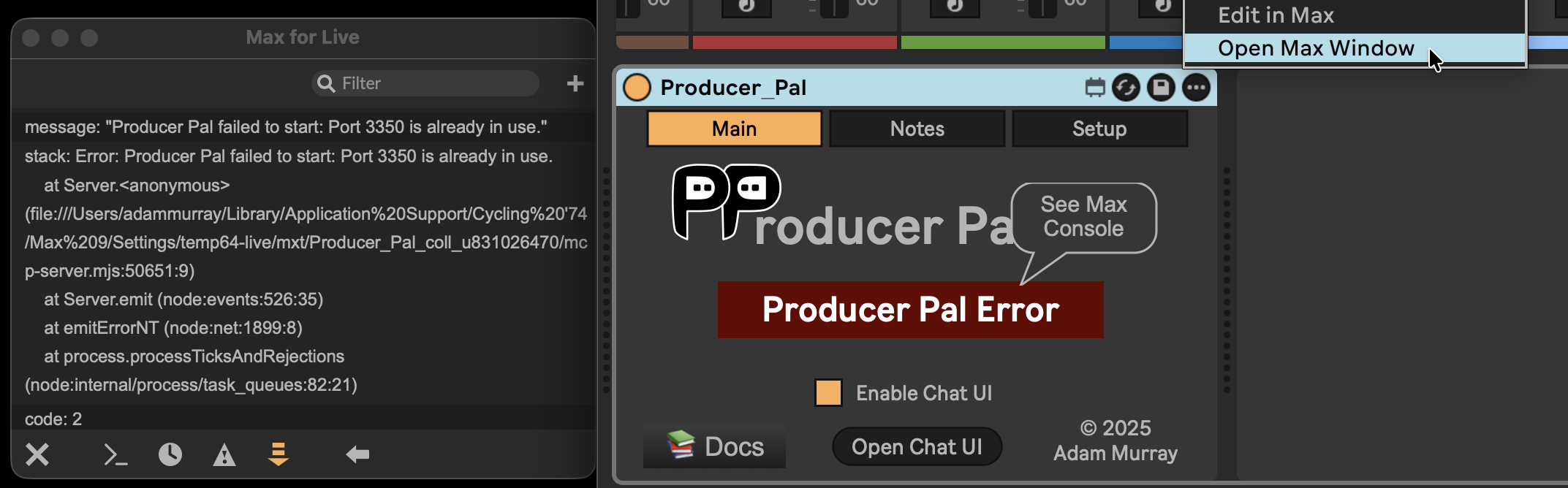
- Status indicator - Shows "Producer Pal Running" (green), "Producer Pal Stopped" (black), or "Producer Pal Error" (red) if something went wrong when trying to start.
- Docs - Link to this documentation site
- Open Chat UI - Opens the built-in Chat UI in your default browser. The UI is also reachable from other devices on your local network (handy for phone access, but be mindful on shared networks).
If you see "Producer Pal Error", click the three-dot menu in the upper right of the device, select "Open Max Window", scroll down if needed, and look for an error message.
Context Tab
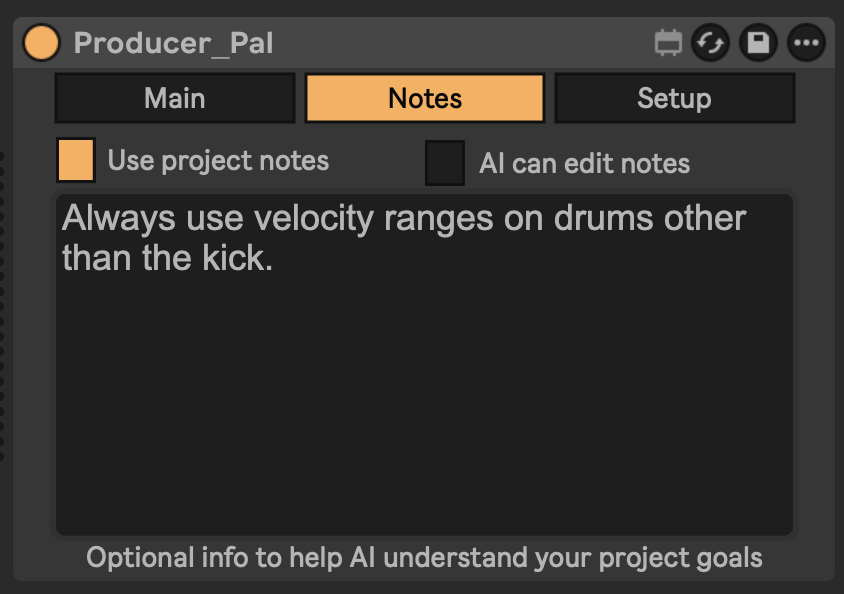
The Context tab holds your project context: notes about this Live Set (its genre, structure, track layout, and the rules you want AI to follow) included in every conversation. It is saved in this project's Producer Pal device, so it travels with the Live Set, and mirrored to a file in your Live Project folder, so it survives deleting or upgrading the device. AI can read and edit these notes too.
- Context text area - Your project-specific notes and preferences
- Open Editor - Open the context editor in a larger view in your web browser
Example notes:
- "Always use velocity ranges on drums other than the kick"
- "Use occasional triplet rhythms"
- "Use strong harmonies with one chord per bar"
To stop AI from reading your project context, clear the text area. To stop AI from writing to it, turn off the Context tool. In the built-in Chat UI that's the Context checkbox under Tools settings; other MCP clients have their own way to disable a tool.
Project context is one of several layers
Project context lives with this Live Set. Global context (notes that apply across all your projects) and memory (facts AI records about you as you work) are stored on your computer instead. All three are edited in the context editor, the same one the Open Editor button opens. See Context & Memory.
Setup Tab
Server
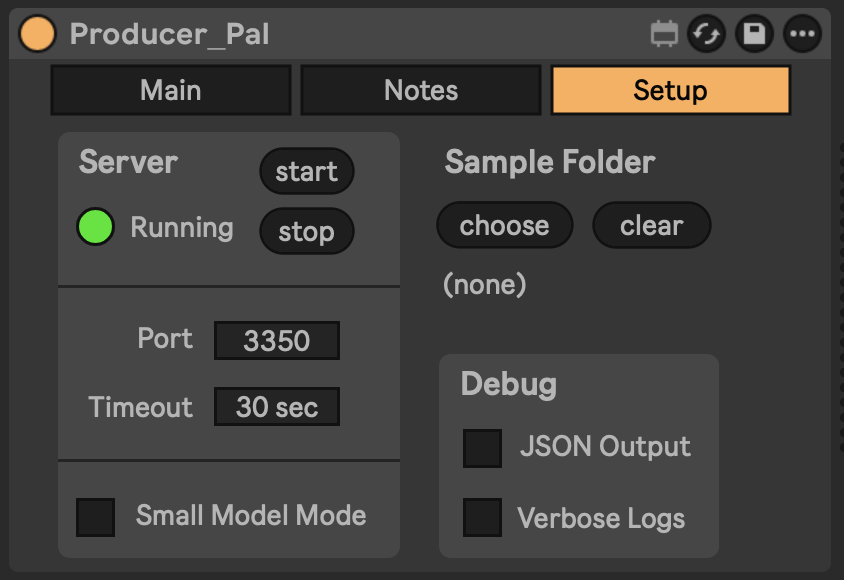
- Status light - Green while the server is running
- Start/Stop - Control the server that connects AI to Live
- Port - Network port for connections (default: 3350, change only if another app uses this port). If you do change it, point your clients at the new port too: use the new URL directly wherever a doc shows
http://localhost:3350, and for thenpx producer-palbridge set theMCP_SERVER_ORIGINenvironment variable (e.g.MCP_SERVER_ORIGIN=http://localhost:3400), which defaults tohttp://localhost:3350. - Timeout - Maximum time for AI operations (default: 45 sec, max 55 sec; increase on slow computers if experiencing timeouts during complex operations). The cap stays under 60 sec because that is where most AI clients give up. Past that, you lose the partial results Producer Pal returns when it times out
Behavior
These settings belong to the device, not to one conversation: they apply to the built-in Chat UI, external MCP clients, and the REST API alike.
- Small Model Mode - Reduces prompt size for local/smaller models like Ollama and Bionic
- Notation - How AI reads and writes clip notes:
barbeat(the default),midi-json, orstark. See MIDI Notation for what each one is good at
AI is taught the notation at the start of a conversation, so switching notation takes full effect in a new conversation. In an ongoing chat, AI can still read your existing notes in the new notation but will keep writing the old one.
Sample Folder
Configure a folder of audio samples to expose to the Library tool. Items from this folder appear before Live's library results in searches. Shows (none) when no folder is configured.
- Choose - Select your sample folder
- Clear - Remove the configured folder
Debug
Diagnostics. Not needed for day-to-day use.
- Direct Live API - Enables the opt-in Direct Live API tool, giving AI direct access to the Ableton Live Object Model for scripting, debugging, and covering gaps in Producer Pal's specialized tools
- JSON Output - Display raw JSON in tool responses
- Verbose Logs - Enable detailed logging in the Max console