Mistral Vibe
Use Producer Pal with Mistral's open-source command line coding assistant.
Requirements
Ableton Live 12.3+ with Max for Live. Live 12.4 or later is recommended — some features don't work on older versions of Live. Use the version of Max bundled with Live, or make sure your standalone Max is up to date.
Mistral Vibe (requires Mistral API key)
Installation Steps
1. Install the Max for Live Device
Download Producer_Pal.amxd, the Producer Pal Max for Live device.
To install it, open User Library (under Places) in Live's browser, go to Presets → MIDI Effects → Max MIDI Effect, and drag Producer_Pal.amxd into that folder:
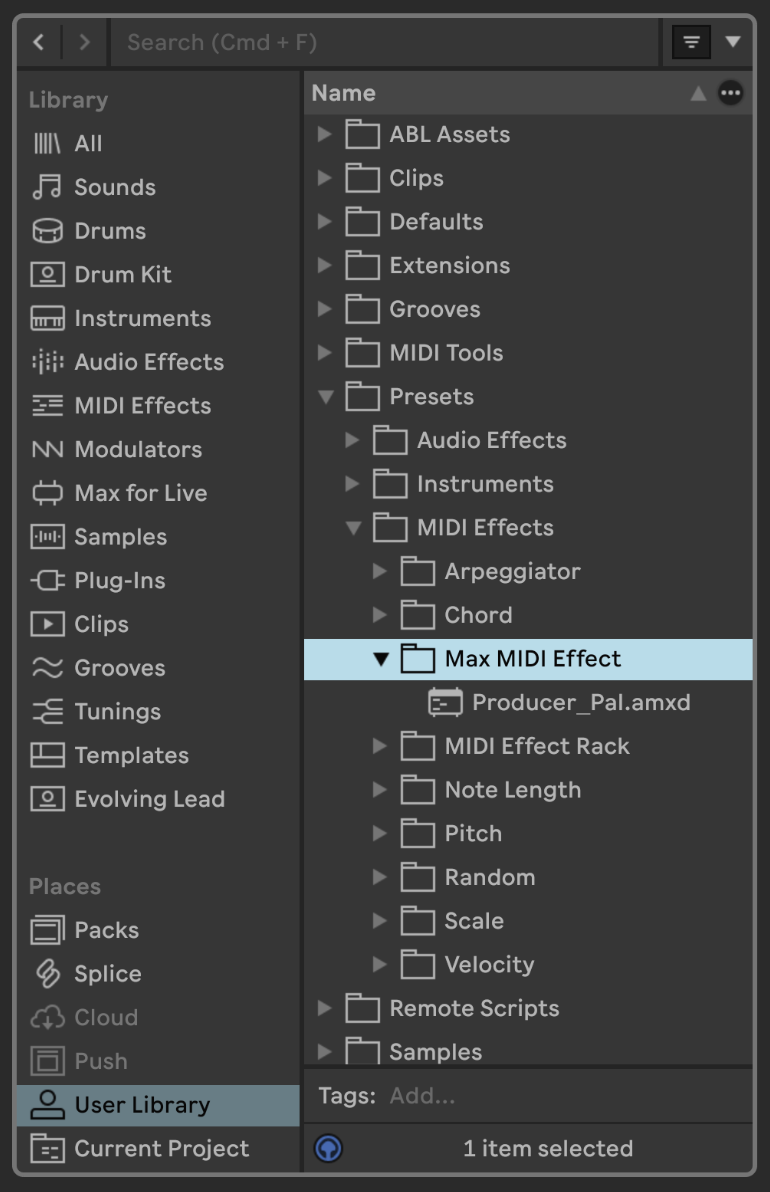
Drag it from the Max MIDI Effect folder onto a MIDI track:
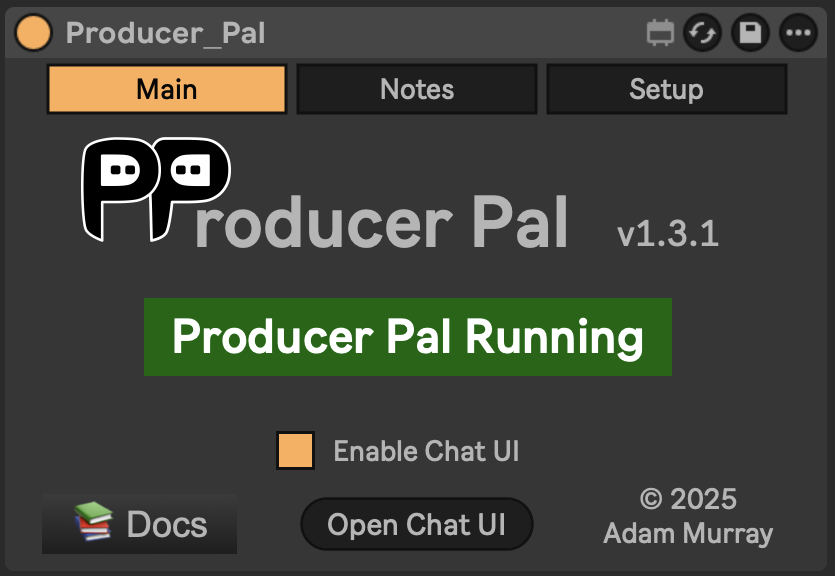
It should display "Producer Pal Running" or something isn't working.
2. Configure Mistral Vibe
Add Producer Pal to your Vibe configuration file (~/.vibe/config.toml):
Option A: With npx (recommended) — Allows flexible startup order and auto-reconnection:
[[mcp_servers]]
name = "producer-pal"
transport = "stdio"
command = "npx"
args = ["-y", "producer-pal@latest"]
Option B: Direct HTTP — Requires Ableton running first, no auto-reconnection:
[[mcp_servers]]
name = "producer-pal"
transport = "streamable-http"
url = "http://localhost:3350/mcp"
3. Start Using Producer Pal
- Run
vibein an empty folder (so it can focus on Producer Pal instead of coding) - Start a conversation with "connect to ableton"
- Allow Producer Pal tools to be used when prompted
Troubleshooting
If it doesn't work, see the Troubleshooting Guide.