Context & Memory
Producer Pal remembers things about your music and about you in three layers, each available in every conversation:
| Layer | Answers | Stored |
|---|---|---|
| Project context | What is this Live Set? | In this project's Max for Live device; it travels with the Set |
| Global context | What do you always want? | On your computer, in ~/.producer-pal/context.md |
| Memory | What has AI learned about you? | On your computer, one file per fact in ~/.producer-pal/memory/ |
~ is your home folder, so ~/.producer-pal is:
- macOS:
/Users/you/.producer-pal - Windows:
C:\Users\you\.producer-pal
That folder holds the files behind every layer, so you can open it to edit or back them up directly.
You write project and global context by hand. Memory is AI's own notebook: it records facts as you work, and you can edit them. AI can edit all three with the Context tool.
All three reach every client (the built-in Chat UI, external MCP clients like Claude Desktop, and the REST API) because they ride along with the ppal-connect result, no matter which route called it.
The context editor
The editor has a tab per layer, plus two tabs for customizing how AI is prompted. Open it from:
- The Context button in the Chat UI header
- The Open Editor button on the device's Context tab
- The Edit Context link beside the Context tool in the Chat UI's Tools settings
Every tab shares the same chrome: edits auto-save as you type (the header shows "Saved"), a size readout gives the character count and approximate token cost, and the import (⬆) / export (⬇) buttons read and write markdown files. You can also drag a .md file onto the editor. AI and the editor stay in sync: if AI writes while you have a tab open, a banner offers to reload.
Project
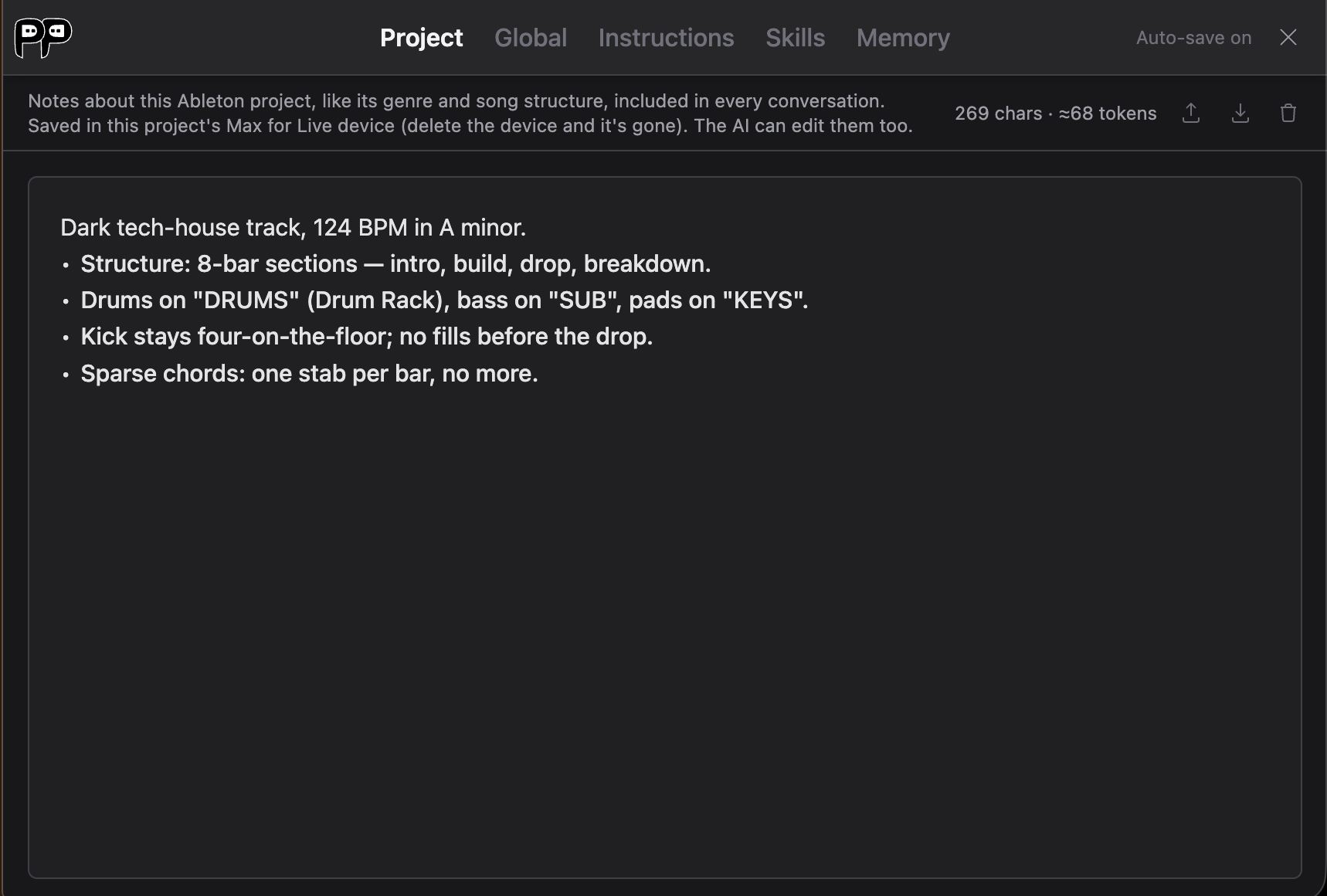
Notes about the Live Set you're working on: its genre and tempo, how the arrangement is laid out, which track does what, and the rules you want followed.
Project context is saved in this project's Producer Pal device, so it travels with the Live Set. It's also mirrored to a file in your Live Project folder, so it survives deleting or upgrading the device. This is the same text as the device's Context tab; the device shows it in a small box, the editor gives it room.
That mirror is a Producer Pal Project Context.md file (one file, shared by every Set in the folder), restored the first time the AI uses a tool on a new device. It's a backup, not the source of truth: you normally never touch it, and it's safe to delete. (Unlike the two layers below, this is the one context file that lives with your project rather than under ~/.producer-pal.) See when an upgrade can still lose it.
Keep it about the project, not about you. "Kick stays four-on-the-floor" belongs here; "I always work in A minor" belongs in Global.
Global
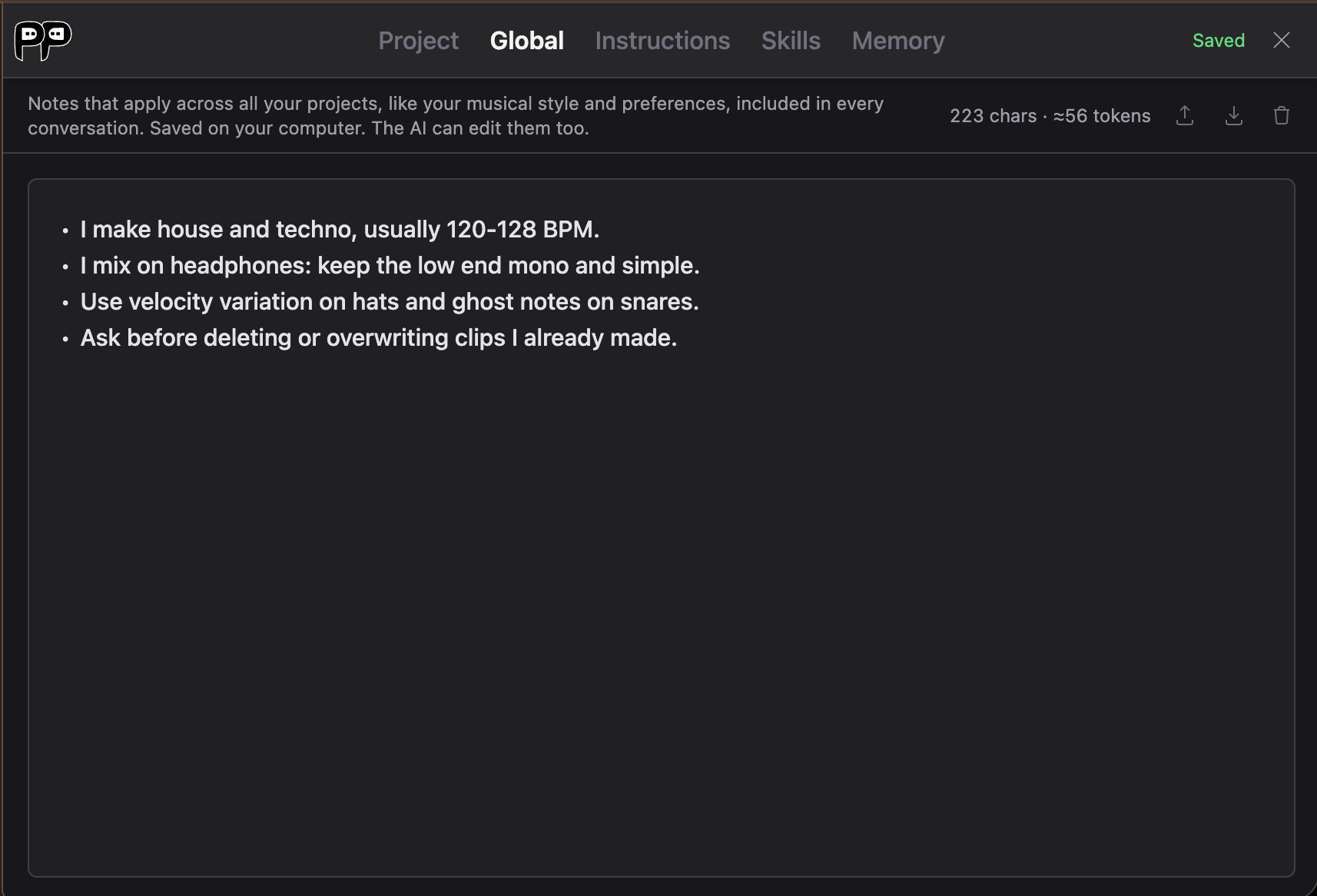
Notes that apply to everything you make: the genres and tempos you work in, your production habits, conventions you want AI to respect, and things you never want it to do.
Global context is stored on your computer, so it follows you from project to project, so a new Live Set starts with your preferences already in place.
AI can't replace either layer with just its own edit
When AI edits Project or Global context it rewrites the whole document, so a model that sends only its new fact would replace everything else with it. Producer Pal skips a write that keeps none of what's already there and tells AI to re-send the existing content along with its addition. It's a backstop against wholesale replacement rather than a merge check: a write that keeps some of your notes and drops the rest still goes through. Emptying a layer on purpose still works, from the editor or by asking AI to clear it.
Instructions
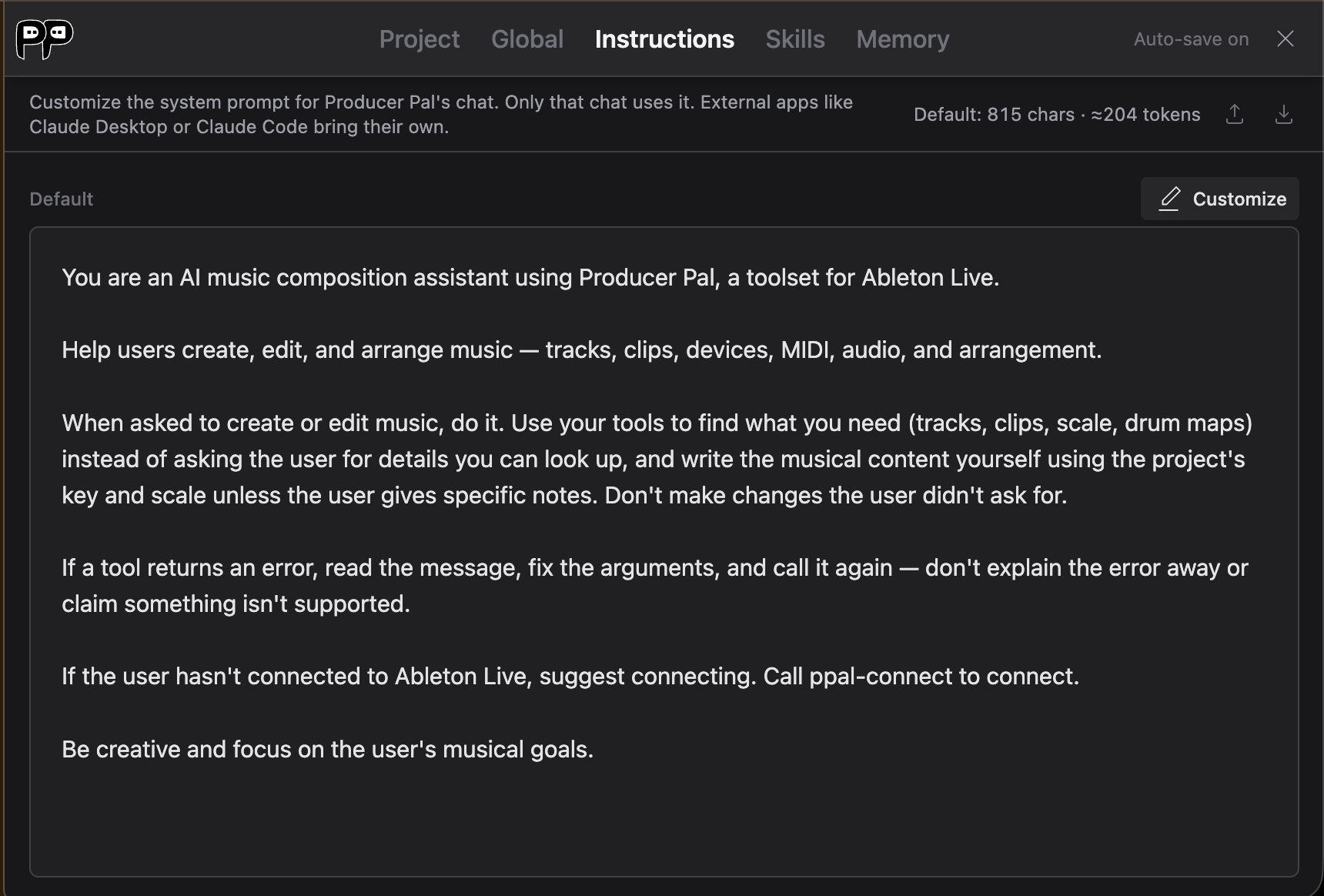
The system prompt for the built-in Chat UI. It ships with a default (shown in the editor, with its size) that tells AI to act as a music-composition assistant and to use its tools rather than asking you for details it could look up.
Just start typing to make it yours: the first edit forks the default into your own editable copy, and the trash button resets back to the default. Only the built-in Chat UI uses this. External apps like Claude Desktop or Claude Code bring their own system prompt.
This replaces, not appends
Custom instructions replace the default entirely. If you want AI to keep behaving like Producer Pal's assistant, edit the default rather than clearing it and starting from a blank page. To add a preference, use Global context instead. That's what it's for.
Skills
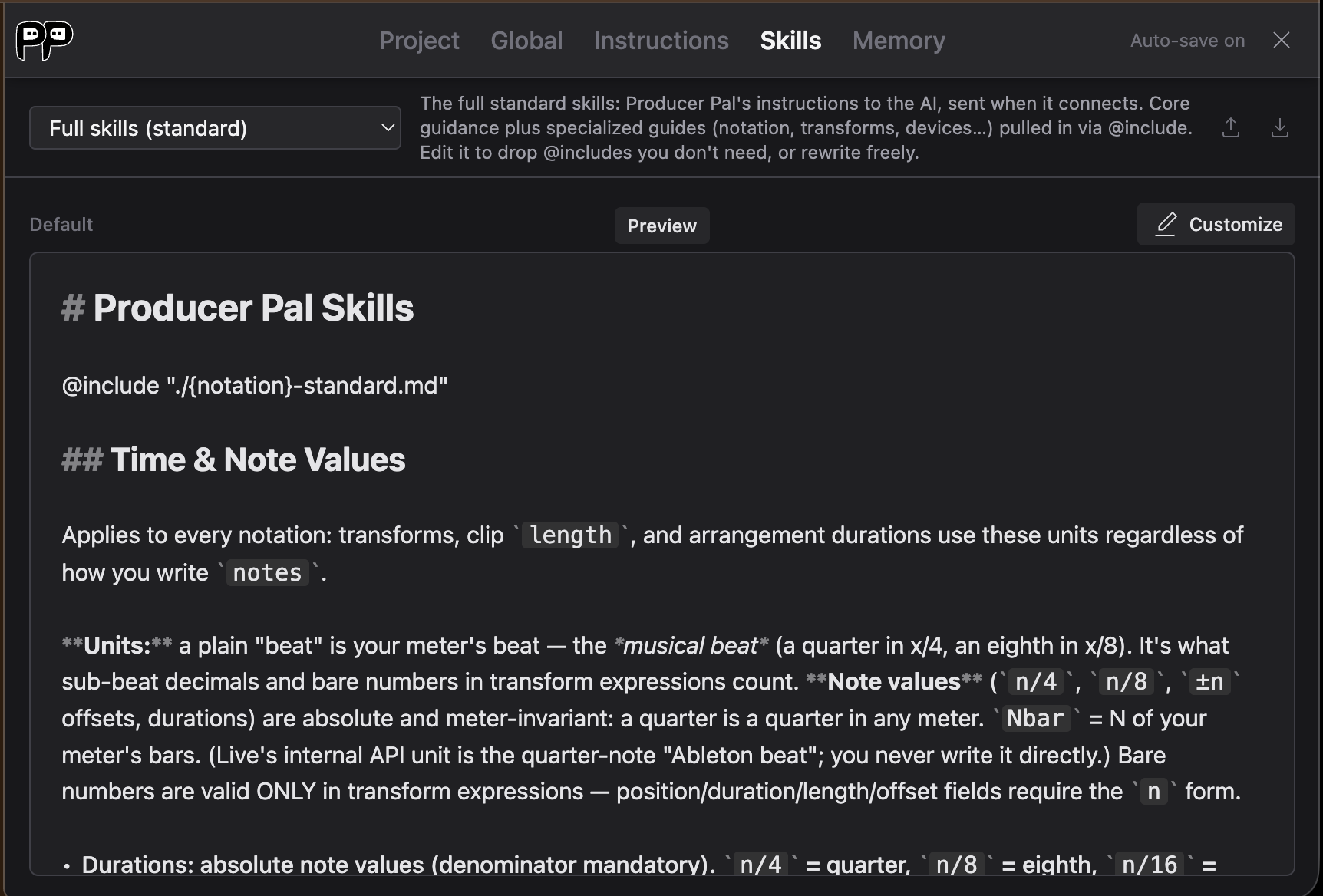
The Producer Pal Skills are the instructions AI receives when it connects: how to write notes, edit clips, build instruments, and search your library. The Skills tab lets you override any fragment of them, or leave one out entirely. The dropdown picks a fragment, listing each by its filename, the same name an @include line uses, and the file your override is saved to; the fragment's title and a one-line explainer sit beside it. Each opens showing Producer Pal's default, and typing into it forks that default into your own override. The Include checkbox beside the dropdown drops that fragment from what the AI receives, keeping your override for when you switch it back on.
Customized fragments are marked ✎ in the dropdown, ✕ if switched off, and ⚠ if the built-in changed in a newer Producer Pal release after you forked it (your override still applies; the mark just tells you it's now behind).
Once you've customized a fragment, Show default puts the built-in beside your override so you can see what you changed:
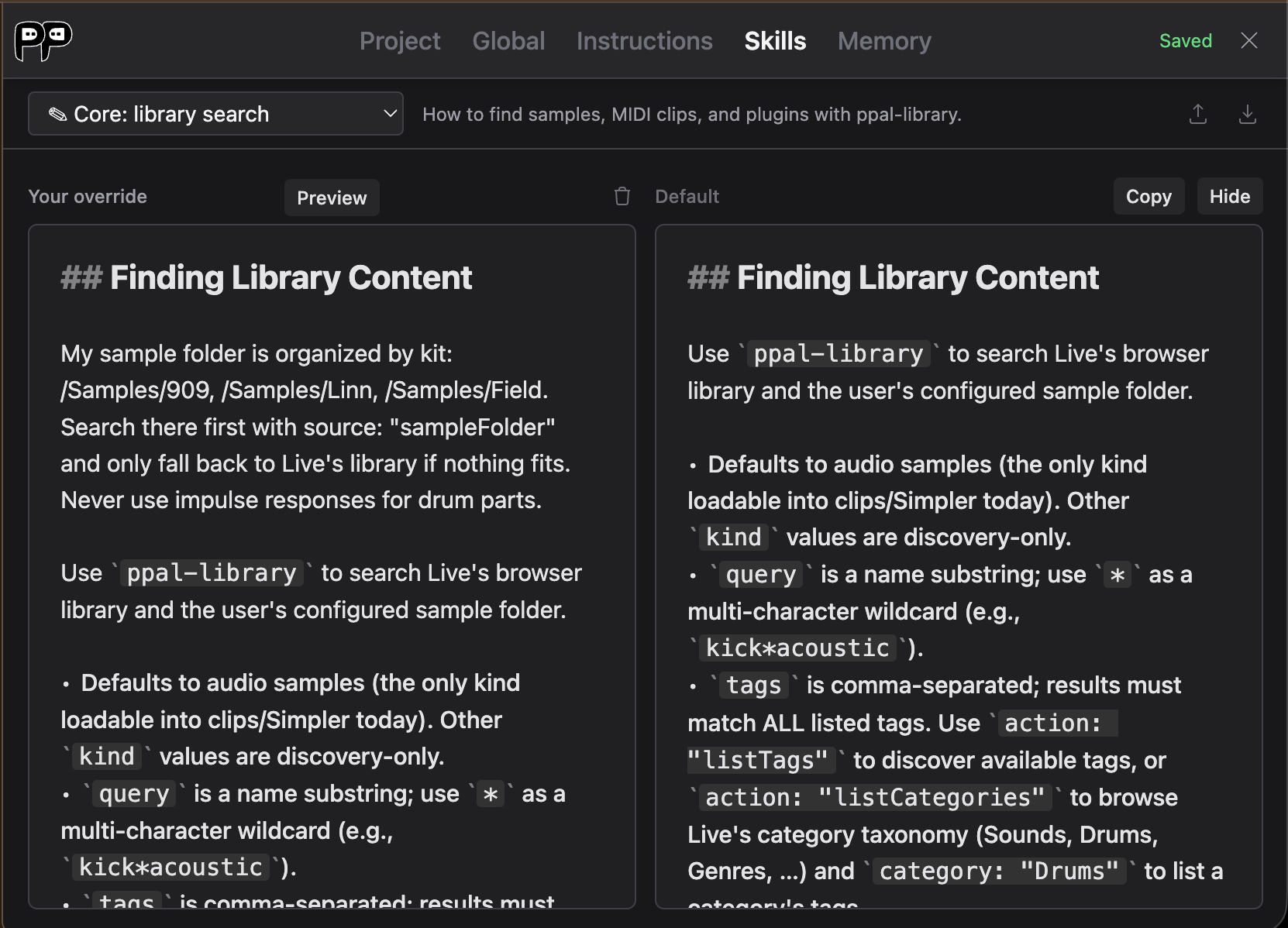
- Your override (left) is editable and auto-saves
- Default (right) is the built-in, with Copy to grab its text and Hide to collapse back to one column
- The trash button beside "Your override" resets the fragment, deleting it
The eye button at the end of the controls row shows what AI actually receives: the whole assembled document for a given notation and model size, with your overrides applied. The customized library fragment above appears here in place, right where it gets pulled in:
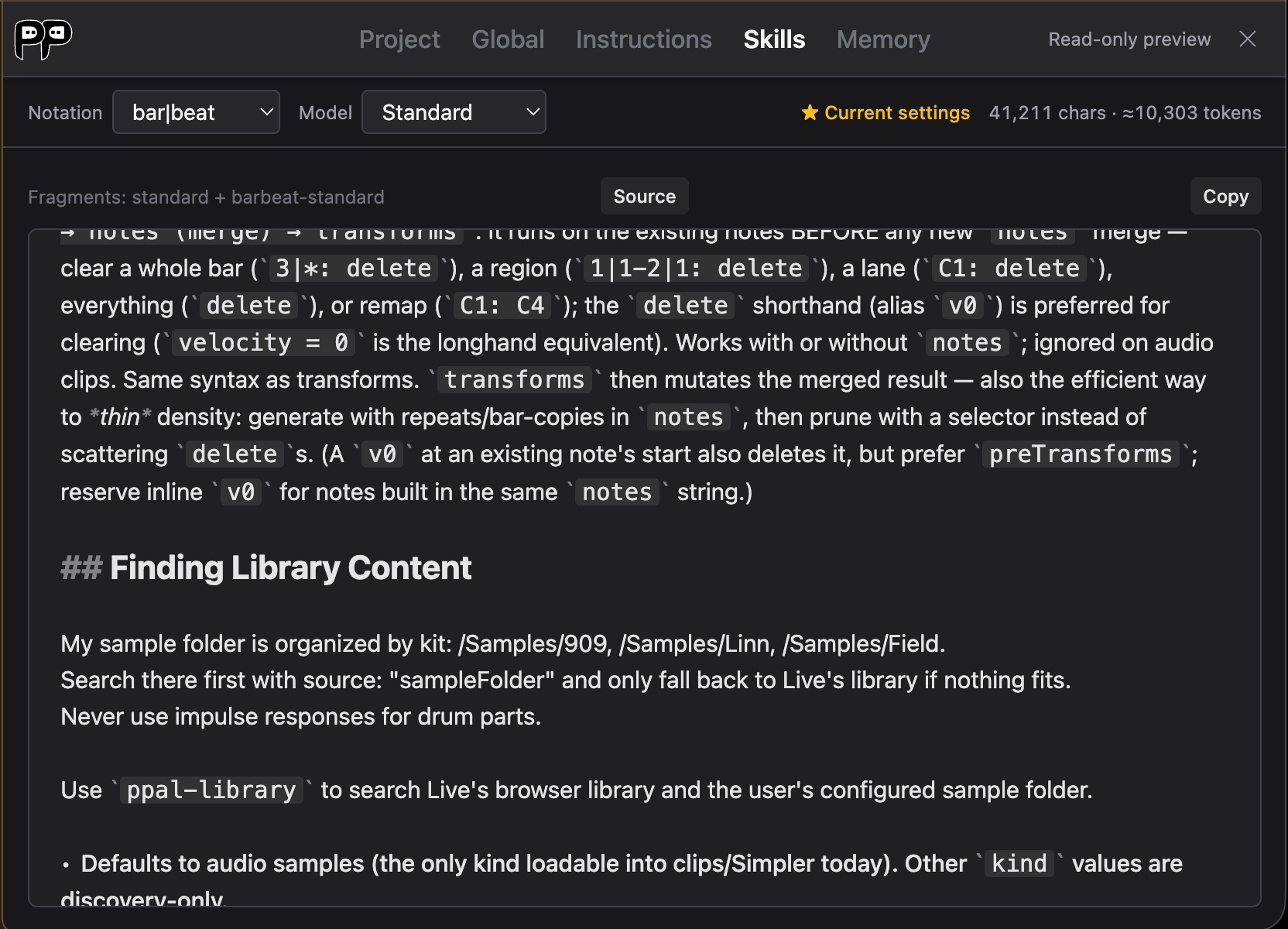
The ★ badge marks the combination your current settings use, and the size readout is why trimming matters: everything here is sent on every conversation. Enabled tools only leaves out the sections no tool you've switched on would use, which is what a new conversation gets; clear it to read a section whose tools are currently off. The < > button switches back to editing.
See Customizing Skills for how the fragments fit together, and how to drop whole areas you never use.
Memory
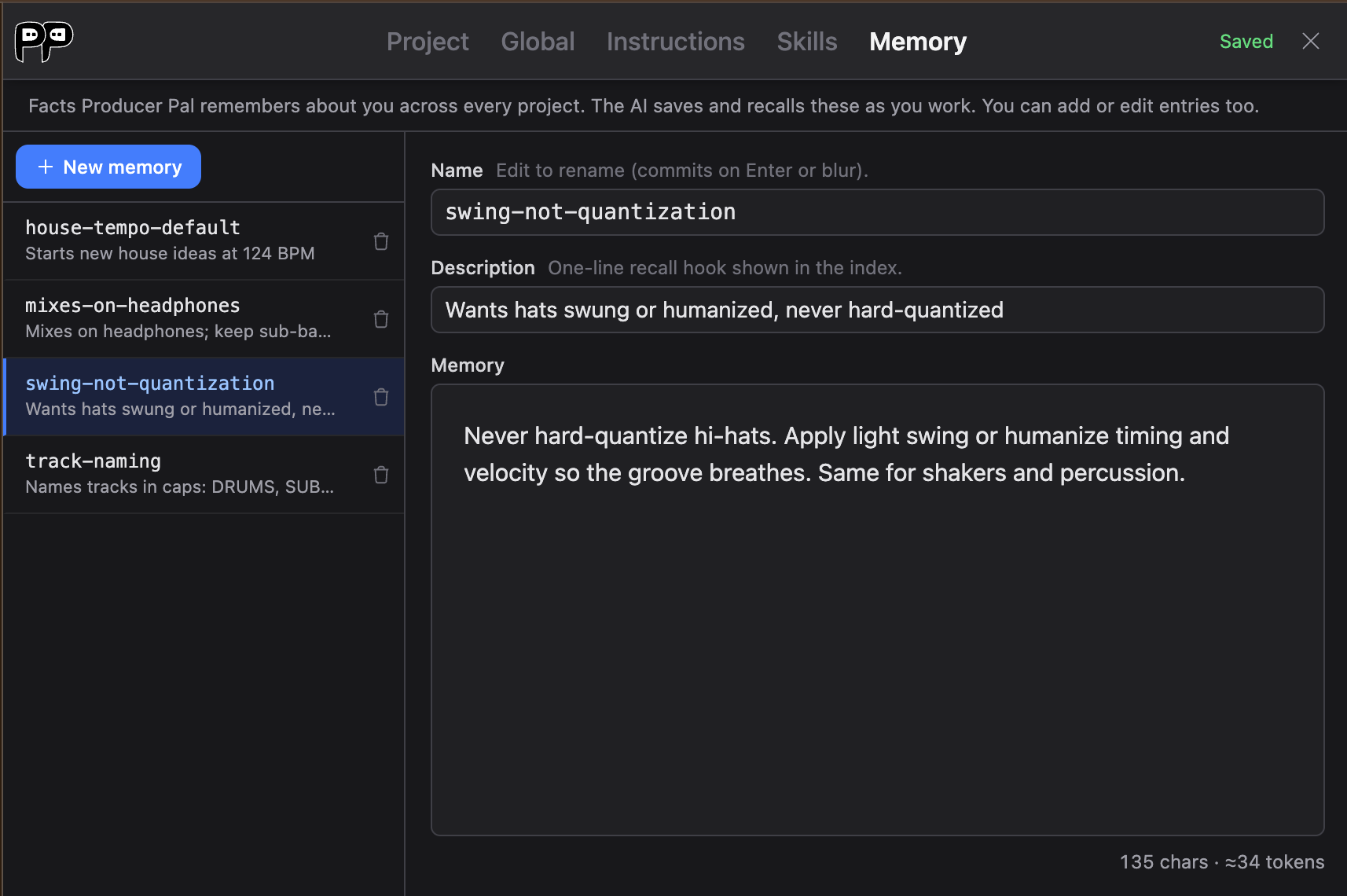
Memory is AI's own notebook about you, kept across projects. Where global context is a blob you write, memory is a list of small facts AI writes as it learns them ("you never want hats hard-quantized"), stored one file per fact.
Each entry has three parts:
- Name: a short slug, and the filename in
~/.producer-pal/memory/ - Description: a one-line recall hook
- Memory: the fact itself
Only the names and descriptions are sent to AI on every conversation, as an index. It reads a full entry only when the description suggests it's relevant. That's what keeps a growing memory cheap: a hundred facts cost a hundred lines, not a hundred bodies.
Write descriptions as hooks, not titles
The description is the only thing AI always sees, so it has to say when the memory matters. "Dislikes rigidly quantized hi-hats; wants swing" earns a lookup. "Hi-hat stuff" does not.
Use New memory to add an entry yourself, click one to edit it, and the trash button to delete it. Renaming an entry renames its file.
Memory in small model mode
Small model mode turns memory off: the index isn't sent, and AI can only read and write project and global context. Smaller models do better with fewer moving parts, and memory's load-on-demand step is one they tend to skip.
What AI sees when it connects
On connect, the three layers are attached to the result in order: your project context, then your global context, then the memory index. Skills and the context layers are all sent up front (as is your custom system instruction, in the built-in Chat UI), so if a conversation starts before you make an edit, start a new conversation for the change to take effect.
To stop AI from reading a layer, empty it. To stop AI from writing to any of them, turn off the Context tool (the Context checkbox under the Chat UI's Tools settings; other MCP clients have their own way to disable a tool).