Antigravity
Google's agent app for Gemini models. Setup takes one extra step compared to the other desktop apps, because custom MCP servers are added by editing a config file instead of filling in a form.
Requirements
Ableton Live 12.3+ with Max for Live. Live 12.4 or later is recommended — some features don't work on older versions of Live. Use the version of Max bundled with Live, or make sure your standalone Max is up to date.
Antigravity (requires a Google account)
Producer Pal doesn't need the IDE version — the standard app is enough. The IDE works the same way if you'd rather use it (there's an "Install IDE" button in the top right of the app).
Installation Steps
1. Install the Max for Live Device
Download Producer_Pal.amxd, the Producer Pal Max for Live device, and add it to a MIDI track in Ableton Live:
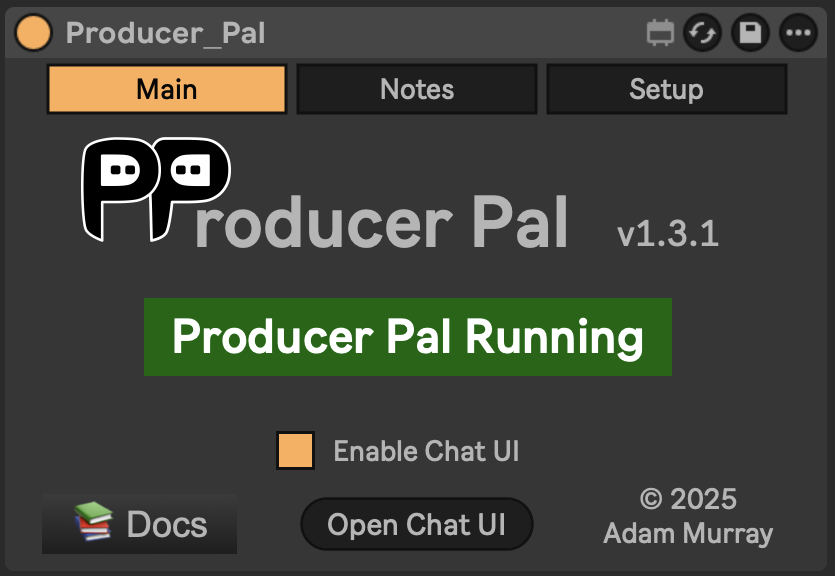
It should display "Producer Pal Running" or something isn't working.
2. Open the MCP Config
Go to Settings → Customizations and find Installed MCP Servers. The Skills list above it is long, so collapse Skills or scroll past it. Click Open MCP Config:
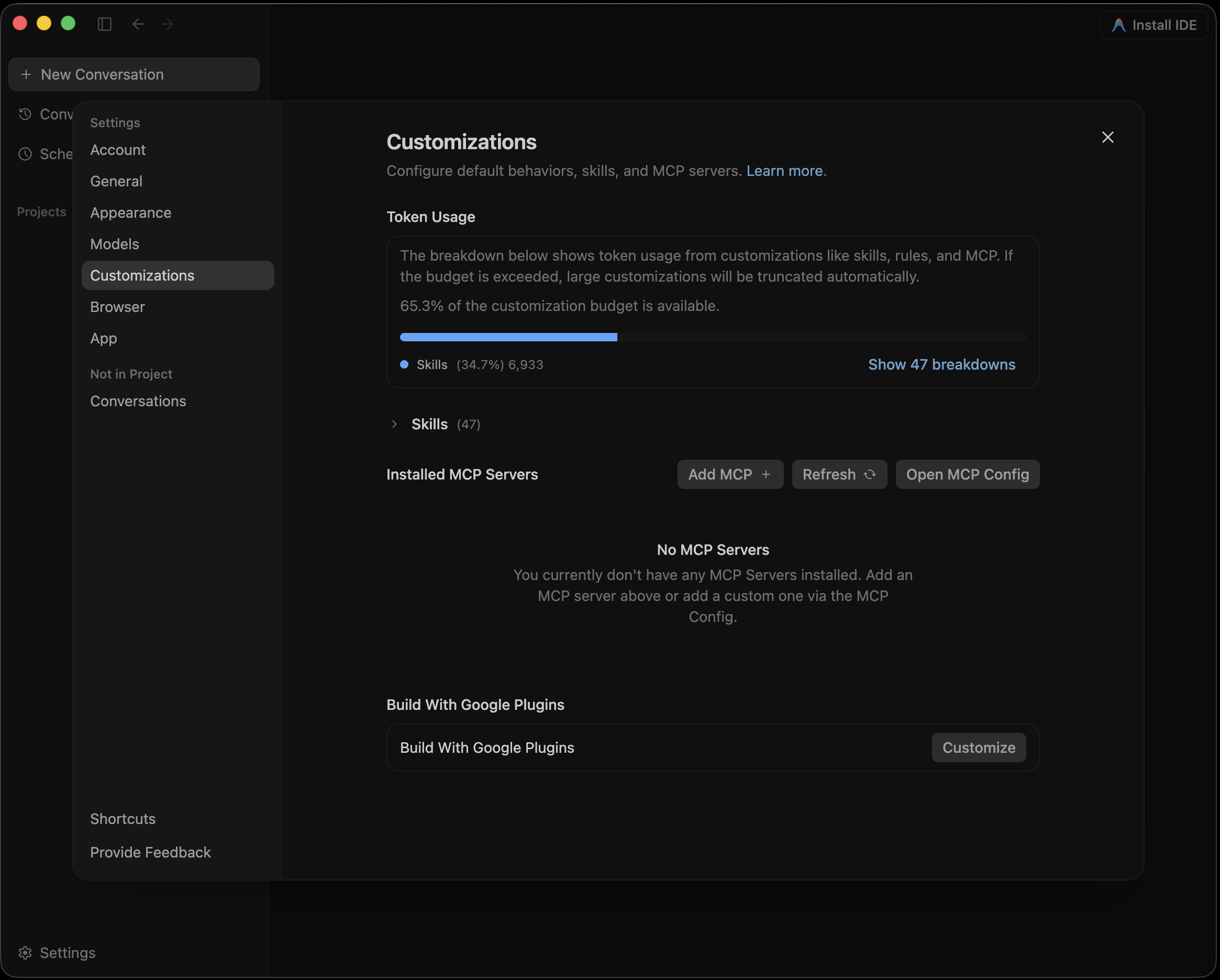
That opens ~/.gemini/config/mcp_config.json in an editor. Antigravity has no in-app editor for custom MCP servers, so this file is the only way to add one.
Not the same file as Gemini CLI
Gemini CLI reads ~/.gemini/settings.json. Antigravity reads ~/.gemini/config/mcp_config.json. Same folder, separate configs — adding Producer Pal to one does not add it to the other.
3. Add Producer Pal
Option A: With npx (recommended) — Allows flexible startup order and auto-reconnection:
{
  "mcpServers": {
    "producer-pal": {
      "command": "npx",
      "args": ["-y", "producer-pal@latest"]
    }
  }
}
Only need some of the tools?
Narrow the toolset and every conversation gets smaller:
{
  "mcpServers": {
    "producer-pal": {
      "command": "npx",
      "args": ["-y", "producer-pal@latest", "--tools", "core,clip,track"]
    }
  }
}
--tools keeps only what you list; --disable-tools drops what you list. Both take tool names (read-clip or ppal-read-clip) and group names: core, session, actions, live-set, track, scene, clip, device, advanced, and read-only. Run npx producer-pal@latest --list-tools to print the groups plus the tools the running device currently offers.
Withholding a tool also drops the part of the Producer Pal Skills that teaches it, so you stop paying for the tool's schema and its guidance in every conversation. --tools read-only cuts the skills text by more than half.
Unlike the other flags, this one is per client: the Chat UI and your other MCP clients keep the full toolset. ppal-connect is always kept, since it is how the AI connects and receives the skills.
One wrinkle with --tools: it keeps what you list by withholding everything else, and "everything else" is the tool list this copy of npx producer-pal knows, so a tool added in a newer Producer Pal stays enabled until you update. --disable-tools names tools directly, so it can withhold a newer tool even from an older copy; only its group names are limited to the ones above.
Option B: Direct HTTP — Requires Ableton running first, no auto-reconnection:
{
  "mcpServers": {
    "producer-pal": {
      "serverUrl": "http://localhost:3350/mcp"
    }
  }
}
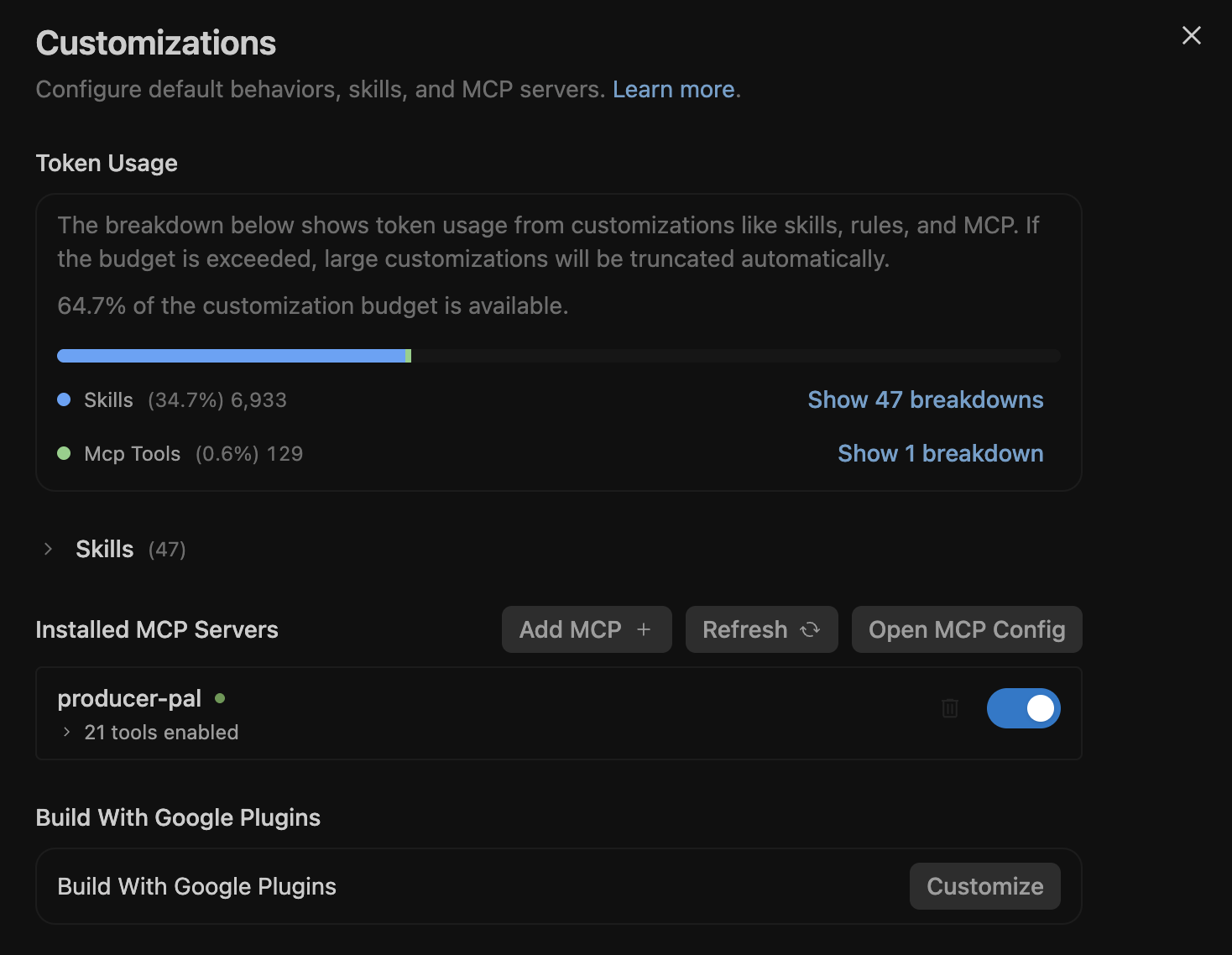
Save the file, then click Refresh back in Customizations. Producer Pal should appear under Installed MCP Servers with its tools enabled:
4. Start Using Producer Pal
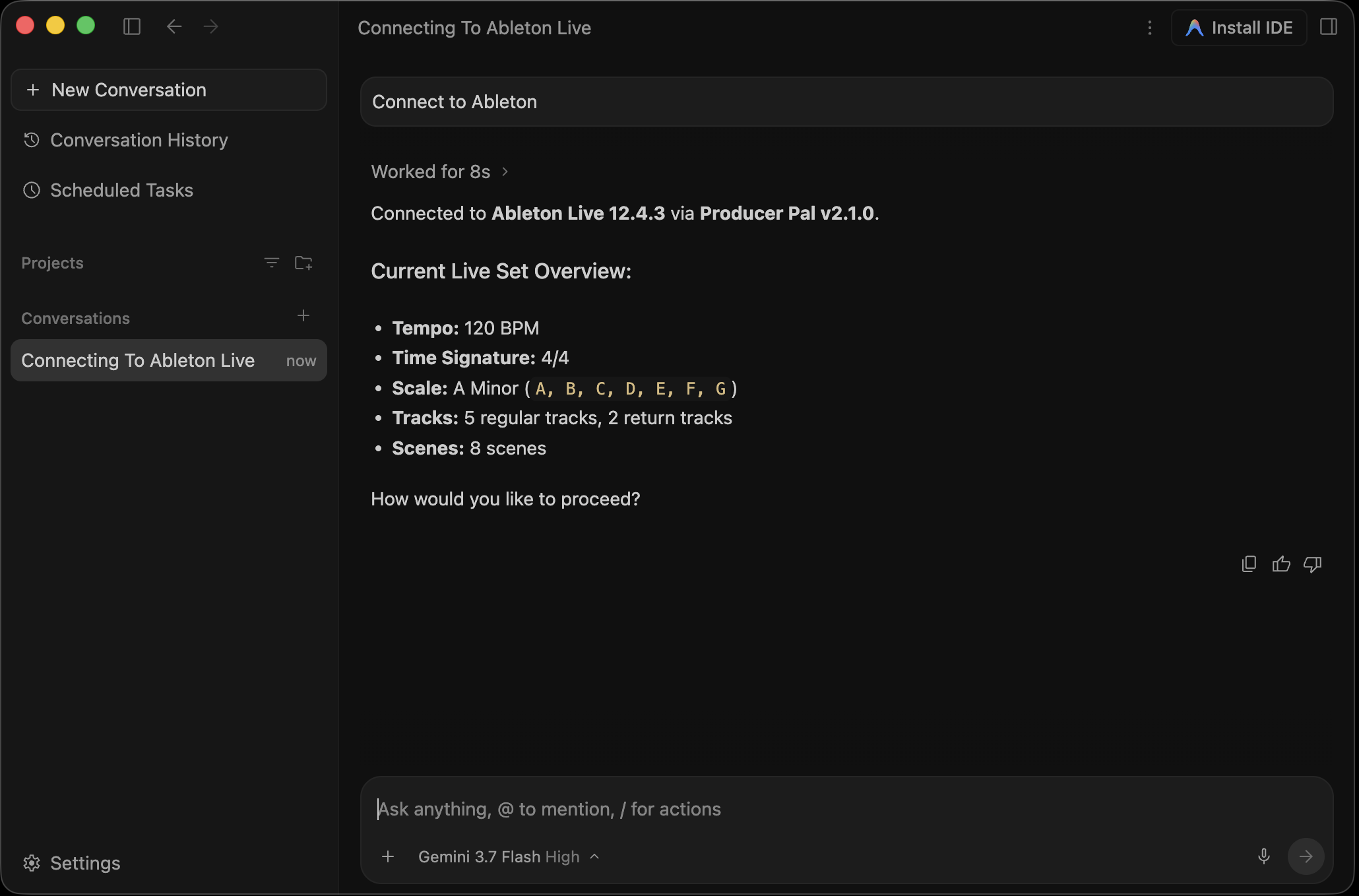
- Start a conversation with "connect to ableton"
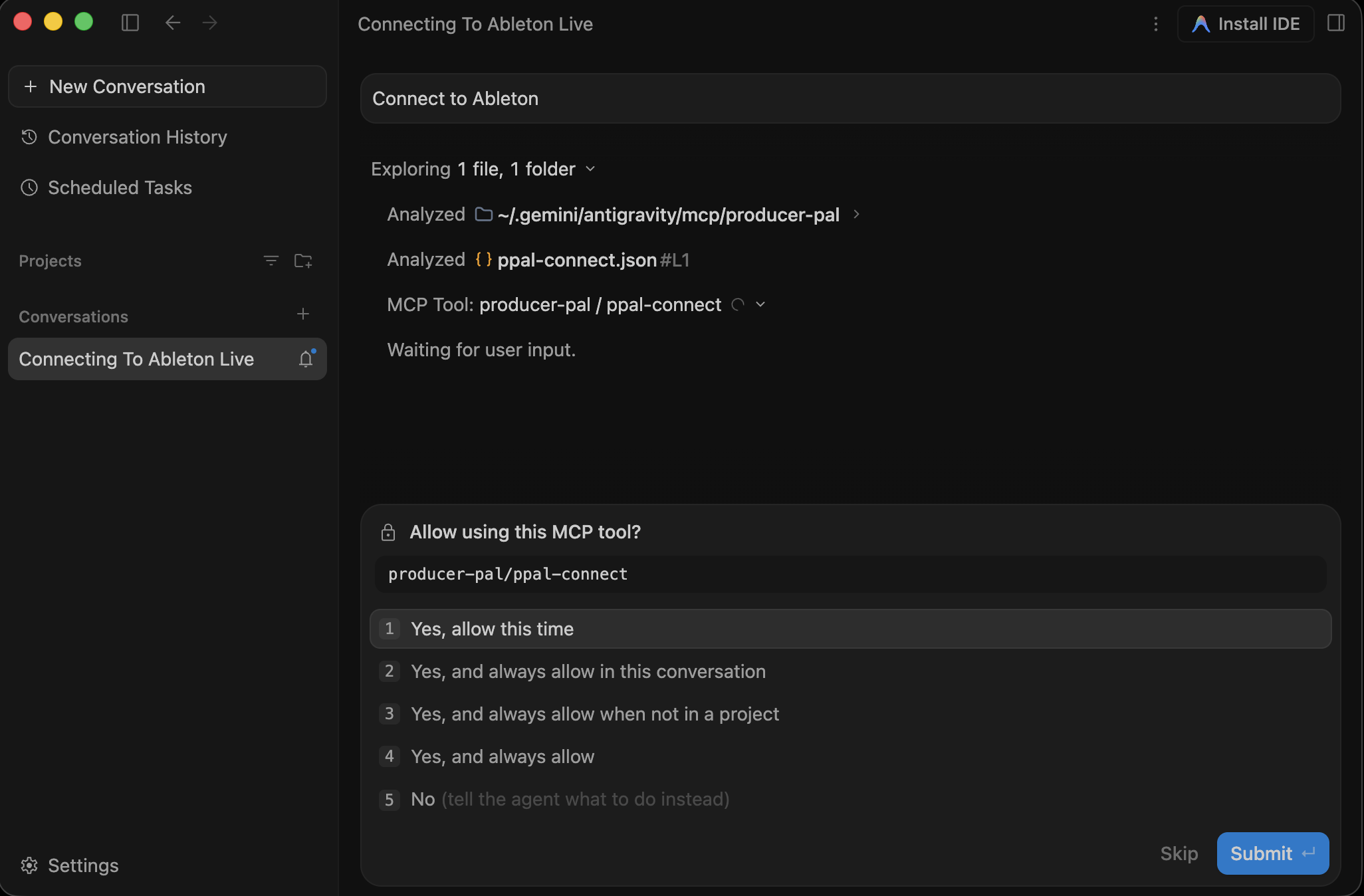
- Allow Producer Pal tools to be used when Antigravity asks:
Troubleshooting
If it doesn't work, see the Troubleshooting Guide.