# Antigravity
Google's agent app for Gemini models. Setup takes one extra step compared to the
other desktop apps, because custom MCP servers are added by editing a config
file instead of filling in a form.
## Requirements
- [Ableton Live 12.3+](https://www.ableton.com/live/) with
[Max for Live](https://www.ableton.com/live/max-for-live/). Live 12.4 or later
is recommended — some features don't work on older versions of Live. Use the
version of Max bundled with Live, or make sure your standalone Max is up to
date.
- [Node.js 20+](https://nodejs.org/en/download)
- [Antigravity](https://antigravity.google/) (requires a Google account)
Producer Pal doesn't need the IDE version — the standard app is enough. The IDE
works the same way if you'd rather use it (there's an "Install IDE" button in
the top right of the app).
## Installation Steps
### 1. Install the Max for Live Device
Download
[Producer_Pal.amxd](https://github.com/adamjmurray/producer-pal/releases/latest/download/Producer_Pal.amxd),
the Producer Pal Max for Live device, and add it to a MIDI track in Ableton
Live:
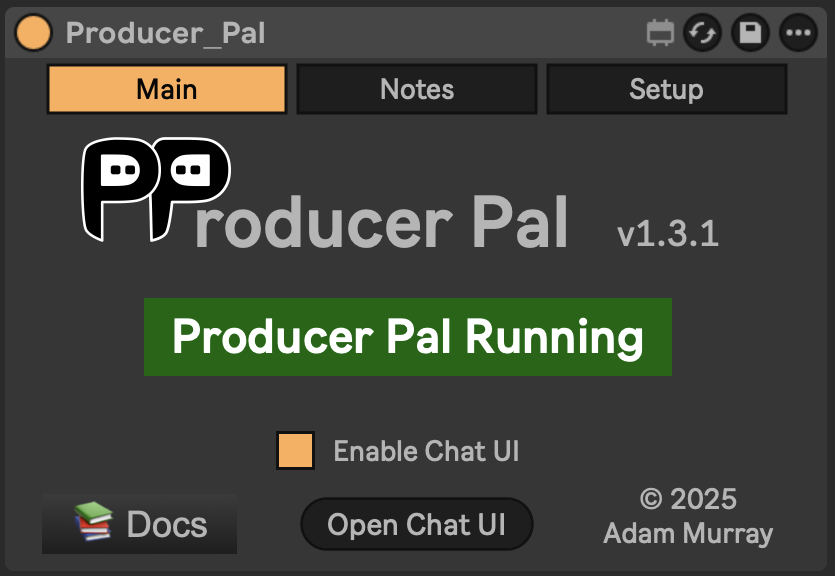 _It should display "Producer Pal Running" or something isn't working._
### 2. Open the MCP Config
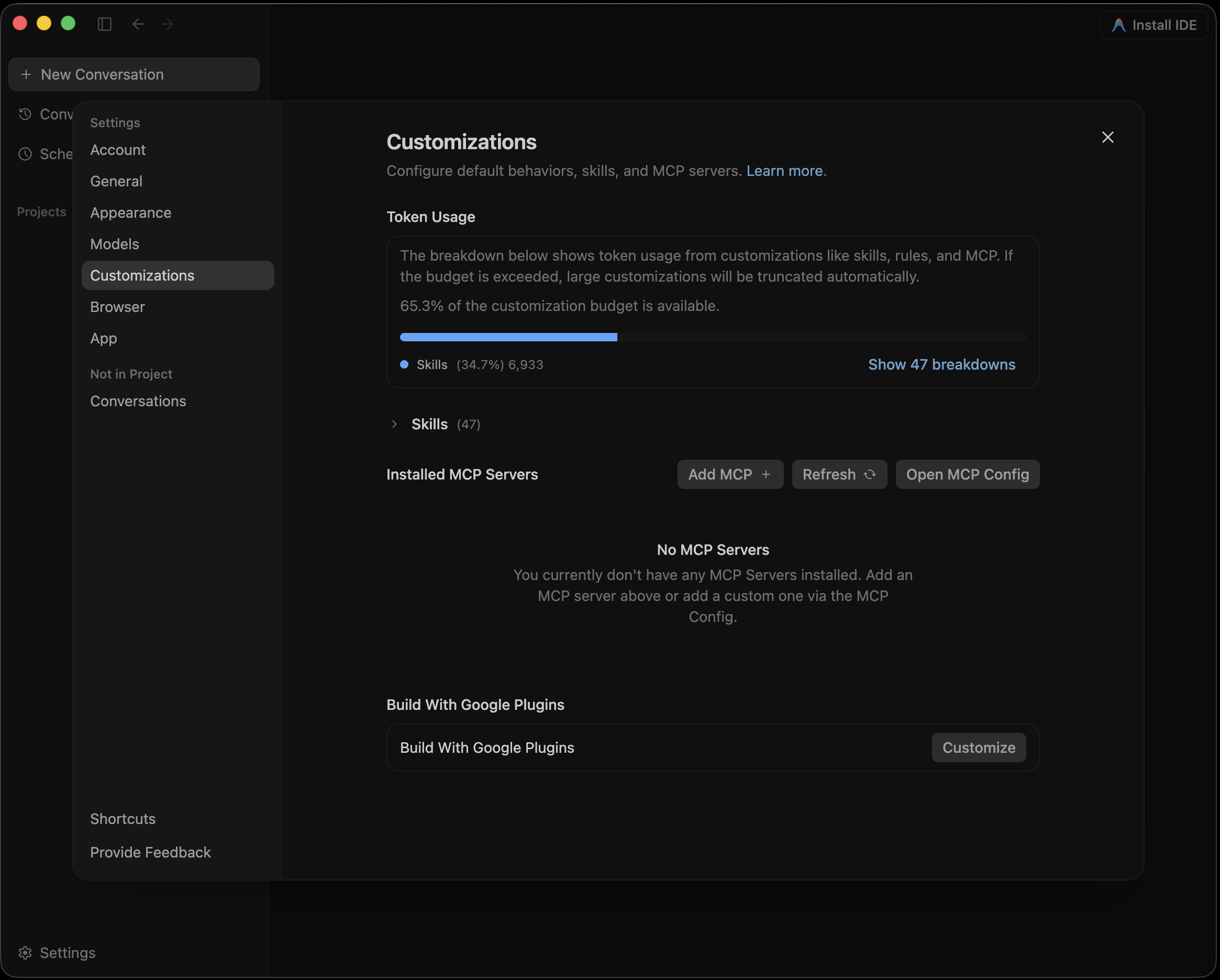
Go to Settings → Customizations and find **Installed MCP Servers**. The
Skills list above it is long, so collapse **Skills** or scroll past it. Click
**Open MCP Config**:
_It should display "Producer Pal Running" or something isn't working._
### 2. Open the MCP Config
Go to Settings → Customizations and find **Installed MCP Servers**. The
Skills list above it is long, so collapse **Skills** or scroll past it. Click
**Open MCP Config**:
 That opens `~/.gemini/config/mcp_config.json` in an editor. Antigravity has no
in-app editor for custom MCP servers, so this file is the only way to add one.
::: warning Not the same file as Gemini CLI
[Gemini CLI](./gemini-cli) reads `~/.gemini/settings.json`. Antigravity reads
`~/.gemini/config/mcp_config.json`. Same folder, separate configs — adding
Producer Pal to one does not add it to the other.
:::
### 3. Add Producer Pal
**Option A: With npx (recommended)** — Allows flexible startup order and
auto-reconnection:
```json
{
"mcpServers": {
"producer-pal": {
"command": "npx",
"args": ["-y", "producer-pal"]
}
}
}
```
::: tip Only need some of the tools?
Narrow the toolset and every conversation gets smaller:
```json
{
"mcpServers": {
"producer-pal": {
"command": "npx",
"args": ["-y", "producer-pal", "--tools", "core,clip,track"]
}
}
}
```
`--tools` keeps only what you list; `--disable-tools` drops what you list. Both
take tool names (`read-clip` or `ppal-read-clip`) and group names: `core`,
`session`, `actions`, `live-set`, `track`, `scene`, `clip`, `device`,
`advanced`, and `read-only`. Run `npx producer-pal --list-tools` to print the
groups plus the tools the running device currently offers.
Withholding a tool also drops the part of the
[Producer Pal Skills](/features#skills) that teaches it, so you stop paying for
the tool's schema _and_ its guidance in every conversation. `--tools read-only`
cuts the skills text by more than half.
Unlike the other flags, this one is per client: the [Chat UI](/guide/chat-ui)
and your other MCP clients keep the full toolset. `ppal-connect` is always kept
— it is how the AI connects and receives the skills.
One wrinkle with `--tools`: it keeps what you list by withholding everything
else, and "everything else" is the tool list this copy of `npx producer-pal`
knows — so a tool added in a newer Producer Pal stays enabled until you update.
`--disable-tools` names tools directly, so it can withhold a newer tool even
from an older copy; only its _group_ names are limited to the ones above.
:::
**Option B: Direct HTTP** — Requires Ableton running first, no
auto-reconnection:
```json
{
"mcpServers": {
"producer-pal": {
"serverUrl": "http://localhost:3350/mcp"
}
}
}
```
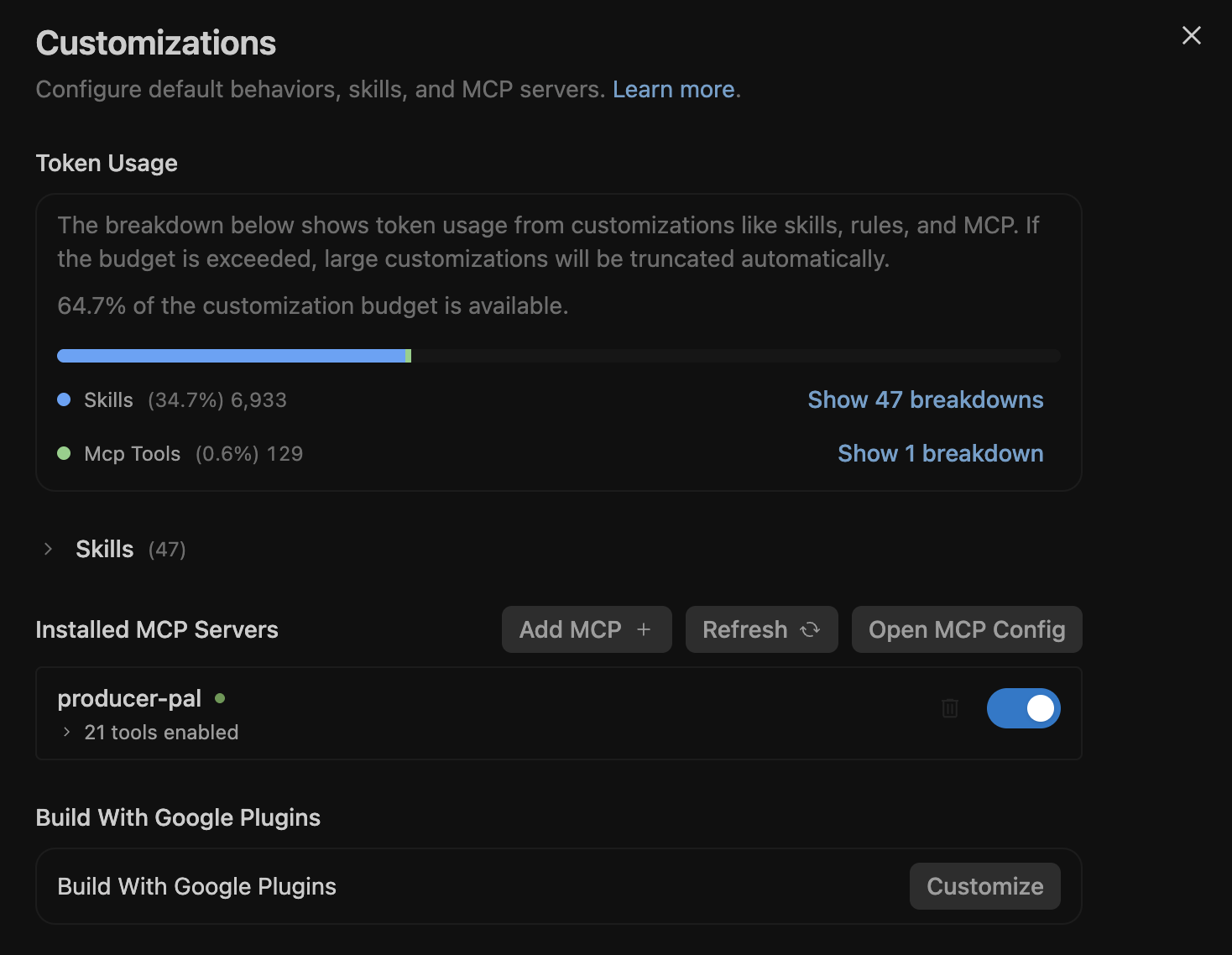
Save the file, then click **Refresh** back in Customizations. Producer Pal
should appear under Installed MCP Servers with its tools enabled:
That opens `~/.gemini/config/mcp_config.json` in an editor. Antigravity has no
in-app editor for custom MCP servers, so this file is the only way to add one.
::: warning Not the same file as Gemini CLI
[Gemini CLI](./gemini-cli) reads `~/.gemini/settings.json`. Antigravity reads
`~/.gemini/config/mcp_config.json`. Same folder, separate configs — adding
Producer Pal to one does not add it to the other.
:::
### 3. Add Producer Pal
**Option A: With npx (recommended)** — Allows flexible startup order and
auto-reconnection:
```json
{
"mcpServers": {
"producer-pal": {
"command": "npx",
"args": ["-y", "producer-pal"]
}
}
}
```
::: tip Only need some of the tools?
Narrow the toolset and every conversation gets smaller:
```json
{
"mcpServers": {
"producer-pal": {
"command": "npx",
"args": ["-y", "producer-pal", "--tools", "core,clip,track"]
}
}
}
```
`--tools` keeps only what you list; `--disable-tools` drops what you list. Both
take tool names (`read-clip` or `ppal-read-clip`) and group names: `core`,
`session`, `actions`, `live-set`, `track`, `scene`, `clip`, `device`,
`advanced`, and `read-only`. Run `npx producer-pal --list-tools` to print the
groups plus the tools the running device currently offers.
Withholding a tool also drops the part of the
[Producer Pal Skills](/features#skills) that teaches it, so you stop paying for
the tool's schema _and_ its guidance in every conversation. `--tools read-only`
cuts the skills text by more than half.
Unlike the other flags, this one is per client: the [Chat UI](/guide/chat-ui)
and your other MCP clients keep the full toolset. `ppal-connect` is always kept
— it is how the AI connects and receives the skills.
One wrinkle with `--tools`: it keeps what you list by withholding everything
else, and "everything else" is the tool list this copy of `npx producer-pal`
knows — so a tool added in a newer Producer Pal stays enabled until you update.
`--disable-tools` names tools directly, so it can withhold a newer tool even
from an older copy; only its _group_ names are limited to the ones above.
:::
**Option B: Direct HTTP** — Requires Ableton running first, no
auto-reconnection:
```json
{
"mcpServers": {
"producer-pal": {
"serverUrl": "http://localhost:3350/mcp"
}
}
}
```
Save the file, then click **Refresh** back in Customizations. Producer Pal
should appear under Installed MCP Servers with its tools enabled:
 ### 4. Start Using Producer Pal
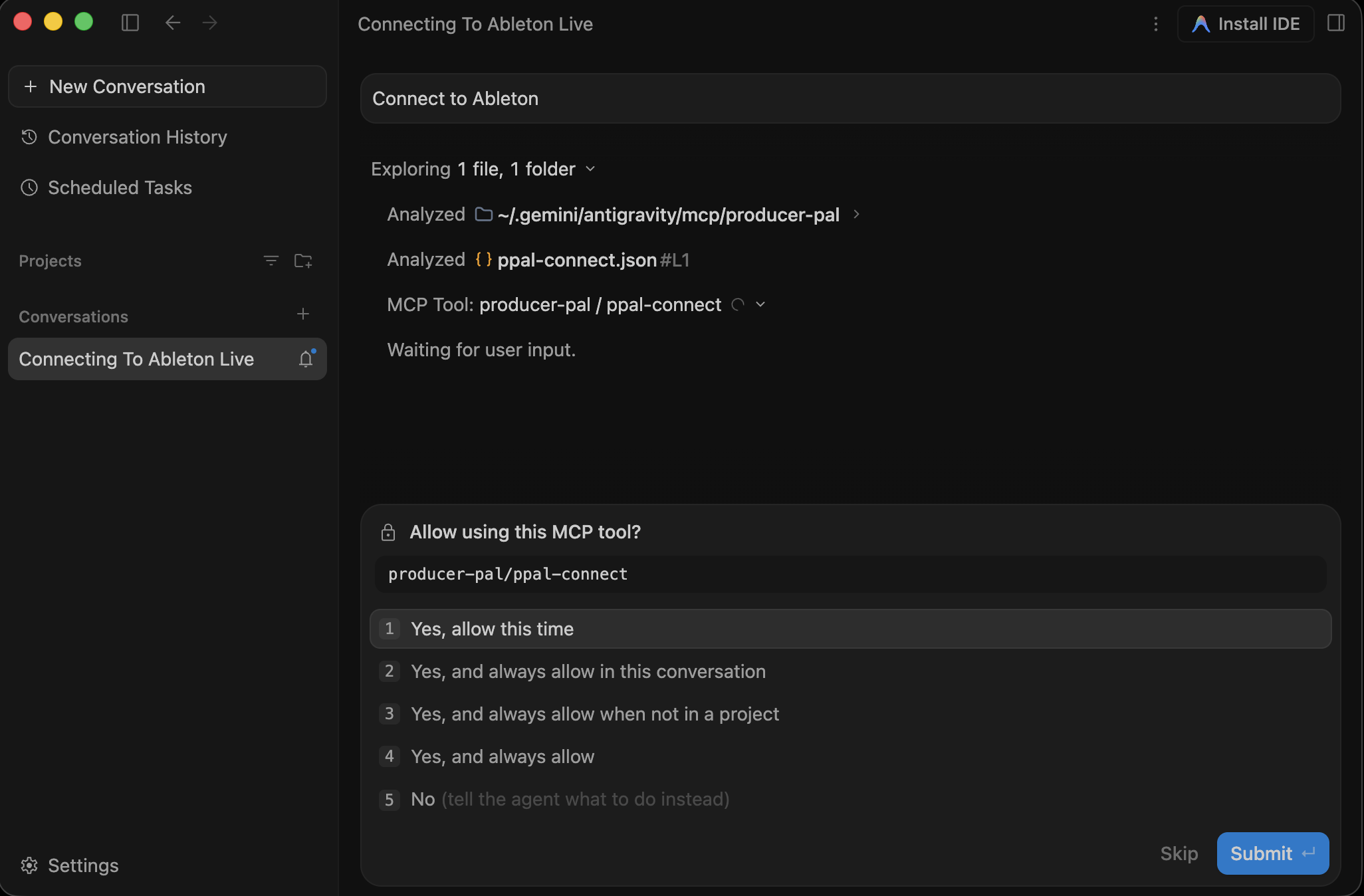
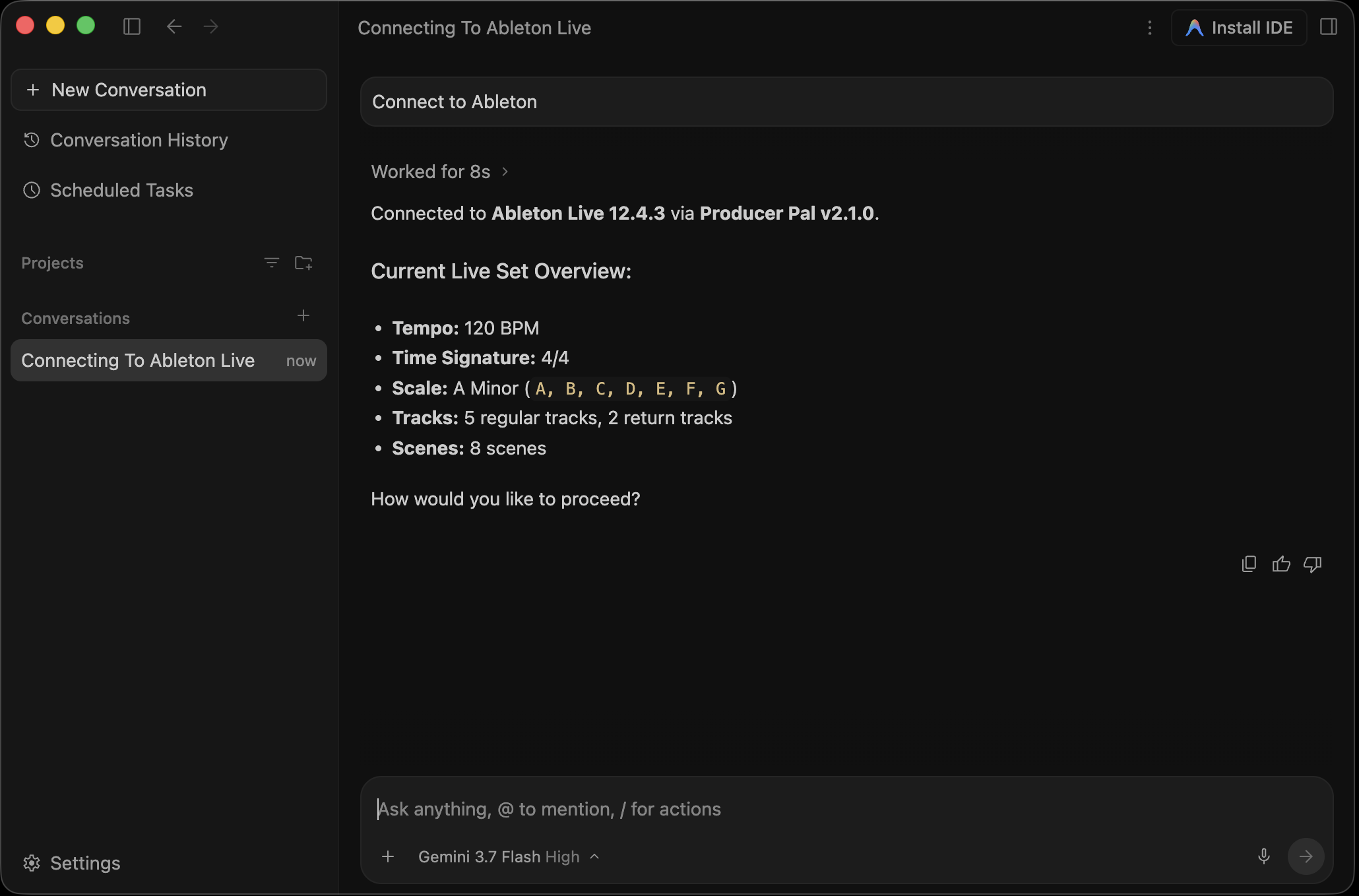
1. Start a conversation with "connect to ableton"
2. Allow Producer Pal tools to be used when Antigravity asks:
### 4. Start Using Producer Pal
1. Start a conversation with "connect to ableton"
2. Allow Producer Pal tools to be used when Antigravity asks:
 ## Troubleshooting
If it doesn't work, see the [Troubleshooting Guide](/support/troubleshooting).
## Troubleshooting
If it doesn't work, see the [Troubleshooting Guide](/support/troubleshooting).