# Mistral Le Chat
Use Producer Pal in your web browser with Mistral's Le Chat web app.
## Requirements
- [Ableton Live 12.3+](https://www.ableton.com/live/) with
[Max for Live](https://www.ableton.com/live/max-for-live/)
- [Mistral account](https://chat.mistral.ai) (admin privileges required to
create connectors)
- [Web tunnel](./web-tunnels) (e.g. Cloudflare or Pinggy)
## Installation Steps
### 1. Install the Max for Live Device
Download
[Producer_Pal.amxd](https://github.com/adamjmurray/producer-pal/releases/latest/download/Producer_Pal.amxd),
the Producer Pal Max for Live device, and add it to a MIDI track in Ableton
Live:
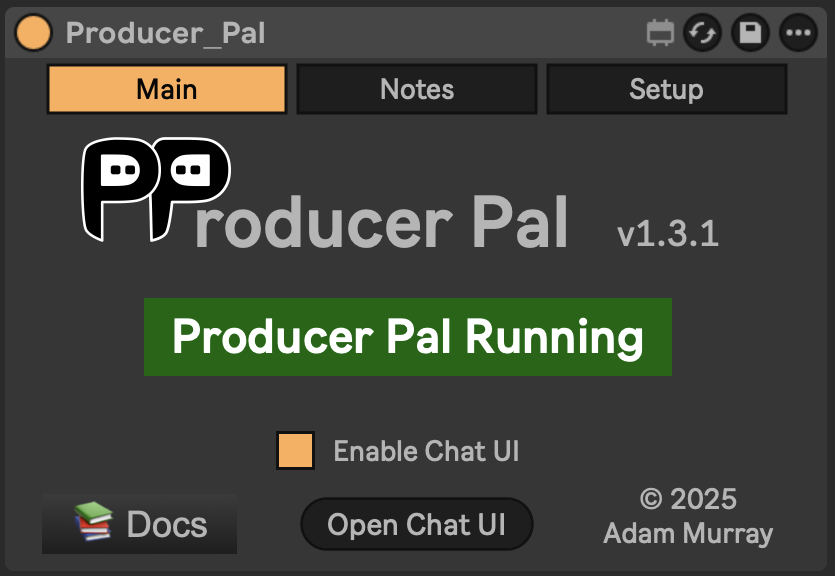 _It should display "Producer Pal Running" or something isn't working._
### 2. Set Up a Web Tunnel
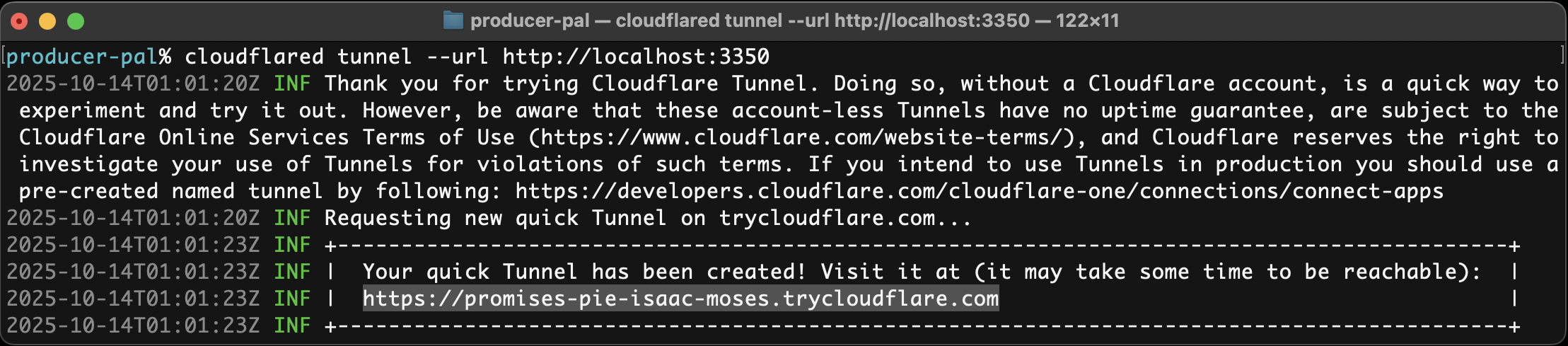
Set up [a web tunnel](./web-tunnels) to expose your local Producer Pal server.
For example:
```bash
cloudflared tunnel --url http://localhost:3350
```
will give you a public URL such as `https://abc-xyz.trycloudflare.com`:
### 3. Add Custom MCP Connector
1. In Le Chat, open the side panel and go to **Intelligence** → **Connectors**
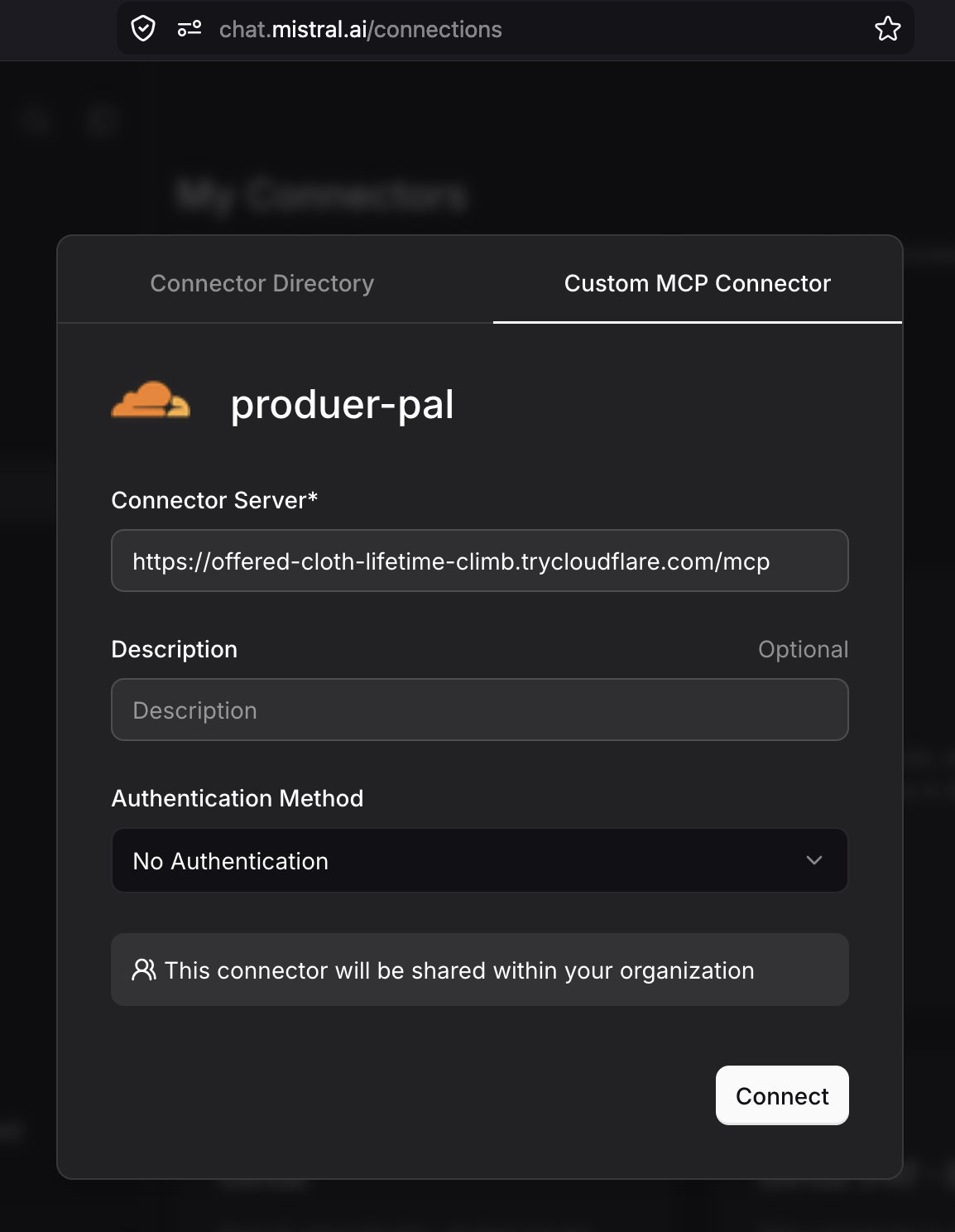
2. Click **+ Add Connector** and switch to the **Custom MCP Connector** tab
3. Fill in the details:
- **Connector name:** `producer-pal` (no spaces or special characters)
- **Connection server:** Your tunnel URL + `/mcp` (e.g.
`https://abc-xyz.trycloudflare.com/mcp`)
- **Authentication method:** No Authentication
4. Click **Connect**
_It should display "Producer Pal Running" or something isn't working._
### 2. Set Up a Web Tunnel
Set up [a web tunnel](./web-tunnels) to expose your local Producer Pal server.
For example:
```bash
cloudflared tunnel --url http://localhost:3350
```
will give you a public URL such as `https://abc-xyz.trycloudflare.com`:

### 3. Add Custom MCP Connector
1. In Le Chat, open the side panel and go to **Intelligence** → **Connectors**
2. Click **+ Add Connector** and switch to the **Custom MCP Connector** tab
3. Fill in the details:
- **Connector name:** `producer-pal` (no spaces or special characters)
- **Connection server:** Your tunnel URL + `/mcp` (e.g.
`https://abc-xyz.trycloudflare.com/mcp`)
- **Authentication method:** No Authentication
4. Click **Connect**
 ### 4. Enable the Connector
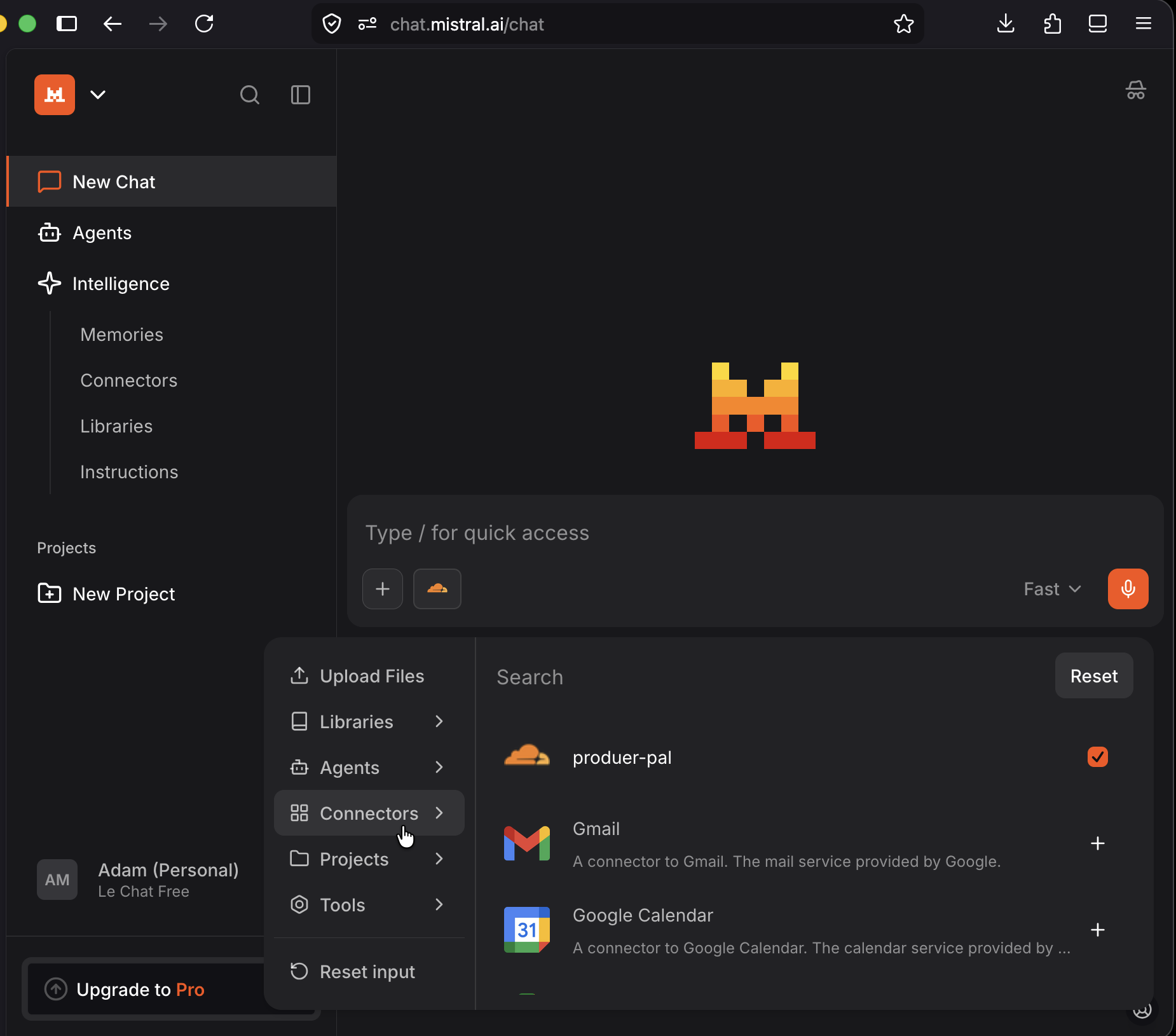
When starting a new conversation, click the **+** button and go to
**Connectors**. Make sure **producer-pal** is checked:
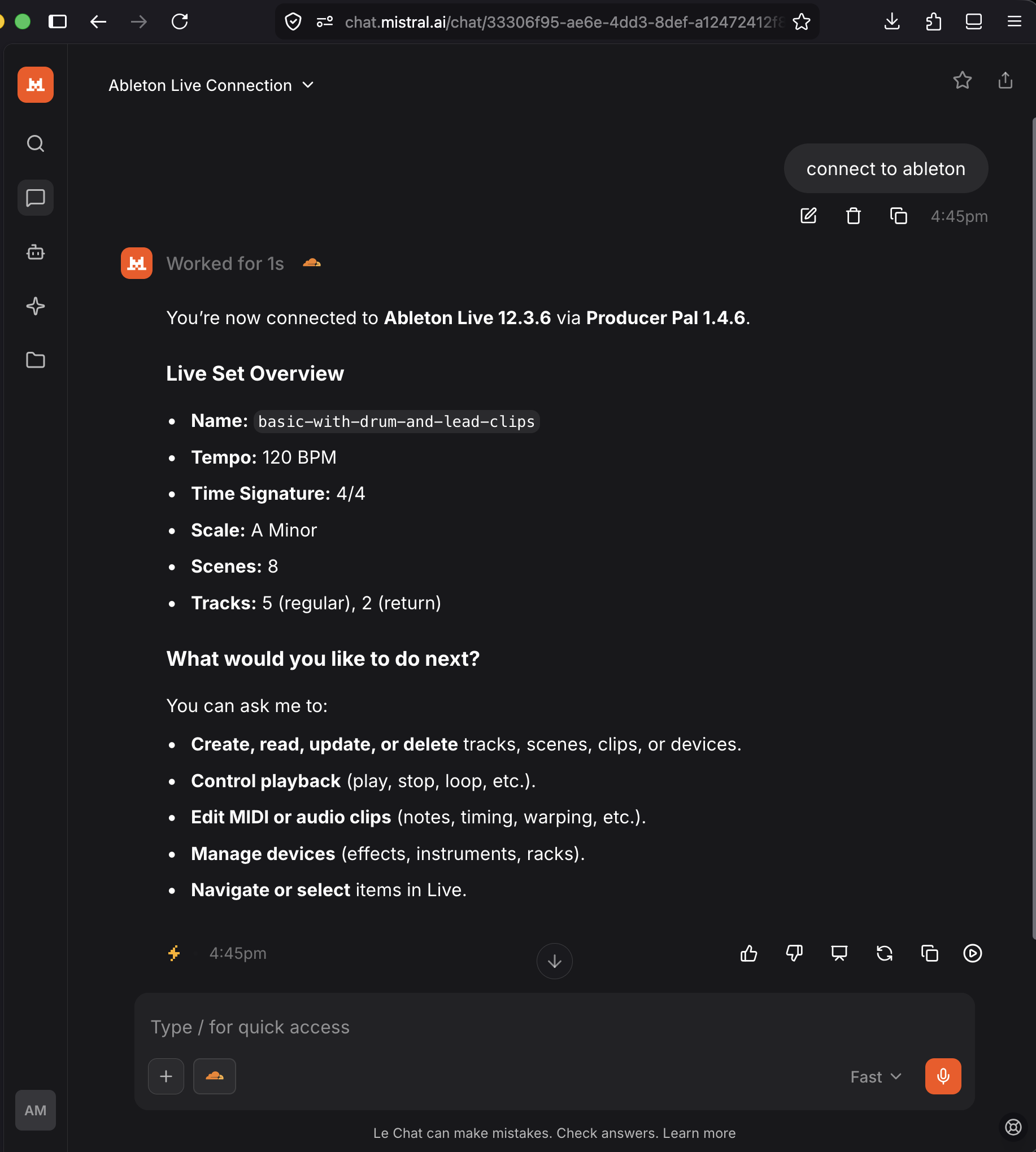
### 5. Start Using Producer Pal
Start a conversation with "connect to ableton":
## Troubleshooting
If it doesn't work, see the [Troubleshooting Guide](/support/troubleshooting).
### 4. Enable the Connector
When starting a new conversation, click the **+** button and go to
**Connectors**. Make sure **producer-pal** is checked:

### 5. Start Using Producer Pal
Start a conversation with "connect to ableton":

## Troubleshooting
If it doesn't work, see the [Troubleshooting Guide](/support/troubleshooting).