
Codex App
OpenAI's Codex desktop app is an easy way to use Producer Pal with an OpenAI subscription.
macOS Only
The Codex app is currently available for macOS (Apple Silicon) only. Windows and Linux support is coming. For other platforms, see Codex CLI or ChatGPT web app.
Requirements
Ableton Live 12.3+ with Max for Live. Live 12.4 or later is recommended — some features don't work on older versions of Live. Use the version of Max bundled with Live, or make sure your standalone Max is up to date.
Node.js 22+ (required by Codex; Producer Pal itself only needs 20+)
Codex app (requires OpenAI account with ChatGPT subscription plan)
Installation Steps
1. Install the Max for Live Device
Download Producer_Pal.amxd, the Producer Pal Max for Live device, and add it to a MIDI track in Ableton Live:
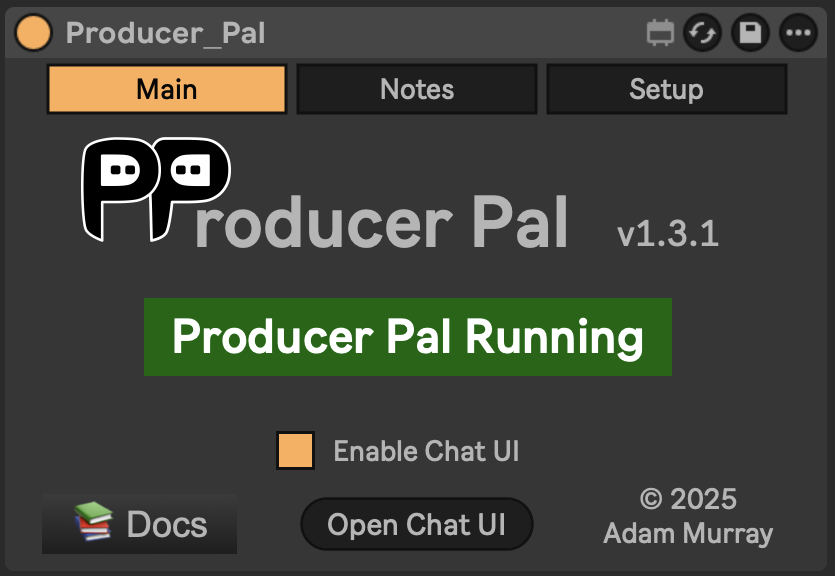
It should display "Producer Pal Running" or something isn't working.
2. Add Producer Pal to Codex
In the Codex app, go to Settings → MCP Servers and click "+ Add server":
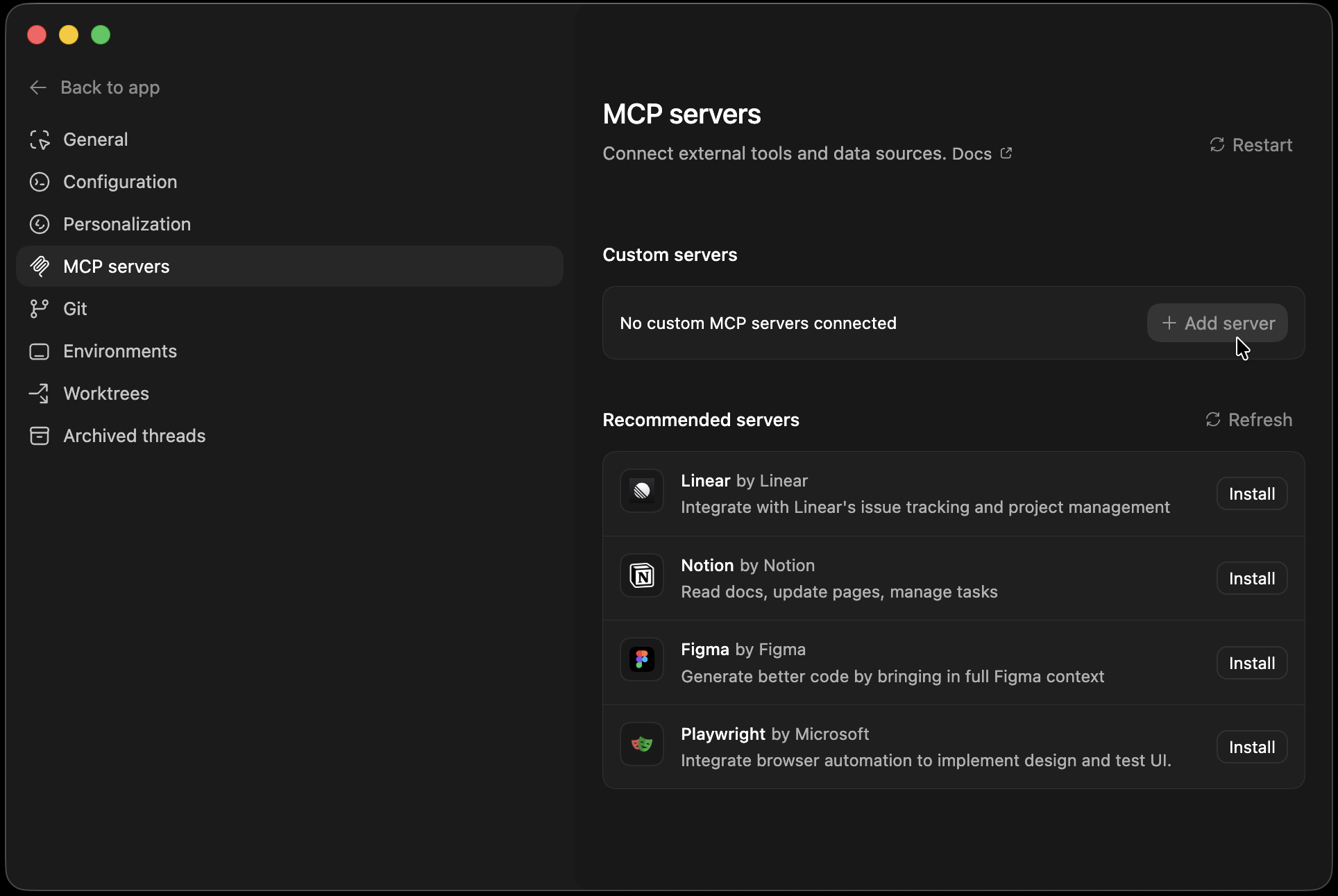
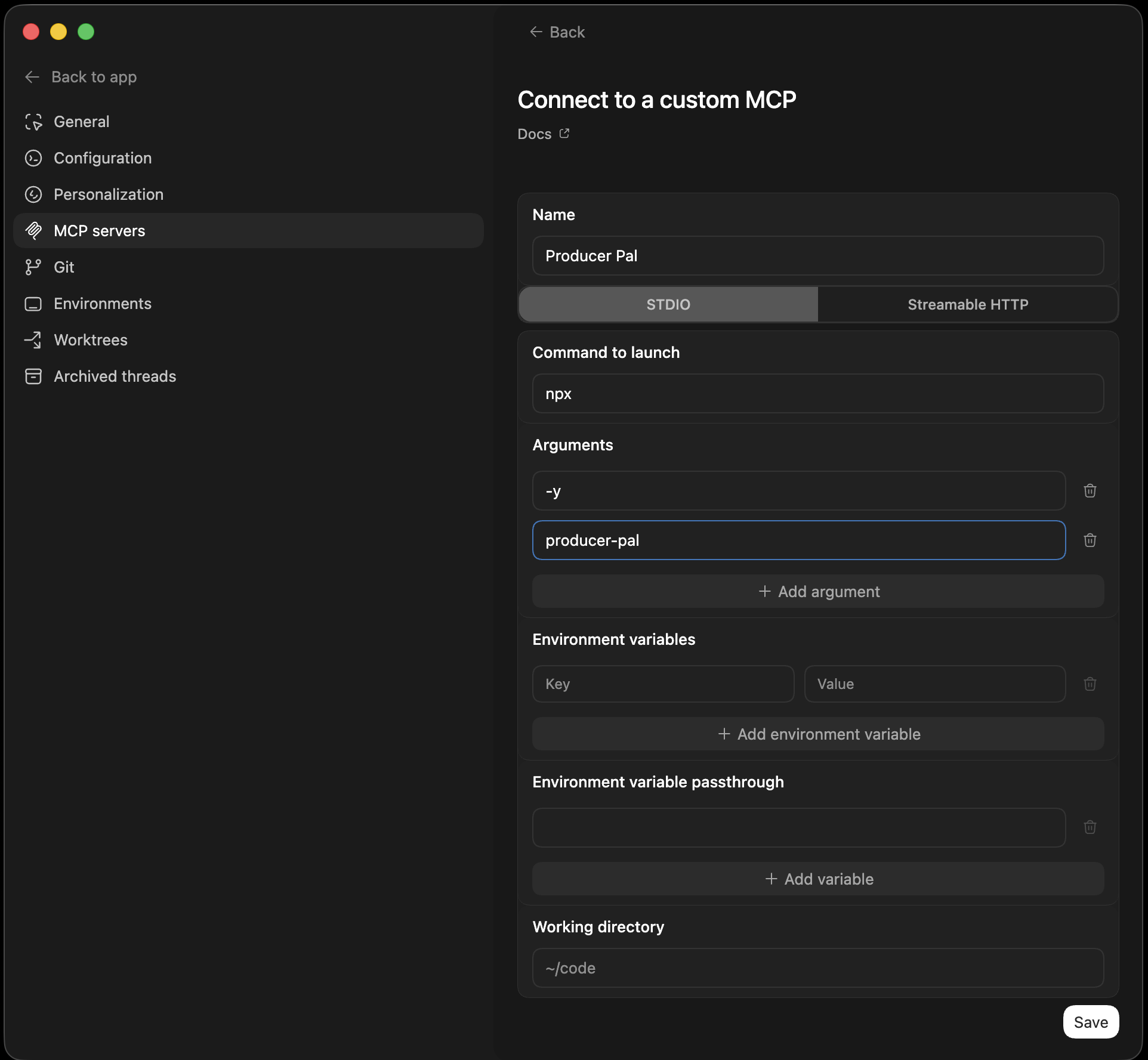
Option A: With npx (recommended) — Allows flexible startup order and auto-reconnection:
Select the STDIO tab and fill in:
- Name:
Producer Pal - Command to launch:
npx - Arguments:
-yandproducer-palas separate entries (click "+ Add argument" for each one)
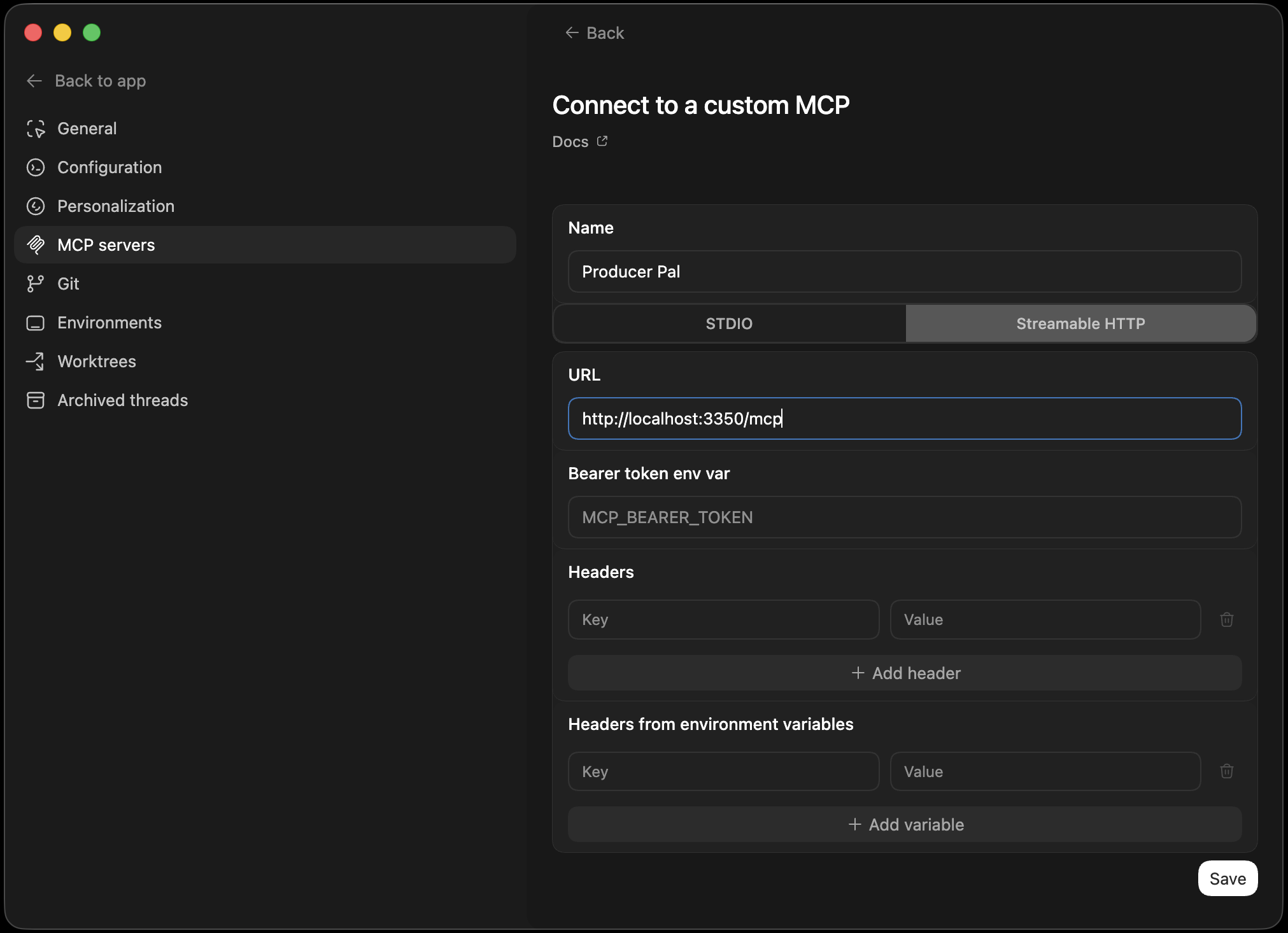
Option B: Direct HTTP — Requires Ableton running first, no auto-reconnection:
Select the Streamable HTTP tab and fill in:
- Name:
Producer Pal - URL:
http://localhost:3350/mcp
3. Start a Conversation
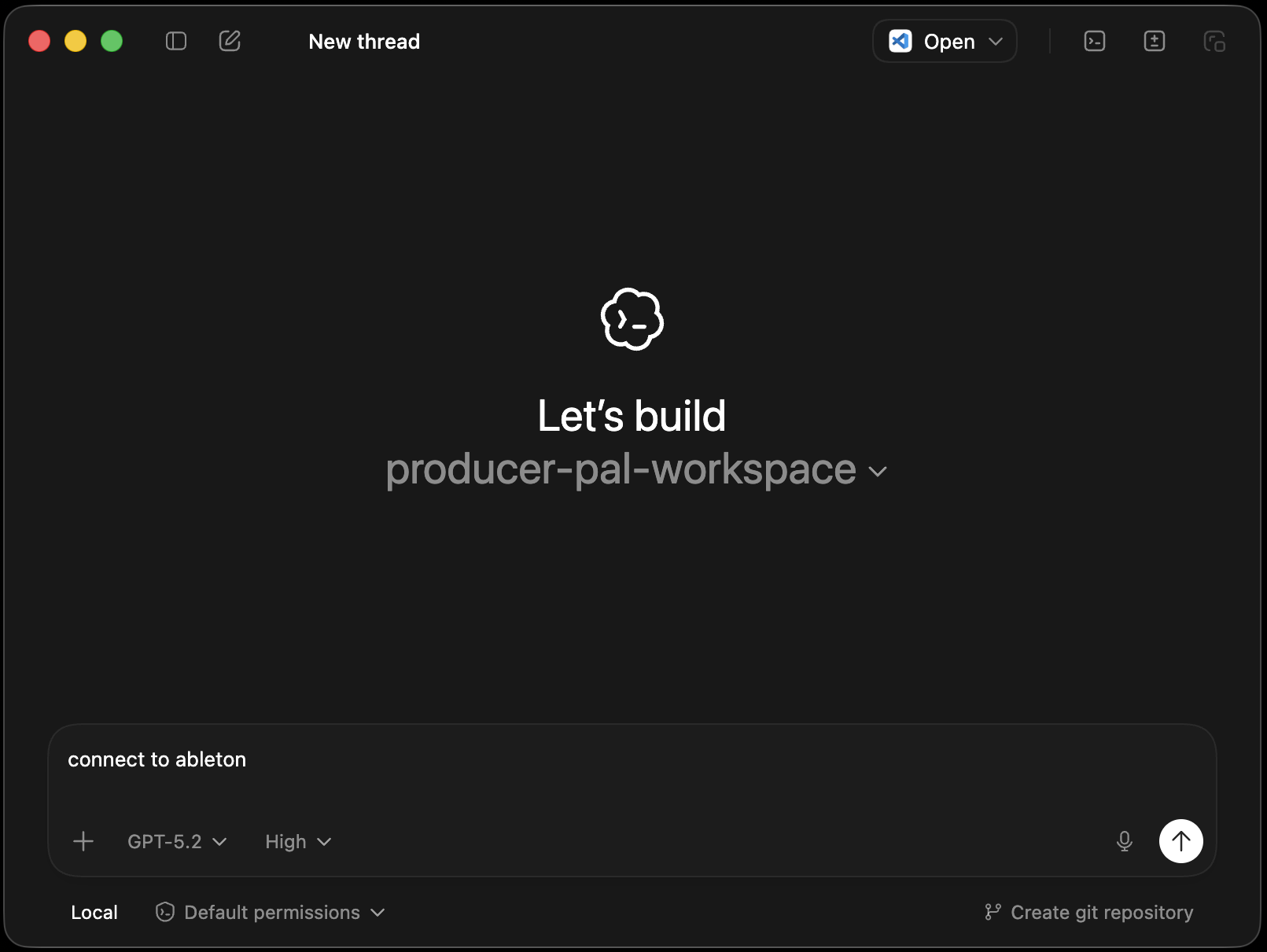
When starting a new chat, Codex asks you to pick a project folder. It's recommended to use an empty folder for Producer Pal sessions (shown as producer-pal-workspace in the screenshot). Feel free to put reference documents in this folder, such as common workflow instructions or details of your preferred musical style and production techniques.
Start a conversation with "connect to ableton":
4. Verify Connection
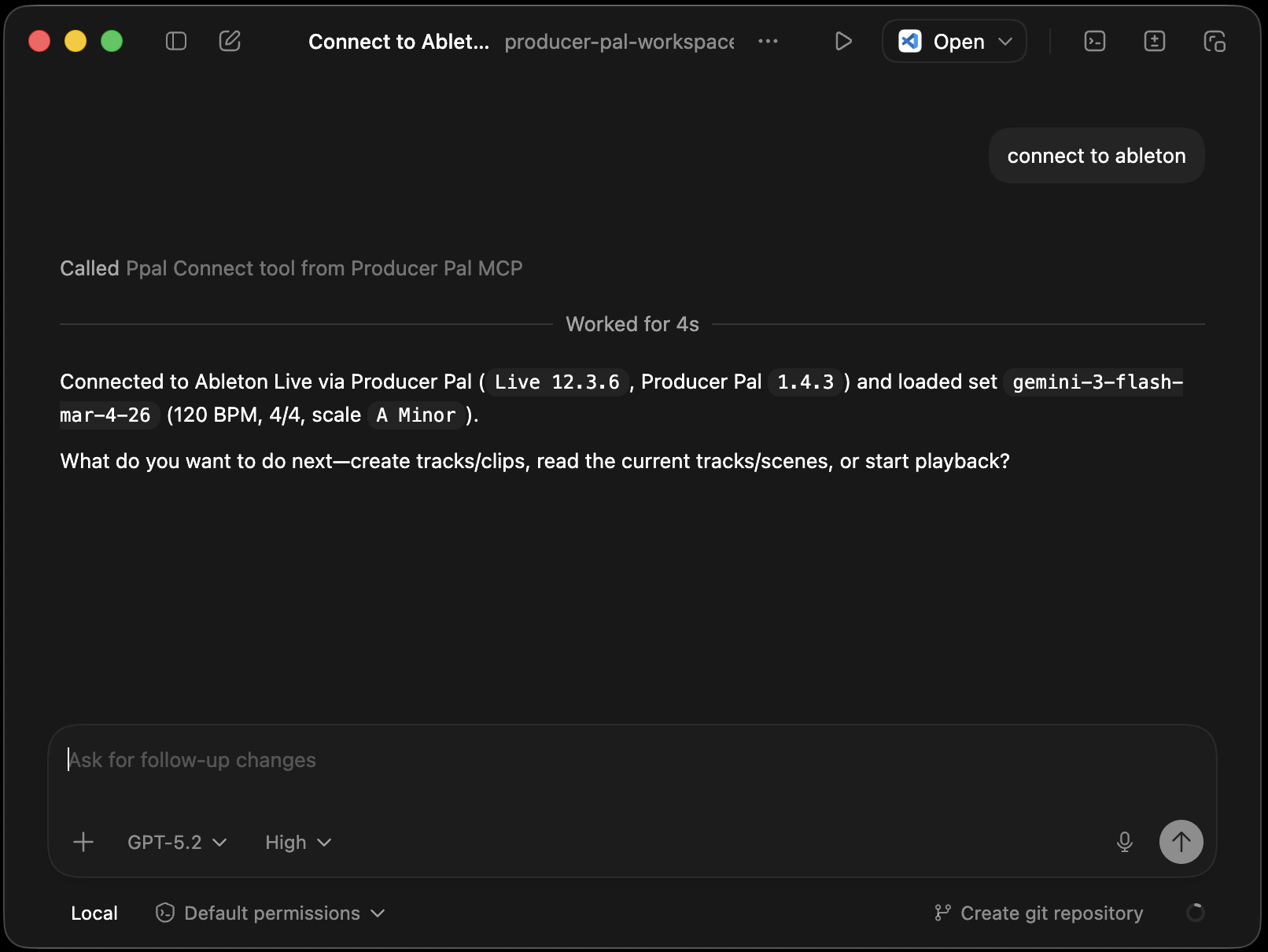
You should see a successful connection to Ableton Live:
Troubleshooting
If it doesn't work, see the Troubleshooting Guide.