# Codex App
OpenAI's Codex desktop app is an easy way to use Producer Pal with an OpenAI
subscription.
::: warning macOS Only
The Codex app is currently available for macOS (Apple Silicon) only. Windows and
Linux support is coming. For other platforms, see [Codex CLI](./codex-cli) or
[ChatGPT web app](./chatgpt-web).
:::
## Requirements
- [Ableton Live 12.3+](https://www.ableton.com/live/) with
[Max for Live](https://www.ableton.com/live/max-for-live/)
- [Node.js 22+](https://nodejs.org/en/download)
- [Codex app](https://chatgpt.com/codex/get-started) (requires OpenAI account
with ChatGPT subscription plan)
## Installation Steps
### 1. Install the Max for Live Device
Download
[Producer_Pal.amxd](https://github.com/adamjmurray/producer-pal/releases/latest/download/Producer_Pal.amxd),
the Producer Pal Max for Live device, and add it to a MIDI track in Ableton
Live:
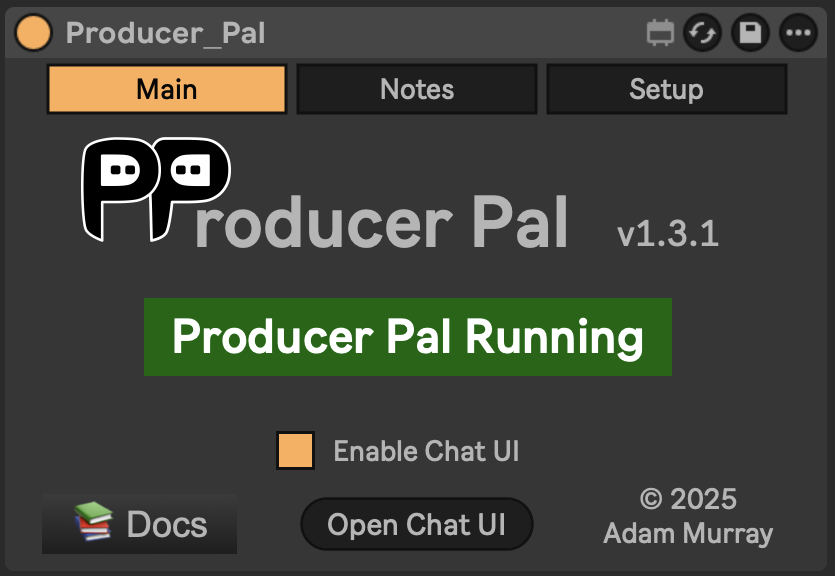 _It should display "Producer Pal Running" or something isn't working._
### 2. Add Producer Pal to Codex
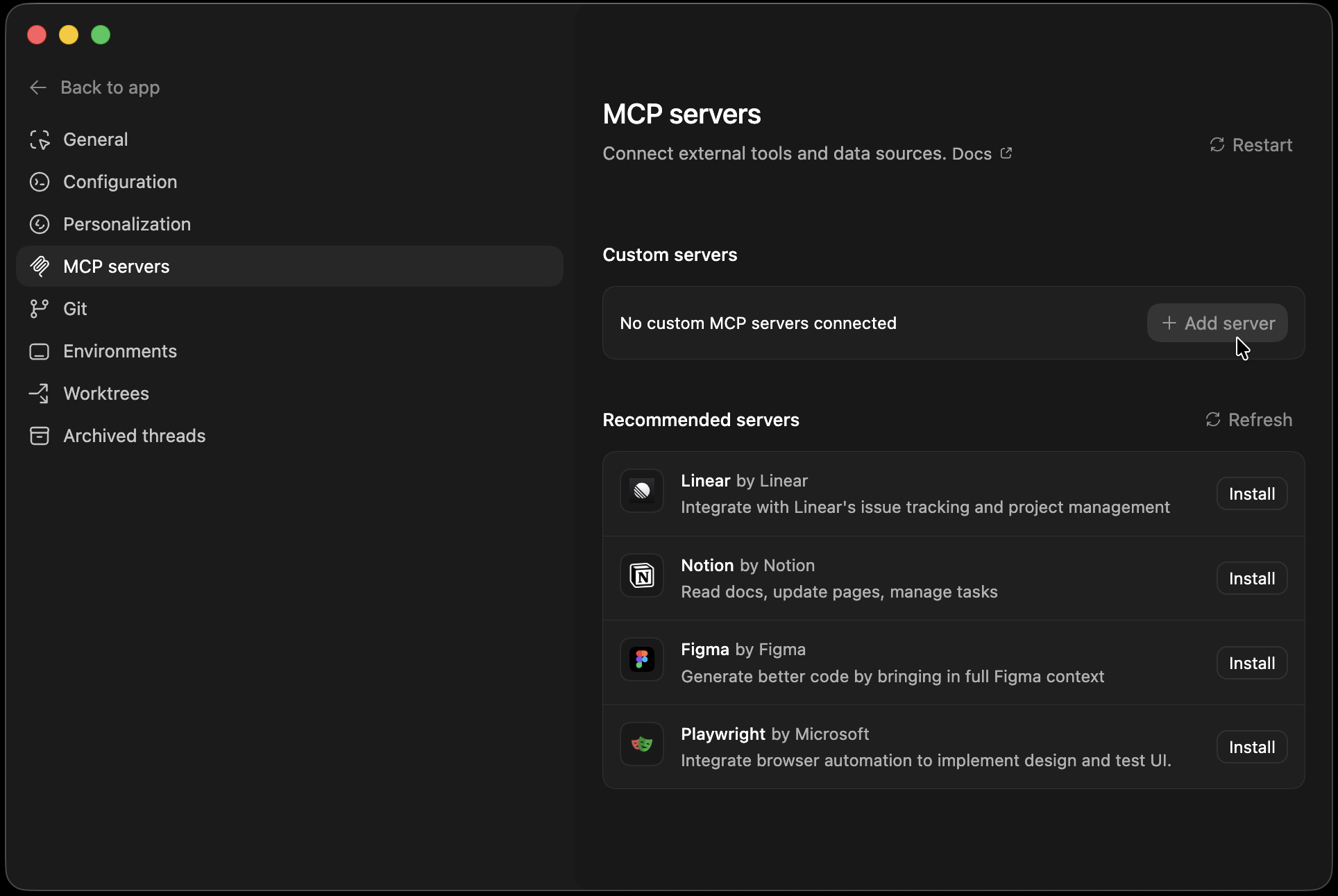
In the Codex app, go to Settings → MCP Servers and click "+ Add server":
_It should display "Producer Pal Running" or something isn't working._
### 2. Add Producer Pal to Codex
In the Codex app, go to Settings → MCP Servers and click "+ Add server":
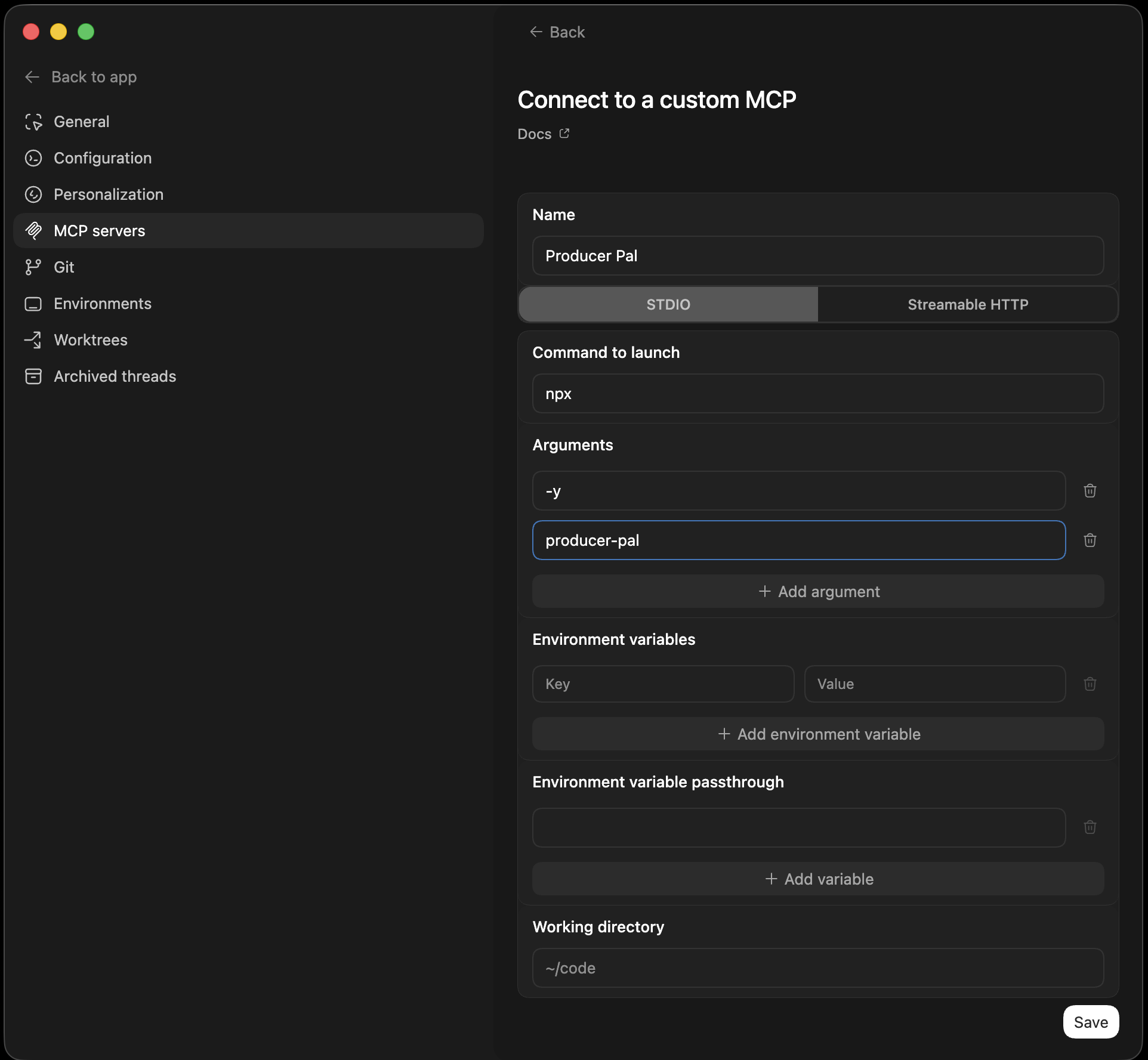
**Option A: With npx (recommended)** — Allows flexible startup order and
auto-reconnection:
Select the **STDIO** tab and fill in:
- **Name:** `Producer Pal`
- **Command to launch:** `npx`
- **Arguments:** `-y` and `producer-pal` as separate entries (click "+ Add
argument" for each one)
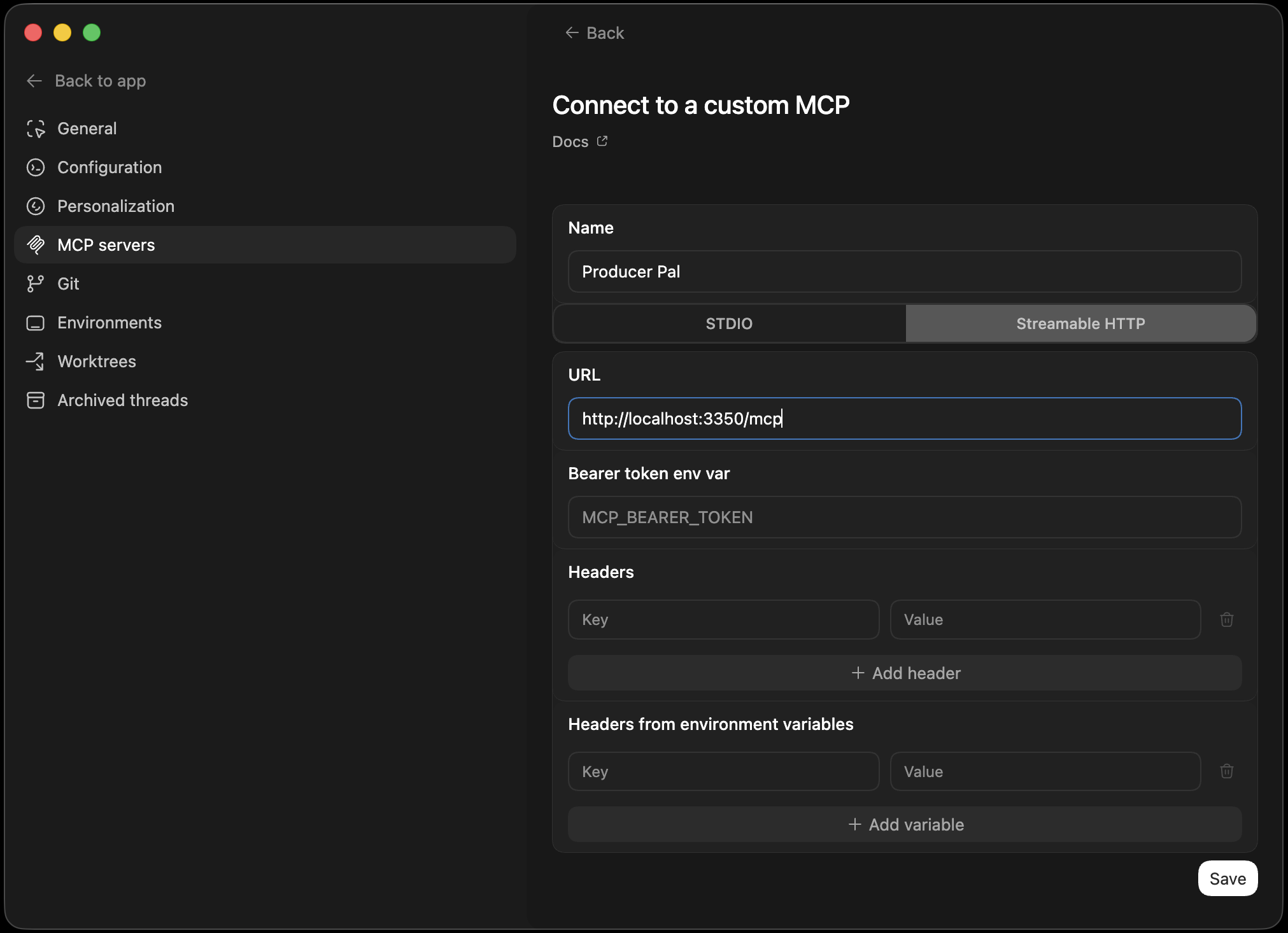
**Option B: Direct HTTP** — Requires Ableton running first, no
auto-reconnection:
Select the **Streamable HTTP** tab and fill in:
- **Name:** `Producer Pal`
- **URL:** `http://localhost:3350/mcp`
 ### 3. Start a Conversation
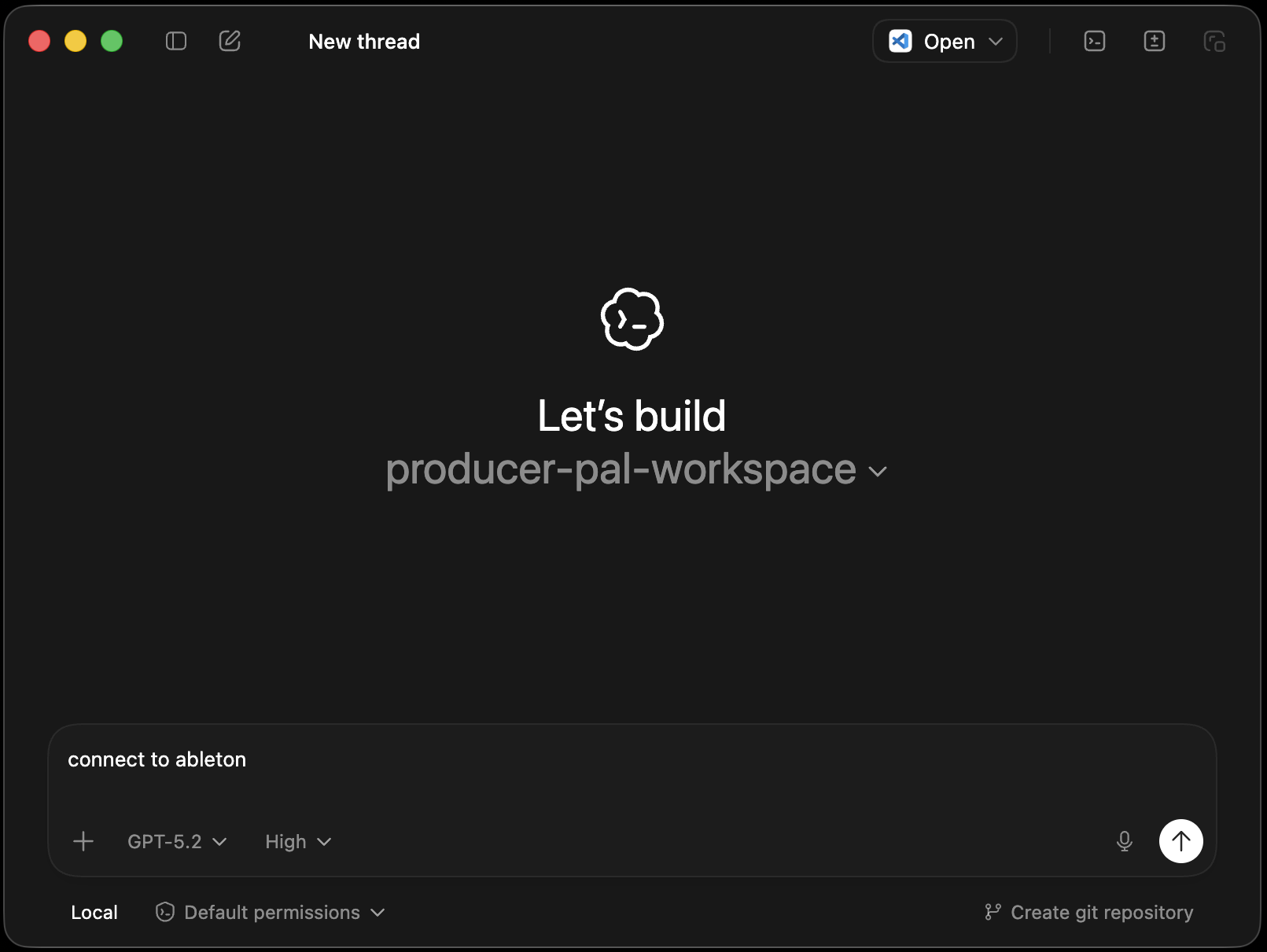
When starting a new chat, Codex asks you to pick a project folder. It's
recommended to use an empty folder for Producer Pal sessions (shown as
`producer-pal-workspace` in the screenshot). Feel free to put reference
documents in this folder, such as common workflow instructions or details of
your preferred musical style and production techniques.
Start a conversation with "connect to ableton":
### 3. Start a Conversation
When starting a new chat, Codex asks you to pick a project folder. It's
recommended to use an empty folder for Producer Pal sessions (shown as
`producer-pal-workspace` in the screenshot). Feel free to put reference
documents in this folder, such as common workflow instructions or details of
your preferred musical style and production techniques.
Start a conversation with "connect to ableton":
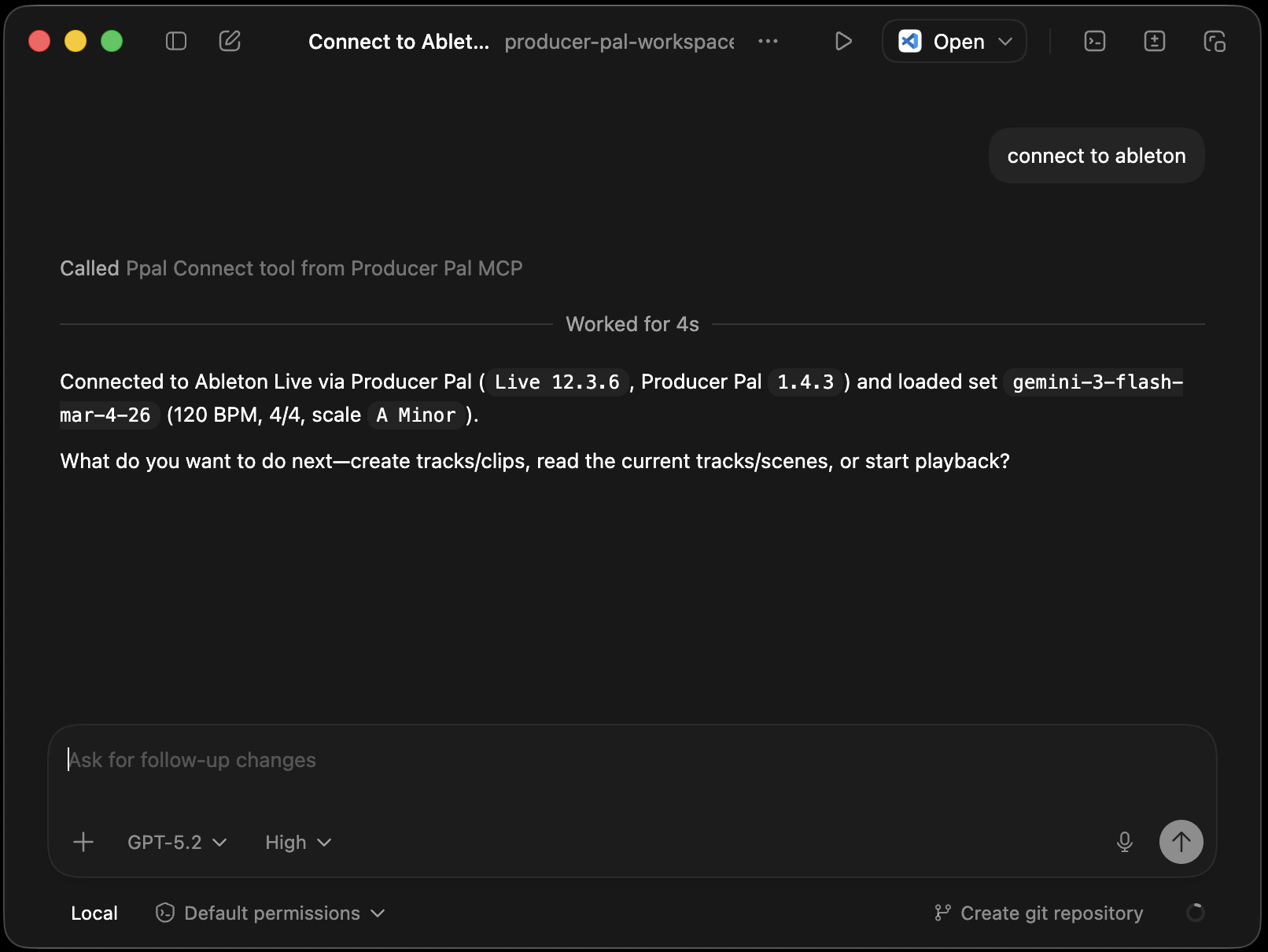
 ### 4. Verify Connection
You should see a successful connection to Ableton Live:
### 4. Verify Connection
You should see a successful connection to Ableton Live:
 ## Troubleshooting
If it doesn't work, see the [Troubleshooting Guide](/support/troubleshooting).
## Troubleshooting
If it doesn't work, see the [Troubleshooting Guide](/support/troubleshooting).