# Mistral Vibe Web App
Use Producer Pal in your web browser at
[chat.mistral.ai](https://chat.mistral.ai/), the Mistral Vibe web app (formerly
Le Chat).
::: warning Not recommended
Web chat needs a [web tunnel](/installation/remote-access#web-tunnels), which
puts Ableton Live on the public internet with no password: anyone who finds the
link can control it. Use the [Built-in Chat UI](/installation/chat-ui) or a
[desktop app](/installation/desktop-apps) unless you really need a browser.
:::
## Requirements
- [Ableton Live 12.3+](https://www.ableton.com/live/) with
[Max for Live](https://www.ableton.com/live/max-for-live/). Live 12.4 or later
is recommended. On Live 12.3 these don't work:
- writing clip automation (reading and clearing it still work)
- loading a sample into Simpler
- the [Library](/features/tools#ppal-library) tool (searching your library and
listing plug-ins)
- finding a preset by name outside a device's own presets (packs' drum kits,
Sounds racks, custom folders)
- opening a plug-in's editor window
- [full control of a plug-in](/guide/plugins), to reach all its parameters
Use the version of Max bundled with Live, or make sure your standalone Max is
up to date.
- [Mistral account](https://chat.mistral.ai) (admin privileges required to
create connectors)
- [Web tunnel](./remote-access#web-tunnels) (e.g. Cloudflare or Pinggy)
## Installation Steps
### 1. Install the Max for Live Device
Download
[Producer_Pal.amxd](https://github.com/adamjmurray/producer-pal/releases/latest/download/Producer_Pal.amxd),
the Producer Pal Max for Live device.
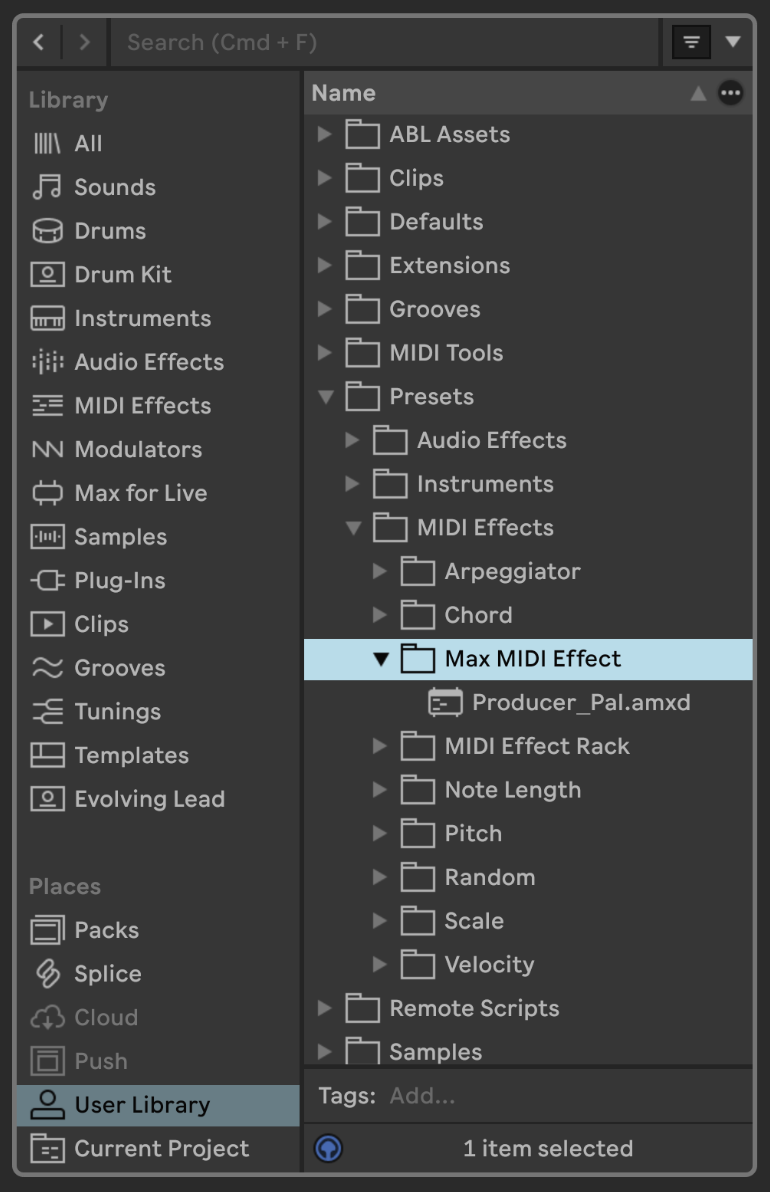
Open **User Library** (under Places) in Live's browser, go to **Presets → MIDI
Effects → Max MIDI Effect**, and drag `Producer_Pal.amxd` into that folder:
 Drag it from the Max MIDI Effect folder onto a MIDI track:
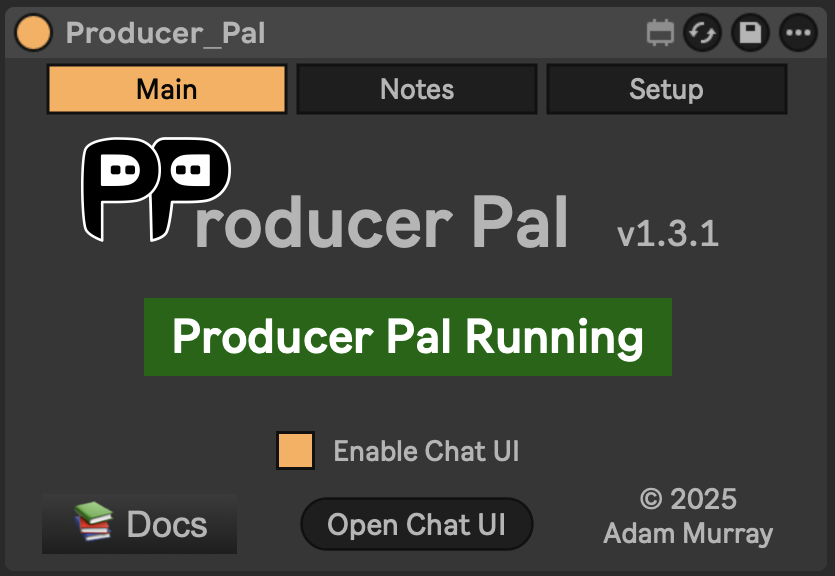 _It should display "Producer Pal Running" or something isn't working._
Then finish the installation: click **Finish installation…** on the device (or
**Open Chat UI**, then **Settings → Installation**), and click **Install** there
to add the remote script (clip automation, undo, plug-ins).
**Restart Live**, then choose **Producer Pal** as a Control Surface in
**Settings → Tempo & MIDI**, with Input and Output left as **None**.
More in [Finish the Installation](/installation#finish-the-installation).
### 2. Set Up a Web Tunnel
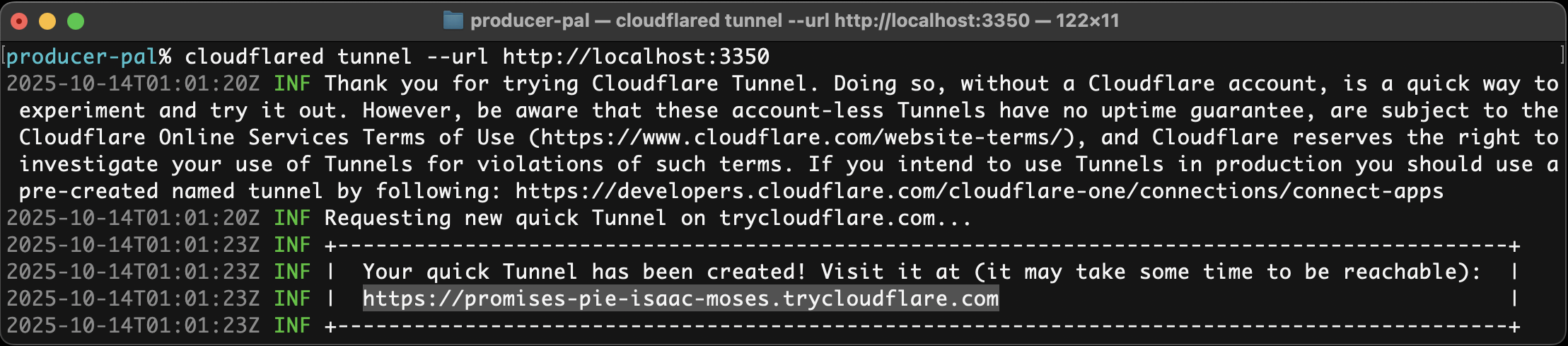
Set up [a web tunnel](./remote-access#web-tunnels) to expose your local Producer
Pal server.
For example:
```bash
cloudflared tunnel --url http://localhost:3350
```
will give you a public URL such as `https://abc-xyz.trycloudflare.com`:
### 3. Add Custom MCP Connector
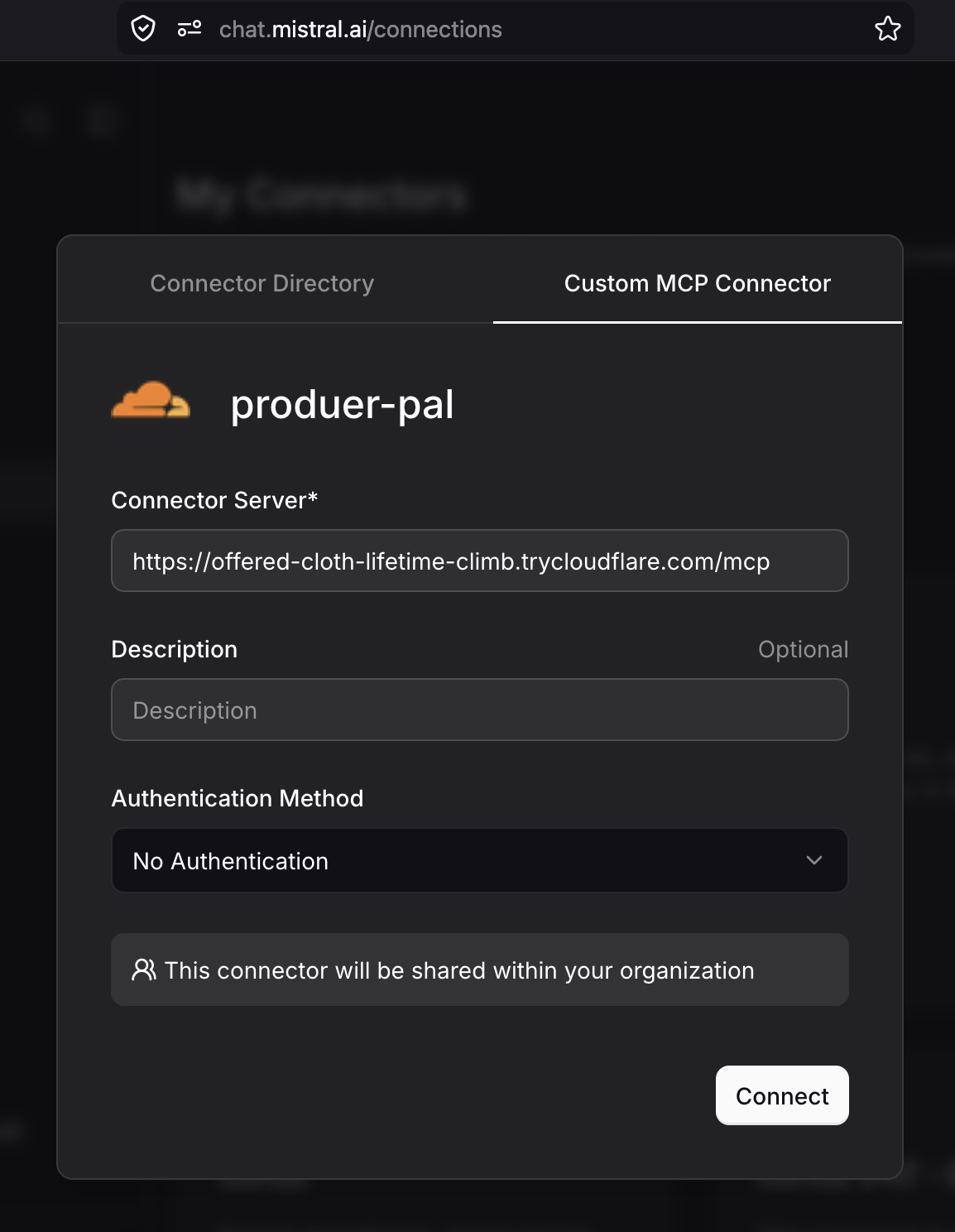
1. In Vibe, open the side panel and go to **Intelligence** → **Connectors**
2. Click **+ Add Connector** and switch to the **Custom MCP Connector** tab
3. Fill in the details:
- **Connector name:** `producer-pal` (no spaces or special characters)
- **Connection server:** Your tunnel URL + `/mcp` (e.g.
`https://abc-xyz.trycloudflare.com/mcp`)
- **Authentication method:** No Authentication
4. Click **Connect**
 ### 4. Enable the Connector
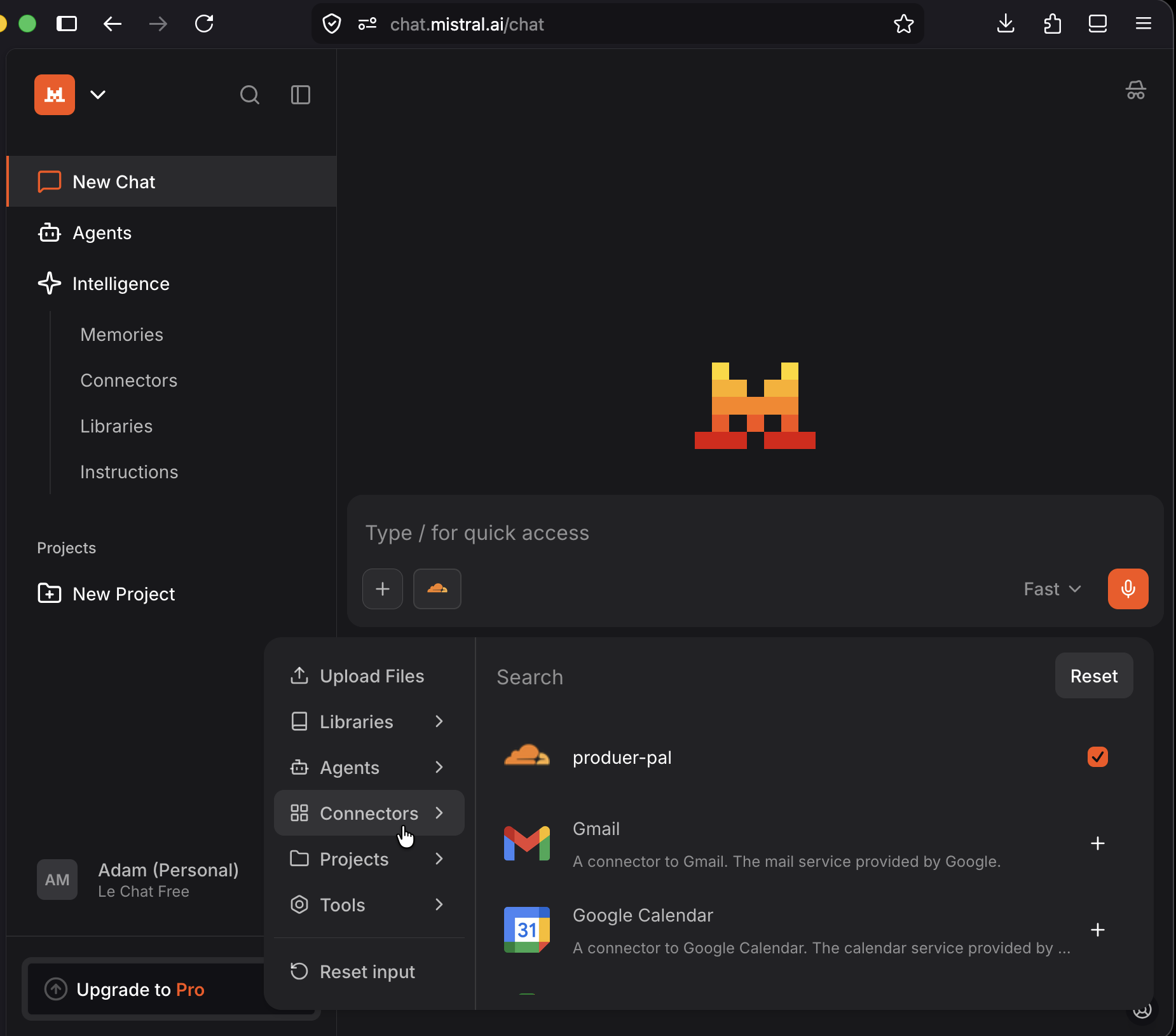
When starting a new conversation, click the **+** button and go to
**Connectors**. Make sure **producer-pal** is checked:
### 5. Start Using Producer Pal
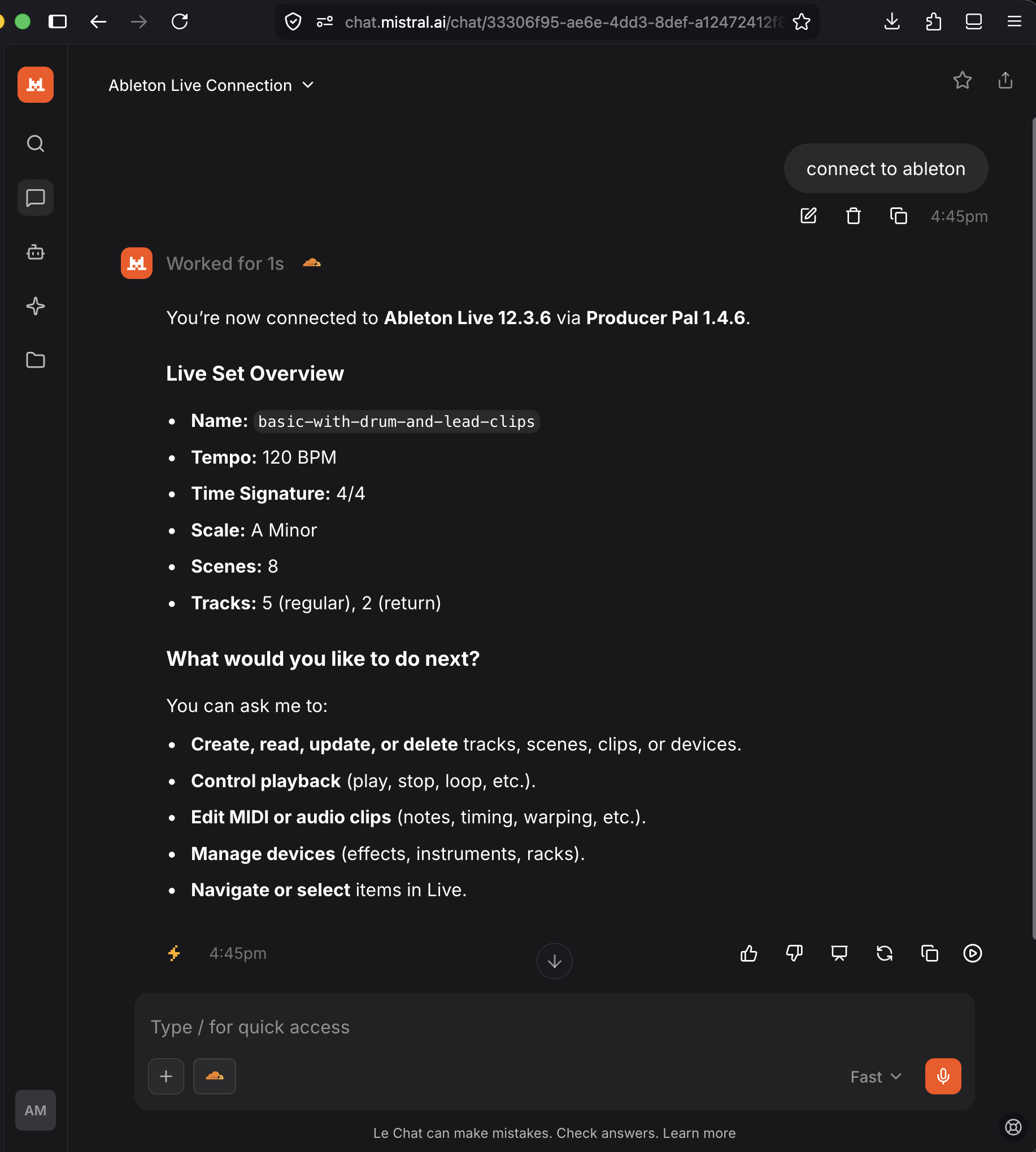
Start a conversation with "connect to ableton":
## Check It Works
Once connected, the AI confirms it can see your Live Set. Try a first request
that doesn't change anything:
> What tracks are in my Live Set?
It should list your tracks. If it can't connect or gets something wrong, see
[Troubleshooting](#troubleshooting) below.
## Troubleshooting
If it doesn't work, see the [Troubleshooting Guide](/support/troubleshooting).