# Mistral Vibe CLI
Use Producer Pal with Mistral's open-source command line coding assistant.
## Requirements
- [Ableton Live 12.3+](https://www.ableton.com/live/) with
[Max for Live](https://www.ableton.com/live/max-for-live/). Live 12.4 or later
is recommended. On Live 12.3 these don't work:
- writing clip automation (reading and clearing it still work)
- loading a sample into Simpler
- the [Library](/features/tools#ppal-library) tool (searching your library and
listing plug-ins)
- finding a preset by name outside a device's own presets (packs' drum kits,
Sounds racks, custom folders)
- opening a plug-in's editor window
- [full control of a plug-in](/guide/plugins), to reach all its parameters
Use the version of Max bundled with Live, or make sure your standalone Max is
up to date.
- [Node.js 20+](https://nodejs.org/en/download)
- [Mistral Vibe CLI](https://github.com/mistralai/mistral-vibe#readme), signed
in with your Mistral account or an API key
## Installation Steps
No need to install the Producer Pal device yourself: in the last step, the AI
sets up Live for you.
::: details Or install the device yourself
Download
[Producer_Pal.amxd](https://github.com/adamjmurray/producer-pal/releases/latest/download/Producer_Pal.amxd),
the Producer Pal Max for Live device.
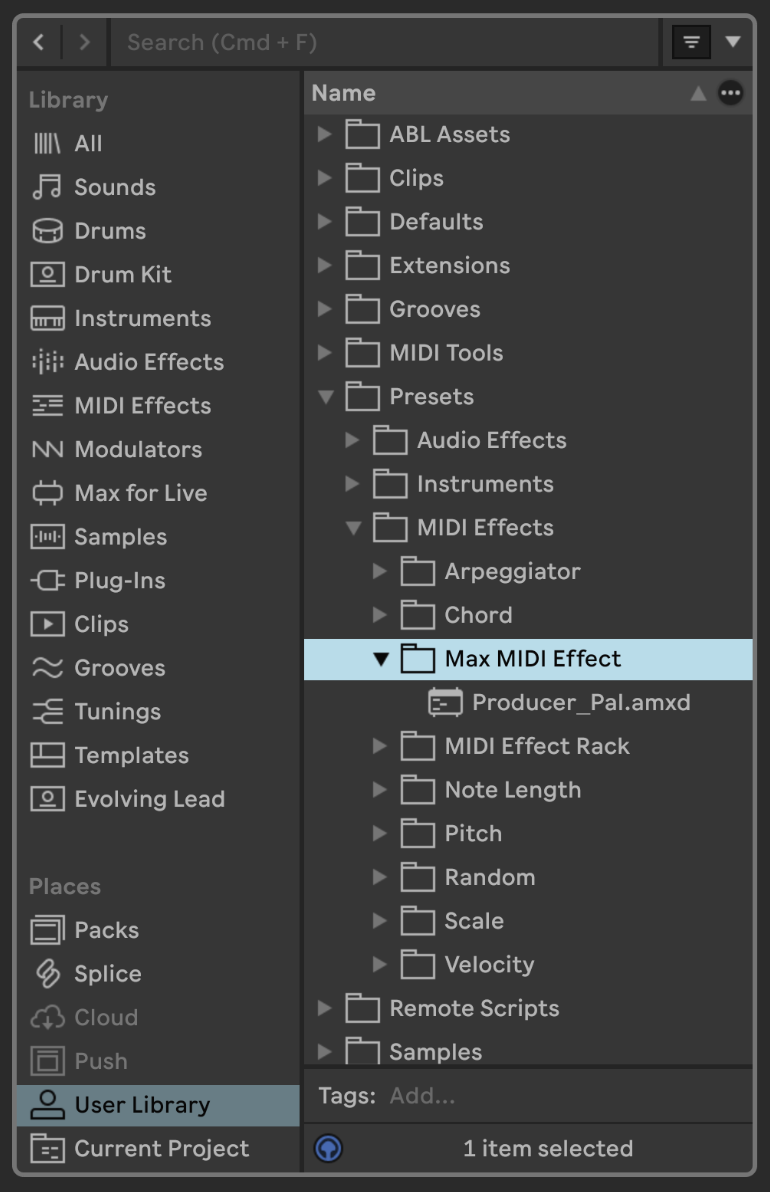
Open **User Library** (under Places) in Live's browser, go to **Presets → MIDI
Effects → Max MIDI Effect**, and drag `Producer_Pal.amxd` into that folder:
 Drag it from the Max MIDI Effect folder onto a MIDI track:
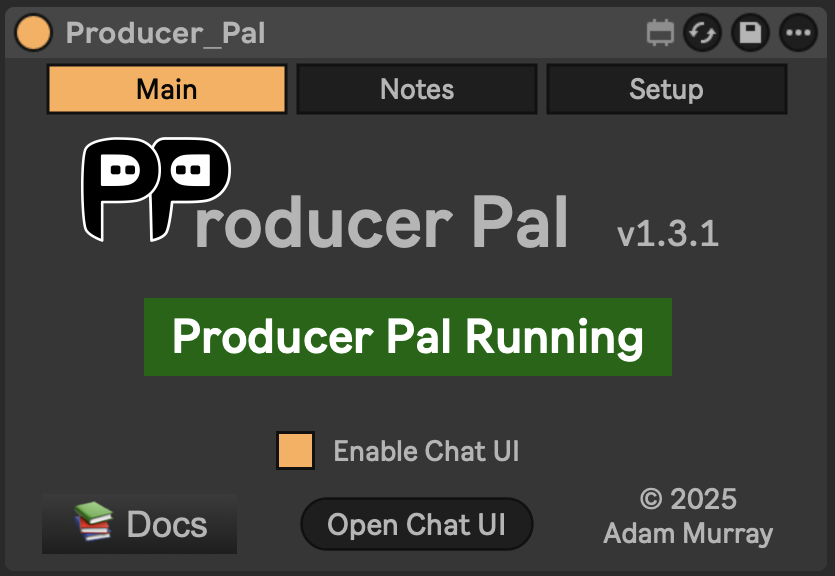 _It should display "Producer Pal Running" or something isn't working._
Then finish the installation: click **Finish installation…** on the device (or
**Open Chat UI**, then **Settings → Installation**), and click **Install** there
to add the remote script (clip automation, undo, plug-ins).
**Restart Live**, then choose **Producer Pal** as a Control Surface in
**Settings → Tempo & MIDI**, with Input and Output left as **None**.
More in [Finish the Installation](/installation#finish-the-installation).
:::
### 1. Configure Mistral Vibe CLI
**Option A: With npx (recommended).** Allows flexible startup order and
auto-reconnection:
```bash
vibe mcp add producer-pal --transport stdio --command npx --arg=-y --arg=producer-pal@latest
```
::: tip Shared with the Mistral Vibe app
The [Mistral Vibe](./mistral-vibe) desktop app reads the same configuration, so
this sets up both.
:::
**Option B: Direct HTTP.** Requires the device running in Live first (install it
yourself, see above), no auto-reconnection:
Add this to your Vibe configuration file (`~/.vibe/config.toml`). Edit the file
for this option: `vibe mcp add` with a URL expects a server that needs a login.
```toml
[[mcp_servers]]
name = "producer-pal"
transport = "streamable-http"
url = "http://localhost:3350/mcp"
```
### 2. Start Using Producer Pal
1. Run `vibe` in an empty folder (so it can focus on Producer Pal instead of
coding)
2. With Live open, start a conversation with "connect to ableton"
3. Allow Producer Pal tools to be used when prompted
The first time, the AI sets up Live for you:
1. It installs the [Producer Pal remote script](/guide/remote-script) and the
Producer Pal device into your User Library.
2. **Restart Live**, then choose **Producer Pal** as a Control Surface in
**Settings → Tempo & MIDI**, with Input and Output left as **None**.
3. Tell the AI when you're done. It adds the Producer Pal device to your Live
Set (it asks first).
Don't want to restart Live yet? Drag Producer Pal from your User Library
(**Presets → MIDI Effects → Max MIDI Effect**) onto a MIDI track instead, and
connect right away.
## Check It Works
Once connected, the AI confirms it can see your Live Set. Try a first request
that doesn't change anything:
> What tracks are in my Live Set?
It should list your tracks. If it can't connect or gets something wrong, see
[Troubleshooting](#troubleshooting) below.
## Troubleshooting
If it doesn't work, see the [Troubleshooting Guide](/support/troubleshooting).