# Local AI
Run the AI on your own computer and chat in Producer Pal's built-in chat window:
free, private and offline, but less smart than online AI. Two apps can run it:
[Ollama](#ollama) (the easiest) or [Bionic / LM Studio](#bionic-lm-studio).
::: warning Needs a powerful computer
An Apple Silicon Mac with lots of memory, or a PC with a strong Nvidia graphics
card (8 GB of video memory at least, 16 GB or more is better). See
[Running Locally](/installation/choose-local) to check yours. On a regular
laptop, use an [AI router](/installation/ai-routers) instead.
:::
## What You Need
- [Ableton Live 12.3+](https://www.ableton.com/live/) with
[Max for Live](https://www.ableton.com/live/max-for-live/). Live 12.4 or later
is recommended. On Live 12.3 these don't work:
- writing clip automation (reading and clearing it still work)
- loading a sample into Simpler
- the [Library](/features/tools#ppal-library) tool (searching your library and
listing plug-ins)
- finding a preset by name outside a device's own presets (packs' drum kits,
Sounds racks, custom folders)
- opening a plug-in's editor window
Use the version of Max bundled with Live, or make sure your standalone Max is
up to date.
## 1. Install the Max for Live Device
Download
[Producer_Pal.amxd](https://github.com/adamjmurray/producer-pal/releases/latest/download/Producer_Pal.amxd),
the Producer Pal Max for Live device.
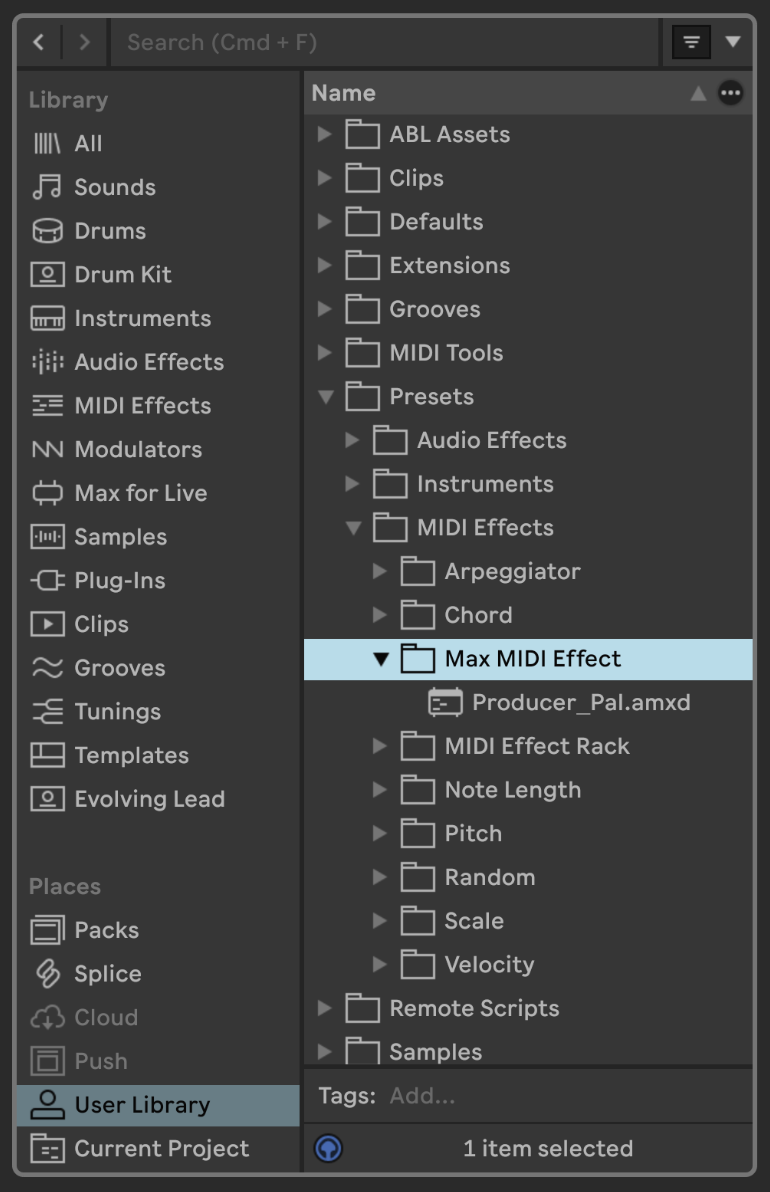
Open **User Library** (under Places) in Live's browser, go to **Presets → MIDI
Effects → Max MIDI Effect**, and drag `Producer_Pal.amxd` into that folder:
 Drag it from the Max MIDI Effect folder onto a MIDI track:
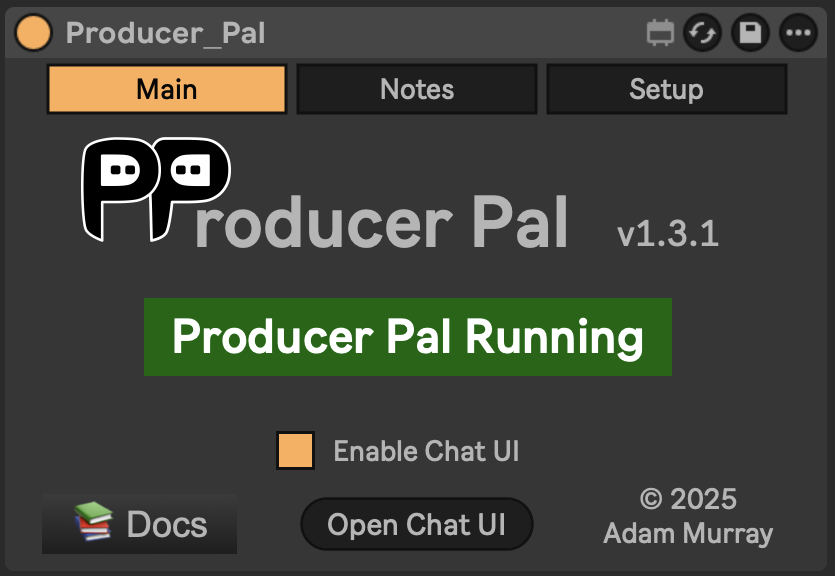 _It should display "Producer Pal Running" or something isn't working._
Then finish the installation: click **Finish installation…** on the device (or
**Open Chat UI**, then **Settings → Installation**), and click **Install** there
to add the remote script (clip automation, undo, plug-ins).
**Restart Live**, then choose **Producer Pal** as a Control Surface in
**Settings → Tempo & MIDI**, with Input and Output left as **None**.
More in [Finish the Installation](/installation#finish-the-installation).
## 2. Set Up Ollama or Bionic / LM Studio
Pick one.
### Ollama
Haven't installed the device yet? Do
[step 1](#_1-install-the-max-for-live-device) first.
1. Download and install [Ollama](https://ollama.com/download).
2. Download a model that can control other apps (Ollama calls this "tools"),
such as `qwen3.8`, `gemma4`, `muse-glimmer` or `mistral-small3.2`. Open
Terminal (Mac) or Command Prompt (Windows), type this and press Enter:
```
ollama pull qwen3.8
```
Swap in another name to get a different model. If your computer can handle
it, a bigger version of a model is smarter. Browse more
[models that support tools](https://ollama.com/search?c=tools).
3. Open the Ollama app's settings and set **Context length** to **16k or
higher**. Producer Pal's instructions don't fit in the default, and the AI
can't use Producer Pal without them. (Running Ollama without the app? Set
`OLLAMA_CONTEXT_LENGTH=16384` instead.)
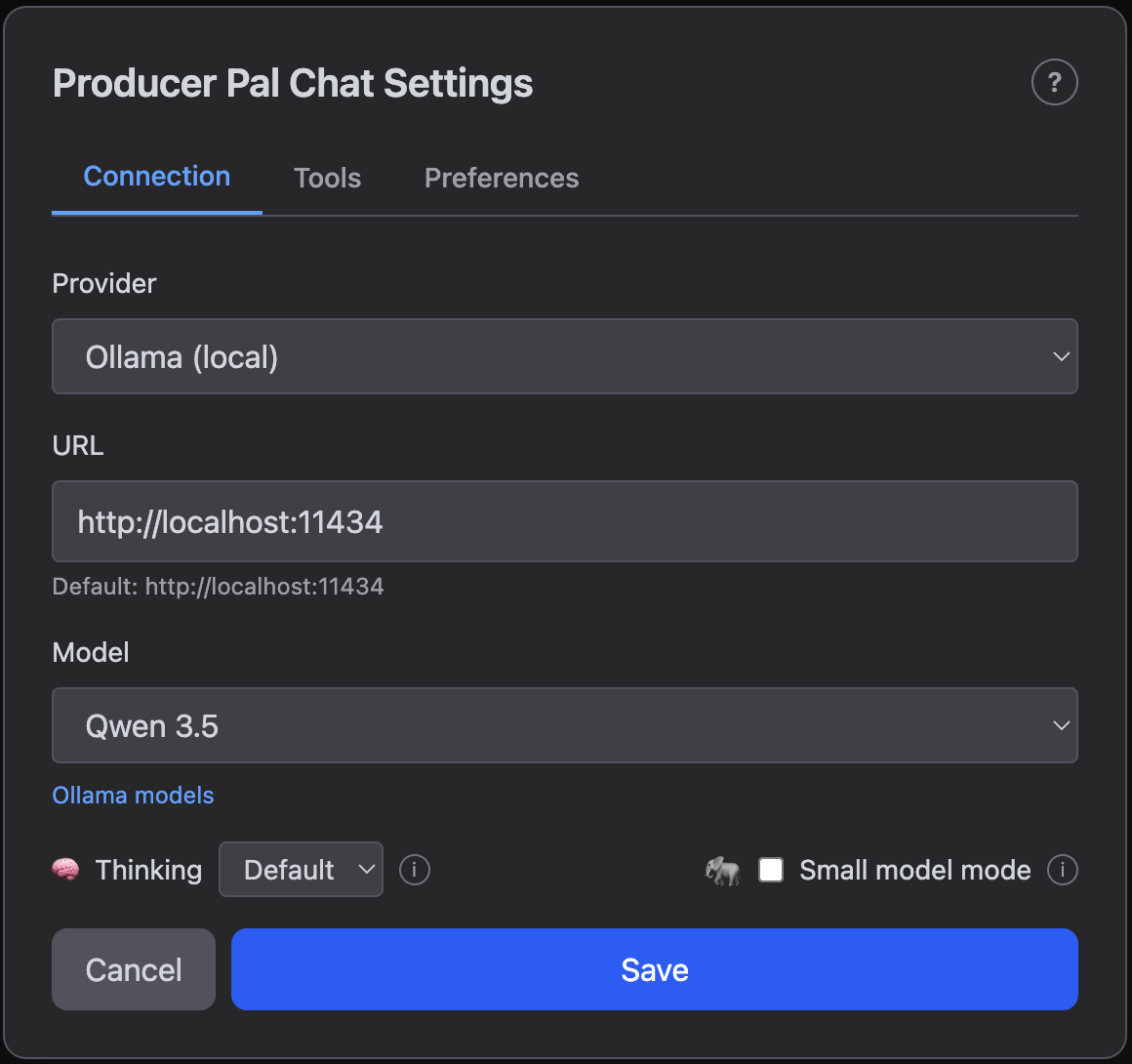
4. Settings to use in step 4:
- Provider: **Ollama (local)**
- URL: leave it as `http://localhost:11434` (to run Ollama on another
computer, see
[the user guide](/guide/chat-ui#local-ai-settings-ollama-bionic))
- Model: the name you downloaded, like `qwen3.8`
_It should display "Producer Pal Running" or something isn't working._
Then finish the installation: click **Finish installation…** on the device (or
**Open Chat UI**, then **Settings → Installation**), and click **Install** there
to add the remote script (clip automation, undo, plug-ins).
**Restart Live**, then choose **Producer Pal** as a Control Surface in
**Settings → Tempo & MIDI**, with Input and Output left as **None**.
More in [Finish the Installation](/installation#finish-the-installation).
## 2. Set Up Ollama or Bionic / LM Studio
Pick one.
### Ollama
Haven't installed the device yet? Do
[step 1](#_1-install-the-max-for-live-device) first.
1. Download and install [Ollama](https://ollama.com/download).
2. Download a model that can control other apps (Ollama calls this "tools"),
such as `qwen3.8`, `gemma4`, `muse-glimmer` or `mistral-small3.2`. Open
Terminal (Mac) or Command Prompt (Windows), type this and press Enter:
```
ollama pull qwen3.8
```
Swap in another name to get a different model. If your computer can handle
it, a bigger version of a model is smarter. Browse more
[models that support tools](https://ollama.com/search?c=tools).
3. Open the Ollama app's settings and set **Context length** to **16k or
higher**. Producer Pal's instructions don't fit in the default, and the AI
can't use Producer Pal without them. (Running Ollama without the app? Set
`OLLAMA_CONTEXT_LENGTH=16384` instead.)
4. Settings to use in step 4:
- Provider: **Ollama (local)**
- URL: leave it as `http://localhost:11434` (to run Ollama on another
computer, see
[the user guide](/guide/chat-ui#local-ai-settings-ollama-bionic))
- Model: the name you downloaded, like `qwen3.8`
 ### Bionic / LM Studio
Haven't installed the device yet? Do
[step 1](#_1-install-the-max-for-live-device) first.
This is for Bionic. The older LM Studio app also works: its menus differ, but
the settings are the same. Prefer Bionic's own chat window? See
[Bionic / LM Studio as a desktop app](./bionic).
1. Install [Bionic](https://lmstudio.ai/bionic) (free, no account needed).
2. Download a model under Settings → Explore, such as a recent version of
Qwen, Gemma, Mistral, or Nemotron. It has to support tools: under Settings
→ Library, a hammer icon marks the ones that do:
### Bionic / LM Studio
Haven't installed the device yet? Do
[step 1](#_1-install-the-max-for-live-device) first.
This is for Bionic. The older LM Studio app also works: its menus differ, but
the settings are the same. Prefer Bionic's own chat window? See
[Bionic / LM Studio as a desktop app](./bionic).
1. Install [Bionic](https://lmstudio.ai/bionic) (free, no account needed).
2. Download a model under Settings → Explore, such as a recent version of
Qwen, Gemma, Mistral, or Nemotron. It has to support tools: under Settings
→ Library, a hammer icon marks the ones that do:
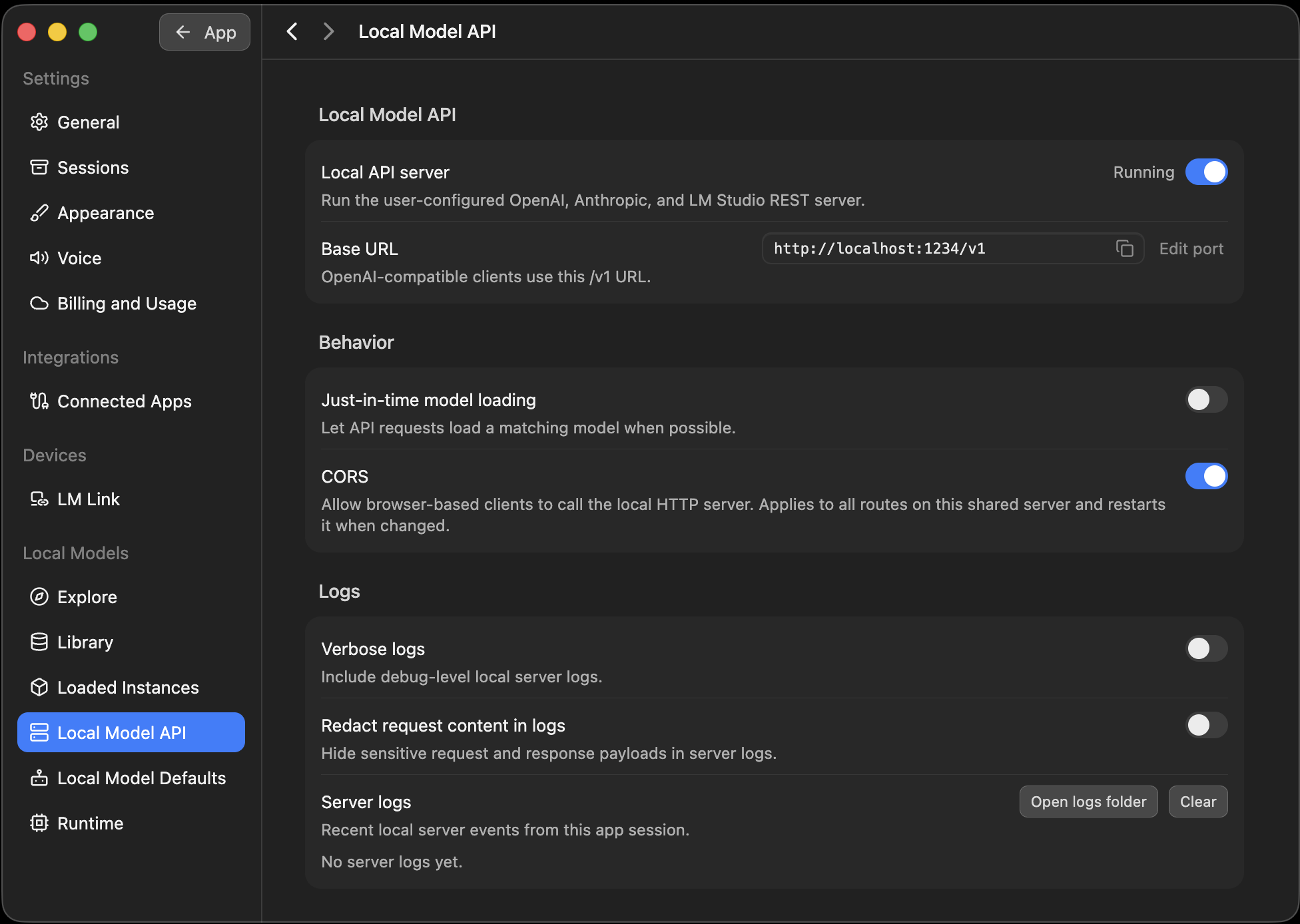
 3. Go to Settings → Local Model API and turn on **Local API server** (it
should then read "Running") and **CORS** (lets your browser talk to Bionic).
Copy the **Base URL** while you're here (`http://localhost:1234/v1` by
default):
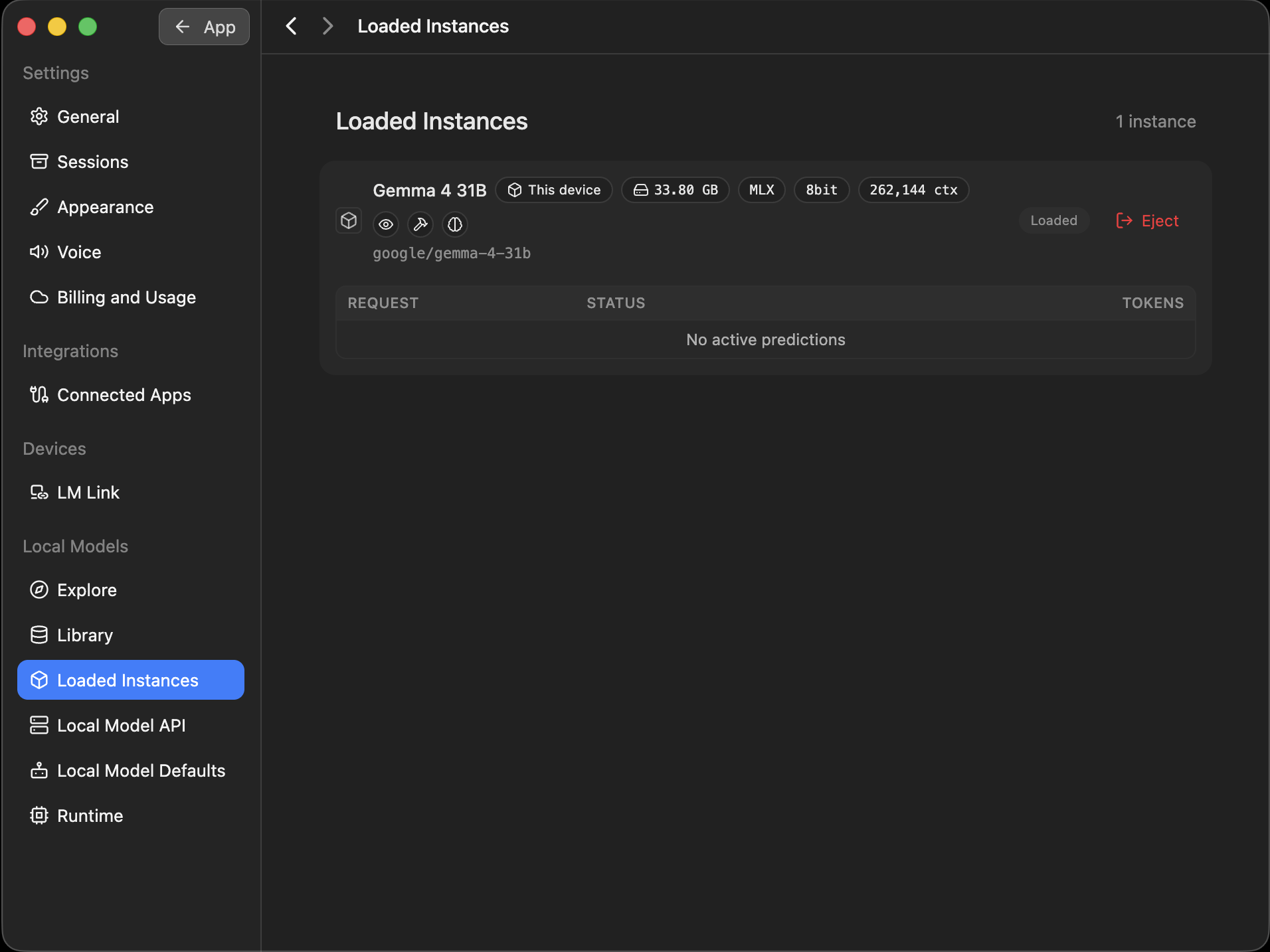
4. Turn on **Just-in-time model loading**, or load a model by having a quick
chat with it in Bionic first. Set its **context length to 16k (16000) or
higher**. Loaded models are listed under Settings → Loaded Instances:
5. Settings to use in step 4:
- Provider: **Bionic / LM Studio (local)**
- URL: the Base URL you copied
- Model: a model that supports tools, such as `qwen/qwen3.8-27b`,
`google/gemma-4-e4b`, `mistralai/devstral-small-2-2512`, or
`zai-org/glm-4.7-flash`
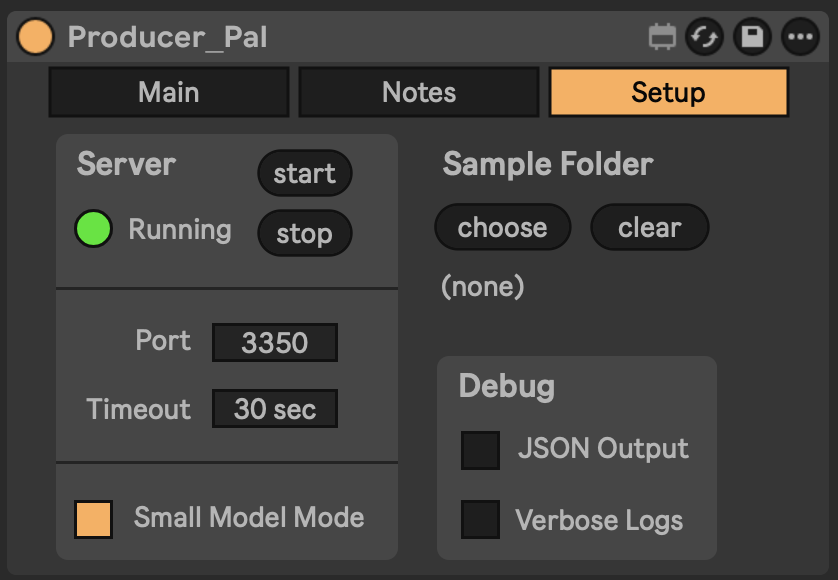
## 3. Turn On Small Model Mode (Recommended)
In the device's [Setup tab](/guide/device#setup-tab), turn on **Small Model
Mode**. It gives local AI a simpler set of tools.
3. Go to Settings → Local Model API and turn on **Local API server** (it
should then read "Running") and **CORS** (lets your browser talk to Bionic).
Copy the **Base URL** while you're here (`http://localhost:1234/v1` by
default):

4. Turn on **Just-in-time model loading**, or load a model by having a quick
chat with it in Bionic first. Set its **context length to 16k (16000) or
higher**. Loaded models are listed under Settings → Loaded Instances:

5. Settings to use in step 4:
- Provider: **Bionic / LM Studio (local)**
- URL: the Base URL you copied
- Model: a model that supports tools, such as `qwen/qwen3.8-27b`,
`google/gemma-4-e4b`, `mistralai/devstral-small-2-2512`, or
`zai-org/glm-4.7-flash`
## 3. Turn On Small Model Mode (Recommended)
In the device's [Setup tab](/guide/device#setup-tab), turn on **Small Model
Mode**. It gives local AI a simpler set of tools.
 ## 4. Connect
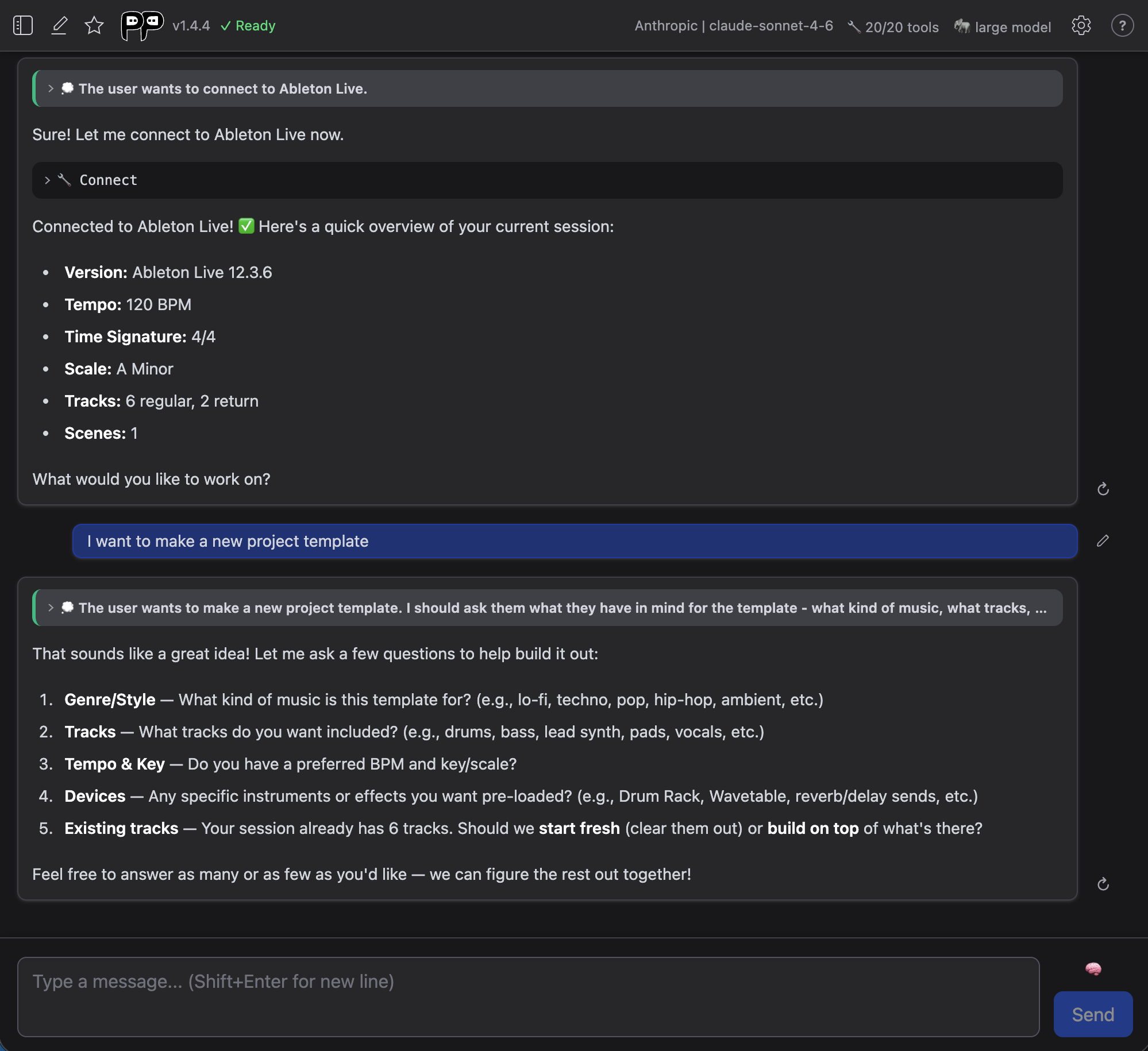
1. In the device, click "Open Chat UI". The chat opens in your browser, and so
do its settings the first time.
2. Fill in the settings listed above. For an online AI, paste your API key too.
Then click "Save".
3. Click "Quick Connect". It says "Connect to Ableton." for you:
## Check It Works
Once connected, the AI confirms it can see your Live Set. Try a first request
that doesn't change anything:
> What tracks are in my Live Set?
It should list your tracks. If it can't connect or gets something wrong, see
[Troubleshooting](#troubleshooting) below.
## Tips
- **Set the context length to 16k (16000) or higher** in the model's settings.
This is how much the AI can keep in mind at once. About 8k is enough to
connect and send a few messages. Higher is slower, so find the balance.
- **Keep it simple:** start from an empty Live Set and short material, like MIDI
clips of 4 bars or less. Small models are told to delete and start over rather
than make edits (other than simple additions).
- **When it goes wrong, back up.** Delete the last messages or edit your last
message and try again, instead of trying to correct the AI.
- **Close apps you don't need** so the model gets more of your computer.
## Troubleshooting
- **Garbled text like `<|tool_call_start|>...`, or it says it can't connect to
Ableton:** the model can't use tools. Pick another one from Ollama's
[tools list](https://ollama.com/search?c=tools), or one with Bionic's hammer
icon.
- **Ollama says the model isn't installed, but you downloaded it:** enter the
full name, including the part after the colon (like `muse-glimmer:30b-mlx`).
Type `ollama list` in Terminal to see the exact names.
- **Bionic's server isn't behaving:** turn on **Verbose logs** under Settings
→ Local Model API, then read **Server logs** on the same page.
- **The first reply is slow:** that's normal. Later replies in the same chat are
usually much faster.
For anything else, see the [Troubleshooting Guide](/support/troubleshooting).
## 4. Connect
1. In the device, click "Open Chat UI". The chat opens in your browser, and so
do its settings the first time.
2. Fill in the settings listed above. For an online AI, paste your API key too.
Then click "Save".
3. Click "Quick Connect". It says "Connect to Ableton." for you:

## Check It Works
Once connected, the AI confirms it can see your Live Set. Try a first request
that doesn't change anything:
> What tracks are in my Live Set?
It should list your tracks. If it can't connect or gets something wrong, see
[Troubleshooting](#troubleshooting) below.
## Tips
- **Set the context length to 16k (16000) or higher** in the model's settings.
This is how much the AI can keep in mind at once. About 8k is enough to
connect and send a few messages. Higher is slower, so find the balance.
- **Keep it simple:** start from an empty Live Set and short material, like MIDI
clips of 4 bars or less. Small models are told to delete and start over rather
than make edits (other than simple additions).
- **When it goes wrong, back up.** Delete the last messages or edit your last
message and try again, instead of trying to correct the AI.
- **Close apps you don't need** so the model gets more of your computer.
## Troubleshooting
- **Garbled text like `<|tool_call_start|>...`, or it says it can't connect to
Ableton:** the model can't use tools. Pick another one from Ollama's
[tools list](https://ollama.com/search?c=tools), or one with Bionic's hammer
icon.
- **Ollama says the model isn't installed, but you downloaded it:** enter the
full name, including the part after the colon (like `muse-glimmer:30b-mlx`).
Type `ollama list` in Terminal to see the exact names.
- **Bionic's server isn't behaving:** turn on **Verbose logs** under Settings
→ Local Model API, then read **Server logs** on the same page.
- **The first reply is slow:** that's normal. Later replies in the same chat are
usually much faster.
For anything else, see the [Troubleshooting Guide](/support/troubleshooting).