# LM Studio
Use Producer Pal completely offline without an Internet connection.
::: warning Experimental
This requires a relatively new machine with decent specs (Apple Silicon with
lots of RAM or PCs with Nvidia 4080+ graphics cards). It requires more technical
know-how to setup and debug. The online options work significantly better and
faster at the time of writing. However, completely offline and private usage is
compelling.
:::
## Requirements
- [Ableton Live 12.3+](https://www.ableton.com/live/) with
[Max for Live](https://www.ableton.com/live/max-for-live/)
- [LM Studio](https://lmstudio.ai/)
## Installation Steps
### 1. Install the Max for Live Device
Download
[Producer_Pal.amxd](https://github.com/adamjmurray/producer-pal/releases/latest/download/Producer_Pal.amxd),
the Producer Pal Max for Live device, and add it to a MIDI track in Ableton
Live:
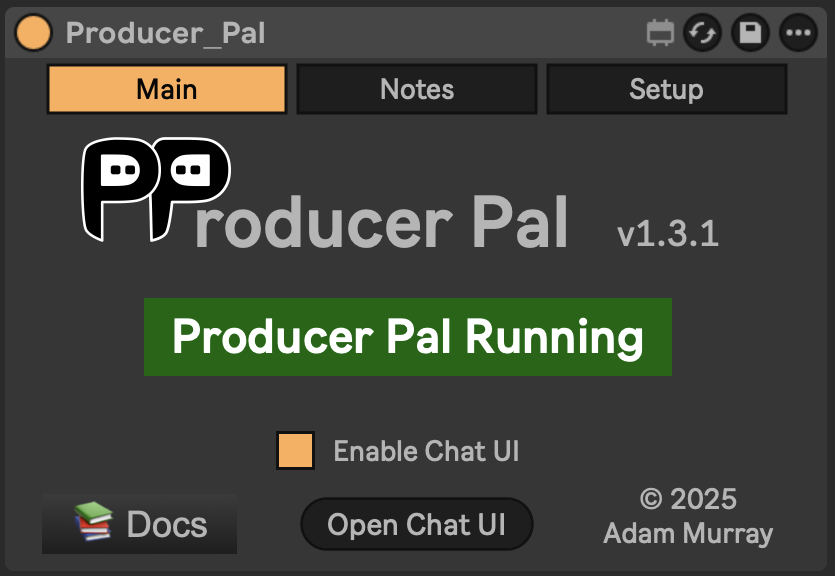 _It should display "Producer Pal Running" or something isn't working._
### 2. Enable Small Model Mode (Optional but Recommended)
Small model mode provides a smaller, simpler interface optimized for small/local
language models.
If you're using Option A below, the `-s` flag in the configuration automatically
enables small model mode on the device when connected.
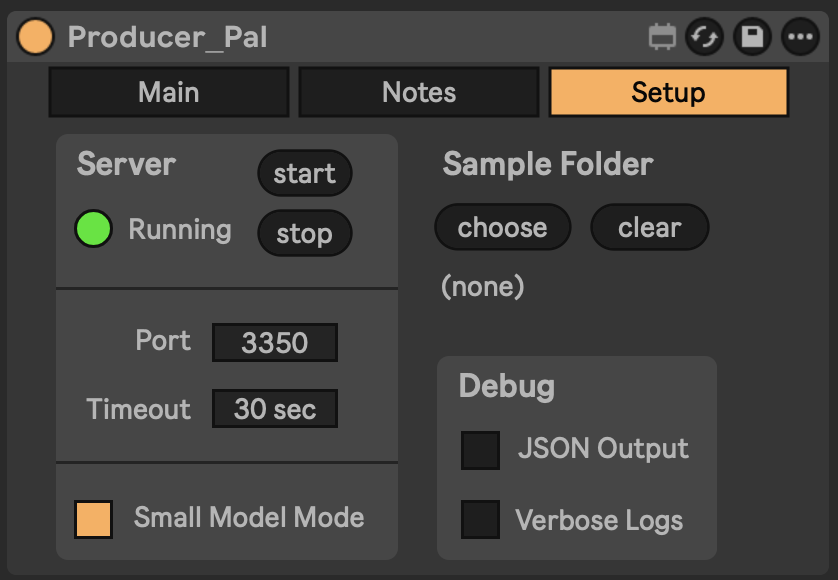
Alternatively, you can enable it manually in Producer Pal's "Setup" tab:
_It should display "Producer Pal Running" or something isn't working._
### 2. Enable Small Model Mode (Optional but Recommended)
Small model mode provides a smaller, simpler interface optimized for small/local
language models.
If you're using Option A below, the `-s` flag in the configuration automatically
enables small model mode on the device when connected.
Alternatively, you can enable it manually in Producer Pal's "Setup" tab:
 ### 3. Install a Compatible Model
Install a compatible model in LM Studio, such as a recent version of:
- Qwen
- Gemma
- Mistral Magistral or Devstral
- GLM Flash
### 4. Configure LM Studio
Setup Producer Pal in LM Studio Settings → Program → Integrations → edit
mcp.json:
**Option A: With npx (recommended)**:
```json
{
"mcpServers": {
"producer-pal": {
"command": "npx",
"args": ["-y", "producer-pal", "-s"]
}
}
}
```
The `-s` flag enables small model mode. It automatically configures the device
when connected, so you don't need to enable it in both places. The producer-pal
package is a proxy that responds to requests even when Ableton Live or the
Producer Pal device are not running, to let you know there's a problem.
**Option B: Direct HTTP**:
```json
{
"mcpServers": {
"producer-pal": {
"url": "http://localhost:3350/mcp"
}
}
}
```
### 5. Verify Tools
Confirm the Producer Pal tools are listed under Settings → Program:
### 3. Install a Compatible Model
Install a compatible model in LM Studio, such as a recent version of:
- Qwen
- Gemma
- Mistral Magistral or Devstral
- GLM Flash
### 4. Configure LM Studio
Setup Producer Pal in LM Studio Settings → Program → Integrations → edit
mcp.json:
**Option A: With npx (recommended)**:
```json
{
"mcpServers": {
"producer-pal": {
"command": "npx",
"args": ["-y", "producer-pal", "-s"]
}
}
}
```
The `-s` flag enables small model mode. It automatically configures the device
when connected, so you don't need to enable it in both places. The producer-pal
package is a proxy that responds to requests even when Ableton Live or the
Producer Pal device are not running, to let you know there's a problem.
**Option B: Direct HTTP**:
```json
{
"mcpServers": {
"producer-pal": {
"url": "http://localhost:3350/mcp"
}
}
}
```
### 5. Verify Tools
Confirm the Producer Pal tools are listed under Settings → Program:
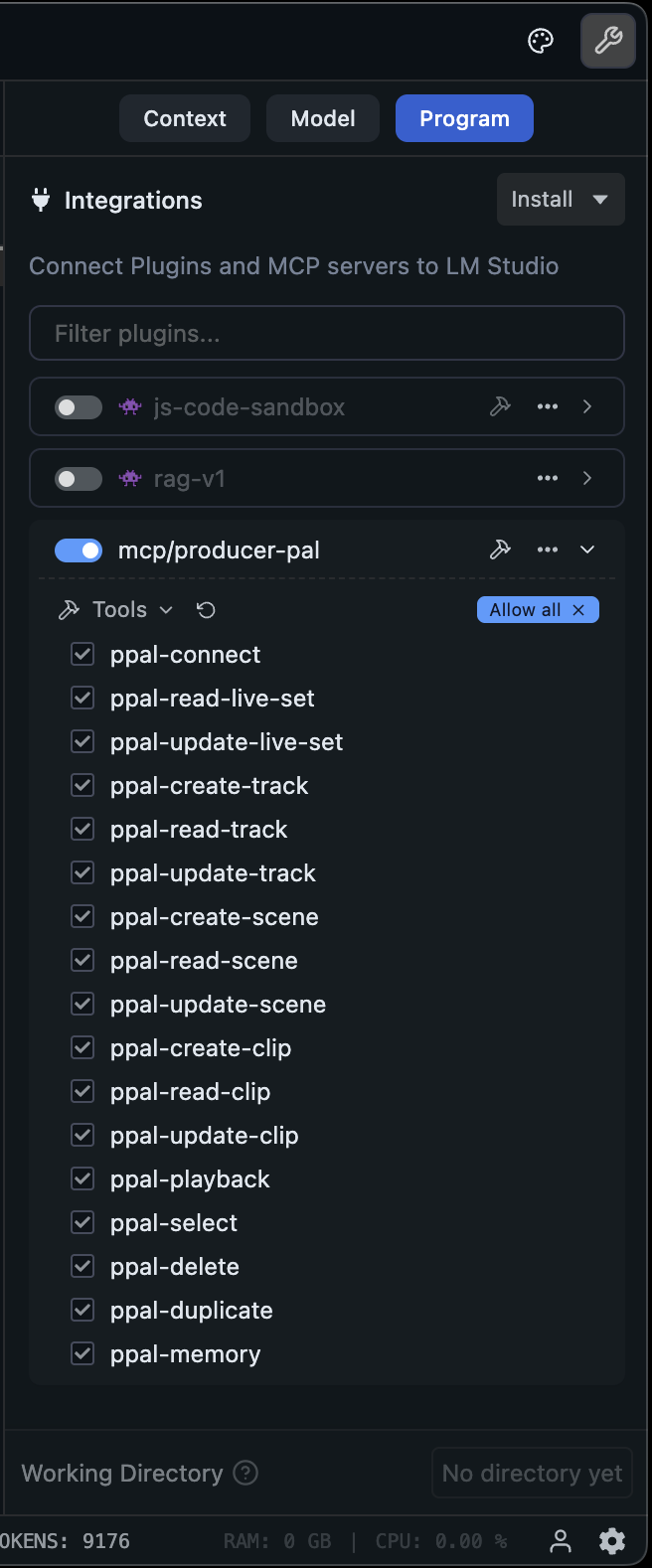 _See below for tips on using a subset of tools._
### 6. Start Using Producer Pal
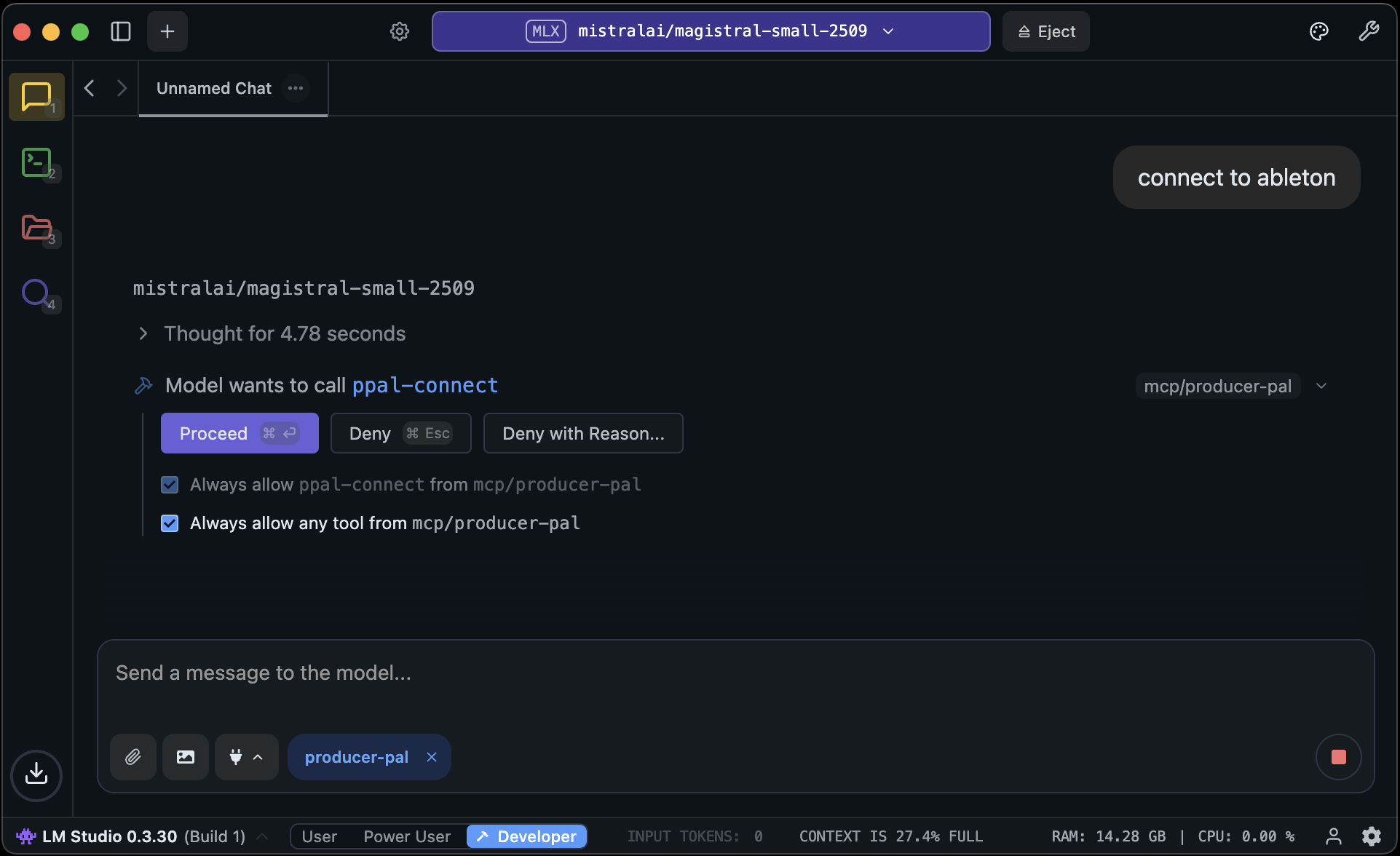
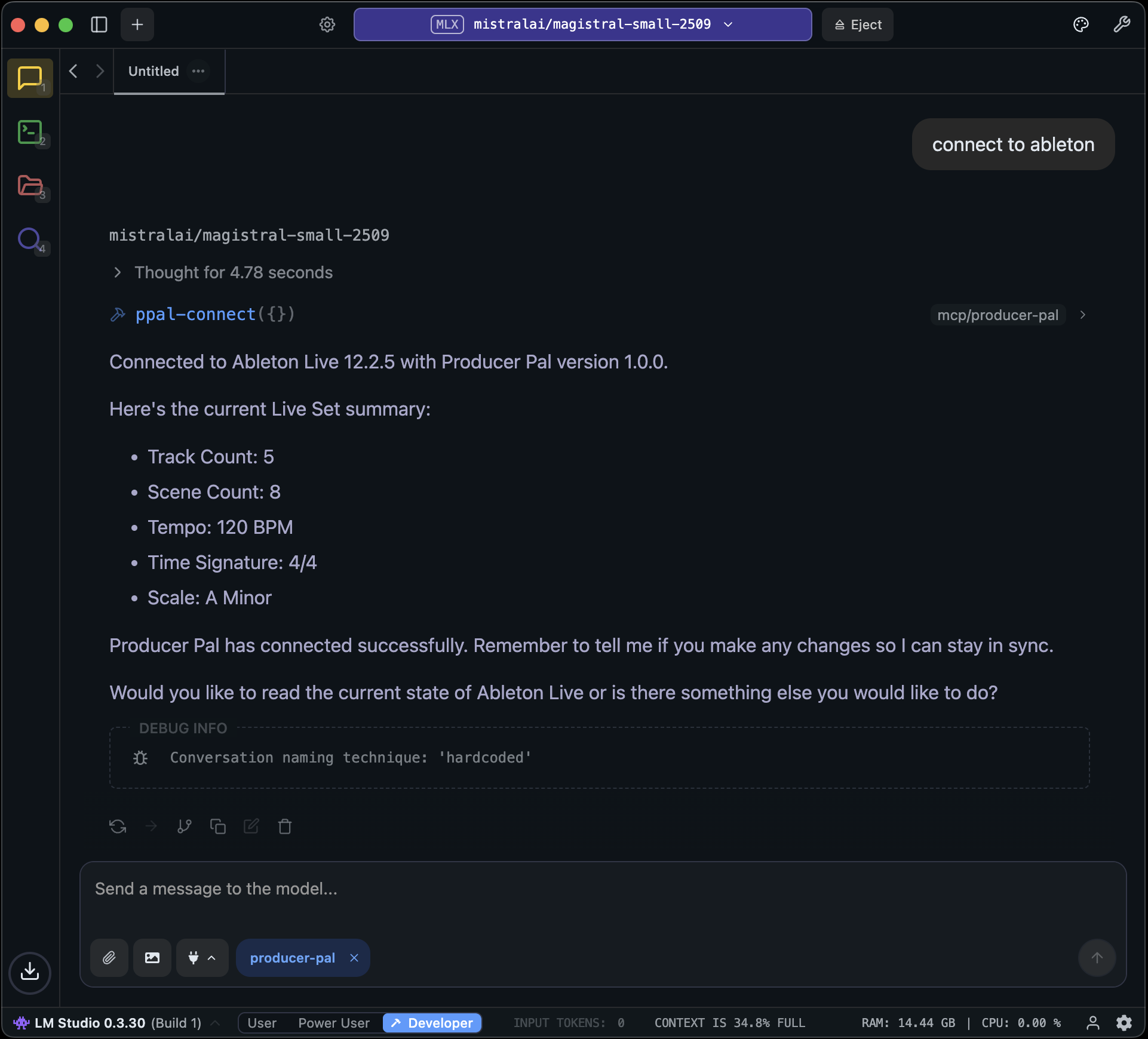
1. Start a conversation with Producer Pal MCP active and say "connect to
ableton"
2. If you didn't enable "Allow all" under Settings → Program, then allow
Producer Pal tools in the conversation:
## Local Model Tips
- A **context length of about 8k (8000)** is needed to start a conversation with
Producer Pal and send a few messages.
- A **context length of 16k (16000) or higher is recommended** for achieving
useful results, but higher context lengths can make the model run
significantly slower, especially as the conversation grows. Experiment to find
the right balance.
- To help the model make good tool choices and get more out of the limited
context length, disable some of the Producer Pal tools. To focus on MIDI clip
generation, a good minimal toolset for experimentation is:
- `ppal-connect`
- `ppal-read-live-set`
- `ppal-read-track`
- `ppal-create-clip`
- `ppal-delete`
- `ppal-playback`
Try disabling all the other tools and add back when you miss features.
- Experiment with empty or extremely simple Live projects
- Only work with very simple material (e.g. basic MIDI patterns in clips 4 bars
or shorter)
- Note that small models are guided to delete and start over rather make edits
(other than simple additions)
- If the AI struggles and makes mistakes, don't hesitate to delete recent
messages from the chat, edit your last message, and try again. Don't waste
tokens correcting the LLM. Back up and avoid the issue or try something else.
- Shut down every other app you don't need to be running
- Consider running Ableton Live on a different machine on the local network
- When using a model with the GGUF engine, try enabling the
advanced/experimental settings for Flash Attention and setting the K/V caches'
quantization to Q8 or Q4.
- Research how to optimize for your specific machine / GPU hardware
## Advanced: Customizing Skills
Local models vary widely in capabilities. **First, try enabling "Small Model
Mode" in Producer Pal's Setup tab** (see installation step 2 above) - this uses
a simplified instruction set designed for smaller models.
If Small Model Mode isn't working well for you, or you want to experiment
further, you can customize Producer Pal's behavior for your specific model:
1. Download this repository and follow the dev setup and build instructions in
[DEVELOPERS.md](https://github.com/adamjmurray/producer-pal/blob/main/DEVELOPERS.md)
2. Edit `src/skills/basic.js` - the skills file used by Small Model Mode (or
edit `src/skills/standard.js` to adjust regular mode)
3. Experiment with instruction wording, remove features your model struggles
with, or adjust the guidance
4. Rebuild with `npm run build`
5. Use the development version of `Producer_pal.amxd` in Ableton Live
6. Reload your Producer Pal MCP server in LM Studio and start a new conversation
**Share your findings:** If you discover configurations that work well for
specific models, please share in
[GitHub Discussions](https://github.com/adamjmurray/producer-pal/discussions).
The community benefits from learning what works with different local models.
## Alternative: Built-in Chat UI
You can also use LM Studio as a backend for
[Producer Pal's built-in chat UI](./chat-ui-other-providers#lm-studio) instead
of LM Studio's native interface.
## Troubleshooting
If it doesn't work, see the [Troubleshooting Guide](/support/troubleshooting).
_See below for tips on using a subset of tools._
### 6. Start Using Producer Pal
1. Start a conversation with Producer Pal MCP active and say "connect to
ableton"
2. If you didn't enable "Allow all" under Settings → Program, then allow
Producer Pal tools in the conversation:


## Local Model Tips
- A **context length of about 8k (8000)** is needed to start a conversation with
Producer Pal and send a few messages.
- A **context length of 16k (16000) or higher is recommended** for achieving
useful results, but higher context lengths can make the model run
significantly slower, especially as the conversation grows. Experiment to find
the right balance.
- To help the model make good tool choices and get more out of the limited
context length, disable some of the Producer Pal tools. To focus on MIDI clip
generation, a good minimal toolset for experimentation is:
- `ppal-connect`
- `ppal-read-live-set`
- `ppal-read-track`
- `ppal-create-clip`
- `ppal-delete`
- `ppal-playback`
Try disabling all the other tools and add back when you miss features.
- Experiment with empty or extremely simple Live projects
- Only work with very simple material (e.g. basic MIDI patterns in clips 4 bars
or shorter)
- Note that small models are guided to delete and start over rather make edits
(other than simple additions)
- If the AI struggles and makes mistakes, don't hesitate to delete recent
messages from the chat, edit your last message, and try again. Don't waste
tokens correcting the LLM. Back up and avoid the issue or try something else.
- Shut down every other app you don't need to be running
- Consider running Ableton Live on a different machine on the local network
- When using a model with the GGUF engine, try enabling the
advanced/experimental settings for Flash Attention and setting the K/V caches'
quantization to Q8 or Q4.
- Research how to optimize for your specific machine / GPU hardware
## Advanced: Customizing Skills
Local models vary widely in capabilities. **First, try enabling "Small Model
Mode" in Producer Pal's Setup tab** (see installation step 2 above) - this uses
a simplified instruction set designed for smaller models.
If Small Model Mode isn't working well for you, or you want to experiment
further, you can customize Producer Pal's behavior for your specific model:
1. Download this repository and follow the dev setup and build instructions in
[DEVELOPERS.md](https://github.com/adamjmurray/producer-pal/blob/main/DEVELOPERS.md)
2. Edit `src/skills/basic.js` - the skills file used by Small Model Mode (or
edit `src/skills/standard.js` to adjust regular mode)
3. Experiment with instruction wording, remove features your model struggles
with, or adjust the guidance
4. Rebuild with `npm run build`
5. Use the development version of `Producer_pal.amxd` in Ableton Live
6. Reload your Producer Pal MCP server in LM Studio and start a new conversation
**Share your findings:** If you discover configurations that work well for
specific models, please share in
[GitHub Discussions](https://github.com/adamjmurray/producer-pal/discussions).
The community benefits from learning what works with different local models.
## Alternative: Built-in Chat UI
You can also use LM Studio as a backend for
[Producer Pal's built-in chat UI](./chat-ui-other-providers#lm-studio) instead
of LM Studio's native interface.
## Troubleshooting
If it doesn't work, see the [Troubleshooting Guide](/support/troubleshooting).