# Bionic (LM Studio)
Use Producer Pal completely offline without an Internet connection.
Bionic is LM Studio's agent app for open models. It bundles the LM Studio
runtime, so it downloads and runs local models on its own — you don't need the
classic LM Studio app installed alongside it.
::: info Bionic vs. classic LM Studio
These are two separate apps from the same team, and LM Studio still ships both.
Producer Pal's offline setup guide targets **Bionic**, which is where new work
is going. The classic LM Studio app still works with Producer Pal, but it's no
longer officially supported here.
:::
::: warning Experimental
This requires a relatively new machine with decent specs (Apple Silicon with
lots of RAM or PCs with Nvidia 4080+ graphics cards). It requires more technical
know-how to setup and debug. The online options work significantly better and
faster at the time of writing. However, completely offline and private usage is
compelling.
:::
## Requirements
- [Ableton Live 12.3+](https://www.ableton.com/live/) with
[Max for Live](https://www.ableton.com/live/max-for-live/). Live 12.4 or later
is recommended — some features don't work on older versions of Live. Use the
version of Max bundled with Live, or make sure your standalone Max is up to
date.
- [Bionic](https://lmstudio.ai/bionic)
Bionic is free to download, and running models locally is free. An LM Studio
account and billing are only needed for cloud models and web search, neither of
which Producer Pal requires.
## Installation Steps
### 1. Install the Max for Live Device
Download
[Producer_Pal.amxd](https://github.com/adamjmurray/producer-pal/releases/latest/download/Producer_Pal.amxd),
the Producer Pal Max for Live device, and add it to a MIDI track in Ableton
Live:
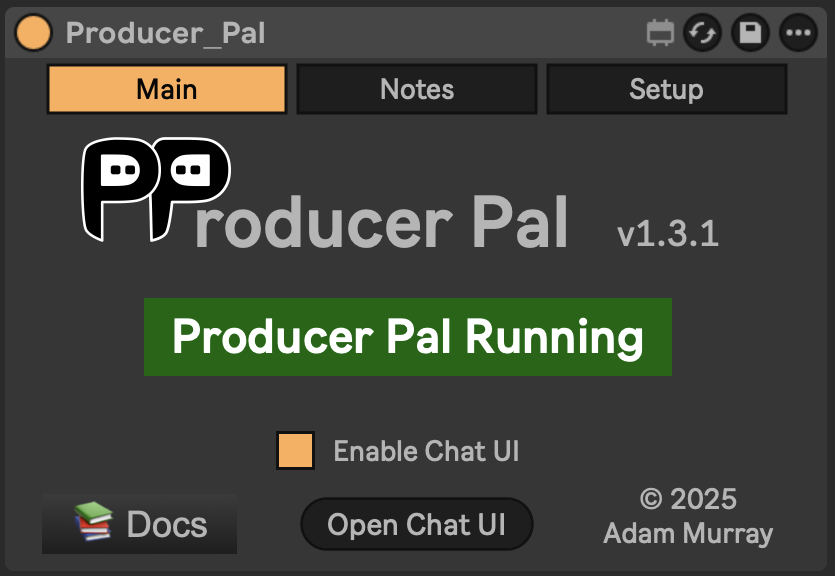 _It should display "Producer Pal Running" or something isn't working._
### 2. Install a Compatible Model
Download a model in Bionic under Settings → Explore, such as a recent
version of:
- Qwen
- Gemma
- Mistral Magistral or Devstral
- GLM Flash
It has to support tools. Your downloaded models are listed under Settings →
Library, where a hammer icon marks the ones that do:
_It should display "Producer Pal Running" or something isn't working._
### 2. Install a Compatible Model
Download a model in Bionic under Settings → Explore, such as a recent
version of:
- Qwen
- Gemma
- Mistral Magistral or Devstral
- GLM Flash
It has to support tools. Your downloaded models are listed under Settings →
Library, where a hammer icon marks the ones that do:
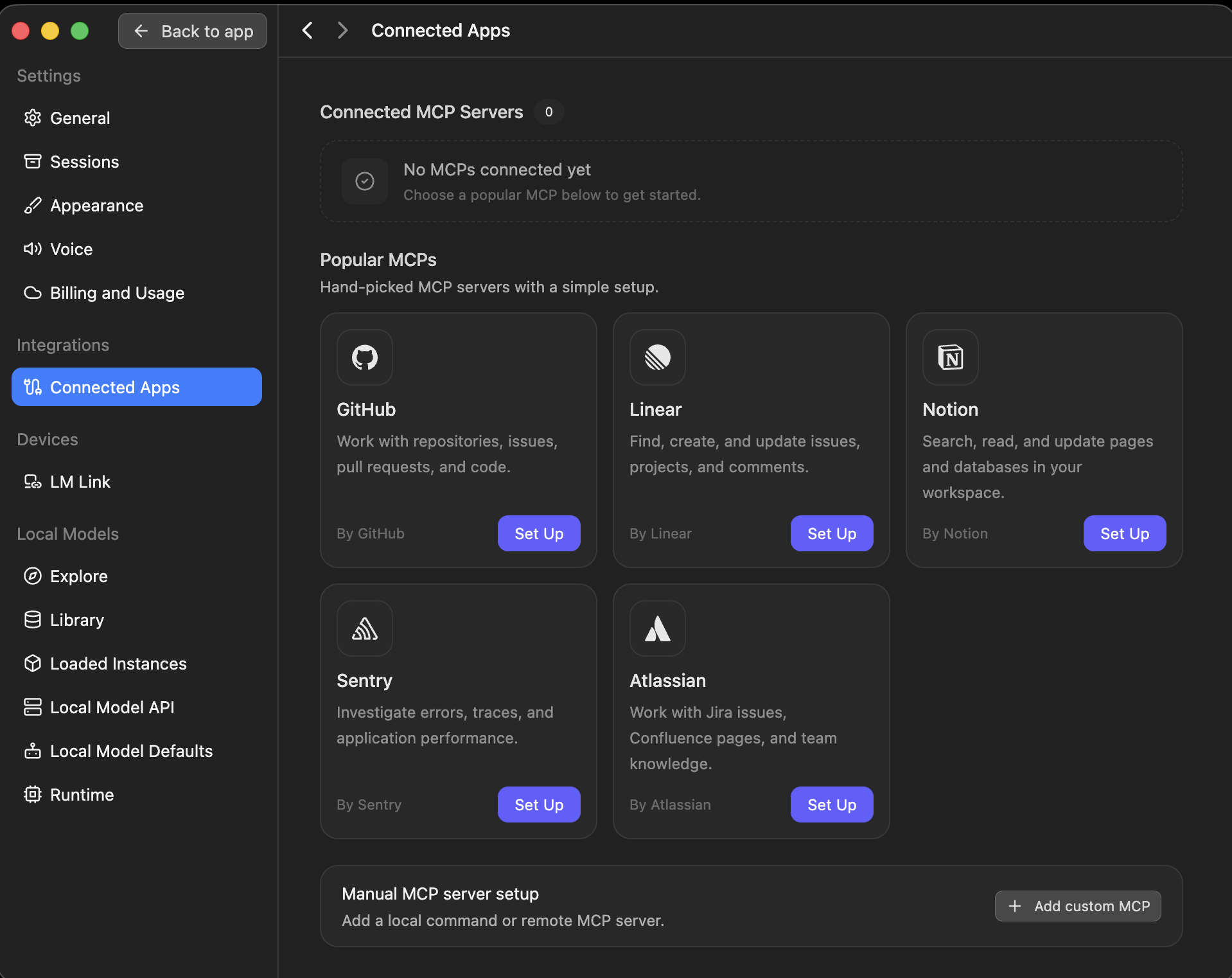
 ### 3. Add Producer Pal to Bionic
Go to Settings → Connected Apps and click "+ Add custom MCP" under **Manual
MCP server setup**:
### 3. Add Producer Pal to Bionic
Go to Settings → Connected Apps and click "+ Add custom MCP" under **Manual
MCP server setup**:
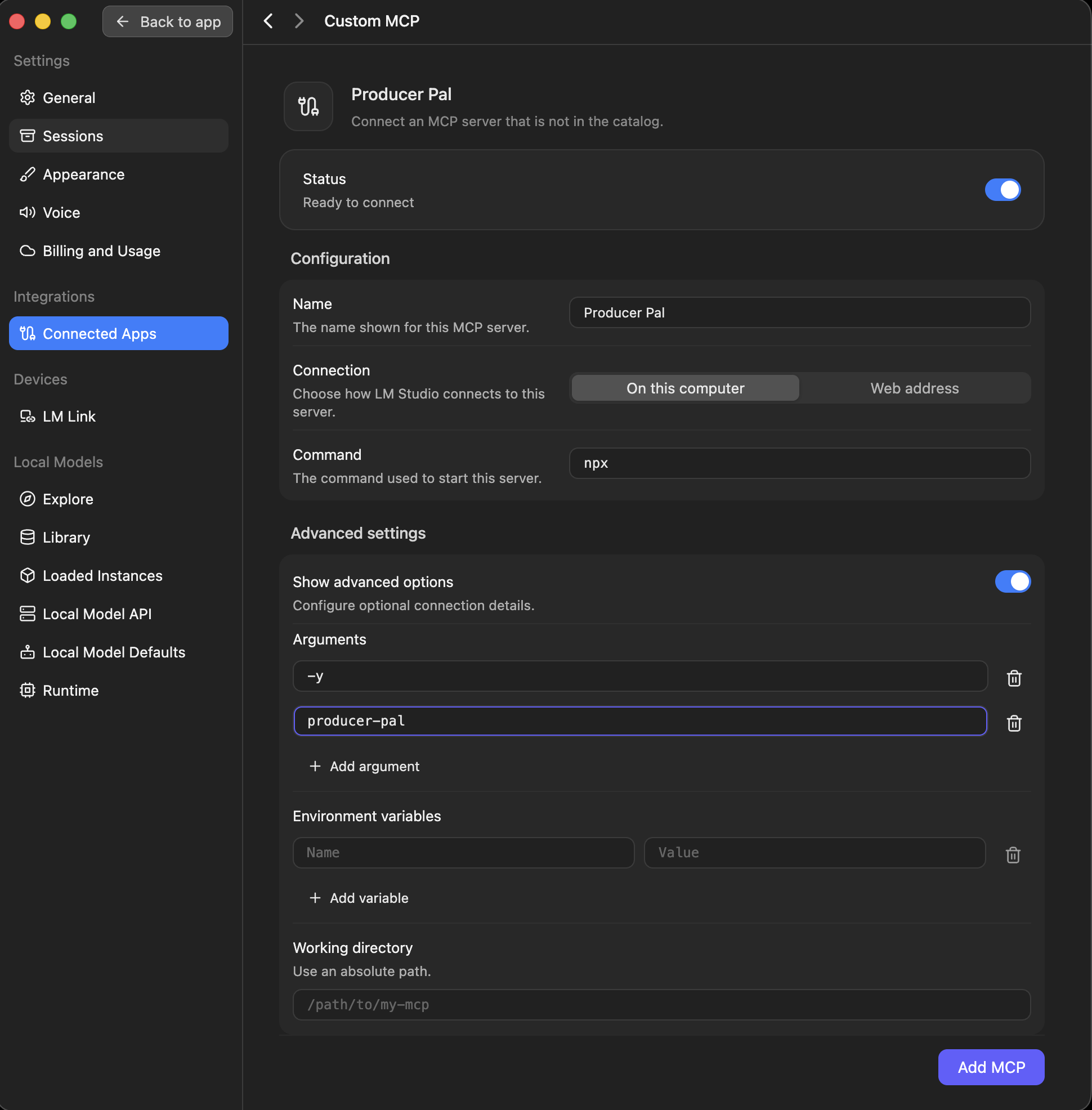
 **Option A: With npx (recommended)** — Allows flexible startup order and
auto-reconnection:
- **Name:** `Producer Pal`
- **Connection:** **On this computer**
- **Command:** `npx`
- Turn on **Show advanced options**, then use **+ Add argument** to add `-y` and
`producer-pal` as two separate arguments
**Option A: With npx (recommended)** — Allows flexible startup order and
auto-reconnection:
- **Name:** `Producer Pal`
- **Connection:** **On this computer**
- **Command:** `npx`
- Turn on **Show advanced options**, then use **+ Add argument** to add `-y` and
`producer-pal` as two separate arguments
 The producer-pal package is a proxy that responds to requests even when Ableton
Live or the Producer Pal device are not running, to let you know there's a
problem.
**Option B: Direct HTTP** — Requires Ableton running first, no
auto-reconnection. Set **Connection** to **Web address** and use the URL
`http://localhost:3350/mcp`.
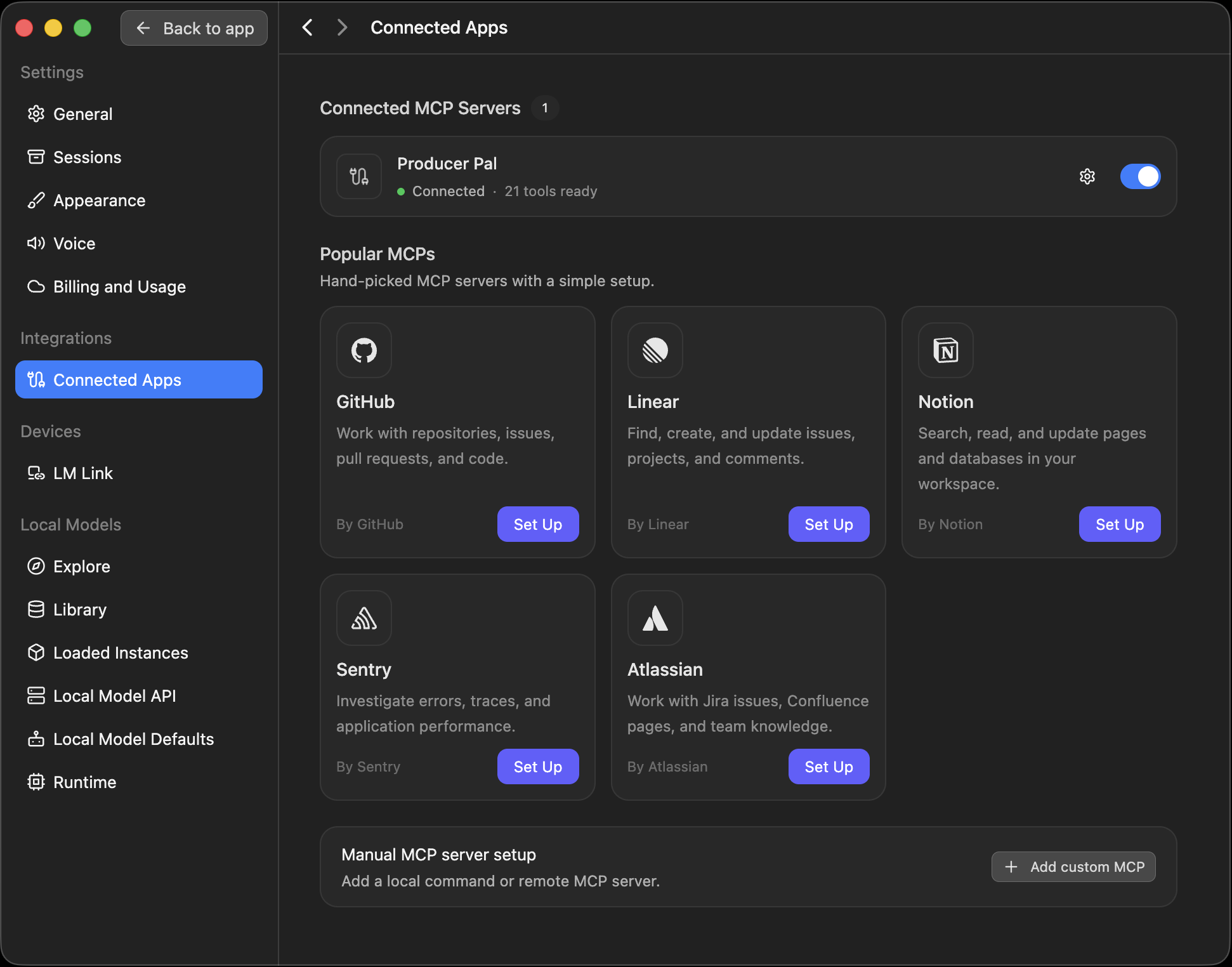
Click **Add MCP**. Producer Pal should show as connected, with its tools ready:
The producer-pal package is a proxy that responds to requests even when Ableton
Live or the Producer Pal device are not running, to let you know there's a
problem.
**Option B: Direct HTTP** — Requires Ableton running first, no
auto-reconnection. Set **Connection** to **Web address** and use the URL
`http://localhost:3350/mcp`.
Click **Add MCP**. Producer Pal should show as connected, with its tools ready:
 ::: warning Restart Bionic after changing MCP settings
Adding a server or editing its arguments may not take effect until you restart
the app.
:::
### 4. Tune It for Your Model (Recommended)
Bionic has no tool picker, so the MCP server's arguments are the only place to
narrow what Producer Pal offers — and small models do much better with a short
tool list. The same arguments also switch on the settings that make Producer Pal
easier for a local model to drive:
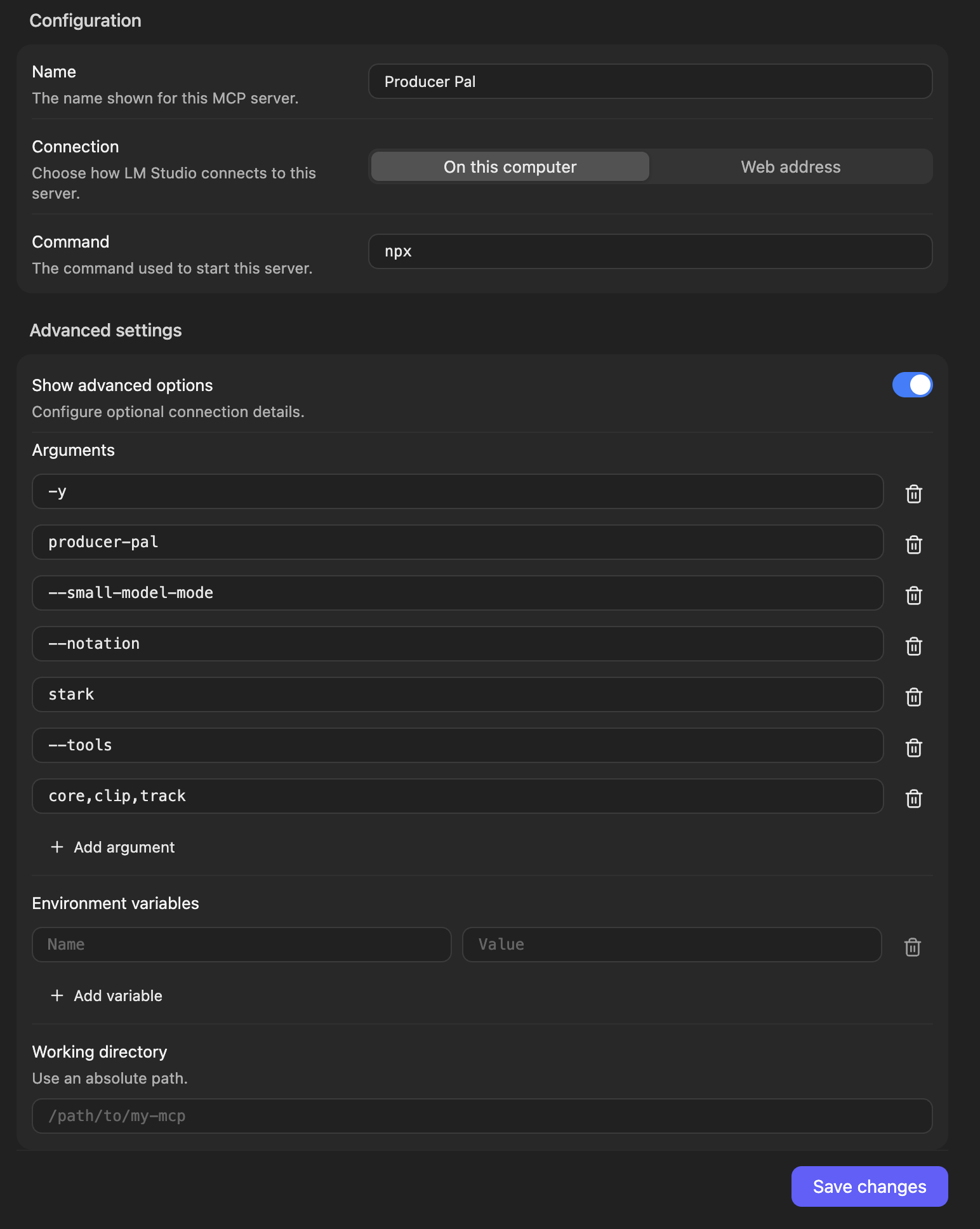
- `--small-model-mode` — a smaller, simpler interface built for local models
- `--notation stark` — a literal `type: content` format with event-based drum
hits, which small models handle better than the default bar|beat text
- `--tools core,clip,track` — a focused toolset, which also shrinks the
[skills](/features#skills) the model reads on connect
Edit the server under Settings → Connected Apps and add them as arguments,
one field each — a flag and its value are two separate arguments:
::: warning Restart Bionic after changing MCP settings
Adding a server or editing its arguments may not take effect until you restart
the app.
:::
### 4. Tune It for Your Model (Recommended)
Bionic has no tool picker, so the MCP server's arguments are the only place to
narrow what Producer Pal offers — and small models do much better with a short
tool list. The same arguments also switch on the settings that make Producer Pal
easier for a local model to drive:
- `--small-model-mode` — a smaller, simpler interface built for local models
- `--notation stark` — a literal `type: content` format with event-based drum
hits, which small models handle better than the default bar|beat text
- `--tools core,clip,track` — a focused toolset, which also shrinks the
[skills](/features#skills) the model reads on connect
Edit the server under Settings → Connected Apps and add them as arguments,
one field each — a flag and its value are two separate arguments:
 `--tools` keeps only what you list; `--disable-tools` drops what you list. Both
take tool names (`read-clip` or `ppal-read-clip`) and group names: `core`,
`session`, `actions`, `live-set`, `track`, `scene`, `clip`, `device`,
`advanced`, and `read-only`. Run `npx producer-pal --list-tools` to print the
groups plus the tools the running device currently offers.
Withholding a tool also drops the part of the
[Producer Pal Skills](/features#skills) that teaches it, so you stop paying for
the tool's schema _and_ its guidance in every conversation. `--tools read-only`
cuts the skills text by more than half.
Unlike the other flags, this one is per client: the [Chat UI](/guide/chat-ui)
and your other MCP clients keep the full toolset. `ppal-connect` is always kept
— it is how the AI connects and receives the skills.
One wrinkle with `--tools`: it keeps what you list by withholding everything
else, and "everything else" is the tool list this copy of `npx producer-pal`
knows — so a tool added in a newer Producer Pal stays enabled until you update.
`--disable-tools` names tools directly, so it can withhold a newer tool even
from an older copy; only its _group_ names are limited to the ones above.
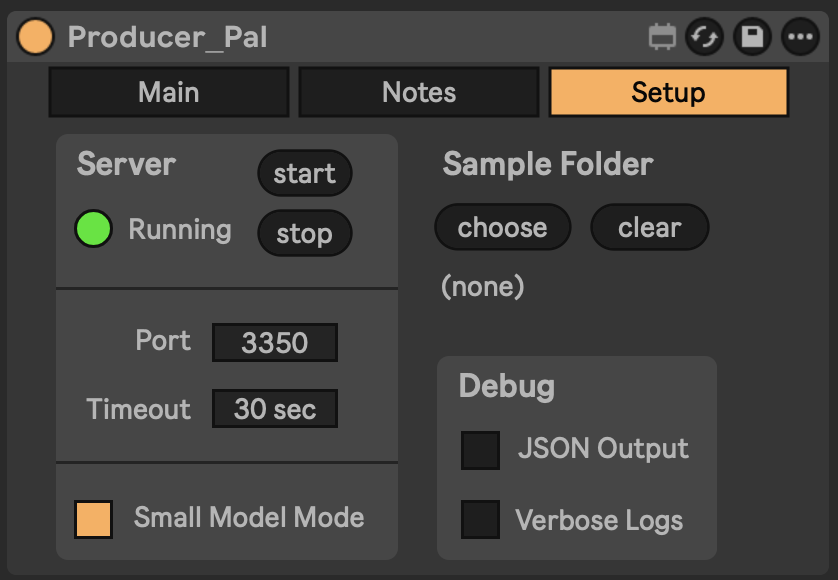
Small model mode and notation apply to the device itself, so they also change
what the built-in chat UI and any other connected client see. You can set them
by hand instead on Producer Pal's "Setup" tab:
`--tools` keeps only what you list; `--disable-tools` drops what you list. Both
take tool names (`read-clip` or `ppal-read-clip`) and group names: `core`,
`session`, `actions`, `live-set`, `track`, `scene`, `clip`, `device`,
`advanced`, and `read-only`. Run `npx producer-pal --list-tools` to print the
groups plus the tools the running device currently offers.
Withholding a tool also drops the part of the
[Producer Pal Skills](/features#skills) that teaches it, so you stop paying for
the tool's schema _and_ its guidance in every conversation. `--tools read-only`
cuts the skills text by more than half.
Unlike the other flags, this one is per client: the [Chat UI](/guide/chat-ui)
and your other MCP clients keep the full toolset. `ppal-connect` is always kept
— it is how the AI connects and receives the skills.
One wrinkle with `--tools`: it keeps what you list by withholding everything
else, and "everything else" is the tool list this copy of `npx producer-pal`
knows — so a tool added in a newer Producer Pal stays enabled until you update.
`--disable-tools` names tools directly, so it can withhold a newer tool even
from an older copy; only its _group_ names are limited to the ones above.
Small model mode and notation apply to the device itself, so they also change
what the built-in chat UI and any other connected client see. You can set them
by hand instead on Producer Pal's "Setup" tab:
 ### 5. Start Using Producer Pal
Bionic works in a project tied to a local folder, so create one with **New
Project** before starting a conversation. An empty folder is recommended for
Producer Pal sessions. Feel free to put reference documents in it, such as
common workflow instructions or details of your preferred musical style and
production techniques.
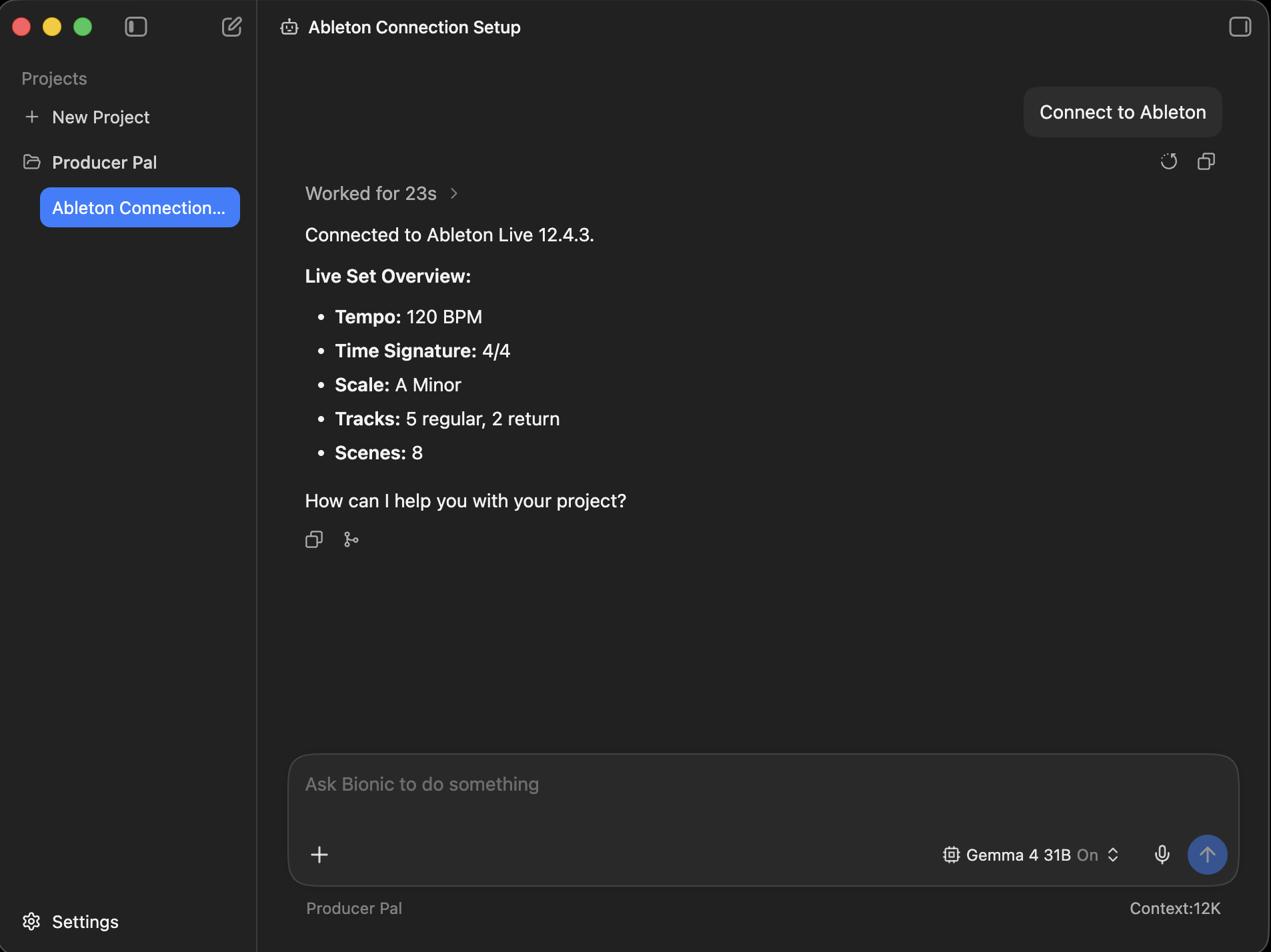
Start a conversation and say "connect to ableton":
### 5. Start Using Producer Pal
Bionic works in a project tied to a local folder, so create one with **New
Project** before starting a conversation. An empty folder is recommended for
Producer Pal sessions. Feel free to put reference documents in it, such as
common workflow instructions or details of your preferred musical style and
production techniques.
Start a conversation and say "connect to ableton":
 ## Local Model Tips
- A **context length of about 8k (8000)** is needed to start a conversation with
Producer Pal and send a few messages.
- A **context length of 16k (16000) or higher is recommended** for achieving
useful results, but higher context lengths can make the model run
significantly slower, especially as the conversation grows. Experiment to find
the right balance.
- **Follow-up turns are often faster.** The LM Studio runtime automatically
reuses its cached prompt prefix between turns, so later messages in a
conversation can be much quicker than the first. There's nothing to configure,
and the size of the benefit varies by model.
- Add tools back to `--tools` when you miss features. Every tool you add costs
context on every conversation.
- Experiment with empty or extremely simple Live projects
- Only work with very simple material (e.g. basic MIDI patterns in clips 4 bars
or shorter)
- Note that small models are guided to delete and start over rather make edits
(other than simple additions)
- If the AI struggles and makes mistakes, don't hesitate to delete recent
messages from the chat, edit your last message, and try again. Don't waste
tokens correcting the LLM. Back up and avoid the issue or try something else.
- Shut down every other app you don't need to be running
- Consider running Ableton Live on a different machine on the local network
- When using a model with the GGUF engine, try enabling the
advanced/experimental settings for Flash Attention and setting the K/V caches'
quantization to Q8 or Q4.
- Research how to optimize for your specific machine / GPU hardware
## Advanced: Customizing Skills
Local models vary widely in capabilities. **First, try small model mode** (see
installation step 4 above) — it uses a simplified instruction set designed for
smaller models.
If Small Model Mode isn't working well for you, or you want to experiment
further, you can customize Producer Pal's behavior for your specific model:
1. Download this repository and follow the dev setup and build instructions in
[DEVELOPERS.md](https://github.com/adamjmurray/producer-pal/blob/main/DEVELOPERS.md)
2. Edit the skills files in `src/skills/` - Small Model Mode uses the basic
driver (`src/skills/drivers.ts`) with the basic notation head for the active
notation (e.g. `src/skills/notation/barbeat-basic.ts`), while regular mode
assembles the standard driver's fragments (`src/skills/fragments/`) with a
standard notation head (e.g. `src/skills/notation/barbeat-standard.ts`). See
`src/skills/build-skills.ts` for how they are selected
3. Experiment with instruction wording, remove features your model struggles
with, or adjust the guidance
4. Rebuild with `npm run build`
5. Use the development version of `Producer_Pal.amxd` in Ableton Live
6. Reload your Producer Pal MCP server in Bionic and start a new conversation
**Share your findings:** If you discover configurations that work well for
specific models, please share in
[GitHub Discussions](https://github.com/adamjmurray/producer-pal/discussions).
The community benefits from learning what works with different local models.
## Alternative: Built-in Chat UI
You can also point
[Producer Pal's built-in chat UI](./chat-ui-other-providers#lm-studio-api) at
Bionic's local server and use that interface instead of Bionic's own.
## Troubleshooting
If it doesn't work, see the [Troubleshooting Guide](/support/troubleshooting).
## Local Model Tips
- A **context length of about 8k (8000)** is needed to start a conversation with
Producer Pal and send a few messages.
- A **context length of 16k (16000) or higher is recommended** for achieving
useful results, but higher context lengths can make the model run
significantly slower, especially as the conversation grows. Experiment to find
the right balance.
- **Follow-up turns are often faster.** The LM Studio runtime automatically
reuses its cached prompt prefix between turns, so later messages in a
conversation can be much quicker than the first. There's nothing to configure,
and the size of the benefit varies by model.
- Add tools back to `--tools` when you miss features. Every tool you add costs
context on every conversation.
- Experiment with empty or extremely simple Live projects
- Only work with very simple material (e.g. basic MIDI patterns in clips 4 bars
or shorter)
- Note that small models are guided to delete and start over rather make edits
(other than simple additions)
- If the AI struggles and makes mistakes, don't hesitate to delete recent
messages from the chat, edit your last message, and try again. Don't waste
tokens correcting the LLM. Back up and avoid the issue or try something else.
- Shut down every other app you don't need to be running
- Consider running Ableton Live on a different machine on the local network
- When using a model with the GGUF engine, try enabling the
advanced/experimental settings for Flash Attention and setting the K/V caches'
quantization to Q8 or Q4.
- Research how to optimize for your specific machine / GPU hardware
## Advanced: Customizing Skills
Local models vary widely in capabilities. **First, try small model mode** (see
installation step 4 above) — it uses a simplified instruction set designed for
smaller models.
If Small Model Mode isn't working well for you, or you want to experiment
further, you can customize Producer Pal's behavior for your specific model:
1. Download this repository and follow the dev setup and build instructions in
[DEVELOPERS.md](https://github.com/adamjmurray/producer-pal/blob/main/DEVELOPERS.md)
2. Edit the skills files in `src/skills/` - Small Model Mode uses the basic
driver (`src/skills/drivers.ts`) with the basic notation head for the active
notation (e.g. `src/skills/notation/barbeat-basic.ts`), while regular mode
assembles the standard driver's fragments (`src/skills/fragments/`) with a
standard notation head (e.g. `src/skills/notation/barbeat-standard.ts`). See
`src/skills/build-skills.ts` for how they are selected
3. Experiment with instruction wording, remove features your model struggles
with, or adjust the guidance
4. Rebuild with `npm run build`
5. Use the development version of `Producer_Pal.amxd` in Ableton Live
6. Reload your Producer Pal MCP server in Bionic and start a new conversation
**Share your findings:** If you discover configurations that work well for
specific models, please share in
[GitHub Discussions](https://github.com/adamjmurray/producer-pal/discussions).
The community benefits from learning what works with different local models.
## Alternative: Built-in Chat UI
You can also point
[Producer Pal's built-in chat UI](./chat-ui-other-providers#lm-studio-api) at
Bionic's local server and use that interface instead of Bionic's own.
## Troubleshooting
If it doesn't work, see the [Troubleshooting Guide](/support/troubleshooting).