# API Keys
Use a key straight from one AI company. An API key is a password-like code that
lets Producer Pal use your account, and the company charges for what you use.
Want models from every company in one account? [Use an AI router](./ai-routers)
instead.
## What You Need
- [Ableton Live 12.3+](https://www.ableton.com/live/) with
[Max for Live](https://www.ableton.com/live/max-for-live/). Live 12.4 or later
is recommended. On Live 12.3 these don't work:
- writing clip automation (reading and clearing it still work)
- loading a sample into Simpler
- the [Library](/features/tools#ppal-library) tool (searching your library and
listing plug-ins)
- finding a preset by name outside a device's own presets (packs' drum kits,
Sounds racks, custom folders)
- opening a plug-in's editor window
Use the version of Max bundled with Live, or make sure your standalone Max is
up to date.
## 1. Install the Max for Live Device
Download
[Producer_Pal.amxd](https://github.com/adamjmurray/producer-pal/releases/latest/download/Producer_Pal.amxd),
the Producer Pal Max for Live device.
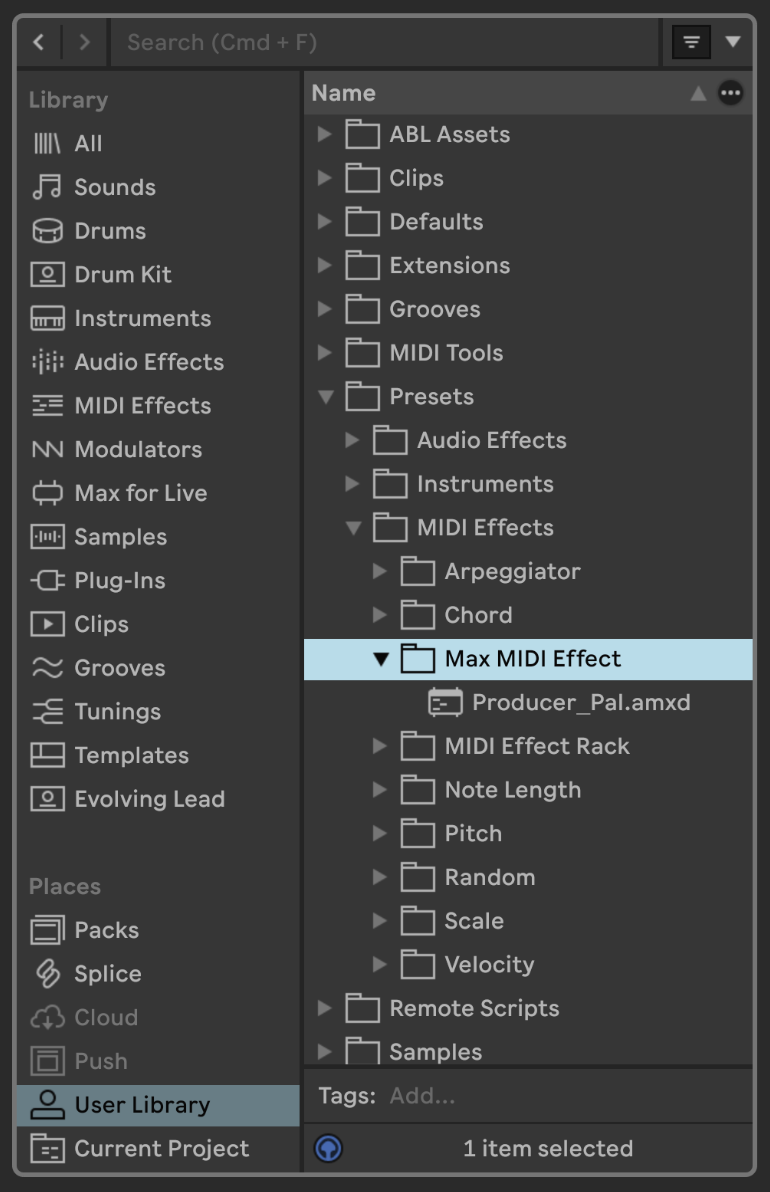
Open **User Library** (under Places) in Live's browser, go to **Presets → MIDI
Effects → Max MIDI Effect**, and drag `Producer_Pal.amxd` into that folder:
 Drag it from the Max MIDI Effect folder onto a MIDI track:
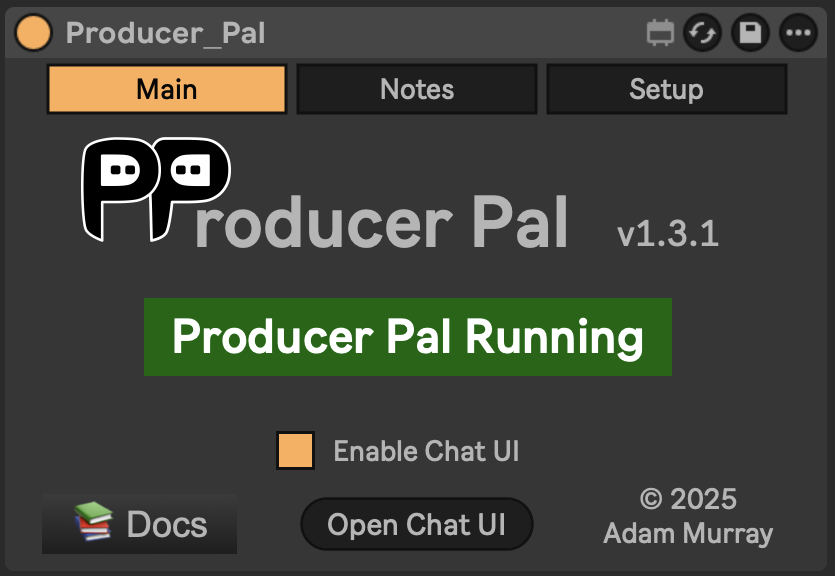 _It should display "Producer Pal Running" or something isn't working._
Then finish the installation: click **Finish installation…** on the device (or
**Open Chat UI**, then **Settings → Installation**), and click **Install** there
to add the remote script (clip automation, undo, plug-ins).
**Restart Live**, then choose **Producer Pal** as a Control Surface in
**Settings → Tempo & MIDI**, with Input and Output left as **None**.
More in [Finish the Installation](/installation#finish-the-installation).
## 2. Get an API Key
Pick one company:
### Gemini
Any free use Google offers won't last long in a real session. For regular use,
reach Gemini through an [AI router](./ai-routers), or use
[Google Antigravity](./antigravity) with a Google AI subscription.
1. [Get a Gemini API key](https://aistudio.google.com/apikey) (sign in with your
Google account, then click "Create API Key")
2. Settings to use in step 3:
- Provider: **Google**
- Model: `gemini-3.8-flash` (or `gemini-4-argon` for more complex tasks)
### OpenAI
You need an [OpenAI developer account](https://platform.openai.com) with credit
added. A ChatGPT subscription doesn't cover this. For a flat monthly price, use
the [ChatGPT App](./chatgpt-app) or [ChatGPT web app](./chatgpt-web) instead.
1. [Get an OpenAI API key](https://platform.openai.com/api-keys)
2. Settings to use in step 3:
- Provider: **OpenAI**
- Model: e.g., `gpt-6.1-sol`
### Anthropic
Claude models, direct. See [Using Claude with Producer Pal](./choose-claude) for
the other ways to run Claude.
1. [Get an Anthropic API key](https://console.anthropic.com/settings/keys)
2. Settings to use in step 3:
- Provider: **Anthropic**
- Model: e.g., `claude-sonnet-5-5`
### Mistral
AI models made in France.
1. [Get a Mistral API key](https://console.mistral.ai/home?workspace_dialog=apiKeys)
2. Settings to use in step 3:
- Provider: **Mistral**
- Model: e.g., `mistral-large-4`
### Other Services {#custom-providers}
For advanced users: any service that works like OpenAI's. Get the service's
address ("URL") from its documentation. Settings to use in step 3:
- Provider: **Custom (OpenAI-compatible)**
- URL: the service's address, e.g. `https://api.groq.com/openai/v1` for Groq
- Model: the model name, e.g. `llama-3.3-70b-versatile`
## 3. Connect
1. In the device, click "Open Chat UI". The chat opens in your browser, and so
do its settings the first time.
2. Fill in the settings listed above. For an online AI, paste your API key too.
Then click "Save".
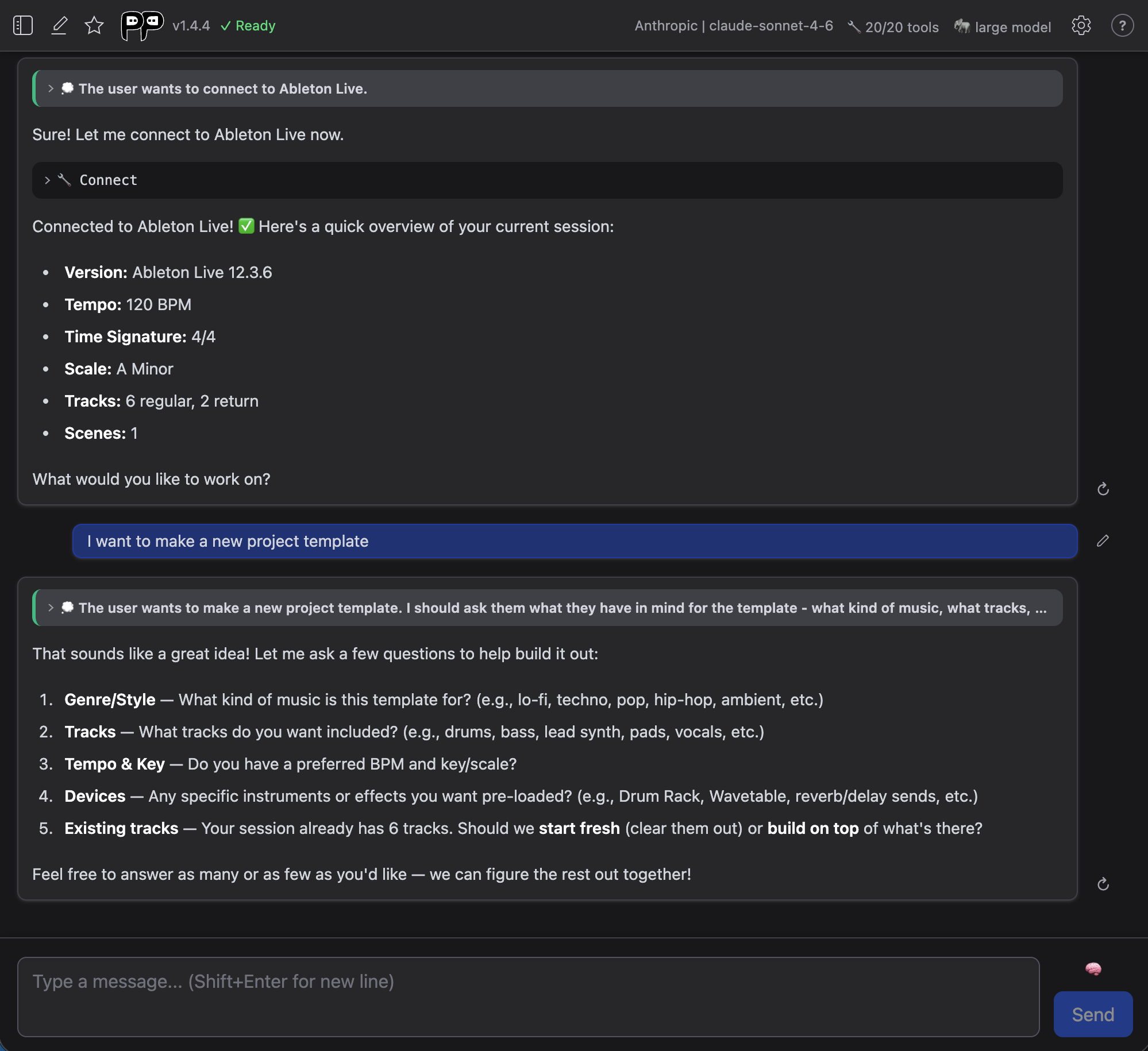
3. Click "Quick Connect". It says "Connect to Ableton." for you:
::: tip Keep an eye on cost
Online AI charges for what you use. Long chats with the smartest models cost the
most, so check your balance on the service's website now and then.
:::
Your API key is stored encrypted in your browser. If you share this computer,
delete the key from settings when you're done.
## Check It Works
Once connected, the AI confirms it can see your Live Set. Try a first request
that doesn't change anything:
> What tracks are in my Live Set?
It should list your tracks. If it can't connect or gets something wrong, see
[Troubleshooting](#troubleshooting) below.
## Troubleshooting
If it doesn't work, see the [Troubleshooting Guide](/support/troubleshooting).
_It should display "Producer Pal Running" or something isn't working._
Then finish the installation: click **Finish installation…** on the device (or
**Open Chat UI**, then **Settings → Installation**), and click **Install** there
to add the remote script (clip automation, undo, plug-ins).
**Restart Live**, then choose **Producer Pal** as a Control Surface in
**Settings → Tempo & MIDI**, with Input and Output left as **None**.
More in [Finish the Installation](/installation#finish-the-installation).
## 2. Get an API Key
Pick one company:
### Gemini
Any free use Google offers won't last long in a real session. For regular use,
reach Gemini through an [AI router](./ai-routers), or use
[Google Antigravity](./antigravity) with a Google AI subscription.
1. [Get a Gemini API key](https://aistudio.google.com/apikey) (sign in with your
Google account, then click "Create API Key")
2. Settings to use in step 3:
- Provider: **Google**
- Model: `gemini-3.8-flash` (or `gemini-4-argon` for more complex tasks)
### OpenAI
You need an [OpenAI developer account](https://platform.openai.com) with credit
added. A ChatGPT subscription doesn't cover this. For a flat monthly price, use
the [ChatGPT App](./chatgpt-app) or [ChatGPT web app](./chatgpt-web) instead.
1. [Get an OpenAI API key](https://platform.openai.com/api-keys)
2. Settings to use in step 3:
- Provider: **OpenAI**
- Model: e.g., `gpt-6.1-sol`
### Anthropic
Claude models, direct. See [Using Claude with Producer Pal](./choose-claude) for
the other ways to run Claude.
1. [Get an Anthropic API key](https://console.anthropic.com/settings/keys)
2. Settings to use in step 3:
- Provider: **Anthropic**
- Model: e.g., `claude-sonnet-5-5`
### Mistral
AI models made in France.
1. [Get a Mistral API key](https://console.mistral.ai/home?workspace_dialog=apiKeys)
2. Settings to use in step 3:
- Provider: **Mistral**
- Model: e.g., `mistral-large-4`
### Other Services {#custom-providers}
For advanced users: any service that works like OpenAI's. Get the service's
address ("URL") from its documentation. Settings to use in step 3:
- Provider: **Custom (OpenAI-compatible)**
- URL: the service's address, e.g. `https://api.groq.com/openai/v1` for Groq
- Model: the model name, e.g. `llama-3.3-70b-versatile`
## 3. Connect
1. In the device, click "Open Chat UI". The chat opens in your browser, and so
do its settings the first time.
2. Fill in the settings listed above. For an online AI, paste your API key too.
Then click "Save".
3. Click "Quick Connect". It says "Connect to Ableton." for you:

::: tip Keep an eye on cost
Online AI charges for what you use. Long chats with the smartest models cost the
most, so check your balance on the service's website now and then.
:::
Your API key is stored encrypted in your browser. If you share this computer,
delete the key from settings when you're done.
## Check It Works
Once connected, the AI confirms it can see your Live Set. Try a first request
that doesn't change anything:
> What tracks are in my Live Set?
It should list your tracks. If it can't connect or gets something wrong, see
[Troubleshooting](#troubleshooting) below.
## Troubleshooting
If it doesn't work, see the [Troubleshooting Guide](/support/troubleshooting).