# Chat UI
The built-in Chat UI provides a browser-based interface for chatting with AI
directly from within Producer Pal.
## Getting Started
1. Click "Open Chat UI" in the [Device Interface](/guide/device) Main tab (make
sure the Chat UI is enabled)
2. Configure your AI provider in [Settings](#settings) (opens automatically on
first use)
3. Click "Quick Connect" to connect to Ableton Live
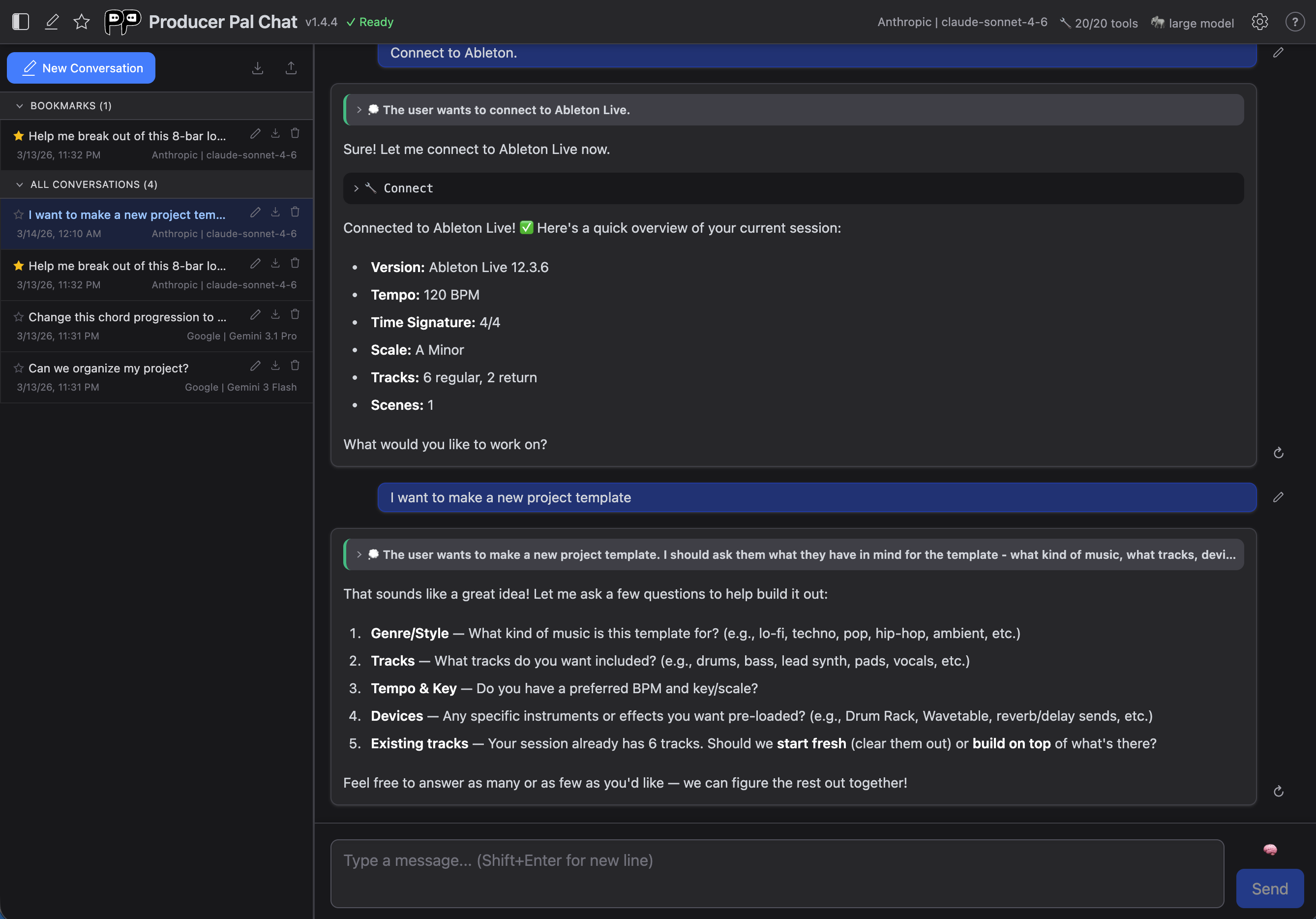
## Header Bar
The header is organized into two areas:
### Left
 - **History panel** - Toggle the conversation history sidebar
- **New conversation** - Start a fresh conversation
- **Bookmark star** - Pin the active conversation
- **Logo, title & version** - Shows an "update" link when a newer version is
available
- **Connection status** - Shows "Ready" when connected to Ableton
### Right
- **History panel** - Toggle the conversation history sidebar
- **New conversation** - Start a fresh conversation
- **Bookmark star** - Pin the active conversation
- **Logo, title & version** - Shows an "update" link when a newer version is
available
- **Connection status** - Shows "Ready" when connected to Ableton
### Right
 - **Provider & Model** - Click to open connection settings
- **Tools count** - Click to open tools settings
- **Model size** - Shows "large model" or "small model" mode
- **Settings gear** - Open settings dialog
- **Help (?)** - Link to documentation
## Conversation History
- **Provider & Model** - Click to open connection settings
- **Tools count** - Click to open tools settings
- **Model size** - Shows "large model" or "small model" mode
- **Settings gear** - Open settings dialog
- **Help (?)** - Link to documentation
## Conversation History
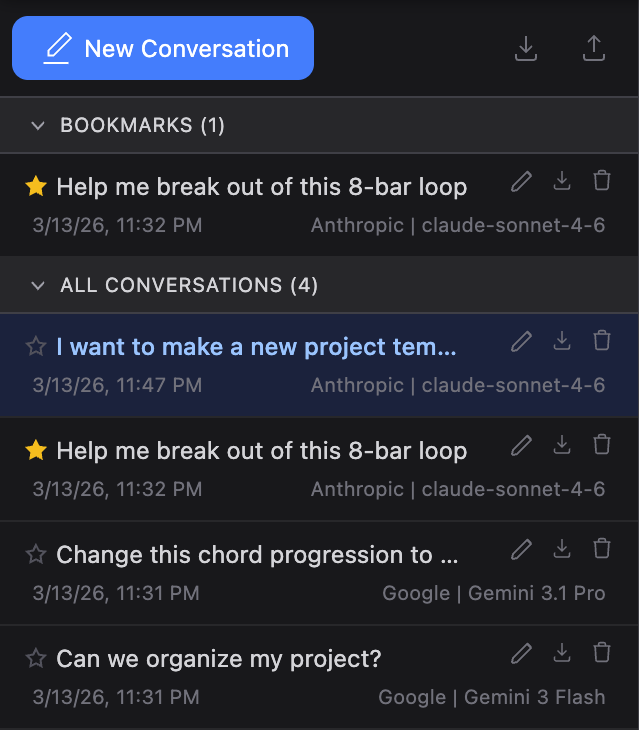 Toggle the history panel using the panel icon in the header. On mobile it takes
the full width; on larger screens it appears as a sidebar.
### Bookmarks
Star a conversation to pin it to the **Bookmarks** section at the top of the
list. Bookmarked conversations are never auto-deleted when the storage limit is
reached. You can toggle the bookmark from the header star icon or from the
conversation row.
### Managing Conversations
Each conversation in the list has action buttons that appear on hover:
- **Rename** - Click the pencil icon to edit the title inline (Enter to save,
Escape to cancel)
- **Export** - Download a single conversation as a JSON file
- **Delete** - Remove the conversation from history
Conversations are stored in your browser's built-in database (IndexedDB), and
settings (including API keys) are stored in local storage. This means all your
data lives in that specific browser and user profile — it won't be available if
you switch browsers or profiles. Use [Export & Import](#export--import) to move
conversations between browsers.
Up to 200 conversations are kept; when the limit is reached, the oldest
non-bookmarked conversations are automatically removed.
### Export & Import
The toolbar at the top of the history panel has buttons to:
- **Export all** - Download all conversations as a single JSON file
- **Import** - Load conversations from a previously exported JSON file. New
conversations are added and existing ones are updated if the imported version
is newer
A notification banner confirms the result of each operation.
## Conversations
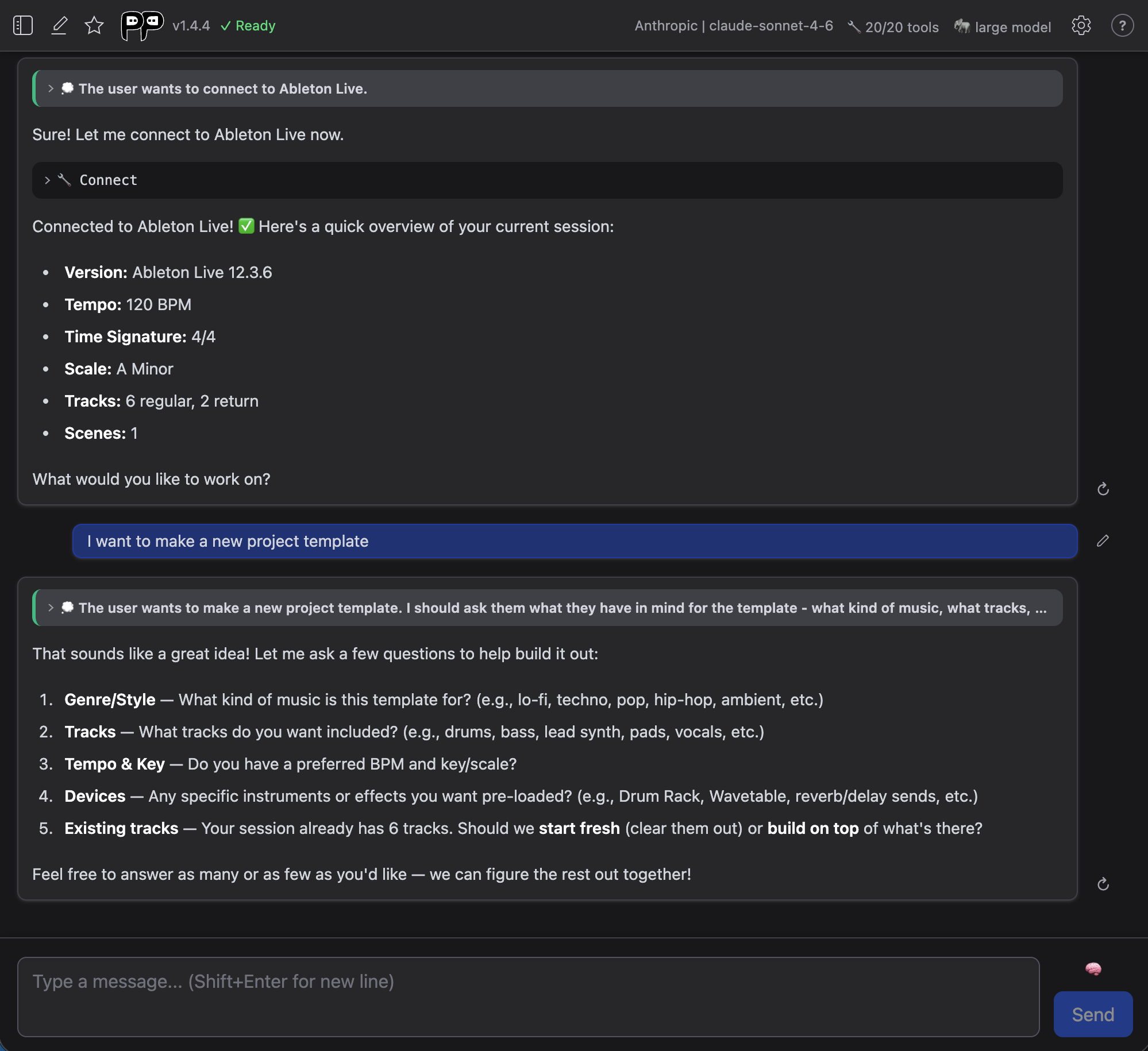
During conversations, you'll see:
- **Your messages** - What you typed
- **AI responses** - Results and suggestions from the AI
- **Tool usage** - Collapsed indicators when AI uses Producer Pal tools
- **AI thinking** - Expandable sections showing AI's reasoning process (only
appears for some AI models)
### Expandable Thoughts
Some AI models output "thoughts". When they do, you can click "Thought about:"
sections to see the AI's reasoning process:

## Message Input
### Thinking Toggle
The thinking toggle next to the text area controls how much reasoning effort the
AI uses for the next message. Click it to cycle through three levels:
-
Toggle the history panel using the panel icon in the header. On mobile it takes
the full width; on larger screens it appears as a sidebar.
### Bookmarks
Star a conversation to pin it to the **Bookmarks** section at the top of the
list. Bookmarked conversations are never auto-deleted when the storage limit is
reached. You can toggle the bookmark from the header star icon or from the
conversation row.
### Managing Conversations
Each conversation in the list has action buttons that appear on hover:
- **Rename** - Click the pencil icon to edit the title inline (Enter to save,
Escape to cancel)
- **Export** - Download a single conversation as a JSON file
- **Delete** - Remove the conversation from history
Conversations are stored in your browser's built-in database (IndexedDB), and
settings (including API keys) are stored in local storage. This means all your
data lives in that specific browser and user profile — it won't be available if
you switch browsers or profiles. Use [Export & Import](#export--import) to move
conversations between browsers.
Up to 200 conversations are kept; when the limit is reached, the oldest
non-bookmarked conversations are automatically removed.
### Export & Import
The toolbar at the top of the history panel has buttons to:
- **Export all** - Download all conversations as a single JSON file
- **Import** - Load conversations from a previously exported JSON file. New
conversations are added and existing ones are updated if the imported version
is newer
A notification banner confirms the result of each operation.
## Conversations

During conversations, you'll see:
- **Your messages** - What you typed
- **AI responses** - Results and suggestions from the AI
- **Tool usage** - Collapsed indicators when AI uses Producer Pal tools
- **AI thinking** - Expandable sections showing AI's reasoning process (only
appears for some AI models)
### Expandable Thoughts
Some AI models output "thoughts". When they do, you can click "Thought about:"
sections to see the AI's reasoning process:

## Message Input
### Thinking Toggle
The thinking toggle next to the text area controls how much reasoning effort the
AI uses for the next message. Click it to cycle through three levels:
-  **Off** - No thinking
-
**Off** - No thinking
-  **Default** - Let the AI decide
-
**Default** - Let the AI decide
-  **Max** - Maximum thinking effort
The default thinking level for new conversations is set in
[Connection settings](#connection). The toggle in the message input area
overrides it for individual messages.
### Text Area & Send
- **Text area** - Type your message (Shift+Enter for new line)
- **Send / Stop** - Send your message, or stop a response in progress
## Settings
Settings open as a modal overlay. Press Escape or click outside to close (if
there are unsaved changes, the dialog will shake as a reminder to save or
cancel).
Settings are stored in your browser so you don't have to redo the setup every
time. If entering an AI cloud provider's API key concerns you, use a private
browser or clear your settings after use.
When an active conversation was started with a different model or provider than
the current defaults, a notice appears indicating that changes apply to new
conversations only.
For more information about how to configure specific AI providers, see the
[installation guide for AI with the chat UI](/installation/chat-ui).
### Connection
The Connection tab is where you choose and configure your AI provider and model:
**Max** - Maximum thinking effort
The default thinking level for new conversations is set in
[Connection settings](#connection). The toggle in the message input area
overrides it for individual messages.
### Text Area & Send
- **Text area** - Type your message (Shift+Enter for new line)
- **Send / Stop** - Send your message, or stop a response in progress
## Settings
Settings open as a modal overlay. Press Escape or click outside to close (if
there are unsaved changes, the dialog will shake as a reminder to save or
cancel).
Settings are stored in your browser so you don't have to redo the setup every
time. If entering an AI cloud provider's API key concerns you, use a private
browser or clear your settings after use.
When an active conversation was started with a different model or provider than
the current defaults, a notice appears indicating that changes apply to new
conversations only.
For more information about how to configure specific AI providers, see the
[installation guide for AI with the chat UI](/installation/chat-ui).
### Connection
The Connection tab is where you choose and configure your AI provider and model:
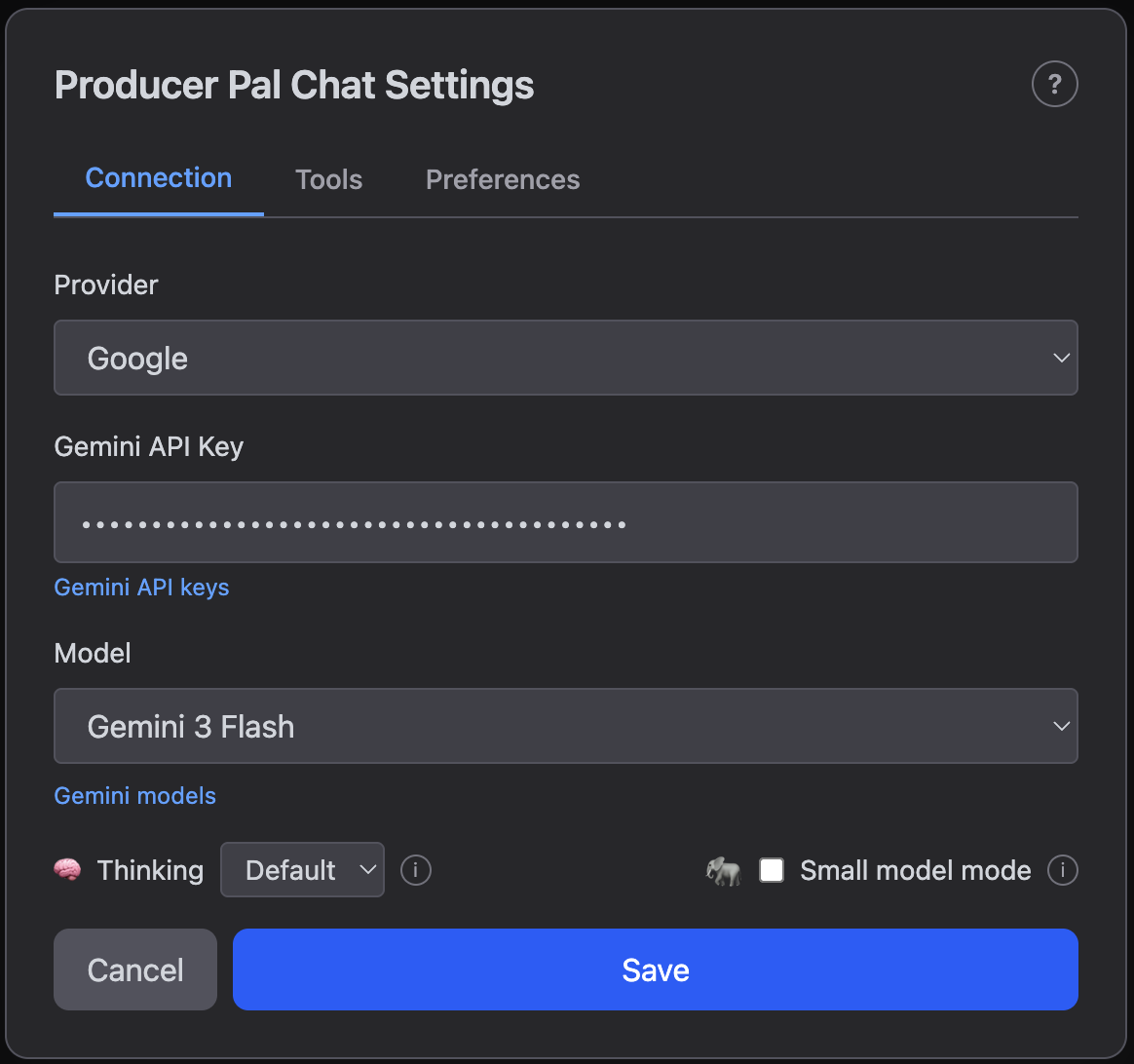 - **Provider** - Choose from Google, Mistral, OpenAI, Anthropic, Ollama (local),
LM Studio (local), OpenRouter, or Custom
- **API Key** - Your API key (for cloud providers)
- **Model** - Select a model or enter a custom model name
- **Thinking** - Default thinking level for new conversations (Off, Default, or
Max). Can also be overridden per-message using the thinking toggle in the
message input area
- **Small model mode** - Reduces tool descriptions to save context for local
models. Recommended when using Ollama or LM Studio
#### Local AI settings (Ollama, LM Studio)
- **Provider** - Choose from Google, Mistral, OpenAI, Anthropic, Ollama (local),
LM Studio (local), OpenRouter, or Custom
- **API Key** - Your API key (for cloud providers)
- **Model** - Select a model or enter a custom model name
- **Thinking** - Default thinking level for new conversations (Off, Default, or
Max). Can also be overridden per-message using the thinking toggle in the
message input area
- **Small model mode** - Reduces tool descriptions to save context for local
models. Recommended when using Ollama or LM Studio
#### Local AI settings (Ollama, LM Studio)
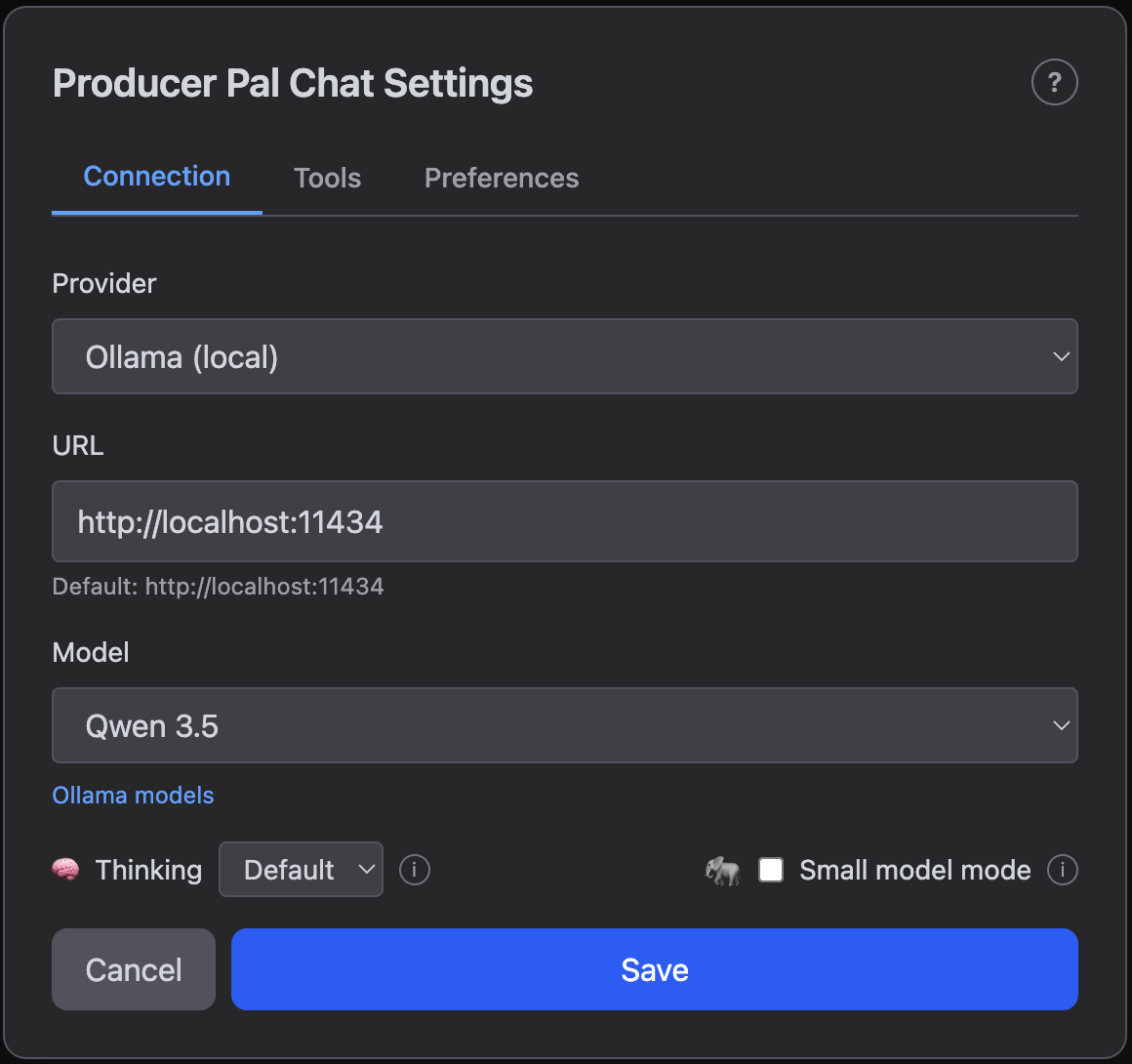 Local models, such as those you can run with Ollama, do not require any API
keys. Instead, they have a configurable URL.
- **URL** - Server address (default: `http://localhost:11434` for Ollama,
`http://localhost:1234` for LM Studio)
- **Model** - Select from installed models
In most cases, you should use the default URL. This is an advanced configuration
option.
You may need to change the URL if:
- You've modified the port in your Ollama or LM Studio installation
- You're running Ollama or LM Studio on a different computer on your local
network (or anywhere on the Internet). This allows another computer to handle
the resource-intensive language model processing while your main computer
focuses on running Ableton Live. Replace `localhost` with the other computer's
network address (e.g., `http://192.168.1.100:11434`)
### Tools
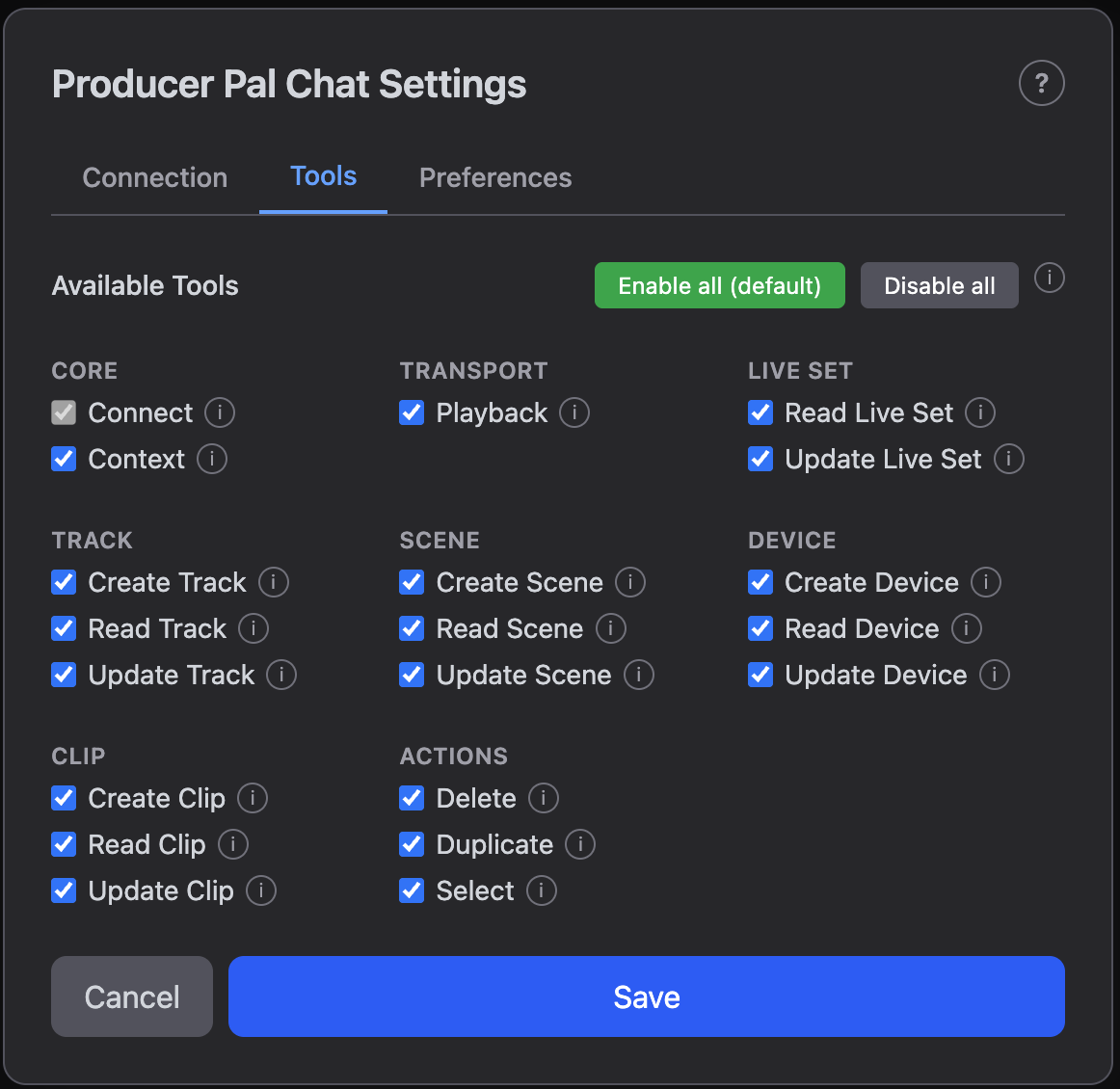
The Tools tab controls which tools are available to the AI when using the chat
UI. This is important for reducing context size for local models (when using the
Ollama or LM Studio provider). For local models, only enable the tools you need.
For state-of-the-art cloud providers (Gemini, OpenAI, etc), you generally want
to keep everything enabled to make full use of Producer Pal's capabilities. If
you want to prevent the AI from using a specific tool, you can disable it here.
Consult [the Features page](/features) for more info on what each tool does.
Local models, such as those you can run with Ollama, do not require any API
keys. Instead, they have a configurable URL.
- **URL** - Server address (default: `http://localhost:11434` for Ollama,
`http://localhost:1234` for LM Studio)
- **Model** - Select from installed models
In most cases, you should use the default URL. This is an advanced configuration
option.
You may need to change the URL if:
- You've modified the port in your Ollama or LM Studio installation
- You're running Ollama or LM Studio on a different computer on your local
network (or anywhere on the Internet). This allows another computer to handle
the resource-intensive language model processing while your main computer
focuses on running Ableton Live. Replace `localhost` with the other computer's
network address (e.g., `http://192.168.1.100:11434`)
### Tools
The Tools tab controls which tools are available to the AI when using the chat
UI. This is important for reducing context size for local models (when using the
Ollama or LM Studio provider). For local models, only enable the tools you need.
For state-of-the-art cloud providers (Gemini, OpenAI, etc), you generally want
to keep everything enabled to make full use of Producer Pal's capabilities. If
you want to prevent the AI from using a specific tool, you can disable it here.
Consult [the Features page](/features) for more info on what each tool does.
 ### Preferences
The Preferences tab controls visual preferences and conversation management:
### Preferences
The Preferences tab controls visual preferences and conversation management:
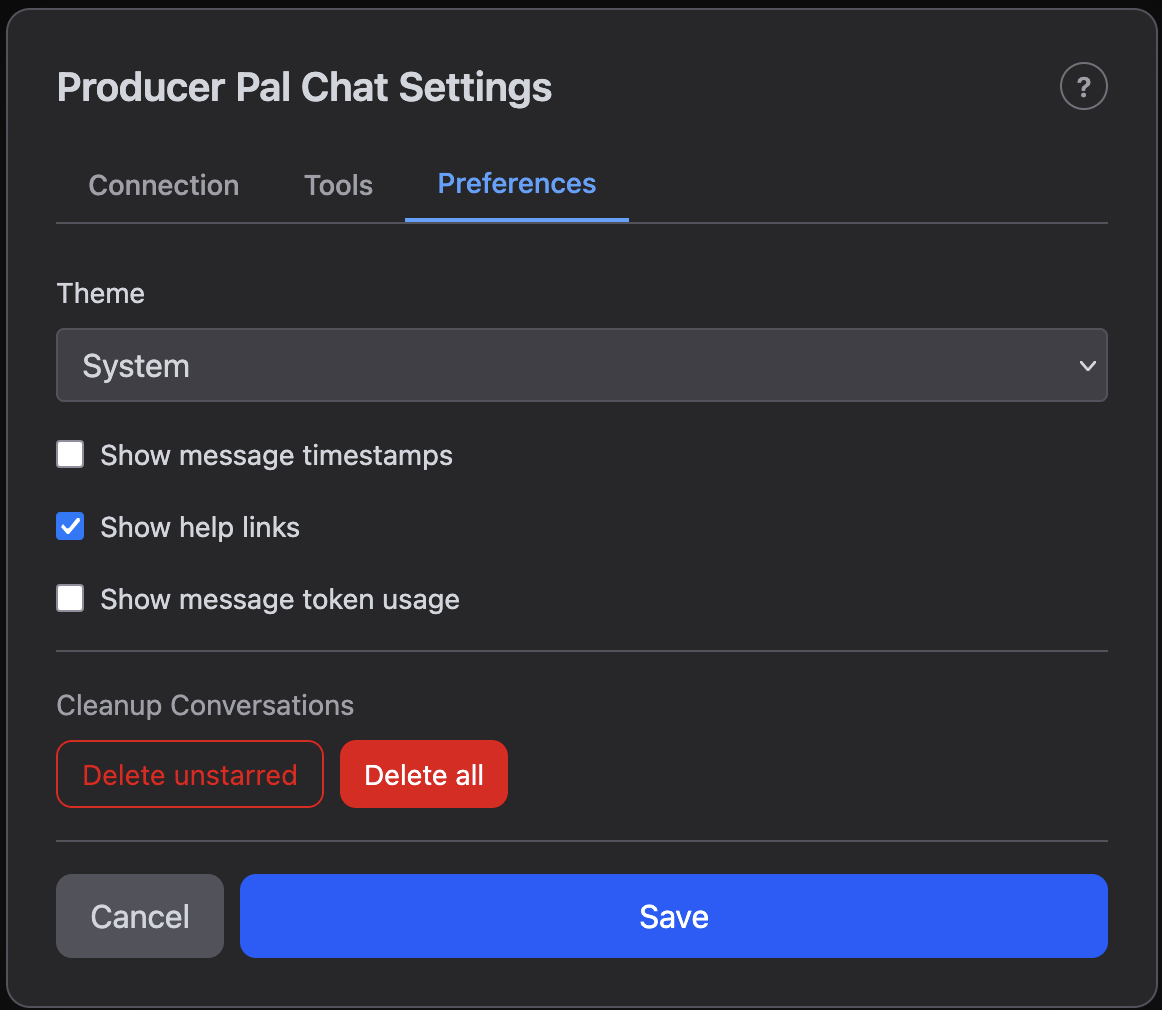 - **Theme** - Light, Dark, or System (follow your OS preference)
- **Show message timestamps** - Display the date and time next to each message
- **Show help links** - Show or hide the documentation help buttons (?) in the
header and settings
- **Show message token usage** - Display token counts after each AI response
(see [Token Usage](#token-usage) below)
- **Cleanup Conversations** - Bulk-delete conversations:
- **Delete unstarred** - Remove all non-bookmarked conversations
- **Delete all** - Remove every conversation
Both delete actions ask for confirmation and cannot be undone.
## Token Usage
[Tokens](https://en.wikipedia.org/wiki/Large_language_model#Tokenization) are
the units AI models use to process text — roughly ¾ of a word on average. Token
counts determine API costs and context limits, so tracking them helps you
understand how much each conversation consumes.
When "Show message token usage" is enabled in [Preferences](#preferences), each
AI response shows a token summary:
```
tokens: INPUT (NEW new) → OUTPUT (REASONING reasoning)
```
- **Input** - Total input tokens for this step. Input tokens accumulate across
messages because each request includes the full conversation history
- **New** - How many input tokens are new content compared to the previous step
(omitted on the first message)
- **Output** - Tokens generated by the AI
- **Reasoning** - Tokens spent on thinking/reasoning, which are a subset of the
output token count (only shown when non-zero)
On wider screens, the conversation history sidebar also shows per-conversation
token totals in the format `tokens: INPUT → OUTPUT`, representing cumulative
usage across the entire conversation.
- **Theme** - Light, Dark, or System (follow your OS preference)
- **Show message timestamps** - Display the date and time next to each message
- **Show help links** - Show or hide the documentation help buttons (?) in the
header and settings
- **Show message token usage** - Display token counts after each AI response
(see [Token Usage](#token-usage) below)
- **Cleanup Conversations** - Bulk-delete conversations:
- **Delete unstarred** - Remove all non-bookmarked conversations
- **Delete all** - Remove every conversation
Both delete actions ask for confirmation and cannot be undone.
## Token Usage
[Tokens](https://en.wikipedia.org/wiki/Large_language_model#Tokenization) are
the units AI models use to process text — roughly ¾ of a word on average. Token
counts determine API costs and context limits, so tracking them helps you
understand how much each conversation consumes.
When "Show message token usage" is enabled in [Preferences](#preferences), each
AI response shows a token summary:
```
tokens: INPUT (NEW new) → OUTPUT (REASONING reasoning)
```
- **Input** - Total input tokens for this step. Input tokens accumulate across
messages because each request includes the full conversation history
- **New** - How many input tokens are new content compared to the previous step
(omitted on the first message)
- **Output** - Tokens generated by the AI
- **Reasoning** - Tokens spent on thinking/reasoning, which are a subset of the
output token count (only shown when non-zero)
On wider screens, the conversation history sidebar also shows per-conversation
token totals in the format `tokens: INPUT → OUTPUT`, representing cumulative
usage across the entire conversation.